
Modules are containers; content is what students actually watch, read and take. Add it from a course's Modules tab by clicking Add Content on any module row.
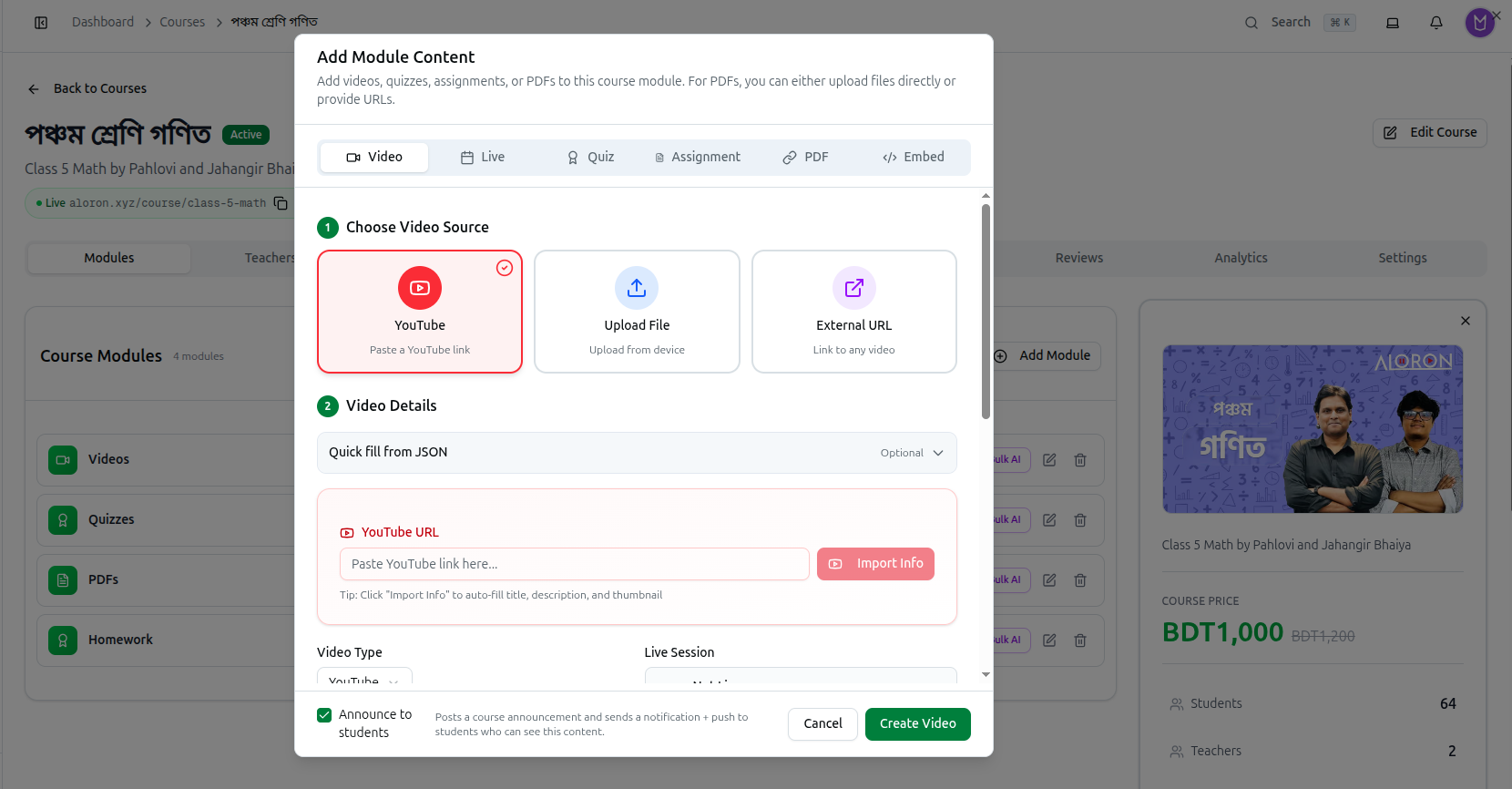
The dialog is headed Add Module Content — Add videos, quizzes, assignments, or PDFs to this course module. For PDFs, you can either upload files directly or provide URLs.
Six tabs across the top set what you are adding: Video, Live, Quiz, Assignment, PDF and Embed.
Announce to Students
One control sits at the bottom of every tab: the Announce to students checkbox — Posts a course announcement and sends a notification + push to students who can see this content.
It is ticked by default. Leave it on and every student on the course gets a notification the moment you save. If you are uploading a batch of ten videos, untick it for the first nine and leave it on the last, or your students get ten notifications in a row.
Adding a Video
The Video tab works in two numbered steps.
1 — Choose Video Source
| Source | Use it for |
|---|---|
| YouTube | Paste a YouTube link — the usual choice |
| Upload File | Upload from device — hosted by Course37 |
| External URL | Link to any video hosted elsewhere |
2 — Video Details
For a YouTube video, paste the address into YouTube URL and click Import Info. As the tip says, this auto-fills the title, description and thumbnail so you do not have to type them.
Beneath that, set the Video Type and optionally attach a Live Session.
Quick fill from JSON (Optional) is a collapsed section at the top of the details. Expand it to paste structured data and populate the fields at once — useful when migrating a batch of videos.
Click Create Video to save.
Adding a Live Session
The Live tab schedules an online class. Choose your provider — YouTube Live, Google Meet, Zoom or built-in streaming — then set the title and start and end times.
Providers must be connected first under Integrations.
Full guides: Live Class Options · Live Session Resources
Adding a Quiz or Exam
The Quiz tab does not create an exam — it connects an existing one. Build the exam first, then use the classification filters here to find it and attach it to this module.
This is why the same exam can appear in several courses without being rebuilt.
Full guide: Exam Resources
Adding an Assignment
The Assignment tab creates work students submit. Set the title and instructions, attach any question files, and give it a due date and total marks.
Full guide: Create and Grade Assignments
Adding a PDF
The PDF tab either uploads a file directly or points at one by URL, as the dialog's own description says. You can also tag it to your curriculum so it appears under the right subject and chapter in the resource library.
Full guide: PDF Resources
Adding an Embed
The Embed tab places third-party content inside the module — a slide deck, an interactive exercise, anything with an embed code.
Bulk AI
Next to Add Content on every module row sits Bulk AI. Where Add Content adds one item at a time, Bulk AI generates several at once — far quicker when you are filling an empty module.
Troubleshooting
| What you see | What it means |
|---|---|
| Students received a notification you did not intend | Announce to students is ticked by default. Untick it for bulk uploads |
| Import Info does not fill anything | The YouTube link is wrong or the video is private. Check it opens in a browser |
| Your exam is not in the Quiz tab | The tab only lists exams that already exist. Create it first, then connect it |
| A live provider is missing | It is not connected yet — set it up under Integrations |
| Content saved but students cannot see it | Check the course status is Active, not Draft or Archived |
Related: Build Course Modules · Managing Course Details