
Assignments are work students submit and you mark. They live inside a course module, alongside videos and quizzes.
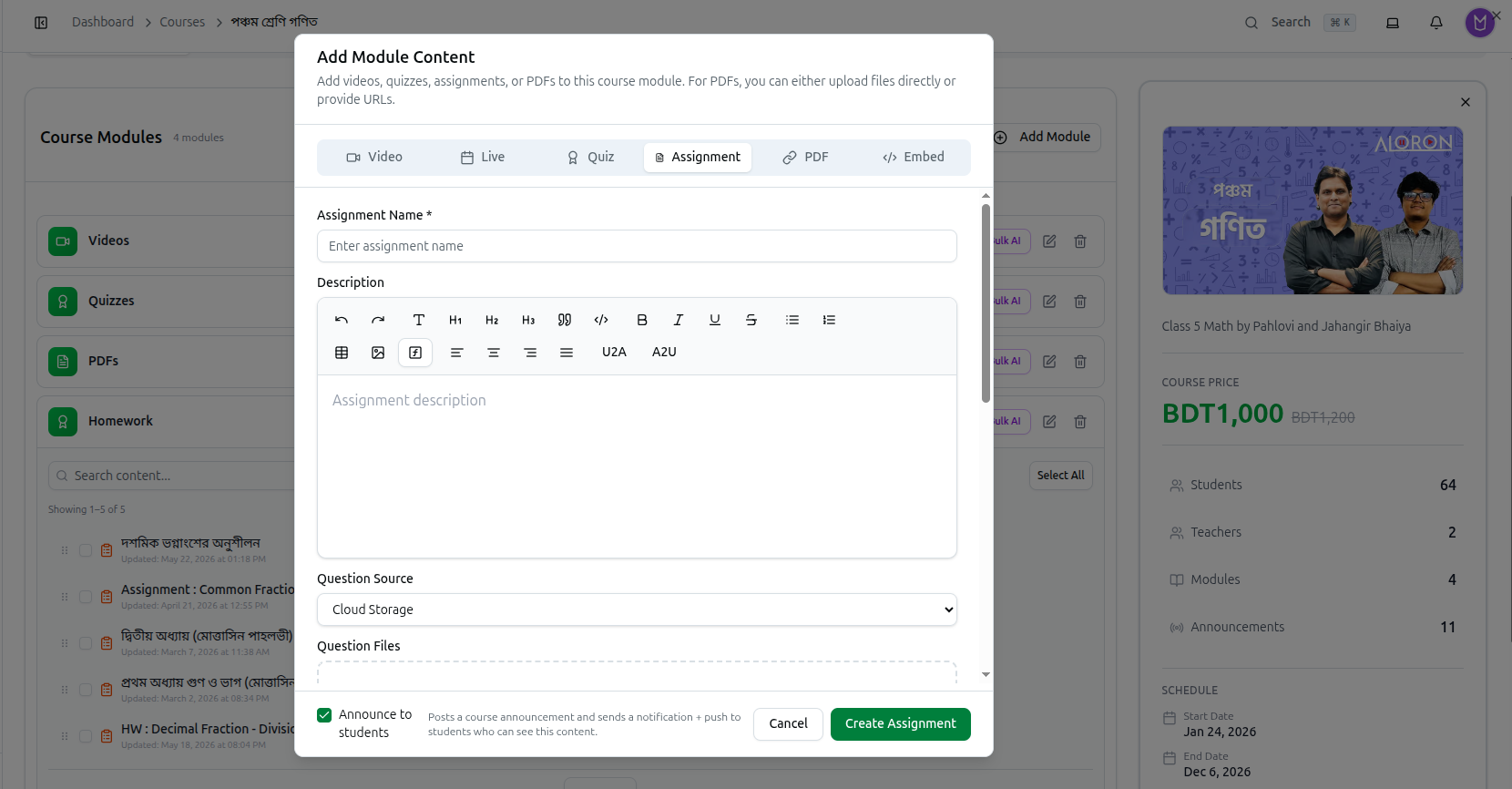
Creating an Assignment
Open the course, stay on Modules, and click Add Content on the module that should hold it. In the Add Module Content dialog, choose the Assignment tab.
Assignment Name (required) — Enter assignment name. Students see this, so make it identifiable at a glance: HW: Decimal Fractions — Chapter 4 beats Homework 3.
Description — a full rich-text editor for the instructions. The toolbar gives you headings, bold, italic, underline, strikethrough, quotes, code, bullet and numbered lists, tables, images, links and alignment.
Two buttons in that toolbar are U2A and A2U — Unicode and ANSI Bangla converters. If you paste Bangla from an older document and it appears as garbled Latin characters, these convert between the two encodings. That is what they are for.
Question Source — where the question paper comes from: Cloud Storage (upload to Course37) or Google Drive (link to a file you already host).
Question Files — the paper itself. Drop the file into the upload area, or supply the link if you chose Google Drive.
Due Date and Total Marks — the deadline and what the assignment is out of. Both feed the analytics on the course.
Announce to students sits at the bottom, ticked by default. Leave it on and everyone enrolled gets a notification and push message immediately — usually what you want for an assignment, unlike bulk video uploads.
Click Create Assignment.
Where Assignments Appear
Once created, the assignment shows in its module's content list with its Updated date, and it is counted in the course's ASSIGNMENTS analytics card — submissions received and average marks.
The whole organization's assignments are also listed together under Resources → Assignments, which is the better view when marking across several courses.
Full guide: Assignment Resources
Grading Submissions
Open the assignment to see who has submitted. For each student you can view what they sent, enter marks against the Total Marks you set, and add feedback.
The course Analytics tab tracks the aggregate — how many submissions arrived and the average mark — and every student's ASGN % column on the leaderboard reflects their completion.
Full guide: Course Analytics
Practical Advice
- Put assignments in their own module. A module named Homework keeps them together instead of scattered between videos, which is how the example course above is organised.
- Set Total Marks even when it feels arbitrary. Without it the analytics cannot compute an average, and the leaderboard's assignment component has nothing to score.
- Use the due date. It is what tells you which submissions are late.
Troubleshooting
| What you see | What it means |
|---|---|
| Bangla text pasted in as garbled characters | Use the U2A or A2U button to convert the encoding |
| Students were not notified | Announce to students was unticked before saving |
| The ASSIGNMENTS analytics card shows no average | Total Marks was left empty, so there is nothing to average |
| A student cannot open the question file | With Google Drive as the source, the file's sharing permissions must allow it. Cloud Storage avoids this |
| The assignment is not visible to students | Check the course status is Active, and that the module is not empty of published content |
Related: Add Content to Modules · Assignment Resources · Build Course Modules