
This guide picks up after a course already exists. If you have not created one yet, see Course Management for the Create Course dialog first.
Clicking a course from the Courses list — or View Details in its row menu — opens the course's own page. Everything about one course is managed from here.
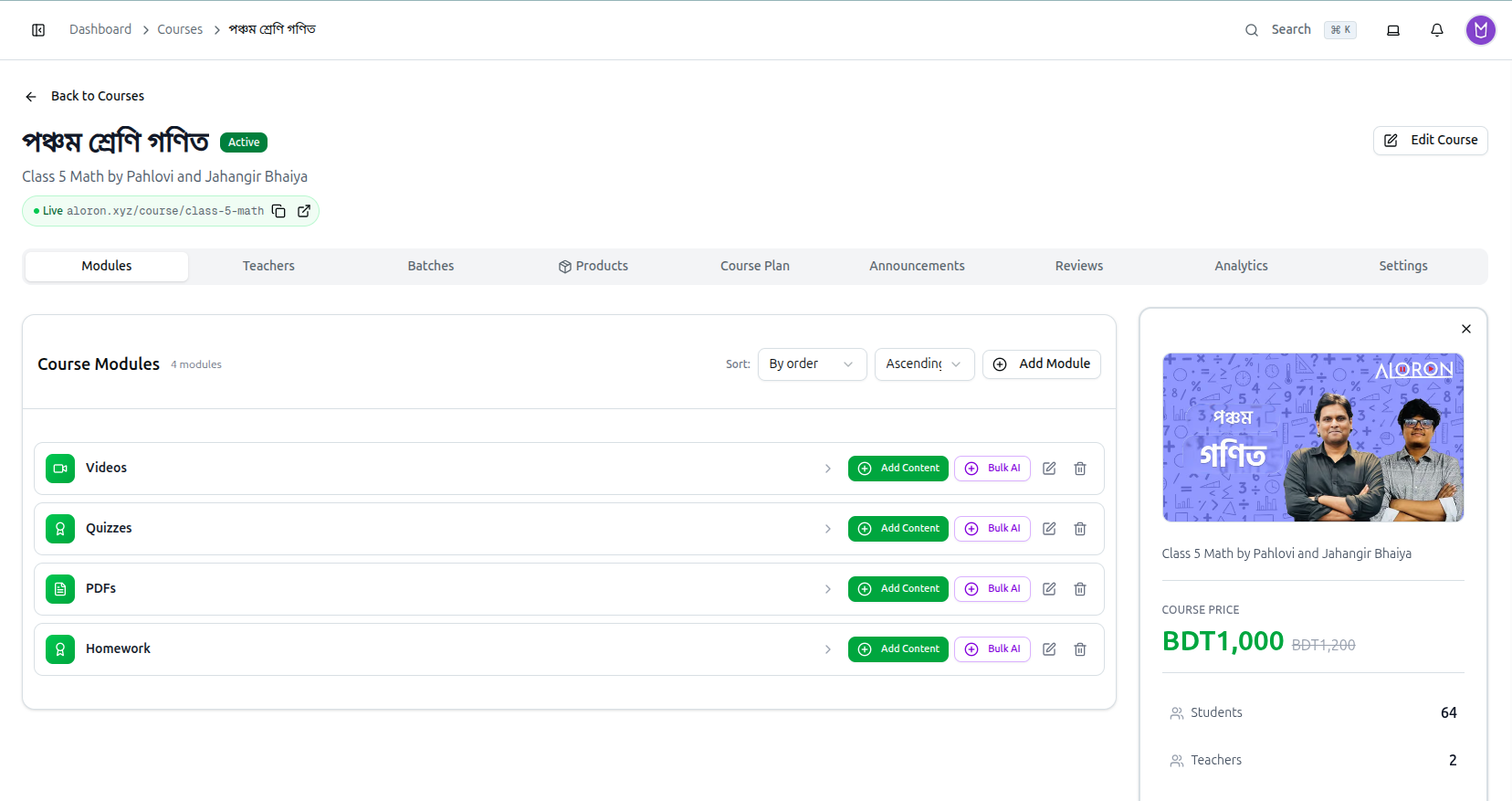
The Header
Back to Courses returns you to the list.
Below it sits the course name with its status badge (Active, Draft or Archived) and the one-line description.
The green Live pill shows the course's public web address — aloron.xyz/course/class-5-math. Two small icons let you copy the link to send to a student, or open it in a new tab to see the course exactly as they do.
Edit Course at the top right reopens the same form you used to create it, for changing the name, price, dates and highlights.
The Info Panel
The panel on the right summarises the course: its cover image, description, COURSE PRICE — with the original struck through when discounted — and live counts of Students and Teachers.
Close it with the × in its corner. It is worth closing on wide tabs such as Analytics, which then use the full page width.
The Tabs
| Tab | What you manage |
|---|---|
| Modules | The course content — lessons, videos, PDFs, quizzes |
| Teachers | Who teaches this course |
| Batches | Student intakes, each with its own dates |
| Products | Books or PDFs bundled with the course |
| Course Plan | The published plan students see |
| Announcements | Notices pushed to enrolled students |
| Community | Discussion channels for this course — see How to Set Up and Moderate Your Community |
| Reviews | Student ratings and feedback |
| Analytics | Enrolment, revenue and engagement for this course |
| Settings | Course-level options |
Self-paced courses show a different set. A self-paced course has no batches and no course plan — Modules, Batches and Course Plan are replaced by a single Curriculum tab, and it gains a Certificate tab for completion certificates. Everything else is the same.
Working with Modules
The Modules tab opens by default and is where most of your time goes.
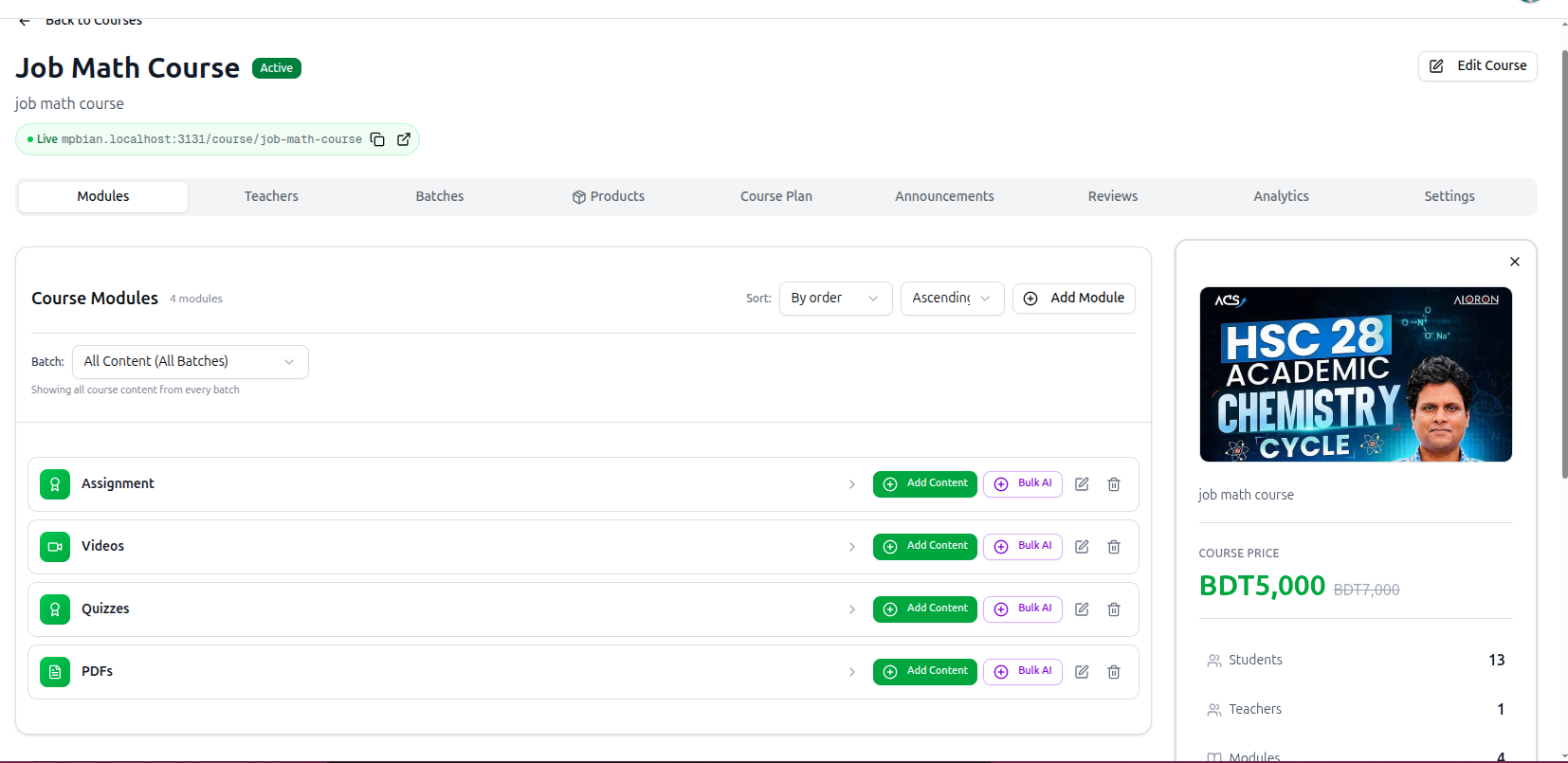
The heading shows the count — Course Modules, 4 modules. Two Sort dropdowns control the display: sort By order and set Ascending or descending.
Add Module creates a new one. Modules are containers, usually named for the kind of content they hold — Videos, Quizzes, PDFs, Homework — or for a week or unit of the syllabus.
Each module row carries four controls:
- The chevron
>expands the module to show its content. - Add Content adds a video, PDF, quiz, assignment, article, link, embed or live session.
- Bulk AI generates several items at once instead of adding them one by one.
- The pencil and trash icons rename or delete the module.
Deleting a module removes the content inside it. Expand it with the chevron first and check what it holds.
Full guides: Build Course Modules · Add Content to Modules
Jumping Straight to a Tab
Each tab has its own web address, so you can bookmark or share a direct link. The row menu on the Courses list uses this — Manage Modules, Manage Students and Manage Teachers all open this page with the right tab already selected.
Troubleshooting
| What you see | What it means |
|---|---|
| No Batches or Course Plan tab | The course is self-paced. Use the Curriculum tab instead |
| A Curriculum tab you did not expect | Same reason — this course is self-paced, not batch-based |
| The Analytics tab feels cramped | Close the info panel with its × to free the full width |
| The Live link 404s for students | The course status is Draft or Archived. Switch it to Active |
| A module shows no content | It is empty, or collapsed. Click the chevron to expand it |
Related: Course Management · Manage Course Batches · Manage Course Teachers