
A module is a container inside a course. Students see modules as the sections of your syllabus; you use them to keep content organised as a course grows.
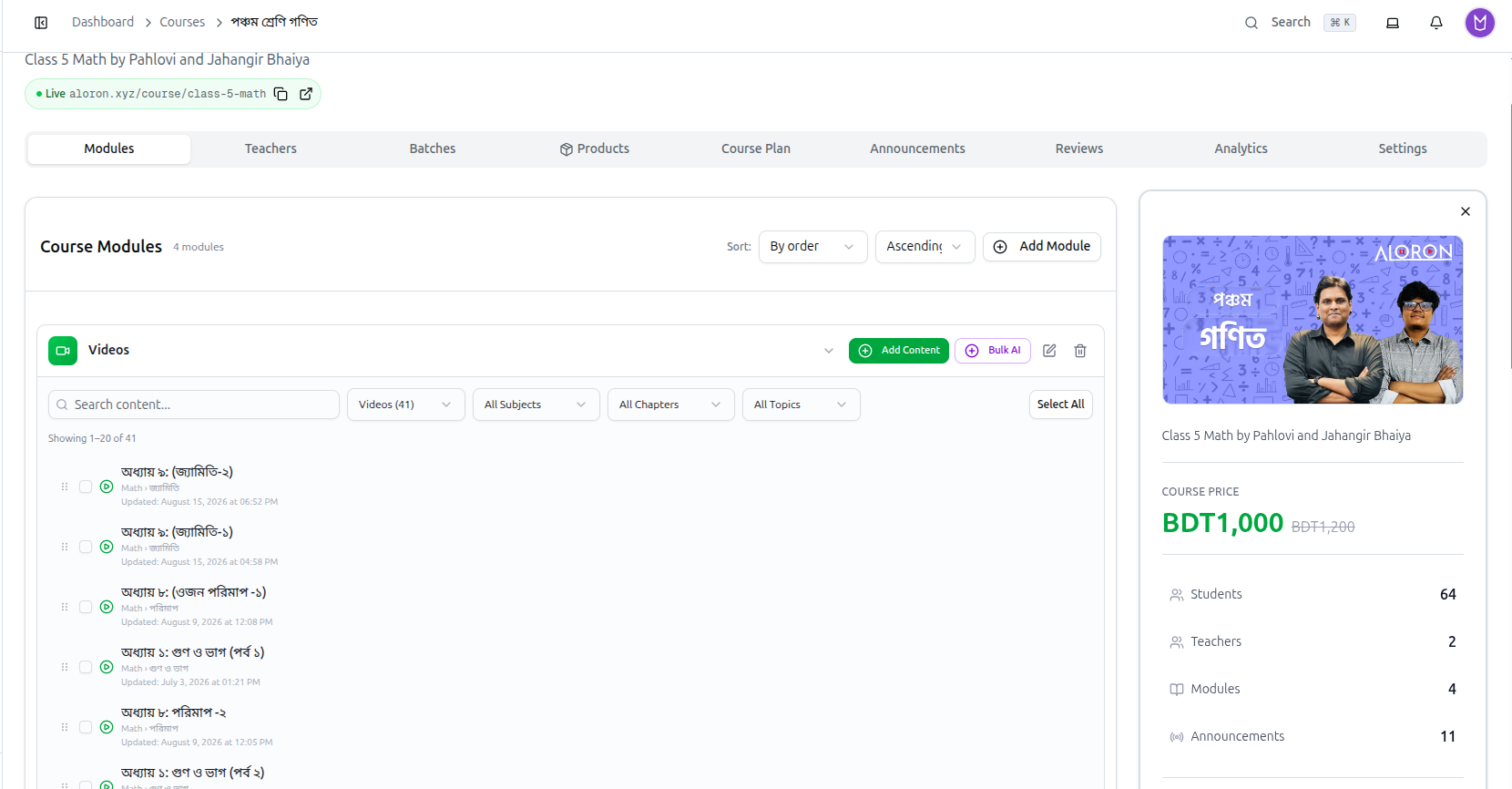
Open a course and stay on its Modules tab — it opens by default.
The Module List
The panel is headed Course Modules with a count beside it — 4 modules.
Two Sort dropdowns control the display: sort By order and choose Ascending or Descending.
Add Module at the top right creates a new one.
How to Name Your Modules
Two patterns both work — pick one and stay consistent:
- By content type — Videos, Quizzes, PDFs, Homework. Good when students dip in for one kind of material, as in the example above.
- By syllabus unit — Week 1, Chapter 3: Algebra. Good for courses meant to be worked through in order.
Mixing the two in one course makes it hard for students to know where to look.
Each Module Row
Every module carries four controls on the right:
| Control | What it does |
|---|---|
| Chevron | Expands the module to show its content |
| Add Content | Adds one item — video, live session, quiz, assignment, PDF or embed |
| Bulk AI | Generates several items at once |
| Pencil / Trash | Renames or deletes the module |
Deleting a module removes the content inside it. Expand it first and check what it holds.
Full guide: Add Content to Modules
Inside an Expanded Module
Click the chevron and the module opens into a working view of its content — this is where you spend most of your time on a large course.
Finding an item
- Search content... — free-text search on the title.
- A type filter showing how many there are, such as Videos (41).
- All Subjects, All Chapters and All Topics — narrow by your curriculum. These only help if your content is tagged to the hierarchy.
Long modules paginate, with a count reading Showing 1–20 of 41.
Reading a content row
Each row shows a type icon, the item's title, a curriculum breadcrumb such as Math › জ্যামিতি, and when it was last Updated.
The breadcrumb is the quickest way to spot content filed under the wrong chapter.
Reordering
The drag handle on the left of each row moves items within the module. This is the order students see, so drag your first lesson to the top.
Working in bulk
Each row has a checkbox, and Select All takes everything currently listed. Filter or search first — Select All takes the whole filtered list, not just the rows on screen.
The Info Panel
The panel on the right tracks the course as you build: Students, Teachers, Modules and Announcements counts, alongside the price and cover image.
Watch the Announcements number while adding content — every item saved with Announce to students ticked adds one, and notifies every enrolled student.
Troubleshooting
| What you see | What it means |
|---|---|
| A module will not expand | It is empty. Use Add Content to put something in it |
| Content is in the wrong order for students | Drag rows by their handle inside the module |
| An item is missing from the list | A filter is applied, or it is on another page — check Showing 1–20 of 41 |
| The curriculum filters return nothing | That content is not tagged to a subject, chapter or topic |
| A row's breadcrumb looks wrong | It is tagged to the wrong chapter. Open the item and correct it |
| Students got many notifications at once | Each item saved with Announce to students sends one. Untick it for bulk uploads |
Related: Add Content to Modules · Managing Course Details