
Live classes are content, but each one also carries its own live session record — a page tracking who showed up, what was said, and what happened after it ended. This guide covers finding that record from both directions.
From the Module Content List
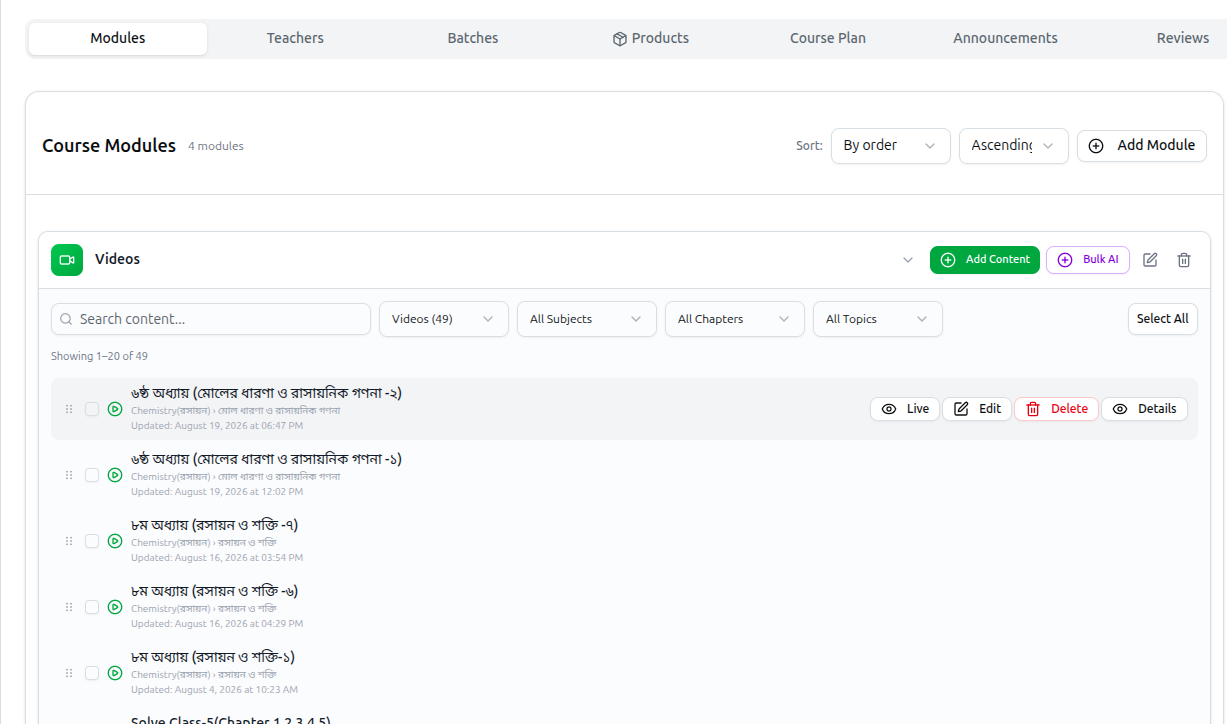
Once a live class ends, its recording appears in the module's content list as a normal video row. If that video came from a live session, an extra Live button appears alongside Edit, Delete and Details.
The Live button is the bridge between a recording and its session. Click it and you go straight to that session's participant list, chat log and poll results — not just the video. This only appears on videos that originated from an actual live class; a video uploaded directly has no session to link to.
The Live Session Page
Clicking Live — or View from a Live Sessions list — opens the session's own page.
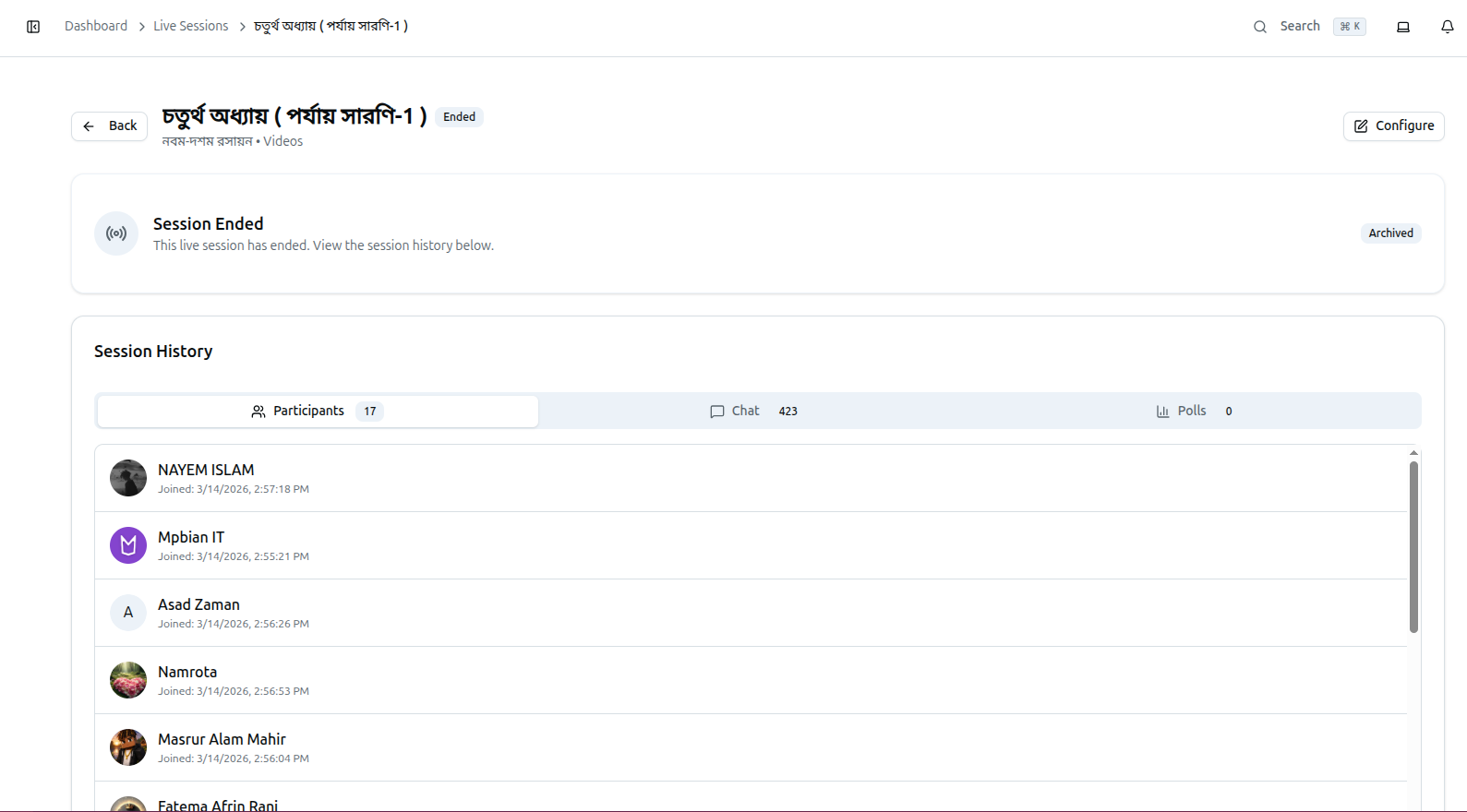
The header shows the session title, curriculum path (নবম-দশম রসায়ন • Videos), and a status badge — Ended once it is over. Back returns to where you came from, and Configure opens the session's settings.
While a session is still running, this page is the control room for the live stream itself.
Once a session has ended, it shows Session Ended — This live session has ended. View the session history below — with an Archived marker, and the page becomes a permanent record: Session History.
Session History
Three tabs, each with a live count in its badge:
| Tab | What it shows |
|---|---|
| Participants | Everyone who joined, with name, avatar and the exact time they joined |
| Chat | Every message sent during the session |
| Polls | Any in-session polls, with results and the time each closed |
In the example above: 17 participants, 423 chat messages, 0 polls. Each participant row shows Joined: [date, time] — useful for checking who was actually present versus who the attendance marker recorded, if Count Attendance was enabled when the class was scheduled.
This history is permanent, not a live view. It does not update after the session ends — it is the record of what happened, kept for as long as the session exists. Use it to settle a dispute about who attended, or to review what was asked in chat.
Why This Matters
- Attendance verification — cross-check the automatic attendance marking against the actual join list.
- Reviewing engagement — a session with 17 participants and 423 chat messages was clearly interactive; one with a handful of one-word messages was not.
- Following up on questions — chat often contains questions a teacher did not get to live. The log lets you answer them afterward.
Troubleshooting
| What you see | What it means |
|---|---|
| No Live button on a video row | That video was not generated from a live session — it was uploaded directly |
| The session page still looks live after the class ended | Status has not updated yet, or the session was never explicitly ended. Check Configure |
| Participants count looks low | It counts people who actually joined, which can differ from your enrolled student count |
| Polls shows 0 | No polls were run during that session — not an error |
| Chat is empty | Either nobody used it, or the session predates chat logging |
Related: Live Class Resources · Access Live Class Options · Managing Attendance