
A question set is one variant of the same exam. Create sets A, B, C and D and students sitting side by side get the same questions in different orders — the standard defence against copying in a hall.
Each set carries its own answer key, which is what OMR scanning marks against.
Open an exam and click its Question Sets tab.
Sets Are MCQ Only
Before anything else: question sets only handle multiple-choice questions. The dialog states it twice — Recommended count is MCQ only (written questions are excluded by default) and, in the summary, CQ and SQ questions are skipped for question sets.
That is a property of the format: shuffling and machine-marking work on lettered options, not on written answers. Written sections are marked by hand regardless of set.
Creating a Set
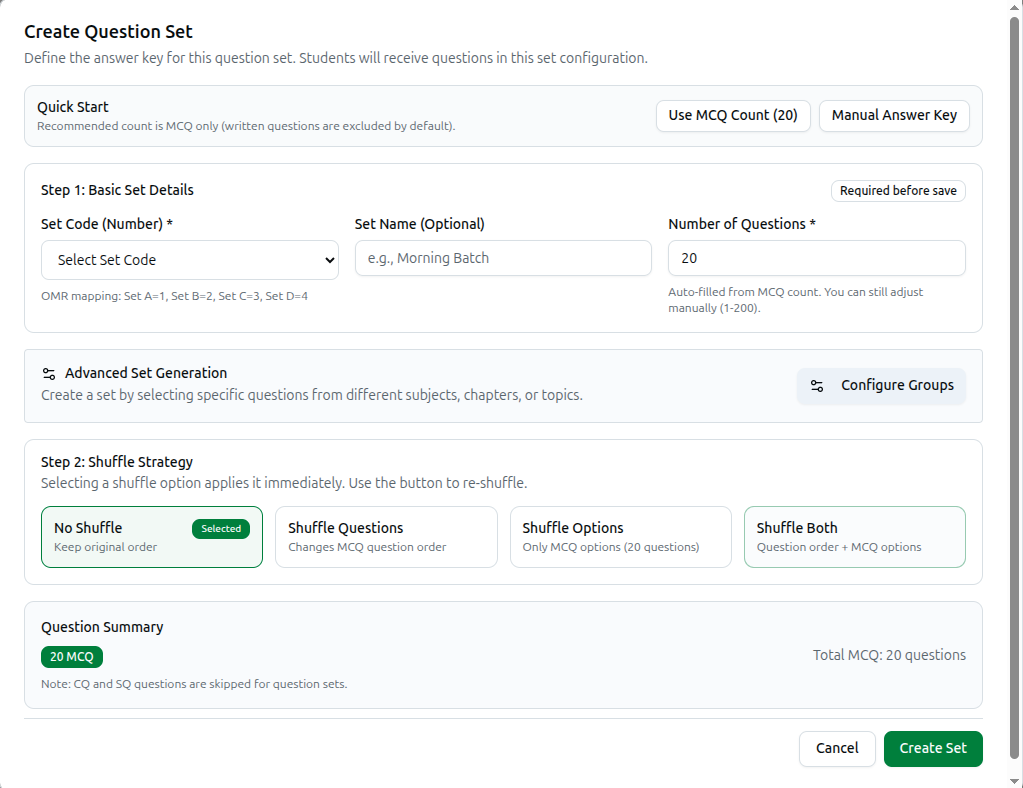
Create Question Set — Define the answer key for this question set. Students will receive questions in this set configuration.
Quick Start gives you two shortcuts: Use MCQ Count (20) fills the question count from the exam's actual MCQ total, and Manual Answer Key switches to entering answers by hand.
Step 1: Basic Set Details (marked Required before save)
| Field | Notes |
|---|---|
| Set Code (Number) (required) | Which variant this is |
| Set Name (optional) | A label for your own use — e.g., Morning Batch |
| Number of Questions (required) | Auto-filled from MCQ count. You can still adjust manually (1-200) |
The set code is what OMR reads. The hint spells out the mapping: Set A=1, Set B=2, Set C=3, Set D=4. Students shade this number on their answer sheet, and it is how the scanner knows which answer key to mark against. Get it wrong and a whole batch is marked against the wrong key.
Advanced Set Generation — Create a set by selecting specific questions from different subjects, chapters, or topics. Configure Groups builds a set to a blueprint — five from one chapter, three from another — rather than taking questions as they come.
Step 2: Shuffle Strategy — Selecting a shuffle option applies it immediately. Use the button to re-shuffle.
| Option | What changes |
|---|---|
| No Shuffle | Keep original order |
| Shuffle Questions | Changes MCQ question order |
| Shuffle Options | Only MCQ options |
| Shuffle Both | Question order + MCQ options |
Shuffle Both is the usual choice for a hall. Shuffle Options alone is useful when question order matters — a paper that builds in difficulty — but you still want the answer letters to differ.
The Question Summary at the bottom confirms what you are about to create, such as 20 MCQ.
Click Create Set.
Manual Answer Key Entry
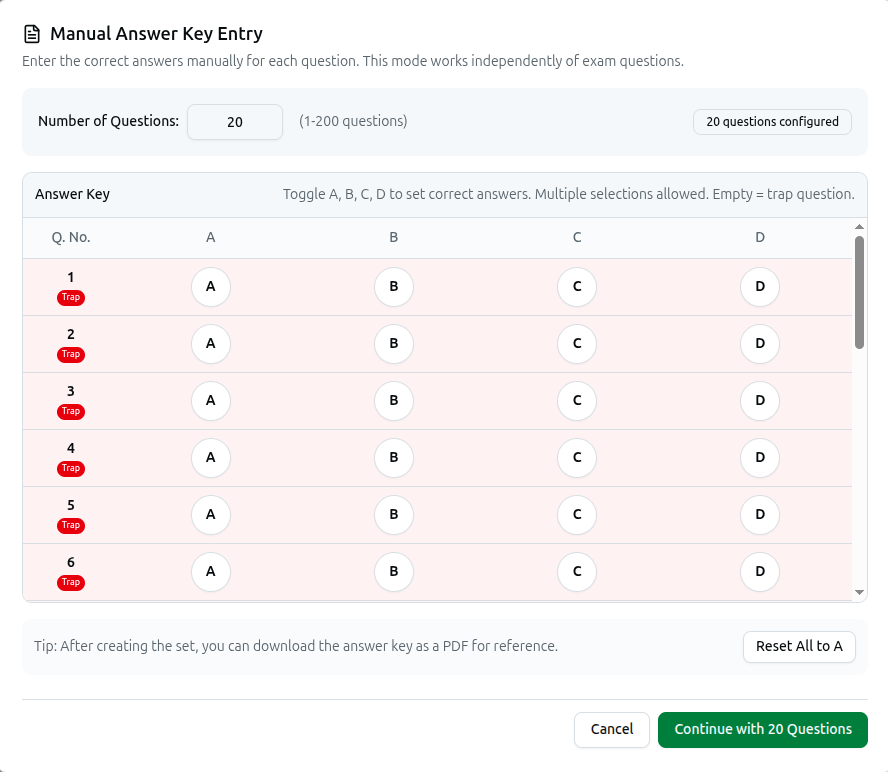
Manual Answer Key Entry — Enter the correct answers manually for each question. This mode works independently of exam questions.
That last phrase matters. This mode does not need the questions to exist in Course37 at all. If a paper was typed in Word and printed, you can still scan and mark the sheets by entering just the answer key here. It is the bridge between paper-only exams and automatic marking.
Set Number of Questions (1-200), and the panel confirms N questions configured.
The grid then gives every question a row with A, B, C, D toggles: Toggle A, B, C, D to set correct answers. Multiple selections allowed. Empty = trap question.
Three behaviours to know:
- One letter selected — the normal case.
- Several letters selected — all count as correct, for questions with more than one right answer.
- No letter selected — the row is marked Trap. A trap question has no correct answer, so nobody scores it. Every row starts as a trap until you set an answer, which is why a fresh grid is covered in red Trap badges.
Reset All to A clears the grid back to a single default — useful for starting over, not as a real answer key.
Click Continue with N Questions when done.
Tip shown in the dialog: after creating the set, you can download the answer key as a PDF for reference — worth keeping alongside the printed papers.
A Practical Sequence
- Build the exam's MCQ questions.
- Create Set A with No Shuffle — your master copy.
- Create Set B, C and D with Shuffle Both.
- Download each answer key as PDF.
- Print the papers with matching OMR sheets.
- After the exam, scan the sheets — the set number each student shaded routes them to the right key.
- Turn on OMR Scan Completed so students can see their results.
Full guides: OMR Processing & CSV Upload · Printable Question Papers · OMR Templates
Troubleshooting
| What you see | What it means |
|---|---|
| Every row shows a red Trap badge | No answers set yet. Each row is a trap until you toggle a letter |
| Written questions are missing from the set | Expected — CQ and SQ are skipped. Question sets are MCQ only |
| A whole batch marked wrong | The Set Code likely does not match what students shaded. A=1, B=2, C=3, D=4 |
| The question count does not match your paper | It auto-fills from the MCQ count. Adjust it manually, up to 200 |
| Shuffle did not seem to apply | It applies immediately on selection — use the button again to re-shuffle |
| Students see the same order despite sets | They are all on the same set, or the set uses No Shuffle |
Related: Managing Exams, Questions and Results · Exam Settings