
For a paper exam you need something to hand out. The Question Paper Generator turns an exam into a printable paper, branded with your organization's details.
Getting There
From an exam's Question Sets tab:

Question Sets for Offline Exams — Create multiple question sets with different answer keys for offline exams. Each set has the same questions but with rearranged order or options.
Four buttons:
| Button | What it does |
|---|---|
| Export Default Paper | Print the exam as-is, no shuffling |
| Set Generator | Build shuffled variants automatically |
| Manual Entry | Enter an answer key by hand |
| Create Set | Configure one set in full |
Export Default Paper is the shortcut worth knowing. You do not need question sets to print a paper. If everyone sits the same version, export the default and skip set creation entirely. Sets only earn their keep when you need A/B/C/D variants to stop copying.
With no sets yet, the tab reads No question sets created yet. Create your first set to generate printable question papers for offline exams.
The Generator
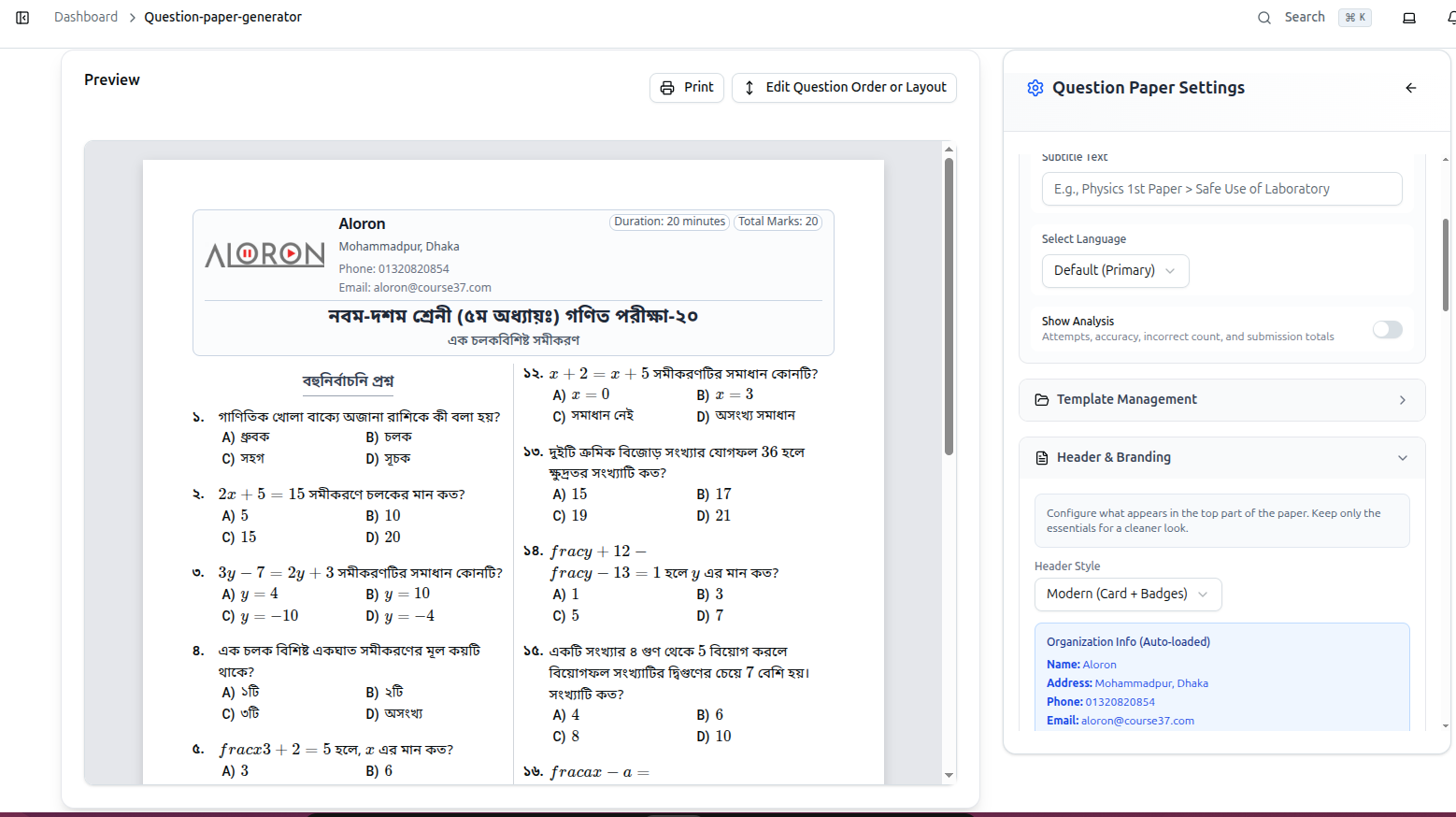
The page splits in two: a live Preview of the printed page on the left, Question Paper Settings on the right. Every change redraws the preview, so you are always looking at what will come out of the printer.
Print sends it to your printer or a PDF. Edit Question Order or Layout rearranges the paper before printing.
Settings
Subtitle Text — a line under the exam title, E.g., Physics 1st Paper > Safe Use of Laboratory. Useful for naming the paper or chapter.
Select Language — which language version to print, when questions are translated. Default (Primary) uses the language they were written in.
Show Analysis — adds attempts, accuracy, incorrect count, and submission totals to the paper.
Leave Show Analysis off for student papers. It prints how many people got each question right — useful on a teacher's review copy, unhelpful on the paper a student sits.
Template Management stores paper layouts so you do not reconfigure for every exam.
Header & Branding
Configure what appears in the top part of the paper. Keep only the essentials for a cleaner look.
Header Style chooses the arrangement, such as Modern (Card + Badges) — the style in the preview above, with a bordered header and Duration and Total Marks shown as badges.
Organization Info (Auto-loaded) fills in your Name, Address, Phone and Email automatically from your organization profile — no retyping per paper. If any of it is wrong or missing, fix it under Organization → Basic Info and every future paper picks up the change.
Your logo comes from the same place.
Full guide: Configure Basic Info
Printing Practice
- Set the Subtitle and confirm the header shows what you want.
- Check Show Analysis is off.
- Use Edit Question Order or Layout if the two-column flow breaks awkwardly across pages.
- Print to PDF first and read it at full size before committing a class set to paper.
- For multiple sets, generate the paper for each set code and keep the matching answer key PDF with it.
Troubleshooting
| What you see | What it means |
|---|---|
| Wrong organization name, phone or logo | These auto-load from your profile. Correct them under Organization → Basic Info |
| Analysis figures printed on student papers | Turn Show Analysis off |
| Questions break awkwardly across pages | Use Edit Question Order or Layout |
| The paper prints in the wrong language | Change Select Language; Default (Primary) uses the original |
| Nothing to print | Sets are optional — use Export Default Paper |
Maths formulas print as raw text such as fracx3 |
The LaTeX did not render. See the note below |
A formula that prints as
frac...instead of a fraction means the LaTeX lost its backslash. Open that question and re-enter the formula with the ƒ button in the editor, writing\frac{1}{2}rather thanfrac{1}{2}. Always check a printed preview of a maths paper before running off copies.
Related: Question Sets & Answer Keys · OMR Templates · OMR Processing