
Typing questions one at a time does not scale. Course37 gives you three faster routes, all reached from an exam's Questions tab via Create Many Questions.
| Route | Use when |
|---|---|
| Paste JSON or @ text | You already have questions in a file or document |
| AI Question Generator | You want Course37 to write them for you |
| LLM Prompt Generator | You want to use ChatGPT, Claude or Gemini yourself |
Route 1 — Bulk Paste
Click Create Many Questions to open Create Multiple Questions — Add multiple questions at once. Use @ format or paste a JSON array.
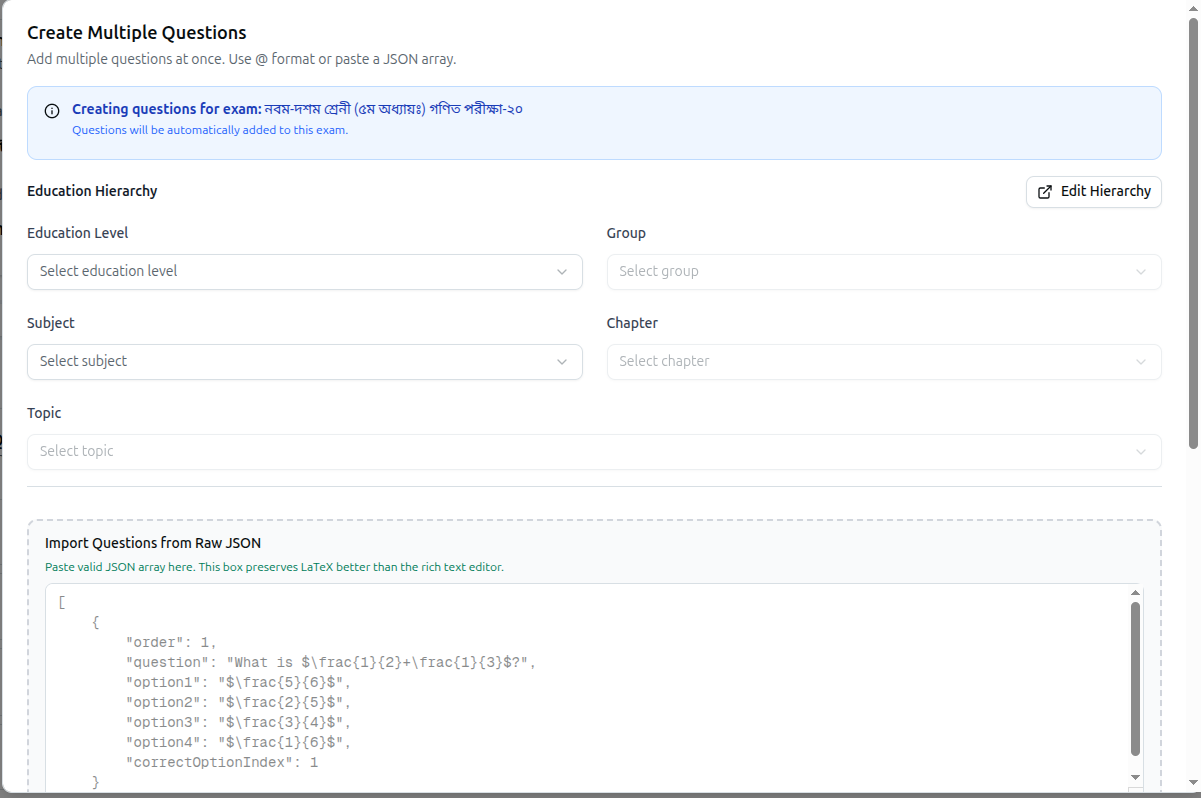
A blue banner confirms where they will land: Creating questions for exam: [exam name] — Questions will be automatically added to this exam.
Set the Hierarchy First
Choose Education Level, Group, Subject, Chapter and Topic at the top, and every question in the batch inherits them. Edit Hierarchy jumps to the curriculum if something is missing.
Doing this once for the batch is far quicker than tagging fifty questions individually — and untagged questions are hard to find later.
Option A — Raw JSON
Import Questions from Raw JSON takes a JSON array. Each entry looks like:
{
  "order": 1,
  "question": "What is $\\frac{1}{2}+\\frac{1}{3}$?",
  "option1": "$\\frac{5}{6}$",
  "option2": "$\\frac{2}{5}$",
  "option3": "$\\frac{3}{4}$",
  "option4": "$\\frac{1}{6}$",
  "correctOptionIndex": 1
}
Click Parse JSON Questions to load them.
Use JSON when your questions contain maths. The box says it directly: this box preserves LaTeX better than the rich text editor. Paste
$\frac{1}{2}$here and it survives; through the rich editor it may not.
Note correctOptionIndex — the answer is given by position, so check it lines up before parsing a large batch.
Option B — @ Text Format
The text box below takes a lighter format: the question, then @ before the correct answer, one question per line, numbered.
Quicker to type by hand than JSON, and fine when there is no maths involved.
Route 2 — AI Question Generator
AI Question Generator — Generate questions automatically using AI. Select a question type and provide a topic.
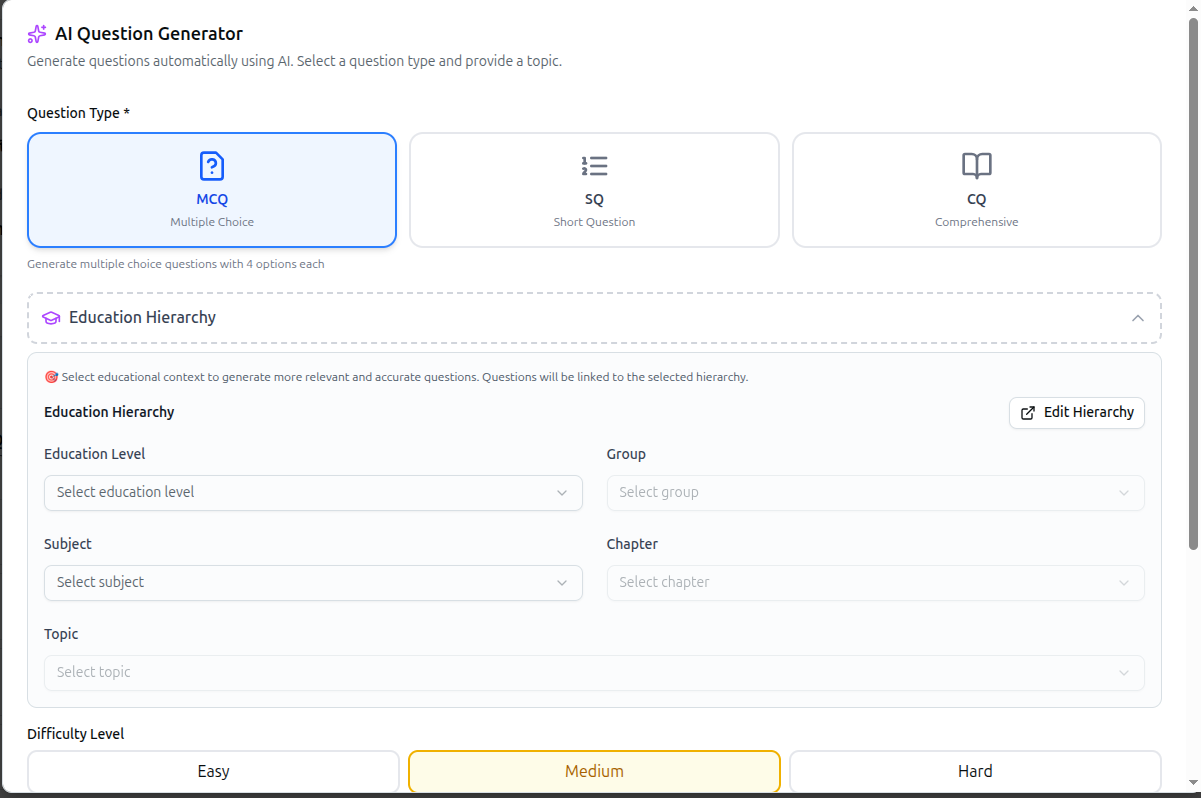
- Question Type — MCQ, SQ or CQ. Choosing MCQ notes Generate multiple choice questions with 4 options each.
- Education Hierarchy — Select educational context to generate more relevant and accurate questions. Questions will be linked to the selected hierarchy. Filling this in is what stops the AI producing generic textbook questions.
- Difficulty Level — Easy, Medium or Hard.
This route needs an AI provider connected under Integrations.
Full guide: Configure AI and LLM Integrations
Route 3 — LLM Prompt Generator
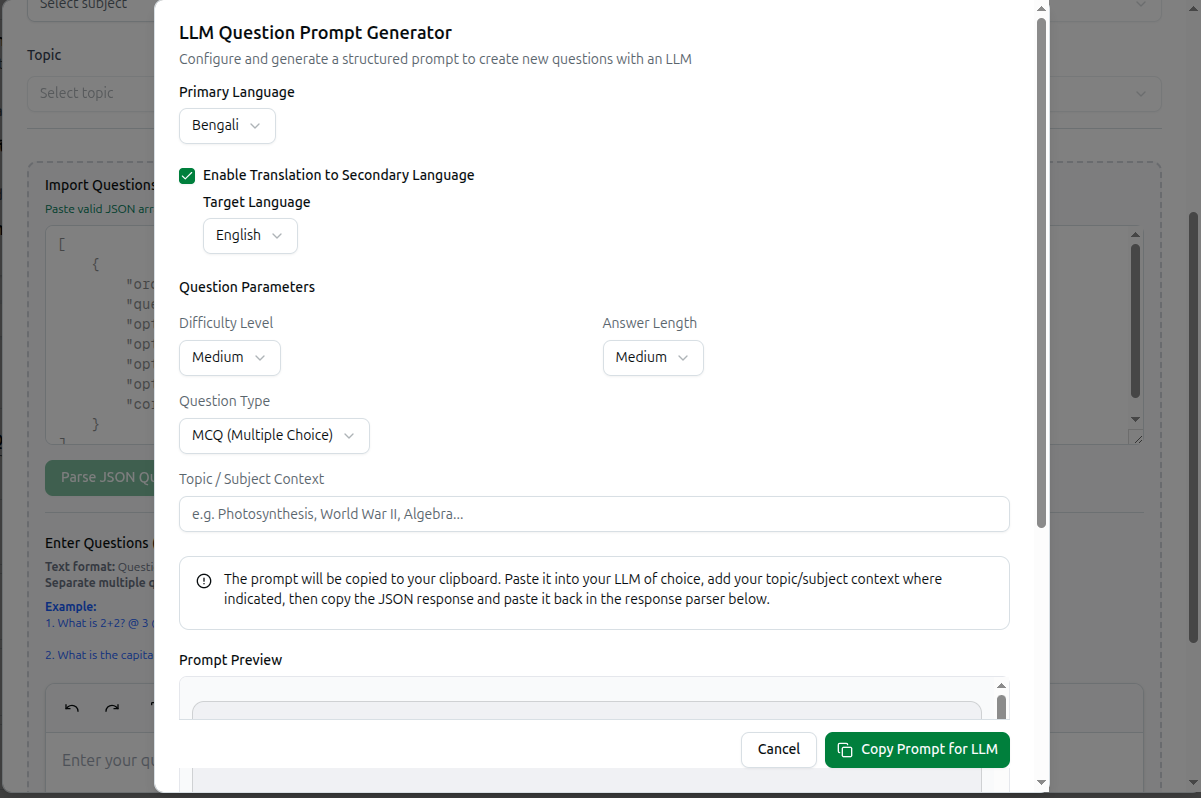
If you would rather use your own ChatGPT, Claude or Gemini account, LLM Question Prompt Generator builds the prompt for you — Configure and generate a structured prompt to create new questions with an LLM.
Language
- Primary Language — the language to write in, such as Bengali.
- Enable Translation to Secondary Language — tick it and pick a Target Language such as English, and the questions come back bilingual.
Question Parameters
- Difficulty Level — Easy, Medium or Hard.
- Answer Length — how long written answers should be.
- Question Type — MCQ, SQ or CQ.
- Topic / Subject Context — e.g. Photosynthesis, World War II, Algebra...
Prompt Preview shows exactly what will be sent, so you can read it before using it.
The Round Trip
The dialog spells out the workflow:
The prompt will be copied to your clipboard. Paste it into your LLM of choice, add your topic/subject context where indicated, then copy the JSON response and paste it back in the response parser below.
So: Copy Prompt for LLM → paste into your AI tool → copy its JSON reply → paste that into the JSON box in Create Multiple Questions → Parse JSON Questions.
The prompt is written to make the model reply in exactly the JSON shape the parser expects, which is why this works at all.
Which Route to Choose
- Questions already written → paste as JSON, especially with maths.
- Want them generated, minimum effort → AI Question Generator.
- Prefer your own AI account, or need bilingual output → LLM Prompt Generator.
Whichever you use, check what comes back. Generated questions are a draft: verify the correct answer is genuinely correct before students sit the paper.
Troubleshooting
| What you see | What it means |
|---|---|
| LaTeX renders as plain text | Paste through the Raw JSON box, not the rich text editor |
| Parsing fails | The JSON is malformed — check for a missing bracket or comma |
| The wrong option is marked correct | correctOptionIndex is positional. Confirm it matches the intended option |
| Generated questions are generic | Fill in the Education Hierarchy and Topic / Subject Context |
| The AI generator is unavailable | No AI provider is connected under Integrations |
| Imported questions are untagged | The hierarchy was not set before importing. Set it at the top of the dialog |
Related: Manual Question Creation · Question Bank · AI Integrations