
Mobile App Features
Course37 delivers a mobile experience in two ways:
- The built-in Progressive Web App (PWA) — free, automatic, no setup required. Students install it straight from their mobile browser, and it's what the rest of this guide covers.
- A custom native Android app — a paid, optional service. Course37 builds and publishes a dedicated Android app for your organization on the Google Play Store, for a one-time $100 setup fee. This isn't self-service: contact the Course37 team to request it, and they handle the Play Store submission on your behalf. See Custom Native Android App below.
Step 1: How Students Install the PWA
- The student opens your organization's website on their mobile browser (for example,
yourorg.course37.comor your custom domain) - The browser detects the web app manifest and prompts "Add to Home Screen"
- On Android (Chrome/Firefox), the student taps the prompt or goes to the browser menu and selects "Install app" or "Add to Home Screen"
- On iPhone/iPad (Safari), the student taps the Share icon and then selects "Add to Home Screen"
- The app icon appears on the student's home screen with your organization's name and logo
- When opened from the home screen, the app launches in standalone mode (no browser address bar) with portrait-primary orientation
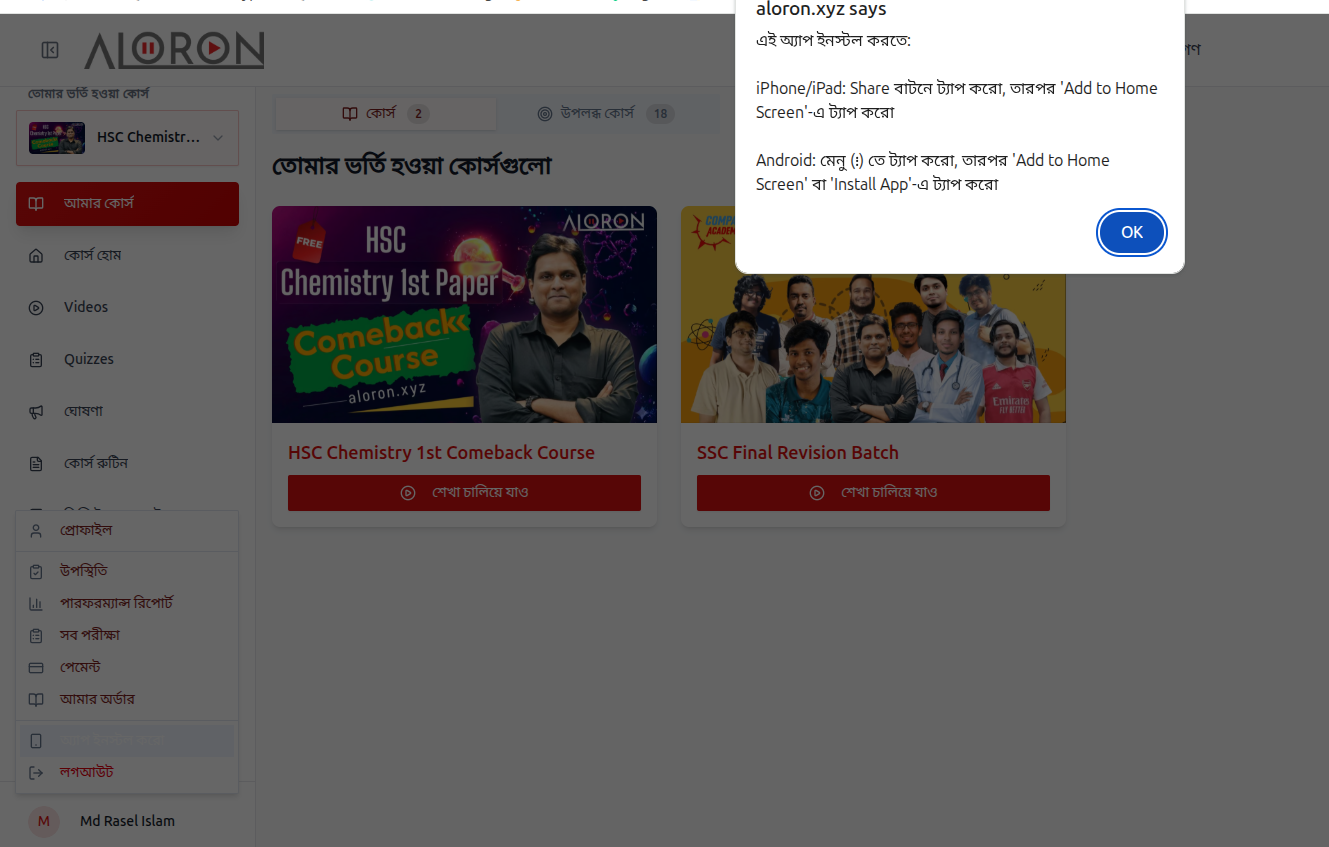
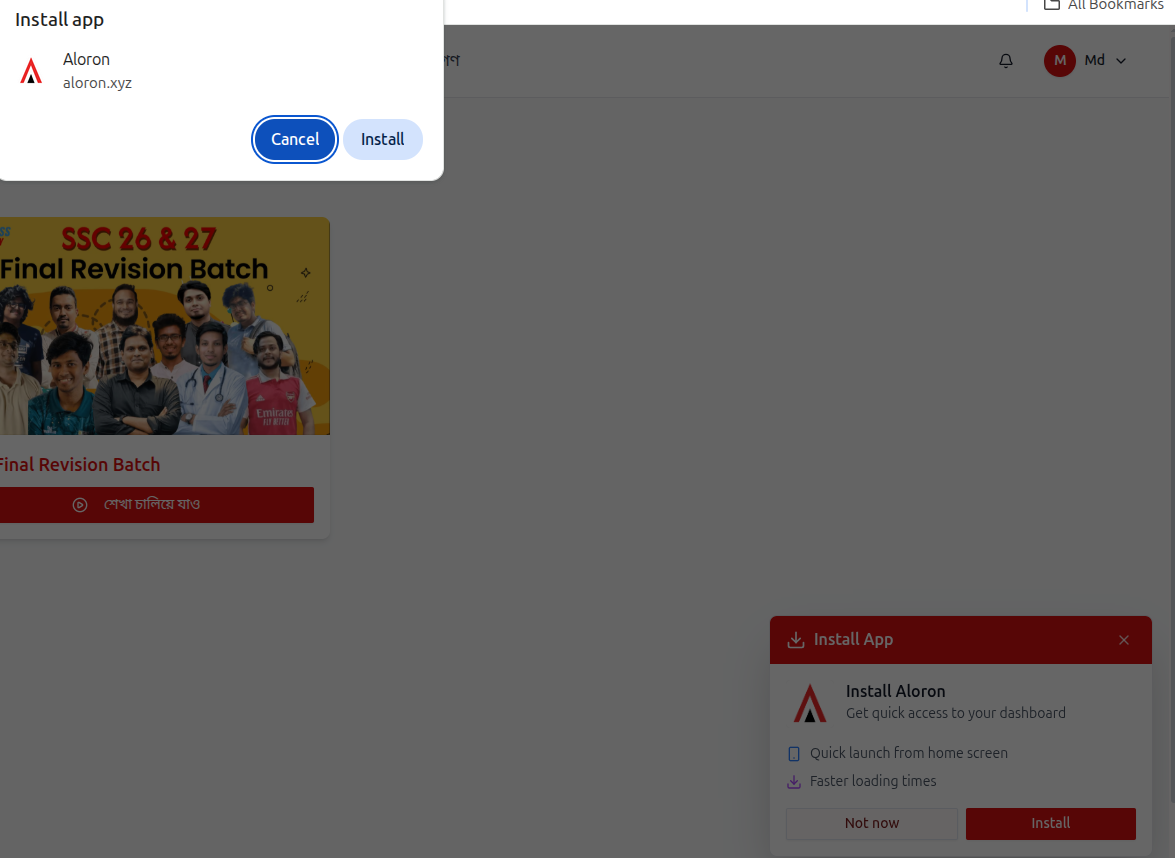
On desktop Chrome and Android, the browser's own address-bar Install app dialog can trigger the same install directly (showing your organization's name and domain). The platform also shows its own proactive Install App banner card in the corner of the page — "Get quick access to your dashboard", listing Quick launch from home screen and Faster loading times — with Install and Not now buttons, as an extra nudge alongside the browser's native prompt.
The PWA manifest is generated dynamically per organization. It uses your organization's name, logo, primary color (as theme color), and background color. The start URL is always
/dashboard. App categories are set to education and productivity.
Step 2: What Students Can Access on Mobile
Once installed, the student's mobile dashboard contains the following pages:
| Feature | Dashboard Path | Description |
|---|---|---|
| My Courses | /dashboard |
View all enrolled courses with progress |
| Course Content | /dashboard/[courseSlug] |
Watch videos, read PDFs, view modules |
| Exams | /dashboard/exam |
Take MCQ, CQ, and short answer exams |
| Grades | /dashboard/grades |
View exam scores and results |
| Performance | /dashboard/performance |
View personal performance card and analytics |
| Live Classes | /dashboard/live |
Join live streaming sessions |
| Attendance | /dashboard/attendance |
View attendance records |
| Assignments | /dashboard/my-submissions |
View and submit assignments |
| Study Hours | /dashboard/study-hours |
Track time spent studying |
| Payments | /dashboard/payments |
Pay course fees and view payment history |
| My Books | /dashboard/my-books |
Access purchased digital books |
| Order Books | /dashboard/order-books |
Browse and order physical books |

On narrow screens the navigation collapses into a bottom bar with Courses, More (for the rest of the pages in the table above), and a floating AI-assistant button.
Step 3: PWA Shortcuts
The manifest provides two quick-launch shortcuts that appear when a student long-presses the app icon:
- My Courses — Opens
/dashboarddirectly - Profile — Opens
/profiledirectly

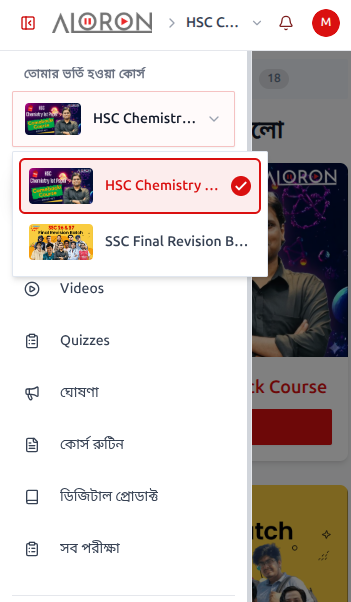
Switching between courses inside the app: tapping the course name in the top header opens a dropdown listing every enrolled course (with a checkmark on the current one), plus a sidebar of course-scoped pages — Videos, Quizzes, announcements, the course routine, digital products, and all exams for that course.
Step 4: Offline Behavior
When a student loses internet connectivity and navigates to a page that is not cached, the app displays an offline fallback page with the following message:
- Title: "You're Offline"
- Message: "It looks like you've lost your internet connection. Some features may not be available until you're back online."
- A "Try Again" button to reload the page
- A list of what the student can still access:
- Previously viewed course content
- Cached pages
- Downloaded materials
When the connection is restored, the page automatically detects online status and redirects the student back to /dashboard.
Step 5: Organization Branding on Mobile
The PWA automatically inherits your organization's branding:
| Branding Element | Source |
|---|---|
| App name | Organization name |
| Short name | First 12 characters of organization name |
| App icon | Organization logo (served as 192x192 and 512x512 PNG) |
| Theme color | Organization's primary color (defaults to #009E61) |
| Background color | Organization's background color (defaults to #ffffff) |
| App description | Organization description |
| Splash screen | Generated automatically from icon, name, and background color |

Step 6: Device and Browser Support
| Platform | Browser | PWA Install Support |
|---|---|---|
| Android | Chrome | Full support |
| Android | Firefox | Full support |
| iPhone / iPad | Safari | Full support (Add to Home Screen) |
| iPhone / iPad | Chrome | Limited (iOS restricts PWA to Safari only) |
The viewport is configured with
device-width, initial scale of 1, maximum scale of 5, user-scalable enabled, and viewport-fit set tocover.
Custom Native Android App
If the PWA isn't enough — you want your organization on the Google Play Store with its own listing, icon, and app-store presence — Course37 offers this as a paid add-on rather than a self-service dashboard feature.
- Contact the Course37 team to request it; there's no button for this inside the admin dashboard itself.
- One-time setup fee: $100. This covers building and publishing a dedicated native Android app for your organization.
- Course37 handles the Play Store submission — you don't need a Google Play Developer account or publishing experience yourself.
- This is separate from, and in addition to, the free PWA described above — most organizations only ever need the PWA; the native app is for those who specifically want a Play Store presence.
Reach out to your Course37 contact for current pricing and to start the request — pricing and terms are set by Course37, not configured anywhere in this dashboard.
Related Articles
- How to Add Videos — Video content management
- How to Manage Exams — Exam creation and results
- How to Use QR Attendance — QR-based attendance on mobile
- Live Class Resources — Live class setup