
Open Curriculum from the left sidebar, under Content. The page is headed Education Curriculum — Manage your organization's educational structure.
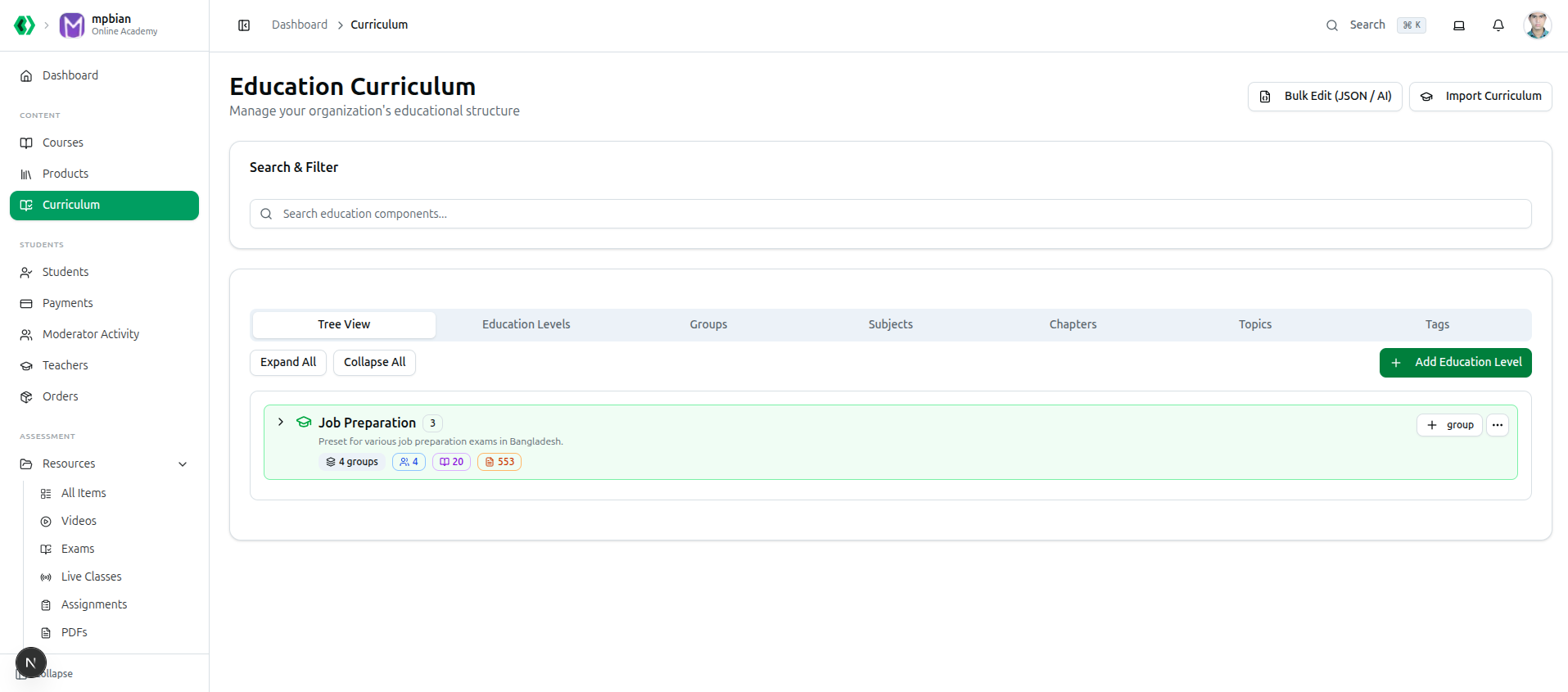
Two buttons sit at the top right:
- Import Curriculum — start from a ready-made preset instead of typing everything.
- Bulk Edit (JSON / AI) — edit your whole structure as text. Disabled until you have at least one education level, so it is greyed out on a brand-new organization.
Below them, Search & Filter — Search education components... — filters the list you are currently looking at by name.
The Seven Tabs
| Tab | What it holds |
|---|---|
| Tree View | Your whole hierarchy as a nested, expandable tree |
| Education Levels | The top of the hierarchy — HSC, Job Preparation |
| Groups | Streams within a level — Science, BCS |
| Subjects | Subjects within a group — Physics, English Literature |
| Chapters | Chapters within a subject |
| Topics | The finest level — individual lessons |
| Tags | Labels for filtering courses and books |
The five middle tabs are flat tables of the same data the tree shows. Use the tree to see structure; use the tables for bulk work.
Starting Fast: Import a Preset
If you teach a standard curriculum, do not type it out. Click Import Curriculum to open Import Education Preset and pick one — Bangladeshi presets such as Job Preparation bring hundreds of chapters and topics already structured.
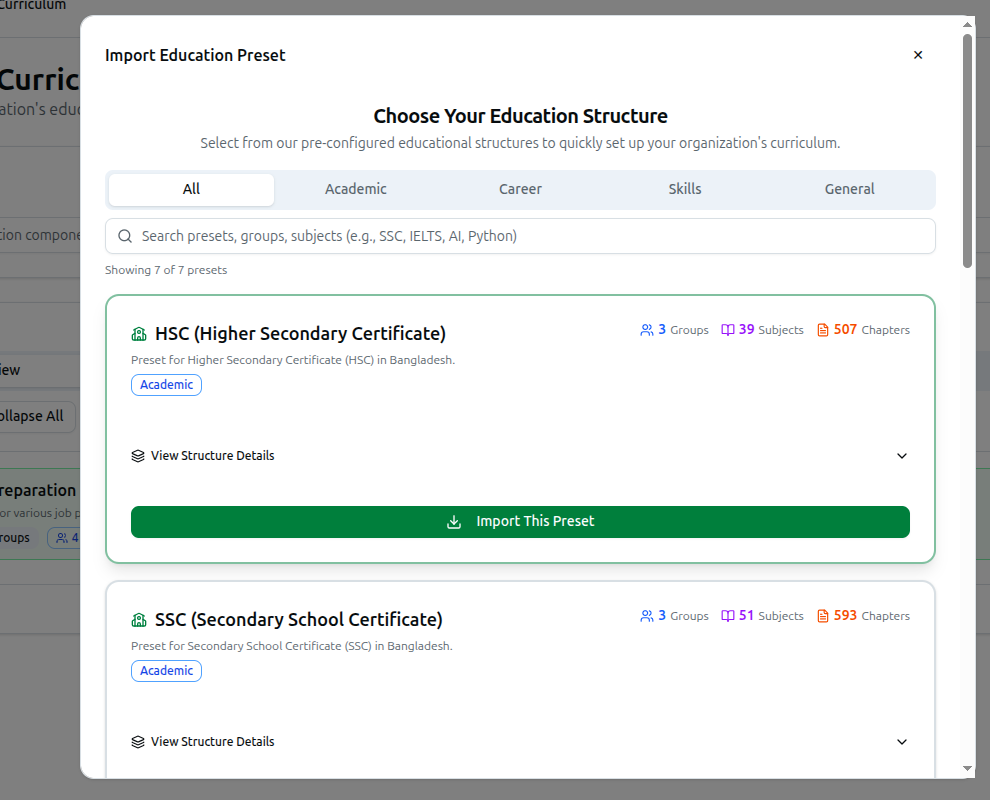
You land back on Tree View with everything in place, ready to edit.
Working in Tree View
The tree is the fastest way to build and check structure.
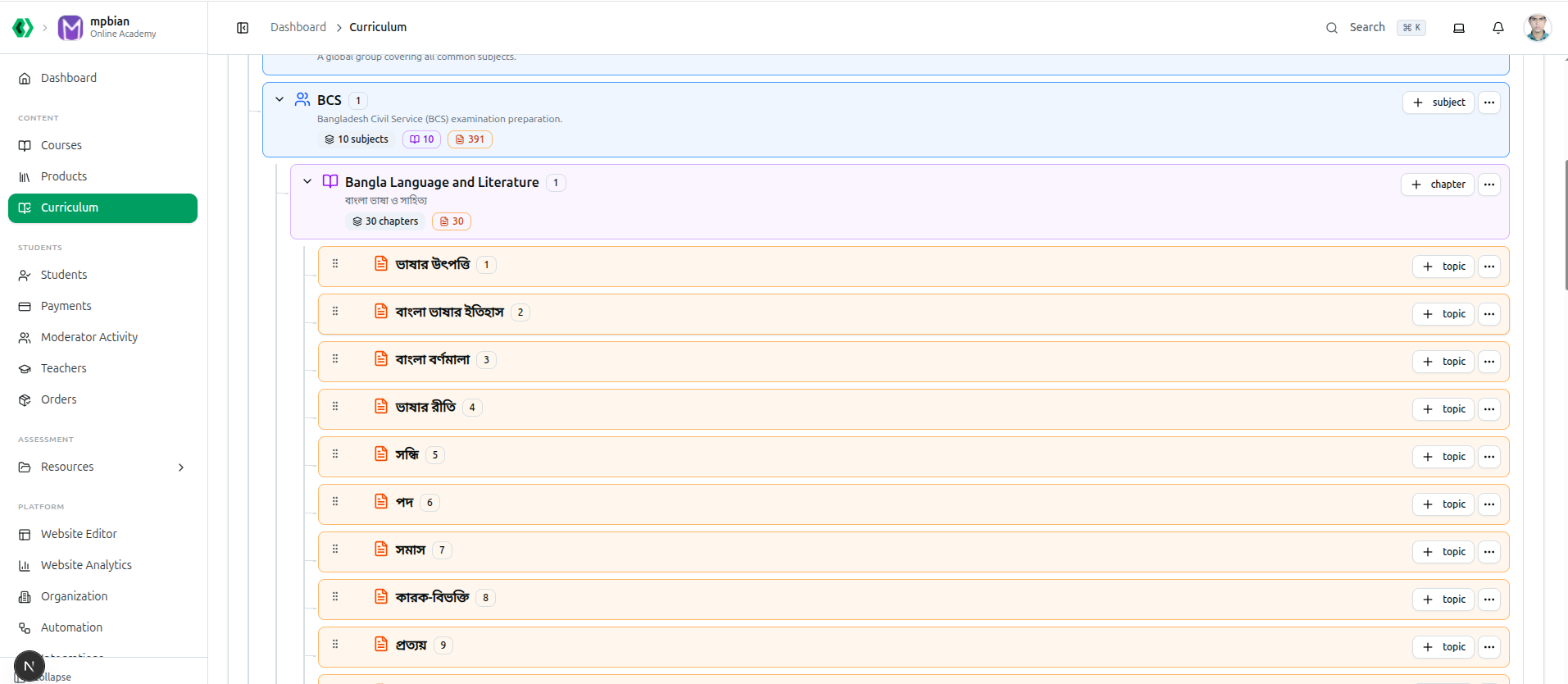
- Expand All and Collapse All open or close every branch at once; the chevron
>opens one. - + Add Education Level creates a new top-level branch.
- Add a child in place. Each row carries a small + group button (or + subject, + chapter, + topic, depending on depth). The new item's parent is filled in for you.
- The three-dot menu (
...) on any row offers Edit and Delete. - Counts on each row show what it contains — groups, subjects, chapters and topics — so you can spot a level that is emptier than it should be.
- Drag chapters to reorder them. Within a subject, drag a chapter into a new position and the order saves immediately, confirmed by Chapter order updated. This is the sequence students see.
Before you create anything the tree reads No education structure found.
Working in the Table Tabs
Each of the five component tabs shows a count in its heading — Subjects (42) — and a table with Name, Description, Order, Created and an actions menu.
Filters narrow the list to one parent:
- Groups — filter by All Education Levels
- Chapters — filter by All Subjects
- Topics — filter by All Chapters
Bulk delete works on Subjects, Chapters and Topics. Tick the rows you want, or the header checkbox to take everything shown, then click Delete Selected. A badge shows N selected. When it finishes you get Successfully deleted N subject(s) — or, if some could not be removed, Deleted N subject(s). M error(s) occurred.
Bulk delete acts on everything currently visible, so filter and search first. The header checkbox selects the filtered list, not just the rows on screen.
Deleting Safely
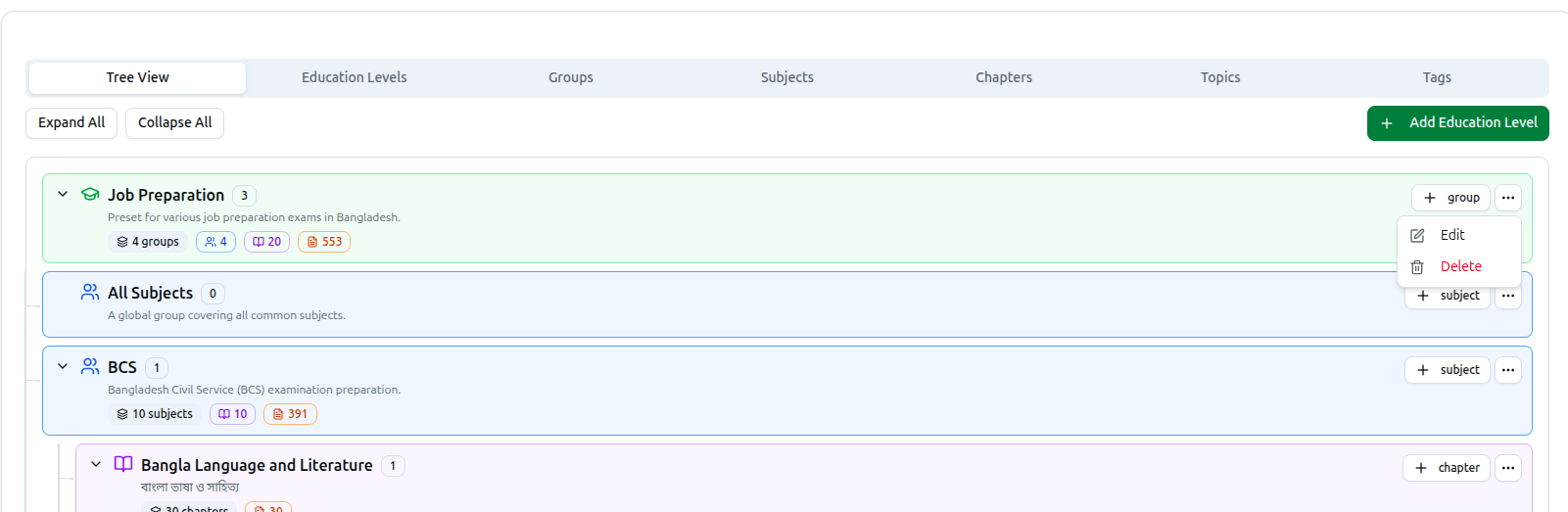
Deleting anything with children opens a confirmation that first loads and lists what depends on it, so you can see the damage before agreeing.
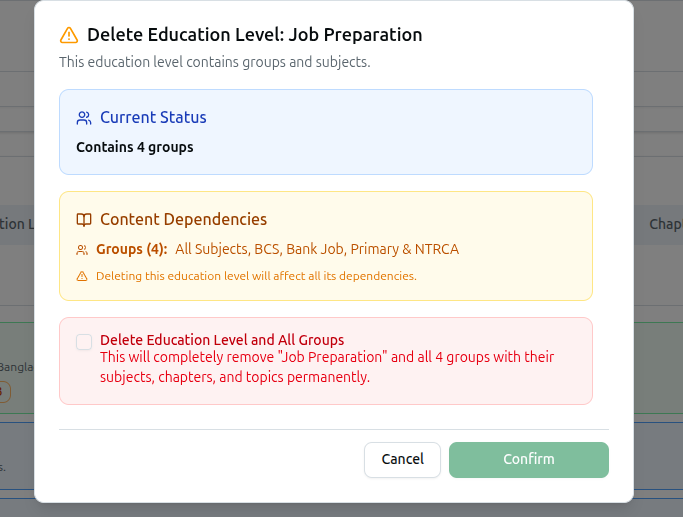
Deletion cascades down the hierarchy:
| Delete this | And you also lose |
|---|---|
| Education Level | Its groups |
| Group | Its subjects |
| Subject | Its chapters, and their topics |
| Chapter | Its topics |
| Topic | Just the topic |
Course37 tells you exactly what went, in the form Physics and 12 chapter(s) with their topics deleted successfully.
Questions are tagged to subjects, chapters and topics. Deleting a chapter that questions point at affects those questions and any exam built from them — check before removing a populated branch.
Bulk Edit (JSON / AI)
Bulk Edit (JSON / AI) opens your structure as editable text. It is the quickest way to rename many items, add a batch of chapters, or restructure a level without clicking through dialogs one at a time.
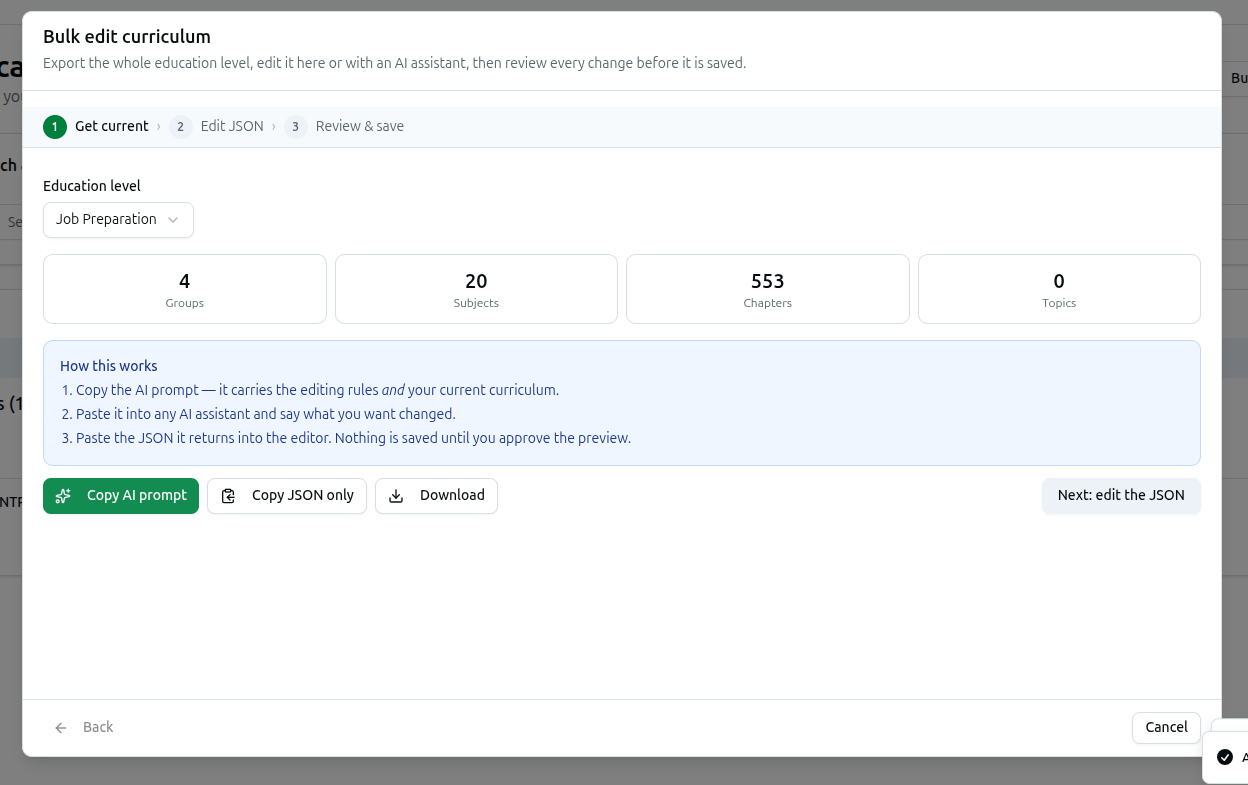
Use it when you have a lot to change at once; use the tree for one-off edits.
Tags
The Tags tab is different from the rest — tags are not part of the Level → Topic hierarchy. They are free labels you attach to courses and books for filtering, such as HSC 27 or Free.
The table shows each tag's colour dot and name, its Description, how many Courses and Books use it, and when it was Created. Tags can be created and edited from here.
Troubleshooting
| What you see | What it means |
|---|---|
| Bulk Edit (JSON / AI) is greyed out | You have no education levels yet. Create one, or import a preset |
| No education structure found | Nothing built yet — this is the normal starting state |
| No subjects selected | You clicked Delete Selected without ticking any rows |
| Deleted N subject(s). M error(s) occurred | Some could not be removed, usually because something still depends on them |
| A subject shows No groups | It was created without a parent group and will not appear correctly in the tree. Edit it and assign one |
| Chapters appear in the wrong order for students | Drag them into order in Tree View — the saved order is what students see |
Full Guides
Tree View · Education Levels · Groups · Subjects · Chapters · Hierarchy Philosophy