
Tree View is the visual control centre for your curriculum. It shows the whole Level → Group → Subject → Chapter → Topic structure nested together, and lets you build, reorder and prune it without leaving the page.
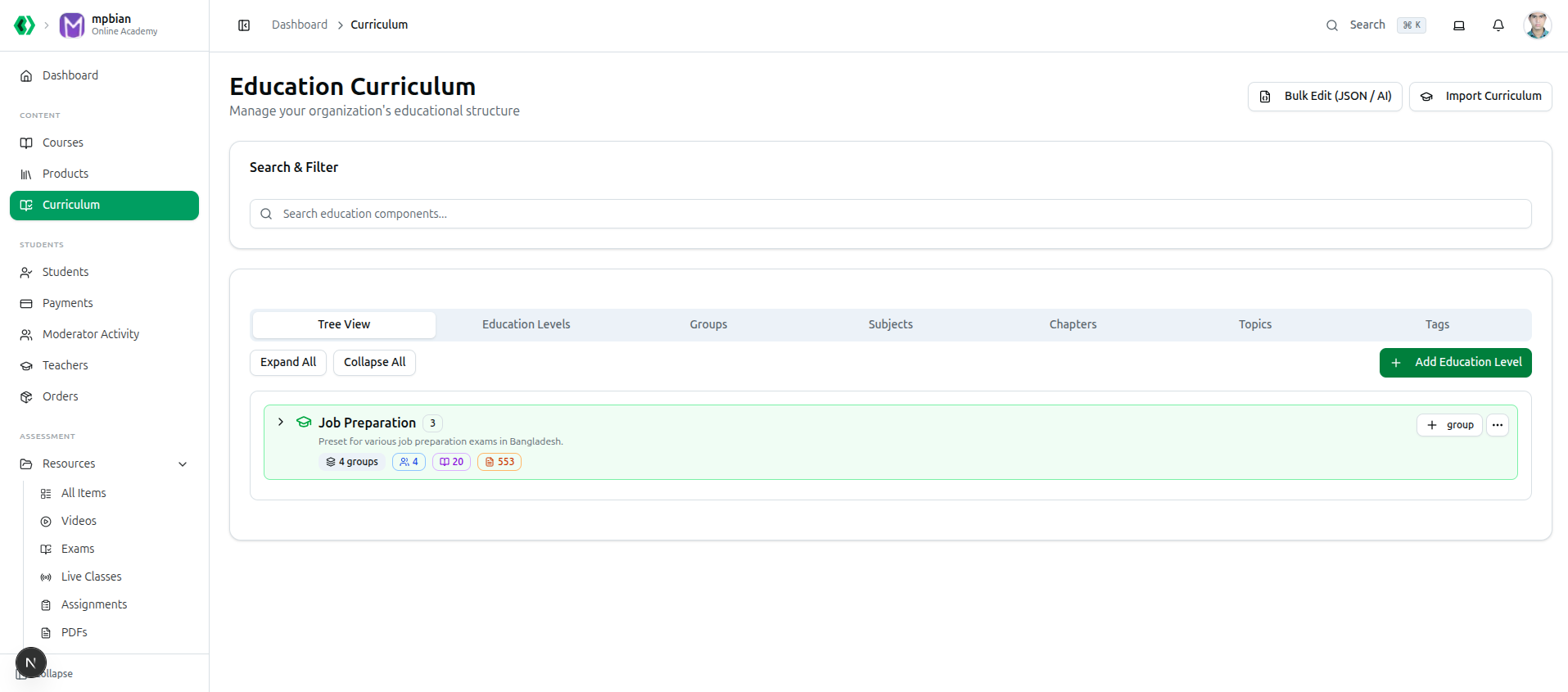
It is the first tab on Curriculum, under Content in the left sidebar.
Navigating the Tree
- Expand All and Collapse All open or close every branch at once.
- The chevron
>on any row opens just that branch. - Search & Filter at the top of the page finds a component by name.
Before you build anything the tree reads No education structure found.
Reading the Counts
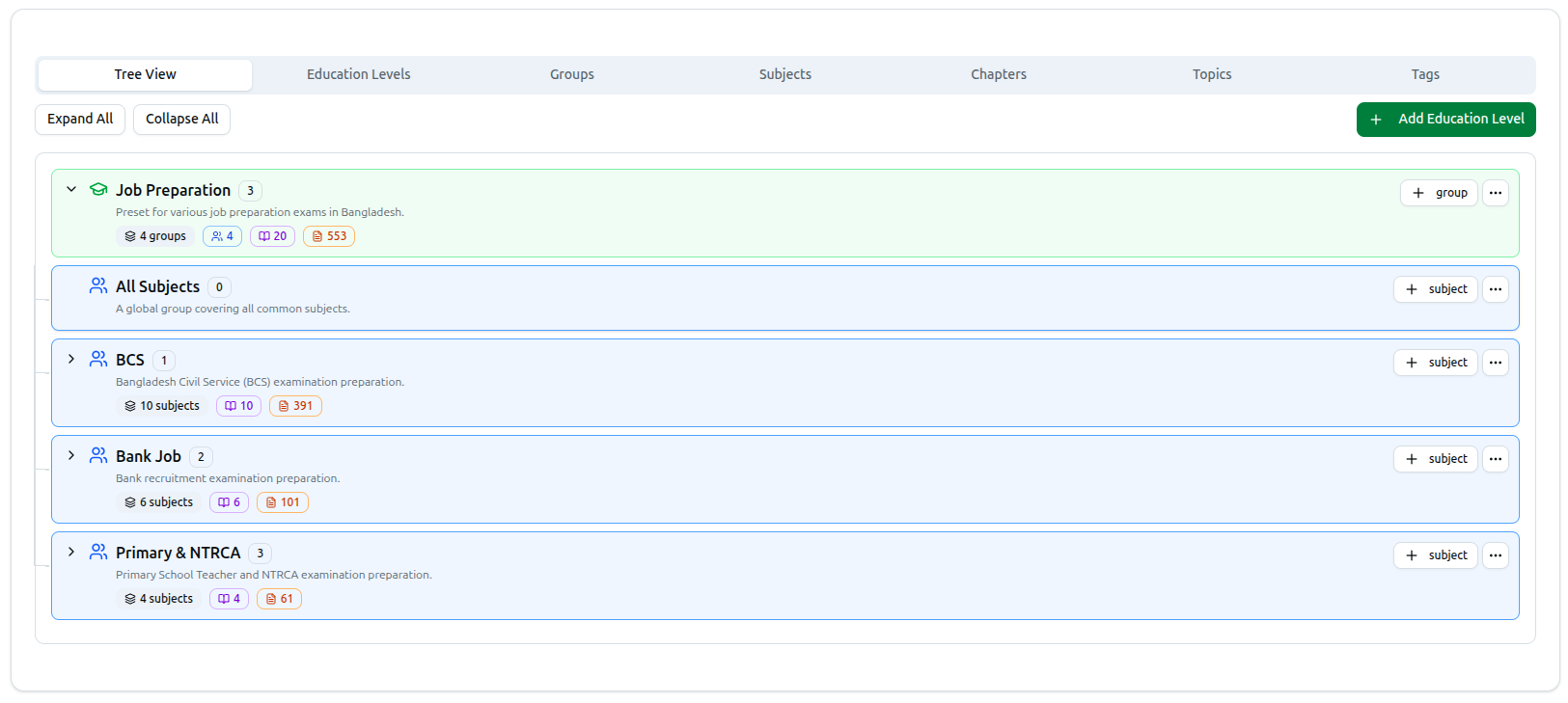
Each row carries badges showing what sits beneath it — groups, subjects, chapters and topics.
In the example above, Job Preparation holds 4 groups, 4 subjects, 20 chapters and 553 topics.
These are the fastest way to spot a gap. A subject showing 12 chapters but 0 topics tells you at a glance where work remains.
Building In Place
The tree's real advantage is that the parent is filled in for you.
Click the small + button on any row and it creates the correct child type for that depth:
| On this row | The button adds |
|---|---|
| Education level | + group |
| Group | + subject |
| Subject | + chapter |
| Chapter | + topic |
To start a whole new branch, use the green + Add Education Level at the top right.
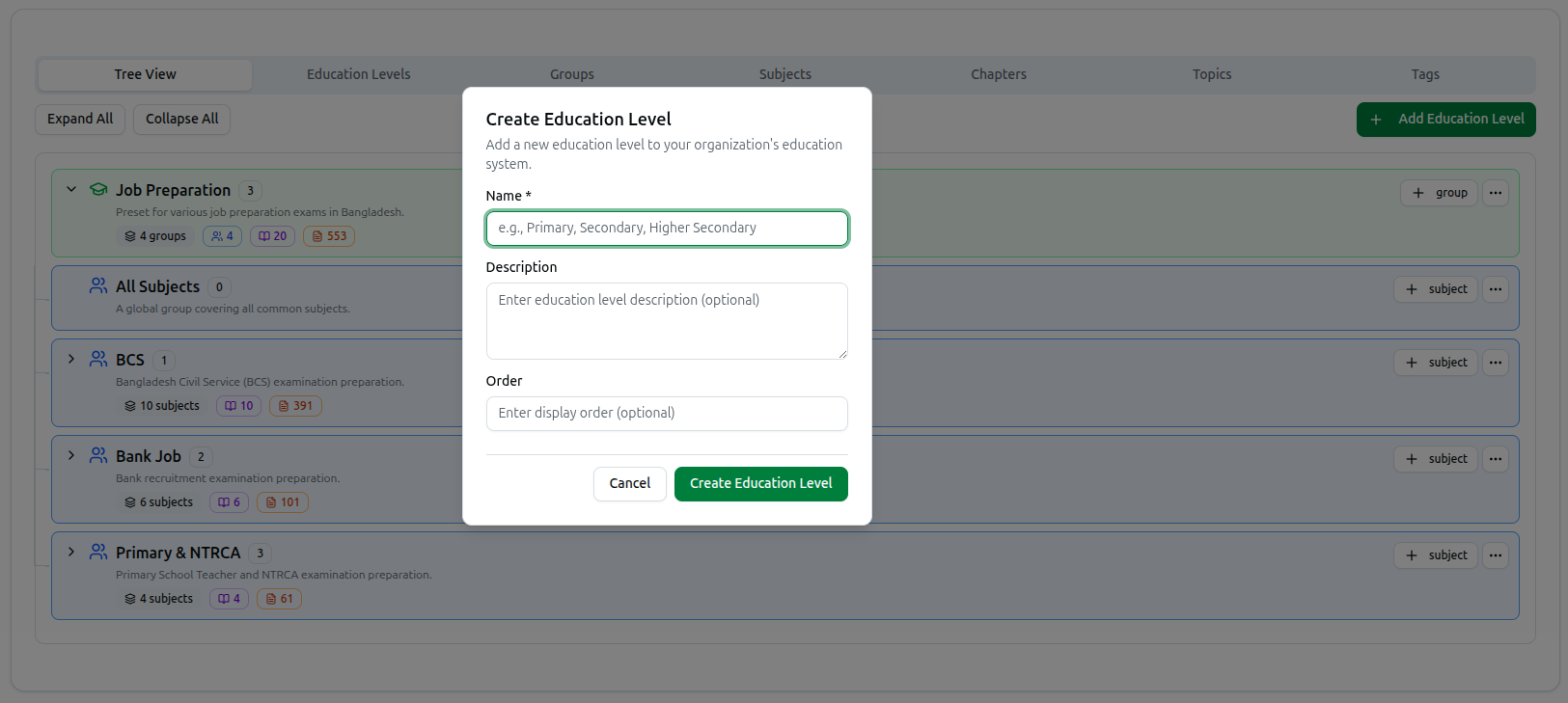
This beats the table tabs for building, because on those you must select the parent yourself from a dropdown every time — and picking the wrong one is the usual cause of a subject ending up in the wrong group.
Reordering Chapters by Dragging
Within a subject, chapters can be dragged into a new order. Grab a chapter by its handle, drop it where it belongs, and the new order saves immediately — confirmed by Chapter order updated.
This is the order your students see. It is also the only place you can set it by dragging; elsewhere you would have to edit each chapter's Order number by hand. When a preset imports chapters in the wrong sequence, this is the quickest fix.
Editing and Deleting
The three-dot menu (...) on any row offers Edit and Delete.
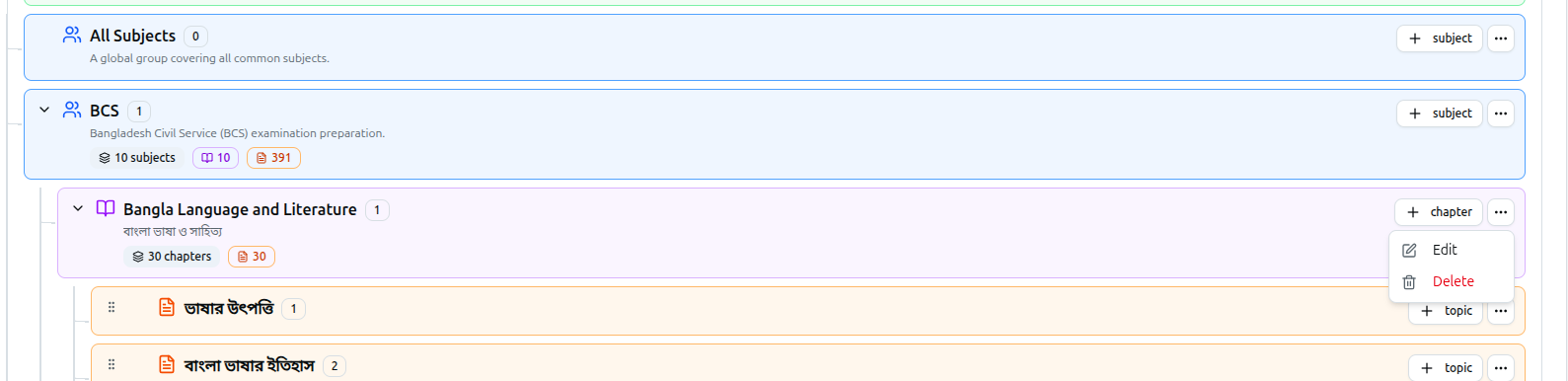
Edit opens the same dialog you would get from that component's own tab, already pointed at the right item.
Delete first loads and lists everything that depends on the row, so you can see what you are about to lose. Deletion cascades:
| Delete this | And you also lose |
|---|---|
| Education Level | Its groups |
| Group | Its subjects |
| Subject | Its chapters, and their topics |
| Chapter | Its topics |
| Topic | Just the topic |
Course37 reports exactly what went — Physics and 12 chapter(s) with their topics deleted successfully.
Questions in your question bank are tagged to subjects, chapters and topics. Deleting a populated branch affects those questions and any exam built from them. Use the counts on the row to check what is underneath before you confirm.
When to Use the Table Tabs Instead
Tree View is best for structure — building, reordering and checking. Switch to the component tabs when you need to:
- Bulk delete many subjects, chapters or topics at once.
- Filter a flat list by parent, such as every chapter in one subject.
- Scan metadata like created dates or display-order numbers side by side.
Troubleshooting
| What you see | What it means |
|---|---|
| No education structure found | Nothing built yet. Add a level, or use Import Curriculum for a preset |
| A branch will not expand | It has no children yet — the counts on the row will read zero |
| A chapter will not drag | Chapters only reorder within their own subject; you cannot drag one into a different subject |
| A subject is missing from the tree | It has no group assigned. Open the Subjects tab, edit it, and tick a group |
| The counts look wrong after an edit | Reload the page — the badges are calculated when the tree loads |
Related: Managing the Curriculum · Hierarchy Philosophy · Create an Education Level