
A subject is a course of study inside a group — Bangla, Mathematics, General Knowledge. Chapters attach to subjects, so create these before you add chapters.
Open Curriculum from the left sidebar under Content, then the Subjects tab.
Reading the List
The heading counts them — Subjects (20) — and the table shows:
| Column | What it shows |
|---|---|
| Name | The subject's name |
| Description | Your note, often the name in Bangla |
| Groups | Grey badges showing which groups it belongs to, as level:group — for example job-preparation:bcs |
| Order | Display-order number |
| Created | When it was added |
| Actions | Three-dot menu with Edit and Delete |
A subject with no parent shows No groups — it will not appear correctly in the tree until you assign one.
The same subject name can legitimately appear several times, once per group. In the example above Bangla exists separately under bcs, bank-job and primary-ntrca, because each stream teaches its own version.
Creating a Subject
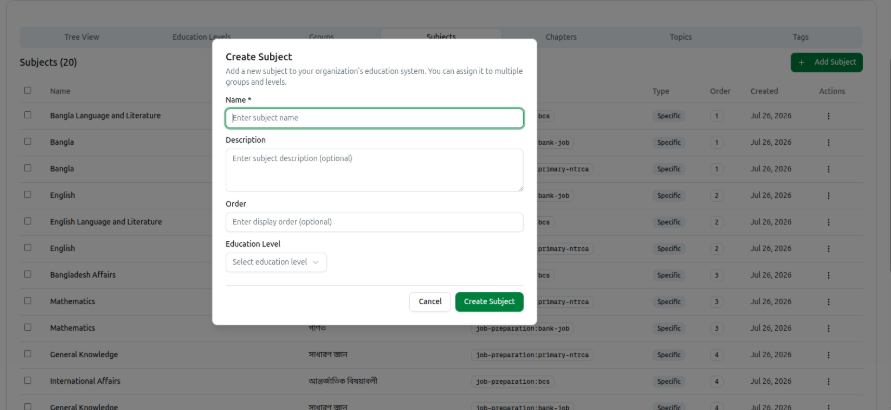
Click + Add Subject to open Create Subject — Add a new subject to your organization's education system. You can assign it to multiple groups and levels.
Fill it in top to bottom, because the last step depends on the one before it:
- Name (required) — Enter subject name. This is the only field that must be filled.
- Description (optional) — a note for your team; many presets use it for the Bangla name.
- Order (optional) — lower numbers appear first.
- Education Level — choose the level from Select education level.
- Groups — this section only appears once you have chosen a level. Its groups then load as checkboxes. Tick every group that teaches this subject.
Click Create Subject. You will see Subject created successfully.
Pick the level first. The Groups checkboxes are empty until you do — if you cannot see any groups to tick, it is because no education level is selected yet.
Assigning One Subject to Several Groups
Because groups are checkboxes rather than a single choice, one subject can serve several streams at once. Tick BCS, Bank Job and Primary & NTRCA together and the same General Knowledge subject — with one set of chapters, topics and questions — is shared by all three.
Use this for genuinely shared material. Create separate subjects when each stream teaches a different syllabus under the same name.
Bulk Deleting
Subjects support bulk removal. Tick the checkbox on each row — or the one in the header to take everything currently listed — then click Delete Selected. A badge shows N selected.
You will get Successfully deleted N subject(s), or Deleted N subject(s). M error(s) occurred if some could not be removed.
The header checkbox selects the whole filtered list, not just the rows you can see. Search first if you only mean to remove a few.
Editing and Deleting One
Edit changes the name, description, order and group assignments.
Delete removes the subject along with its chapters and their topics. Course37 lists what depends on it first, then confirms: Physics and 12 chapter(s) with their topics deleted successfully.
Questions are tagged to subjects, chapters and topics — deleting a populated subject affects those questions and any exam built from them.
Troubleshooting
| What you see | What it means |
|---|---|
| Please enter subject name | The Name field is empty |
| No groups to tick in the dialog | You have not chosen an Education Level yet, or that level has no groups |
| A subject shows No groups | It was saved without a group. Edit it and tick one |
| No subjects selected | You clicked Delete Selected without ticking any rows |
| The same subject appears several times | Normal when each group has its own copy — check the Groups badge to tell them apart |
| The Type column always says Specific | It shows the same value for every subject and can be ignored |
Related: Create Curriculum Groups · Create Subject Chapters · Managing the Curriculum