
A group is a stream inside an education level — Science and Commerce under HSC, or BCS and Bank Job under Job Preparation. Subjects attach to groups, so you need at least one before you can add subjects.
Open Curriculum from the left sidebar under Content, then the Groups tab.
Reading the List
The heading counts them — Groups (4) — and the table shows:
| Column | What it shows |
|---|---|
| Name | The group's name, such as BCS |
| Description | Your note, or a dash |
| Education Level | A grey badge with the parent level's slug, such as job-preparation |
| Order | Display-order number |
| Created | When it was added |
| Actions | Three-dot menu with Edit and Delete |
The All Education Levels dropdown at the top right narrows the list to one level — useful once you have several.
Creating a Group
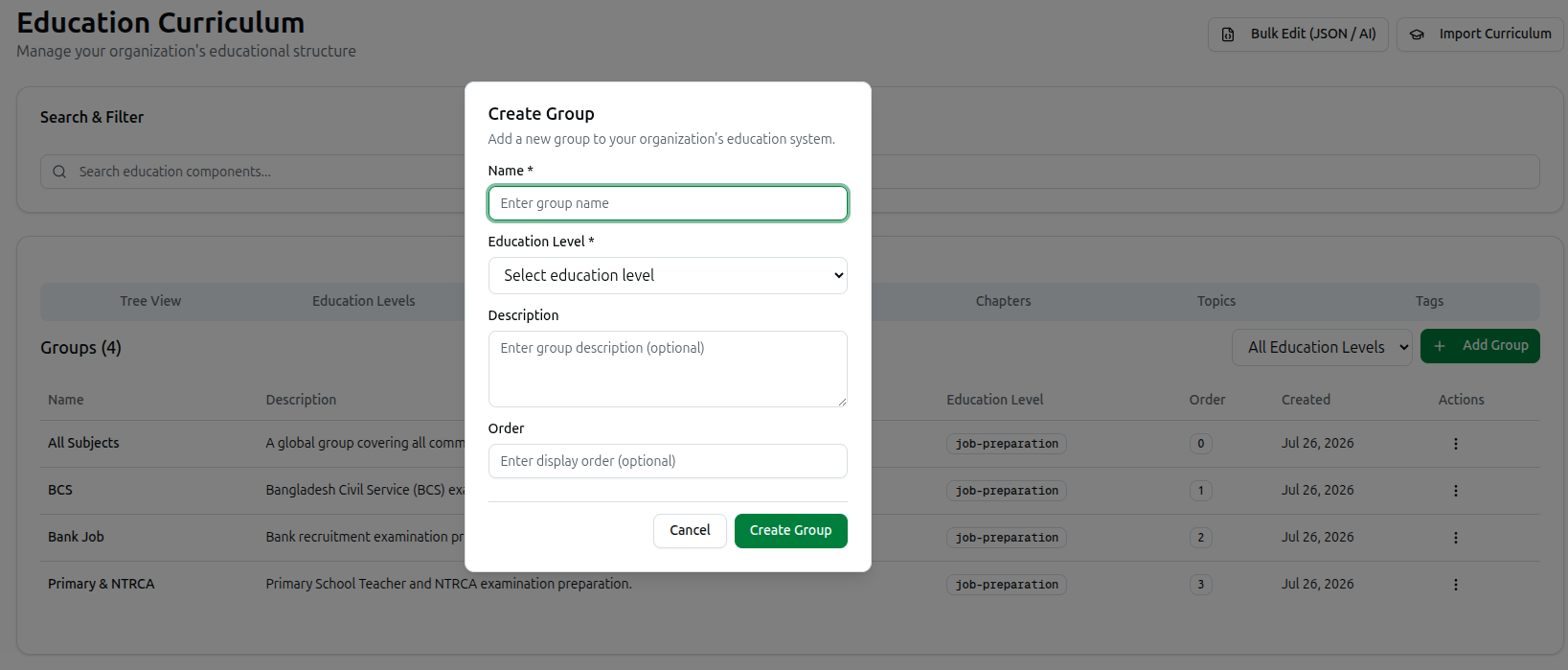
Click + Add Group to open Create Group — Add a new group to your organization's education system.
You can also create one in place from Tree View: click + group on any education level's row, and the parent is filled in for you.
Name (required) — Enter group name. Use the stream name your students know: Science, BCS, Bank Job.
Education Level (required) — pick the parent from Select education level. This is the one field people miss; a group cannot exist without a level, and you will see Please select an education level if you skip it.
Description (optional) — a note for your team, such as Bangladesh Civil Service (BCS) examination preparation.
Order (optional) — lower numbers appear first. Numbering as you go keeps every dropdown in a sensible order.
Click Create Group. You will see Group created successfully.
A Group for Shared Subjects
Some subjects belong to every stream — General English, General Knowledge. Rather than duplicating them, create a catch-all group such as All Subjects and attach the shared subjects there once.
You can see this pattern in the example above: All Subjects sits at order 0 alongside BCS, Bank Job and Primary & NTRCA, described as a global group covering all common subjects.
Editing and Deleting
Edit from the three-dot menu changes the name, description, order and parent level.
Delete removes the group and its subjects — and, through them, their chapters and topics. Course37 lists what depends on the group before you confirm, then reports BCS and 12 associated subject(s) deleted successfully.
Questions are tagged to subjects, chapters and topics. Deleting a populated group therefore affects those questions and any exam built from them.
Troubleshooting
| What you see | What it means |
|---|---|
| Please enter group name | The Name field is empty |
| Please select an education level | No parent level chosen — it is required |
| Failed to create group | The save did not go through. Check the fields and try again |
| The list looks empty | The All Education Levels filter is set to a level with no groups. Reset it |
| A subject shows No groups | That subject was created without a group. Edit it and assign one |
| Groups appear in the wrong order | Set Order on each; lower numbers come first |
Related: Create an Education Level · Create Subjects · Managing the Curriculum