
A chapter breaks a subject into teachable blocks. Topics attach to chapters, and questions are tagged to them — so chapters are where your curriculum starts doing real work.
Open Curriculum from the left sidebar under Content, then the Chapters tab.
Reading the List
The heading counts them — Chapters (553) — and the table shows:
| Column | What it shows |
|---|---|
| Name | The chapter name, in whichever language you entered it |
| Description | Your note, or a dash |
| Type | An optional label such as theory or a sub-grouping like Parts of Speech |
| Subject | A grey badge showing the full path as level:group:subject — for example job-preparation:bcs:mathematical-reasoning |
| Order | Display-order number |
| Created | When it was added |
| Actions | Three-dot menu with Edit and Delete |
Use the All Subjects dropdown at the top right to narrow the list to one subject. With hundreds of chapters this is essential — filter first, then work.
Creating a Chapter
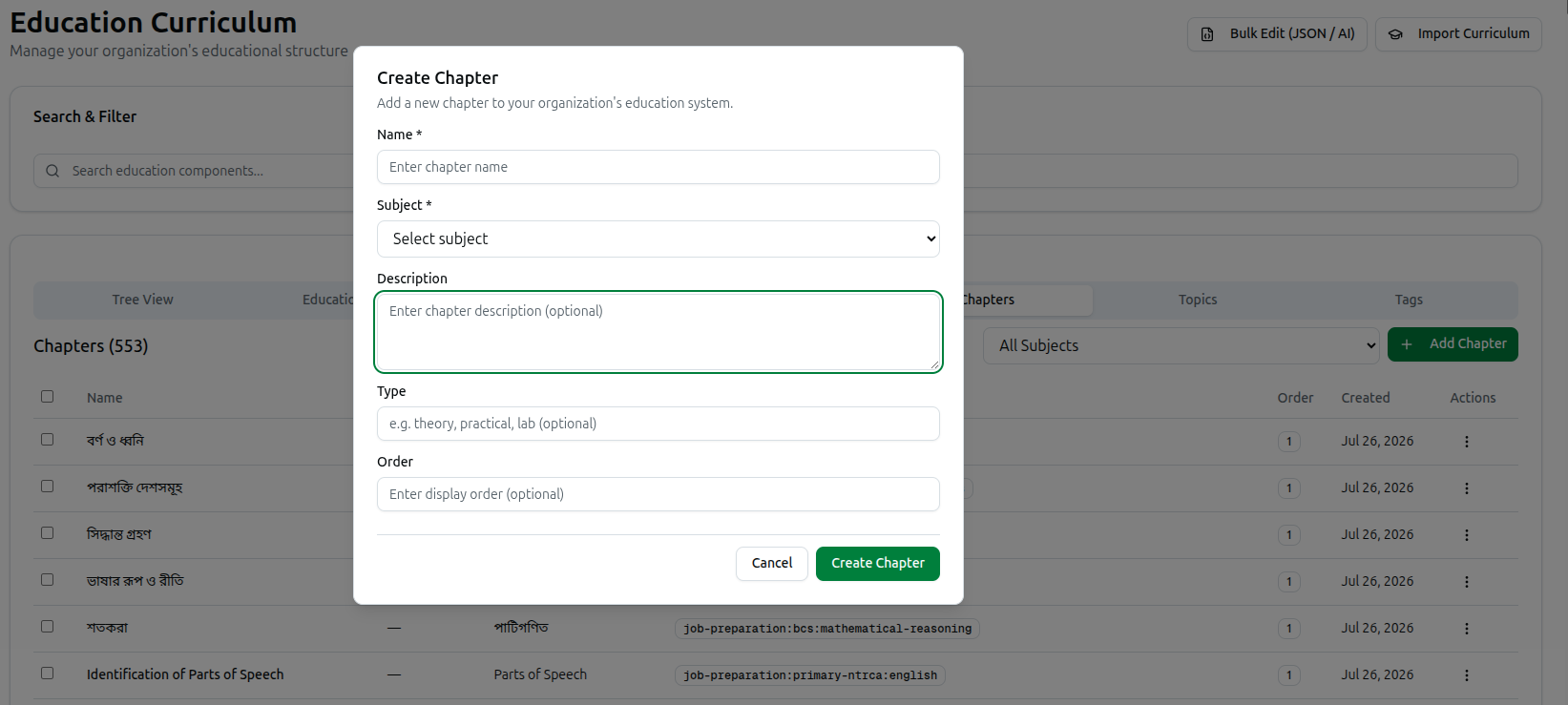
Click + Add Chapter to open Create Chapter — Add a new chapter to your organization's education system.
You can also create one in place from Tree View: click + chapter on any subject's row and the parent is filled in for you.
- Name (required) — Enter chapter name. Use exactly what your syllabus calls it; students see this name.
- Subject (required) — pick the parent from Select subject. Skip it and you will see Please select a subject.
- Description (optional) — a note for your team.
- Type (optional) — free text, suggested as e.g. theory, practical, lab. It is not a fixed list, so you can use it for any sub-grouping that helps — presets often put the chapter's category here, such as Parts of Speech.
- Order (optional) — lower numbers appear first.
Click Create Chapter. You will see Chapter created successfully.
Watch which subject you pick. The same subject name often exists once per group — Bangla under
bcs,bank-jobandprimary-ntrcaare three separate subjects. Choosing the wrong one files your chapter under the wrong stream. The dropdown is the usual source of this mistake, which is why building from Tree View is safer.
Getting the Order Right
Chapter order is the sequence students work through, so it matters more here than anywhere else in the hierarchy.
You can set Order by hand on each chapter, but the quicker way is Tree View: expand a subject and drag its chapters into position. The new order saves immediately with Chapter order updated.
This is the fastest fix when an imported preset brings chapters in the wrong sequence.
Full guide: Using the Tree View
Bulk Deleting
Tick the checkbox on each row — or the header checkbox to take everything currently listed — and click Delete Selected. A badge shows N selected.
You get Successfully deleted N chapter(s), or Deleted N chapter(s). M error(s) occurred if some could not be removed.
The header checkbox takes the whole filtered list. With 553 chapters, always set the All Subjects filter before using it.
Editing and Deleting One
Edit changes the name, description, type, order and parent subject.
Delete removes the chapter and all its topics. Course37 lists them before you confirm, then reports Kinematics and 8 topic(s) deleted successfully.
Questions are tagged to chapters and topics. Deleting a populated chapter affects those questions and any exam that pulls from it.
Troubleshooting
| What you see | What it means |
|---|---|
| Please enter chapter name | The Name field is empty |
| Please select a subject | No parent subject chosen — it is required |
| Your chapter is under the wrong stream | You picked a same-named subject from another group. Edit it and change the subject |
| The list looks empty | The All Subjects filter is set to a subject with no chapters. Reset it |
| Chapters appear out of sequence for students | Drag them into order in Tree View, or set Order on each |
| No chapters selected | You clicked Delete Selected without ticking any rows |
Related: Create Educational Subjects · Using the Tree View · Managing the Curriculum