
Education levels sit at the very top of your curriculum. Everything else — groups, subjects, chapters, topics — hangs beneath one of them.
Open Curriculum from the left sidebar under Content, then click the Education Levels tab.
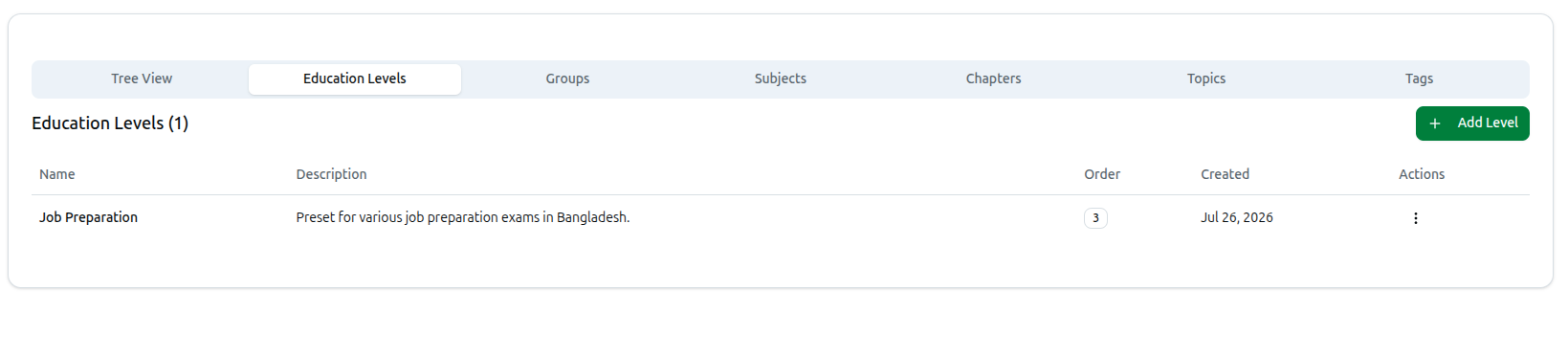
Reading the List
The heading shows how many you have — Education Levels (1) — and the table lists them:
| Column | What it shows |
|---|---|
| Name | The level's name, such as Job Preparation |
| Description | Your note about what it covers, or a dash if empty |
| Order | The display-order number, shown as a badge |
| Created | The date it was added |
| Actions | A three-dot menu with Edit and Delete |
Levels imported from a preset arrive with their description already written — Preset for various job preparation exams in Bangladesh, for example.

Adding a Level
Click + Add Level at the top right to open the Create Education Level dialog. Only Name is required; Description and Display Order are optional.
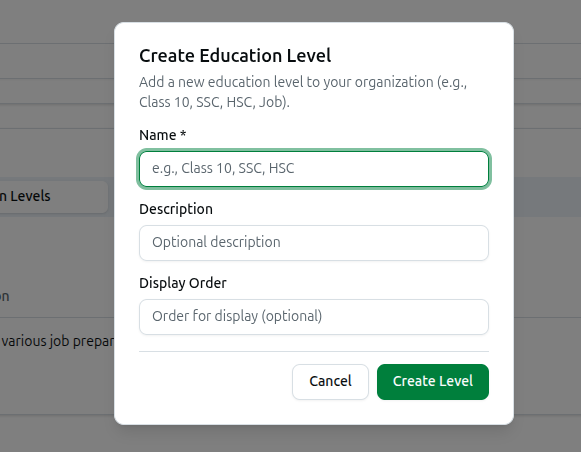
Full guide: How to Create an Education Level
Editing a Level
Open the three-dot menu on any row and choose Edit to open Edit Education Level. You can change the Name, Description and Order, and here you will also see the level's slug.
The slug is the short machine-readable form of the name — it is what appears in the grey badges on the Groups, Subjects and Chapters tabs to show which level something belongs to. It must be plain English letters, or you will see Please enter a valid English slug.
Save to get Education level updated successfully.
Renaming a level is safe — everything beneath it stays attached. Changing its slug changes the badges shown throughout the curriculum tabs, so only do it if the current one is genuinely wrong.
Deleting a Level
Choose Delete from the three-dot menu. Course37 first loads everything that depends on this level and shows it to you, because deleting a level also deletes its groups — and, through them, the subjects, chapters and topics beneath.
When it finishes you are told exactly what went: Job Preparation and 4 associated group(s) deleted successfully.
Questions in your question bank are tagged to subjects, chapters and topics. Removing a populated level therefore affects those questions and any exam built from them. Check what is underneath before deleting.
A Faster Way to Start
If you teach a standard curriculum, do not create levels one at a time. Click Import Curriculum at the top of the page and choose a preset — it creates the level along with its groups, subjects, chapters and topics in one step.
Full guide: Managing the Curriculum
Troubleshooting
| What you see | What it means |
|---|---|
| Please enter education level name | The Name field is empty |
| Please enter a valid English slug | The slug contains characters other than plain English letters, numbers and hyphens |
| Failed to create education level | The save did not go through — check the name and try again |
| Levels appear in the wrong order | Set Display Order on each one; lower numbers appear first |
| A group has no level badge | The group is not attached to a level. Edit the group and assign one |