
The Course Plan is the syllabus you publish — which subjects and chapters this course covers, drawn from your curriculum hierarchy. It is what a prospective student reads before buying.
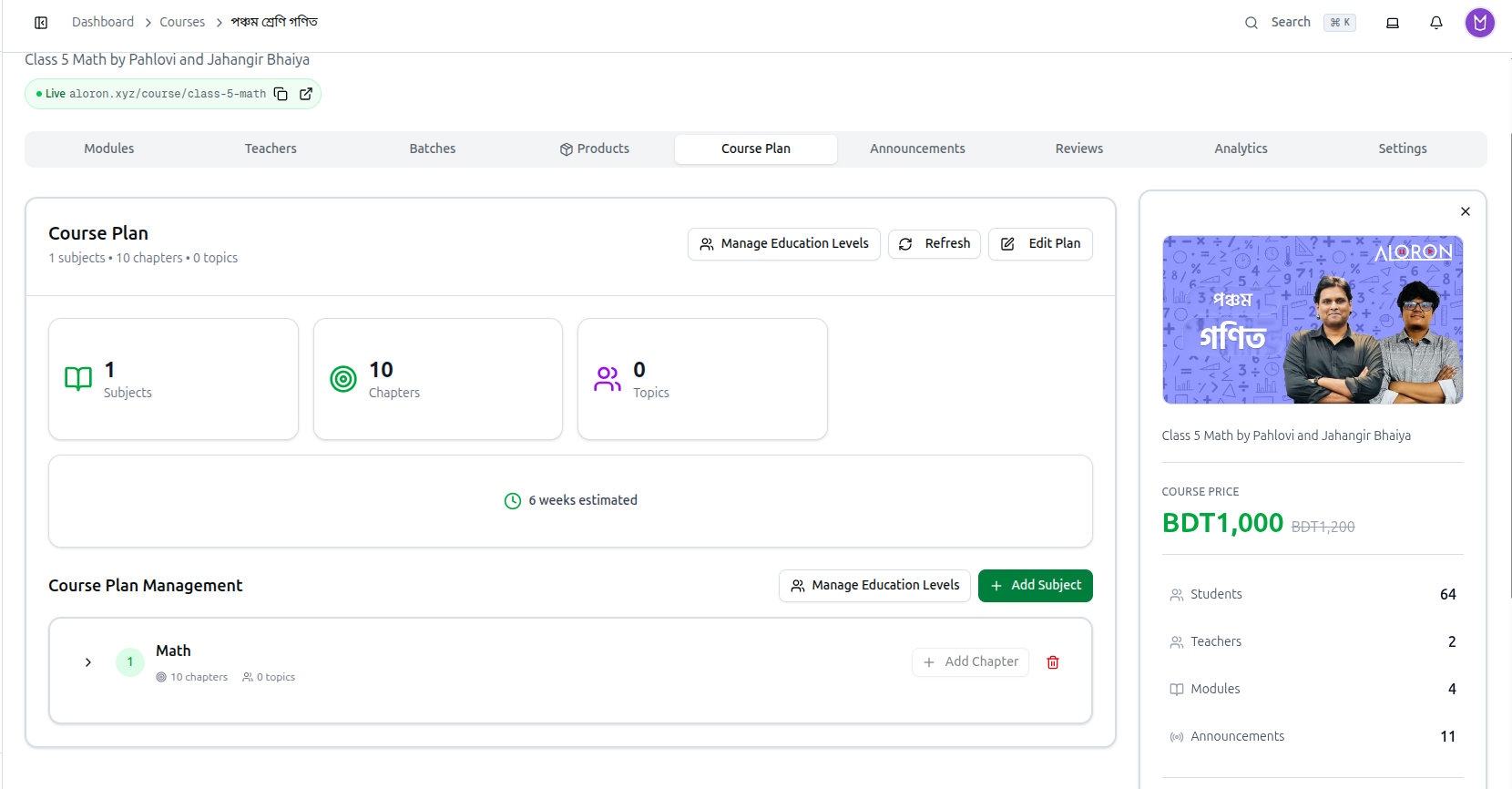
Open a course and click its Course Plan tab.
This is separate from Modules. Modules hold the actual videos and PDFs students consume. The course plan is the promise — the syllabus on the course page. A course can have a full plan before a single video is uploaded.
Reading the Summary
The heading shows the plan at a glance — 1 subjects • 10 chapters • 0 topics — repeated as three cards for Subjects, Chapters and Topics.
Beneath them sits an estimate such as 6 weeks estimated, calculated from how much the plan covers. This is the figure to sanity-check against your actual teaching calendar.
Three buttons sit at the top right:
- Manage Education Levels — controls which parts of your curriculum this course draws from.
- Refresh — re-pulls the plan.
- Edit Plan — opens the plan for editing.
Building the Plan
The Course Plan Management panel below is where you assemble it.
Add Subject pulls a subject from your curriculum into this course's plan. You will see Subject added successfully.
Each subject then appears as a row showing its counts — 10 chapters, 0 topics — with a chevron to expand it, an Add Chapter button, and a red trash icon.
Add Chapter attaches chapters from that subject to the plan.
You are selecting from your curriculum, not creating new entries. If a subject or chapter is missing from the picker, it does not exist in Curriculum yet — build it there first, then come back.
Full guide: Managing the Curriculum
Removing Items
The trash icon on a subject row removes it from this course's plan — Subject removed successfully. Chapters can be removed individually the same way.
Removing something here only takes it off this course's syllabus. The subject and its chapters stay in your curriculum and in every other course using them.
Why Build a Plan
- It sells the course. Students see the syllabus before enrolling, and "10 chapters, 6 weeks" answers the question they actually have.
- It sets expectations. A published plan is a commitment to what you will cover.
- It ties the course to your curriculum, so questions and exams tagged to those chapters line up with what you promised.
Troubleshooting
| What you see | What it means |
|---|---|
| Please select a subject | You clicked add without choosing one |
| Please select a chapter | Same, for chapters |
| A subject is missing from the picker | It does not exist in Curriculum yet. Create it there first |
| The topics count is 0 | Your chapters have no topics, or none are attached to the plan. Harmless — topics are optional |
| 6 weeks estimated looks wrong | It is derived from the plan's size. Adjust the plan, or treat it as a rough guide |
| No Course Plan tab on the course | The course is self-paced. Use its Curriculum tab instead |
| Removing a chapter deleted it everywhere | It did not — removal only takes it off this course's plan |
Related: Managing Course Details · Managing the Curriculum · Course Batches