
A batch is an intake of students taking the same course at their own schedule — a morning group and an evening group, or a 2026 cohort and a 2027 cohort. One course, several batches, each with its own timing and capacity.
Open a course and click its Batches tab. The panel is headed Course Batches — Manage different batches for this course.
Batch courses only. A self-paced course has no batches at all — students start whenever they buy. If you cannot find this tab, the course is self-paced.
Creating a Batch
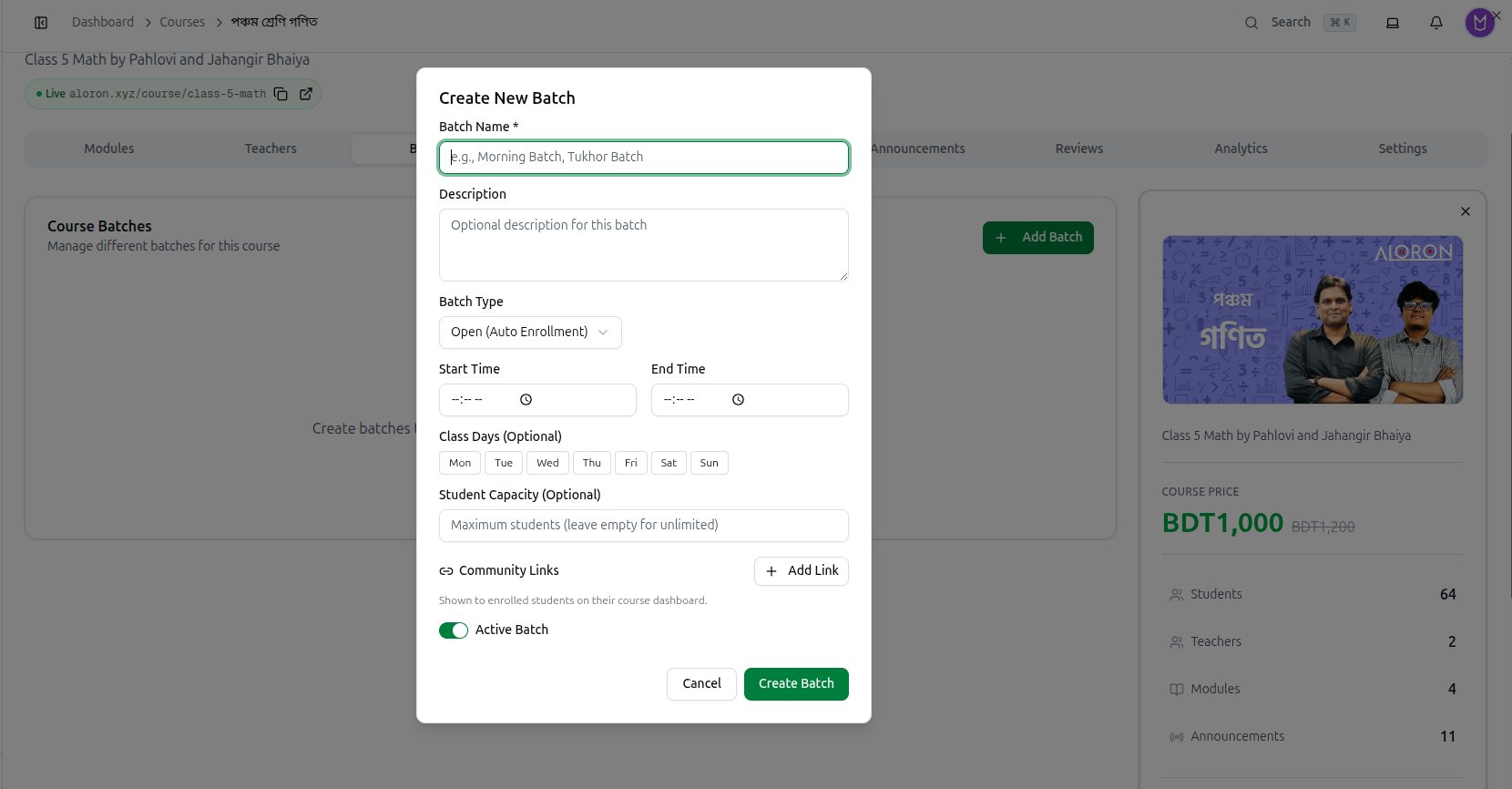
Click Add Batch to open Create New Batch.
Batch Name (required)
e.g., Morning Batch, Tukhor Batch. Students see this, so name it by what distinguishes it — the time of day, or the year.
Description (optional)
Optional description for this batch — a note for your team.
Batch Type
| Type | What happens |
|---|---|
| Open (Auto Enrollment) | Students who buy the course join this batch automatically |
| Closed (Admin Only) | Nobody joins on their own; you add students by hand |
This is the setting that matters most. Leave a batch Open and every new purchase lands in it. Use Closed for a cohort you are curating, or for one that has already started and should not take newcomers.
Start Time and End Time
The daily class window — when this batch meets, not the course's calendar dates. The end time must be later than the start, or you will see End time must be greater than start time.
Class Days (Optional)
Toggle Mon through Sun for the days this batch meets. Together with the times, this is the batch's weekly timetable.
Student Capacity (Optional)
Maximum students (leave empty for unlimited). Set this on an Open batch to stop it overfilling — once full, new students need another batch.
Community Links
Add Link attaches group links — Shown to enrolled students on their course dashboard. Give each batch its own Facebook group or WhatsApp number so the morning group is not mixed in with the evening group.
Active Batch
A toggle, on by default. Switch it off to retire a finished batch without deleting it or losing its student records.
Click Create Batch.
How Batches Change Enrolment
With no batches, everyone on the course sits together. Once you add batches:
- An Open batch collects new purchases automatically.
- Several open batches let students be distributed — with Student Capacity deciding when one stops filling.
- Attendance sessions and live classes can be tied to a specific batch, so each group is tracked separately.
Editing, Retiring and Deleting
Existing batches can be edited to change any of the fields above.
To retire one, switch Active Batch off rather than deleting it — the batch and its students stay on record, but it no longer takes new enrolments.
Delete only a batch created in error.
Troubleshooting
| What you see | What it means |
|---|---|
| Batch name is required | The Batch Name field is empty |
| End time must be greater than start time | The times are reversed, or both are the same |
| New students land in the wrong batch | An Open (Auto Enrollment) batch collects them. Close it, or set a capacity |
| A batch stopped accepting students | It reached its Student Capacity, or Active Batch is switched off |
| No Batches tab on the course | The course is self-paced. Batches only exist on batch courses |
| Students cannot see the group link | Community links show on the course dashboard for enrolled students only |
Related: Managing Course Details · Course Plans · Managing Attendance