
Teachers exist once in your organization's directory, then get assigned to each course they teach. This page covers the assigning; creating the profile is a separate step.
Open the course and click its Teachers tab.
Who Is Already Assigned
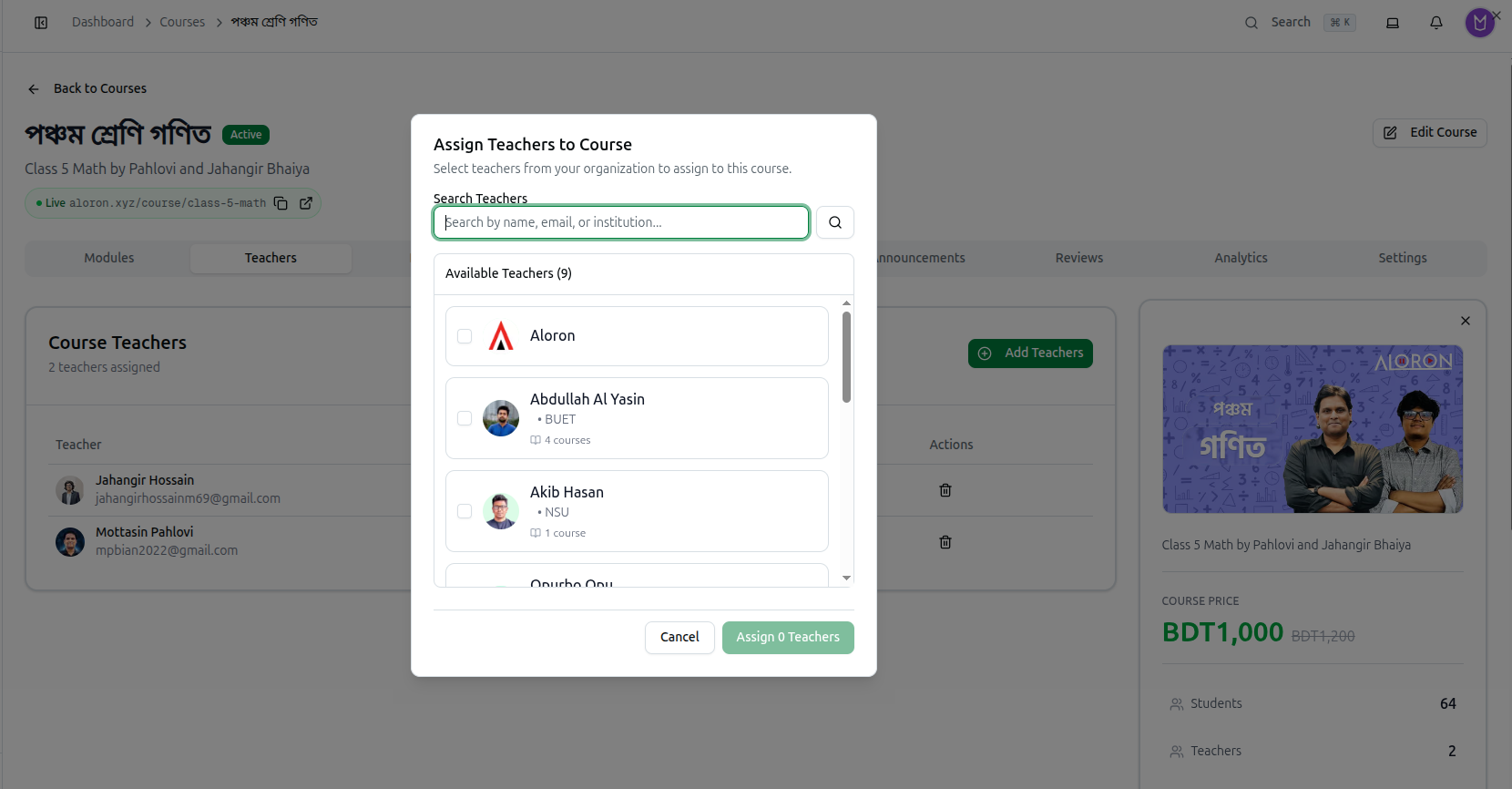
The panel is headed Course Teachers with a count beneath — 2 teachers assigned.
Each row shows the teacher's photo, name and email, with a trash icon under Actions to remove them. The Teachers figure in the course info panel on the right tracks the same number.
Assigning Teachers
Click Add Teachers to open Assign Teachers to Course — Select teachers from your organization to assign to this course.
1. Search
Search Teachers accepts name, email, or institution. Institution is the useful one — type BUET and you get everyone from that university at once.
2. Read the list
The list is headed Available Teachers (9). That number is the people in your organization not yet on this course, not your total teacher count.
Each entry shows:
- Photo and name
- Institution — BUET, NSU
- Existing course load — 4 courses, 1 course
Check the course count before you assign. Someone already carrying 4 courses may not have capacity for another; 1 course means room to spare. This is the only place that figure appears next to a decision to add more work.
3. Select and confirm
Tick everyone you want — you can select several at once. The button counts your selection, reading Assign 0 Teachers until you tick somebody, then updating as you go.
Click it to finish. You will see Teachers assigned successfully.
Removing a Teacher from a Course
Click the trash icon on their row under Course Teachers. You will see Teacher removed successfully.
This only unassigns them from this course. Their profile stays in your directory, their other courses are untouched, and you can reassign them later. It is not a deletion.
When the List Is Empty
Two different messages, two different fixes:
- No teachers found in your organization — Create teacher profiles first. Nobody exists yet; add them in the Teachers directory.
- All teachers are already assigned to this course — everyone is on it, so there is nobody left to add.
Troubleshooting
| What you see | What it means |
|---|---|
| Please select at least one teacher | You clicked assign without ticking anyone — the button still reads Assign 0 Teachers |
| No teachers found in your organization | No profiles exist yet. Create one first |
| All teachers are already assigned to this course | Nobody left to add |
| A teacher you expect is missing | They are already assigned — check the Course Teachers list above |
| Failed to assign teachers | The save did not go through. Try again |
| Removing a teacher did not delete their profile | Correct — removal only unassigns them from this course |
| An assigned teacher cannot log in | Their profile is Standalone, with no user account connected. Fix it in the directory |
Related: Create a Teacher · Teacher Profiles, Payouts & Staff · Managing Course Details