
Three of a course's tabs handle what goes with the course rather than the teaching itself: Products, Announcements and Settings.
Products — Bundling Books with a Course
The Products tab is headed Course Products — Attach books or other products to this course. Free products are auto-included with enrollment; priced ones are optional paid add-ons at checkout.
That sentence is the whole feature. A product priced at 0 is handed to every student automatically when they enrol. A product with a price becomes an optional paid add-on they can accept or decline at checkout. Set the price deliberately — it decides which of the two happens.
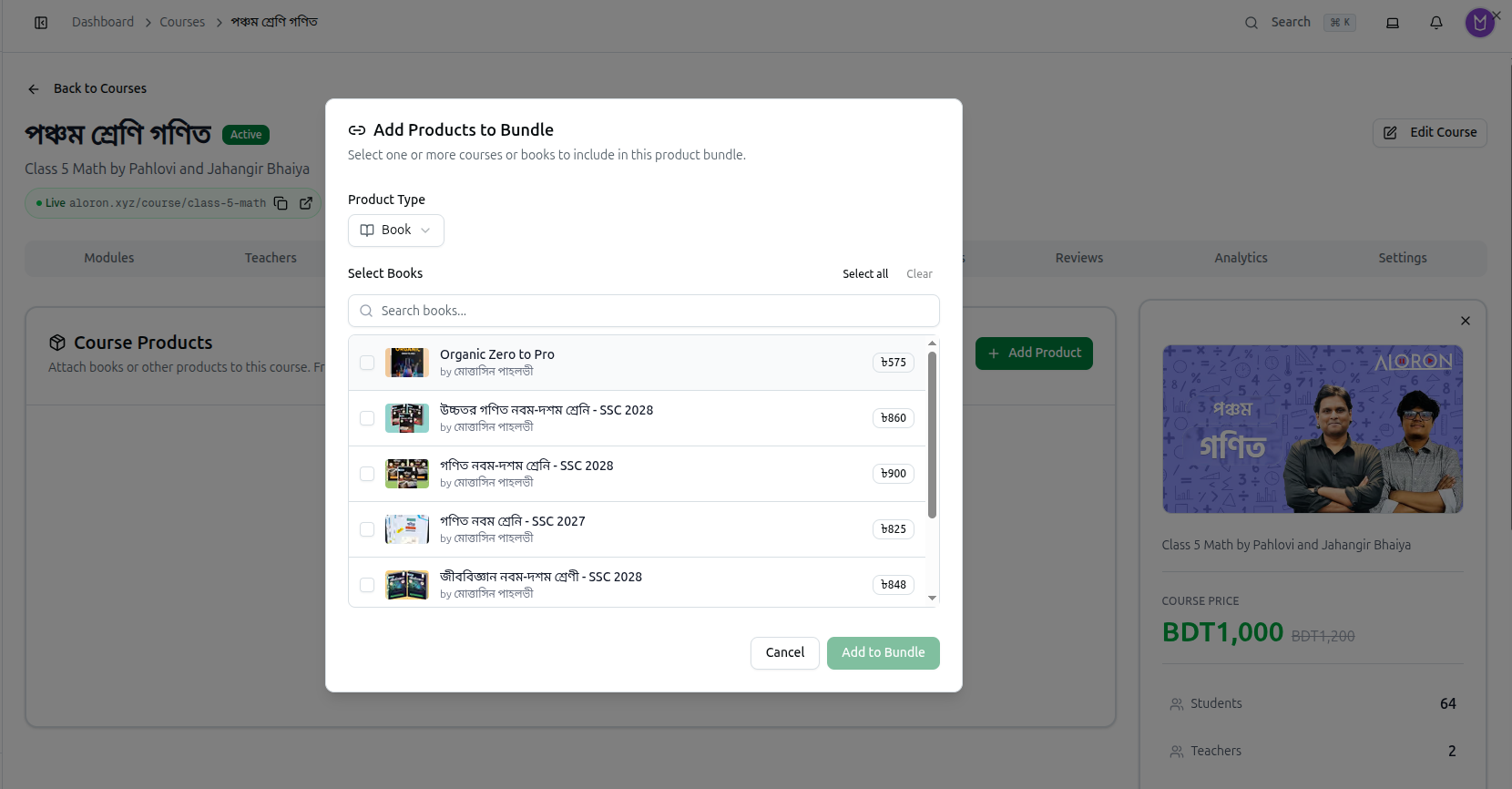
Click Add Product to open Add Products to Bundle — Select one or more courses or books to include in this product bundle.
- Product Type — choose Book or Course. A course can bundle other courses as well as books.
- Search books... narrows a long catalogue.
- Tick each item you want. Every row shows its cover, title, author and price, so you can see what you are adding to the student's bill.
- Select all takes everything listed; Clear unticks it again.
- Click Add to Bundle.
Full guide: Manage the Product Catalog
Announcements — Messaging Enrolled Students
The Announcements tab broadcasts a message to everyone on the course.
Creating one opens Create Announcement with two required fields:
- Name — Enter announcement name... — the headline students see.
- Content — Enter announcement content... — the message body.
Announcements also appear automatically whenever you add content with Announce to students ticked, which is why the count on the course info panel climbs as you build.
Use announcements for things students must act on — a schedule change, an exam date. Routine content uploads already notify them if you leave that checkbox ticked, so a separate announcement is duplicate noise.
Settings — Identity, Sidebar, Promo Codes and Danger Zone
The Settings tab holds four groups.
Course Settings — read-only identity for this course: its COURSE ID, SLUG, CREATED date and LAST UPDATED date. The slug is the part of the public web address after /course/. Quote the Course ID when reporting a problem.
Course sidebar sections — Show or hide the built-in Announcements and Course Syllabus entries for this course. Each has a dropdown set to Default, Show or Hide.
Default follows your organization-wide setting, so changing it once under Organization → Settings applies everywhere. Use Show or Hide here only when one course needs to differ.
Promo Codes — discount codes for this course, with a count of how many are active. Add Promo Code asks for:
| Field | What to enter |
|---|---|
| Promo Code (required) | The code students type at checkout |
| Discount (%) | The percentage off, such as 10 |
| Maximum Usage Count (optional) | How many times it may be used. Leave empty for unlimited usage |
Always set a usage count on a public code. Left empty it is unlimited, so a code shared in a Facebook group can be redeemed indefinitely by anyone who sees it.
Danger Zone — two irreversible-feeling actions:
- Archive Course — retires the course. Students and records are kept, but it is no longer sold or listed. This is what you usually want.
- Delete Course Forever — permanent removal. Use Archive unless you are certain.
Archive rather than delete when a batch finishes. An archived course keeps its enrolments, payments and results, which you will need if a student queries something months later.
Troubleshooting
| What you see | What it means |
|---|---|
| Students received a book they did not pay for | It is priced at 0, so it is auto-included with enrolment |
| A bundled book is not reaching students | It has a price, making it an optional add-on they must accept at checkout |
| A promo code was used far more than expected | Maximum Usage Count was left empty, which means unlimited |
| Students get too many notifications | Content saved with Announce to students notifies them each time. Untick it for bulk uploads |
| Nothing to pick in the bundle dialog | No products exist yet — create them under Products in the main sidebar |
Related: Managing Course Details · Product Catalog