
Community is an in-app discussion space for your organization — channels where students ask questions, discuss courses and see your announcements, without ever leaving Course37 for a Facebook group.
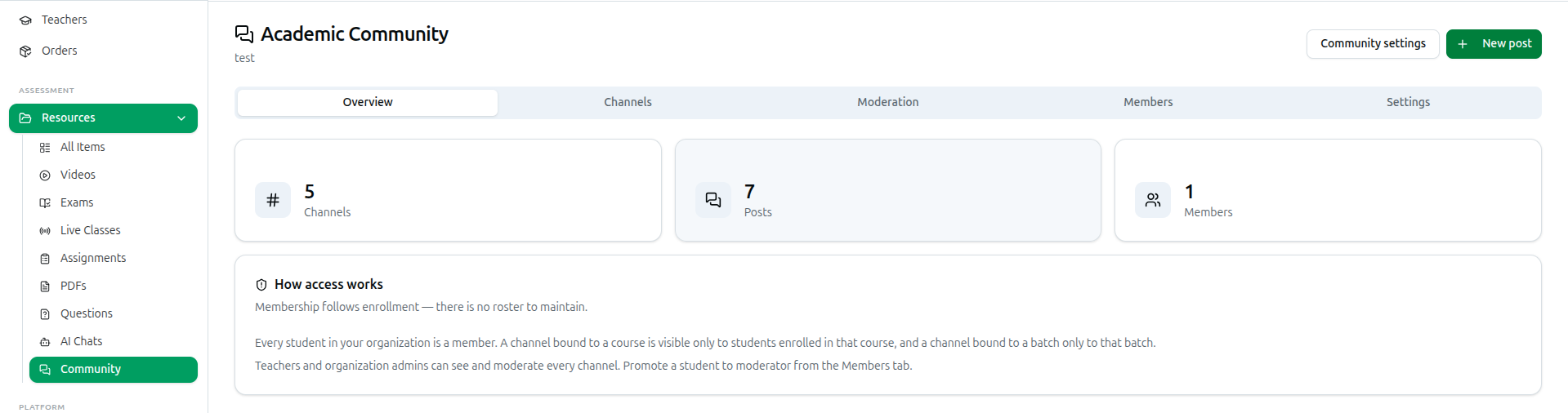
Open it from the left sidebar: under Assessment, expand Resources, then click Community (/dashboard/community).
Membership follows enrollment. There's no roster to maintain — every student in your organization is automatically a member. A channel bound to a course is visible only to students enrolled in that course; a channel bound to a batch, only to that batch. Teachers and organization admins can see and moderate every channel.
Creating Your Community
The first time you open Community, you're asked to set it up rather than shown an empty tab strip.
- Community name — required, e.g. Physics Academy Community.
- Description — optional, what the space is for.
- Starter channels — three ready-made channels you can tick on or off, each with its own posting rule:
- #announcements — Notices from you, staff-only by default.
- #general — Open chat for everyone, every member can post.
- #questions — Members ask, teachers answer, every member can post.
You need at least one starter channel — a community with none has nowhere to post. Everything here can be renamed, reordered, or added to afterward, so don't overthink the starting set.
The Five Tabs
| Tab | What it's for |
|---|---|
| Overview | Quick counts, and a reminder of how access works |
| Channels | Create, edit, reorder, archive and bind channels to courses or batches |
| Moderation | Review posts held for approval, and handle member reports |
| Members | See everyone, promote a moderator, or ban someone |
| Settings | Name, description, image, visibility, posting rules, and archiving |
Channels Tab
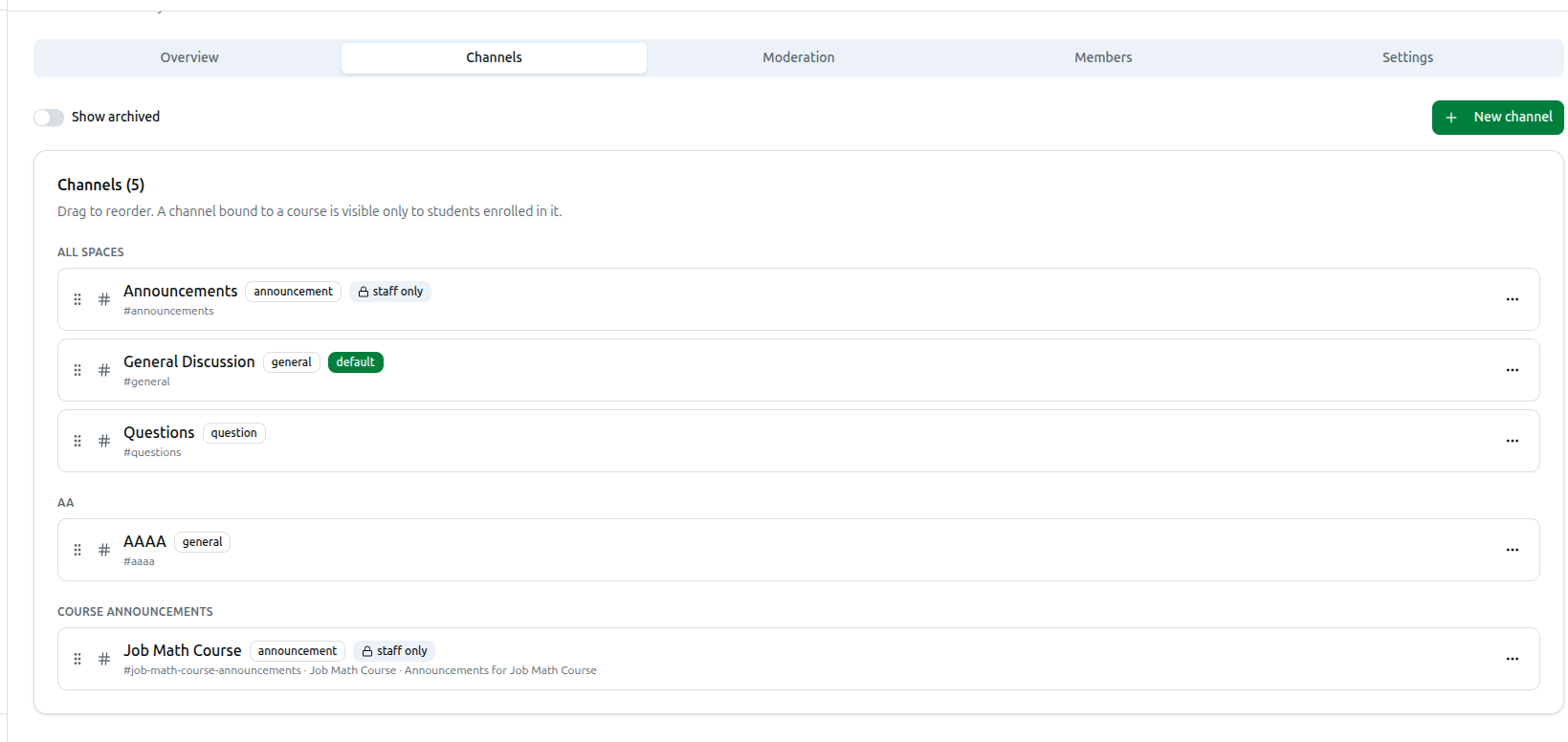
Each channel shows its type badge, a staff only badge if posting is restricted, default if it's the channel new posts land in when nothing else is picked, and archived if it's hidden. Drag a channel by its handle to reorder it — order is what students see in their own sidebar. Toggle Show archived to bring hidden channels back into view.
Click New channel, or Edit from a channel's ··· menu, to open the channel form:
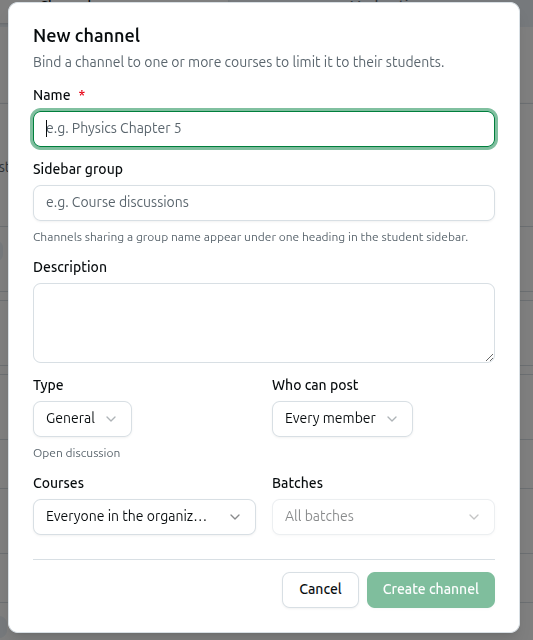
- Name — required.
- Sidebar group — an optional label; channels sharing the same group name are grouped under one heading in the student sidebar.
- Description — optional.
- Type — General (open discussion), Announcements (staff post, members read), Discussion (topic-based), Questions (Q&A with teacher answers), Chapter, or Exam. Picking Announcements automatically sets posting to staff-only.
- Who can post — Every member, or Teachers and admins only.
- Courses — leave empty for an org-wide channel everyone can see, or pick one or more courses to limit it to their enrolled students. A channel bound to several courses is visible to anyone enrolled in any one of them.
- Batches — once at least one course is picked, narrow further to specific batches within it.
Teachers and admins always see every channel, regardless of its course or batch binding.
Archive hides a channel from students while keeping every post; Restore brings it back. Delete is permanent and takes its posts with it — it's owner-only, and unavailable on the default channel, since deleting it would leave new posts nowhere to land.
Moderation Tab
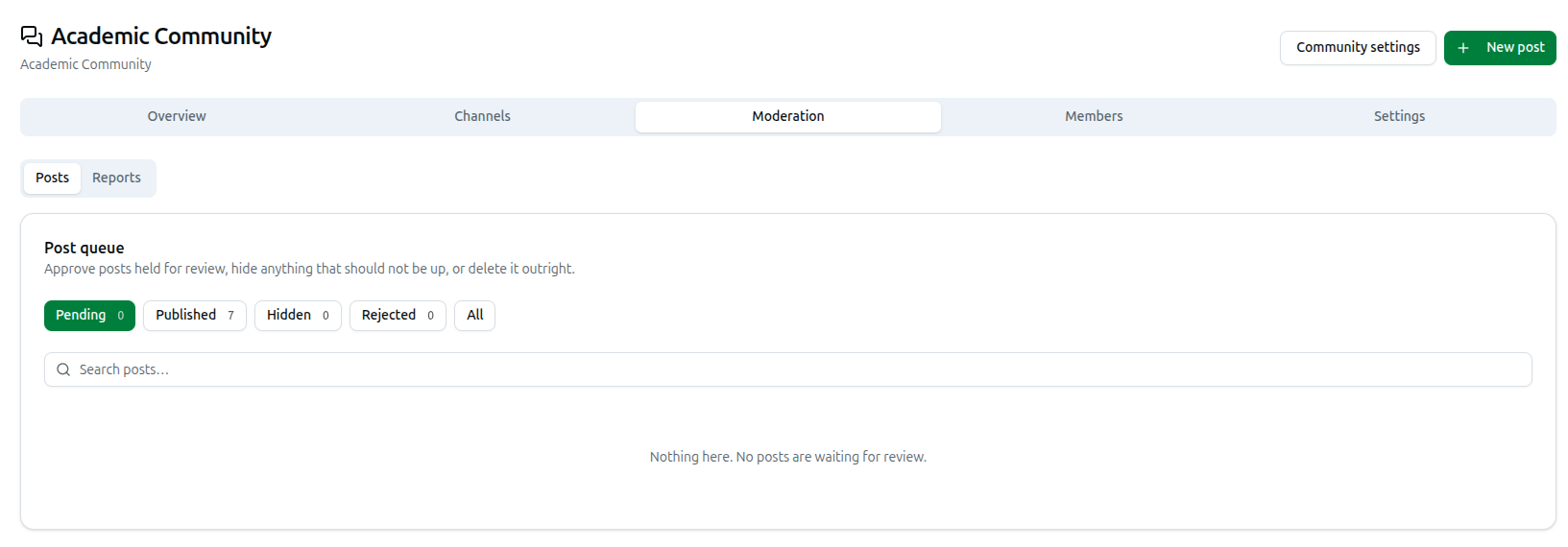
Two sub-views, Posts and Reports:
Posts — a queue you can filter by Pending, Published, Hidden, Rejected, or All, each with its own count, plus a search box. Every post here can be:
- Publish — makes it visible in the feed.
- Hide — pulls it from the feed but keeps the record.
- Reject — pending posts only; declines it without publishing.
- Pin / Unpin — pins it to the top of its channel.
- Delete — permanent, removes the post and every comment on it. A confirm dialog reminds you to hide instead if you just want it out of the feed.
Reports — posts or comments a member flagged, with the reporter's name, their reason, and an optional note. Filter by Open, Resolved, Dismissed, or All. An open report can be Marked resolved or Dismissed.
Members Tab
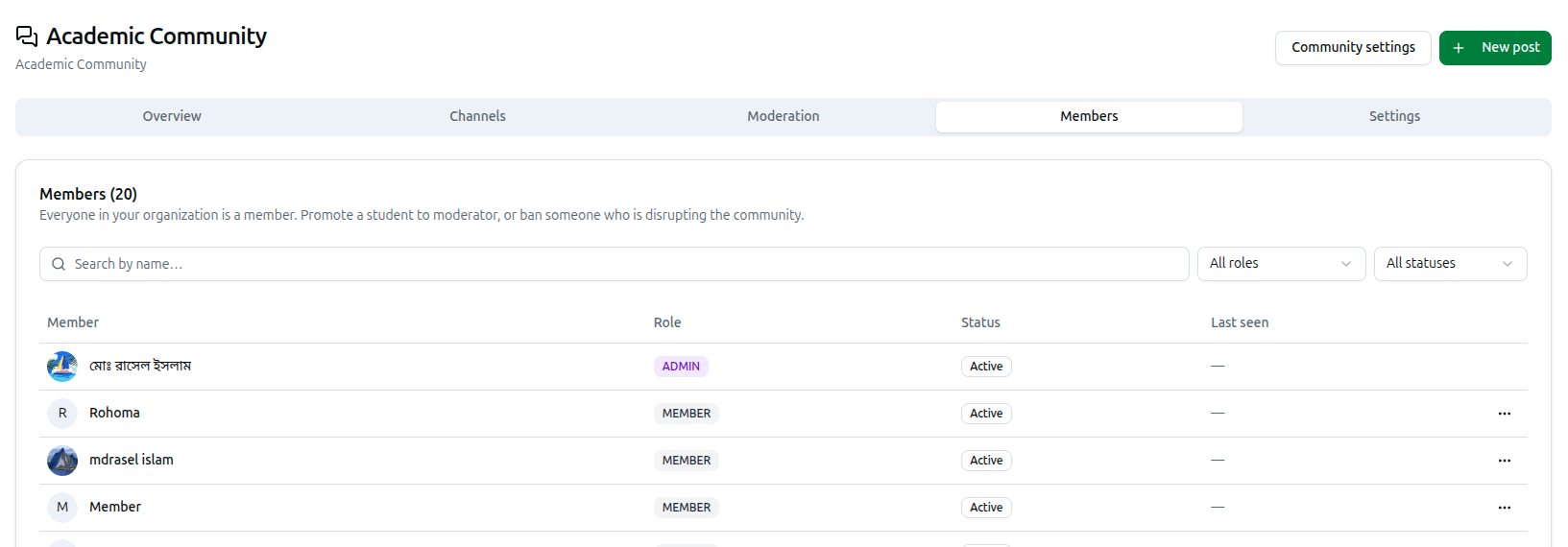
Every student, teacher and admin in your organization is listed automatically — there's nothing to add manually. Search by name, or filter by Role (Member, Moderator, Teacher, Admin) and Status (Active, Banned).
Only Member and Moderator rows have an action menu — Teacher and Admin hold their role through the organization itself, so there's nothing to change here:
- Make moderator / Remove moderator — moderators can review posts and reports the same as a teacher, without being one.
- Ban from community / Unban — a banned member keeps their course access but loses the community.
Settings Tab
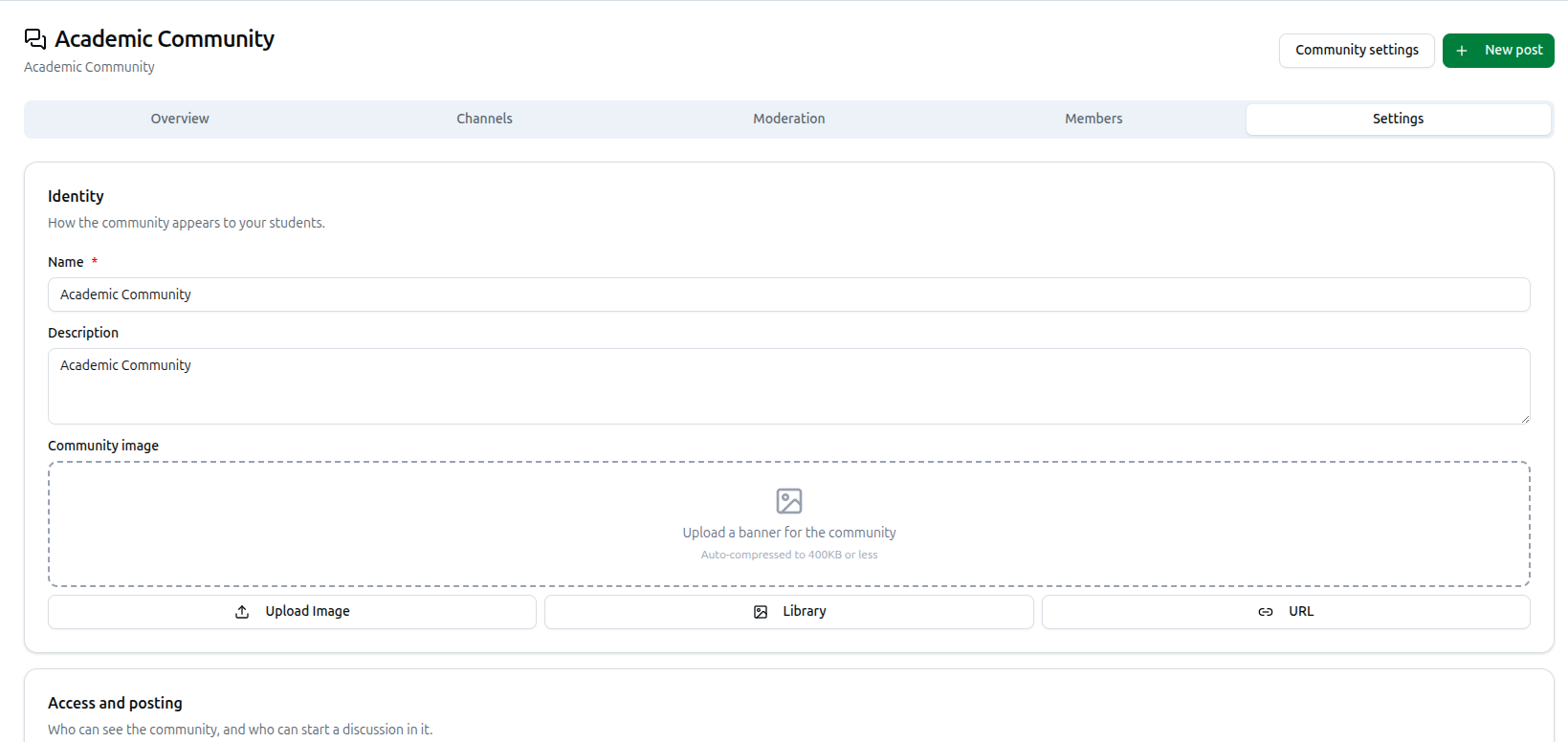
Identity — Name, Description, and a Community image (banner, auto-compressed to 400KB, added via Upload Image, Library or URL).
Access and posting:
- Visibility — Everyone in the organization, or Only students enrolled in a course. On the stricter setting, a student with no course and no batch sees nothing at all, not even org-wide channels; enrolled students see everything they otherwise would.
- Who can post — Every member, or Teachers and admins only. This is the community-wide default; a channel's own Who can post setting overrides it.
- Approve posts before they appear — when on, member posts sit in the Moderation queue until published. Posts from teachers and admins are never held, regardless of this setting.
Click Save changes to apply them.
Archive / Restore community sits apart, in its own red-bordered card. Archiving requires typing ARCHIVE to confirm:
- The Community entry disappears from every student's sidebar.
- Nobody can post, comment or reply.
- Nothing is deleted — channels, posts and comments are all kept, and restoring (type RESTORE to confirm) brings everything straight back.
Posting from the Dashboard
Before this feature, the only way to post as staff was to sign in to the student portal. Now, click New post at the top of any Community tab:
- Channel — defaults to your first Announcements channel.
- Type — Announcement (notifies everyone who can see the channel), Discussion, or Question (both notify only teachers and moderators).
- Title — optional; if set, it becomes the notification headline.
- Content — a rich-text editor.
- Image / File — up to 10 attachments; video isn't supported on community posts.
Posts made from the dashboard skip the approval queue automatically, whatever your Approve posts before they appear setting says — that toggle only ever holds back posts from ordinary members.
Managing Channels From a Course Page
A course's own page has a Community tab — between Announcements and Reviews — with the same channel controls as the Channels tab above, already filtered to that course's channels. It's a shortcut for binding a channel while you're already on the course, not a separate system: create, edit or archive a channel there and it shows up identically at /dashboard/community. Reordering isn't available from here, since channel order is global across the whole sidebar.
Troubleshooting
| What you see | What it means |
|---|---|
| You land on a "Start your learning community" card instead of tabs | Your organization hasn't created its community yet — fill in a name and pick at least one starter channel |
A channel's ··· menu has no Delete option |
Either you're not the owner, or it's the default channel, which can't be deleted |
| A student says they can't see a channel | Check its Courses/Batches binding — it may be limited to enrollees, or check your community's own Visibility setting under Settings |
| A member's post isn't showing up | Check Approve posts before they appear in Settings — if it's on, their post is sitting in the Moderation queue as Pending |
| Can't reorder channels from a course page | Reordering is only available from the main Channels tab at /dashboard/community — course-page channel lists are filtered and read-only for ordering |
Related: Resources Library Overview · Managing Course Details & Content