
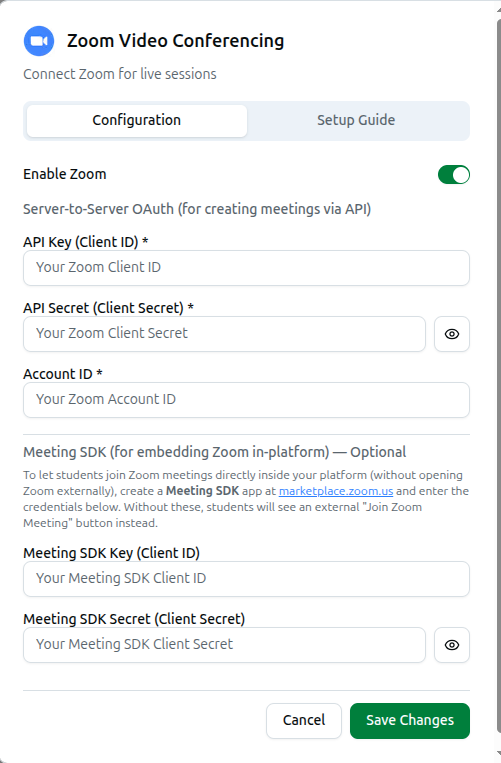
Zoom lets you run live classes through Zoom's meeting infrastructure instead of YouTube Live. Connect it from Integrations in the left sidebar under Platform, then click Zoom Video Conferencing — Connect Zoom for live sessions.
Enable Zoom
Toggle Enable Zoom to unlock the form. Two tabs sit at the top: Configuration and Setup Guide — the guide walks through the Zoom Marketplace steps for the fields below.
Server-to-Server OAuth — Required
This is what lets Course37 create Zoom meetings on your behalf via the Zoom API. Three fields, all required:
| Field | What it is |
|---|---|
| API Key (Client ID) | Your Zoom Client ID |
| API Secret (Client Secret) | Your Zoom Client Secret — hidden by default, with an eye icon to reveal it |
| Account ID | Your Zoom Account ID |
These three alone are enough to schedule Zoom classes. Once set, saving a live session with Zoom as the provider auto-creates the meeting through your Zoom account.
Meeting SDK — Optional, and the Detail Worth Knowing
Below a divider sits a second, separate credential set: Meeting SDK Key (Client ID) and Meeting SDK Secret (Client Secret).
The dialog explains exactly what this is for:
To let students join Zoom meetings directly inside your platform (without opening Zoom externally), create a Meeting SDK app at marketplace.zoom.us and enter the credentials below. Without these, students will see an external "Join Zoom Meeting" button instead.
This is the opposite of what you might assume. Connecting only the Server-to-Server OAuth credentials gets your classes scheduled and meetings created — but students are sent to the Zoom app or website via an external button. To keep them inside your platform, you need this second, separate app registered on the Zoom Marketplace. Skipping it does not break anything; it just means Zoom opens externally rather than embedding.
Get the Meeting SDK credentials from a Meeting SDK app created at marketplace.zoom.us, which is a different app type from the Server-to-Server OAuth app used above.
Saving
Click Save Changes. With Zoom enabled and the required OAuth fields filled in, it becomes available as a Streaming Provider when scheduling a live class.
Full guide: Live Class Resources
Troubleshooting
| What you see | What it means |
|---|---|
| Zoom sessions save but generate no meeting | The Server-to-Server OAuth credentials are missing or incorrect |
| Students are sent to an external Zoom window instead of staying on your platform | Expected without the Meeting SDK credentials — this is optional, not a fault |
| You entered credentials but nothing changed | Confirm you filled in the OAuth fields, not just the Meeting SDK ones — OAuth is what actually creates meetings |
| Zoom does not appear as a provider when scheduling a class | Enable Zoom is off, or the required fields were never saved |
Related: Live Class Resources · Global Live Class Settings · Manage Integrations