
There are two ways to put questions into an exam: write a new one, or pull an existing one from your question bank. Both start from the exam's Questions tab.
Reach for the bank first. A question you wrote last year already carries its accuracy history, so reusing it beats retyping it.
Part 1 — Creating a Question Manually
Click Create Question to open Create New Question — Add a new question to your organization. Fill in the required information below.
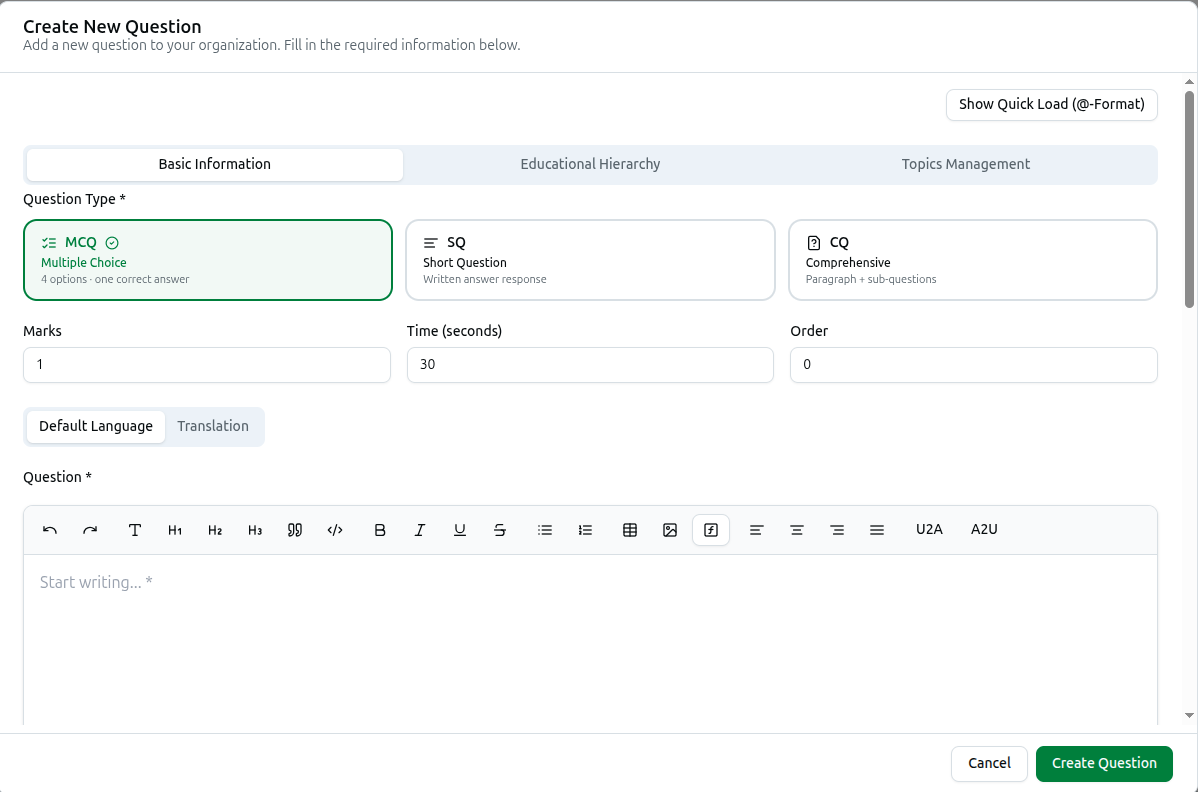
The form has three tabs: Basic Information, Educational Hierarchy and Topics Management.
Choosing the Question Type
Three cards, and the choice changes what you fill in below:
| Type | Full name | What it is |
|---|---|---|
| MCQ | Multiple Choice | 4 options · one correct answer |
| SQ | Short Question | Written answer response |
| CQ | Comprehensive | Paragraph + sub-questions |
MCQ is the only type that marks itself. SQ and CQ need a human to read the answer, so a paper built from them cannot be auto-scored or scanned by OMR.
Marks, Time and Order
- Marks — what this question is worth. Defaults to 1.
- Time (seconds) — how long it should take. Defaults to 30. This feeds the exam's overall duration.
- Order — position in the paper. You can also drag questions into order afterwards.
Writing the Question
Question is a full rich-text editor: headings, bold, italic, underline, strikethrough, quotes, code, lists, tables, images, and text alignment.
Two buttons deserve naming:
- ƒ inserts a mathematical formula — use it rather than typing equations as plain text, so they render properly for students.
- U2A and A2U convert Bangla between Unicode and ANSI. If you paste from an older document and get garbled Latin characters, these fix it.
Default Language and Translation
The Default Language / Translation toggle above the editor lets you write the same question in a second language. Students then see it in whichever language they are using.
Quick Load (@-Format)
Show Quick Load (@-Format) reveals a text box where a whole question — stem, options and correct answer — can be typed or pasted in one compact block, instead of filling each field. It is much faster once you know the format, and in edit mode it shows the current question in that form.
The Other Two Tabs
- Educational Hierarchy — tag the question to a level, group, subject and chapter. Do this. Untagged questions are almost impossible to find later, cannot be filtered when building an exam, and never appear in chapter-based analysis.
- Topics Management — attach the question to specific topics for finer targeting.
Click Create Question to save.
Part 2 — Importing from the Question Bank
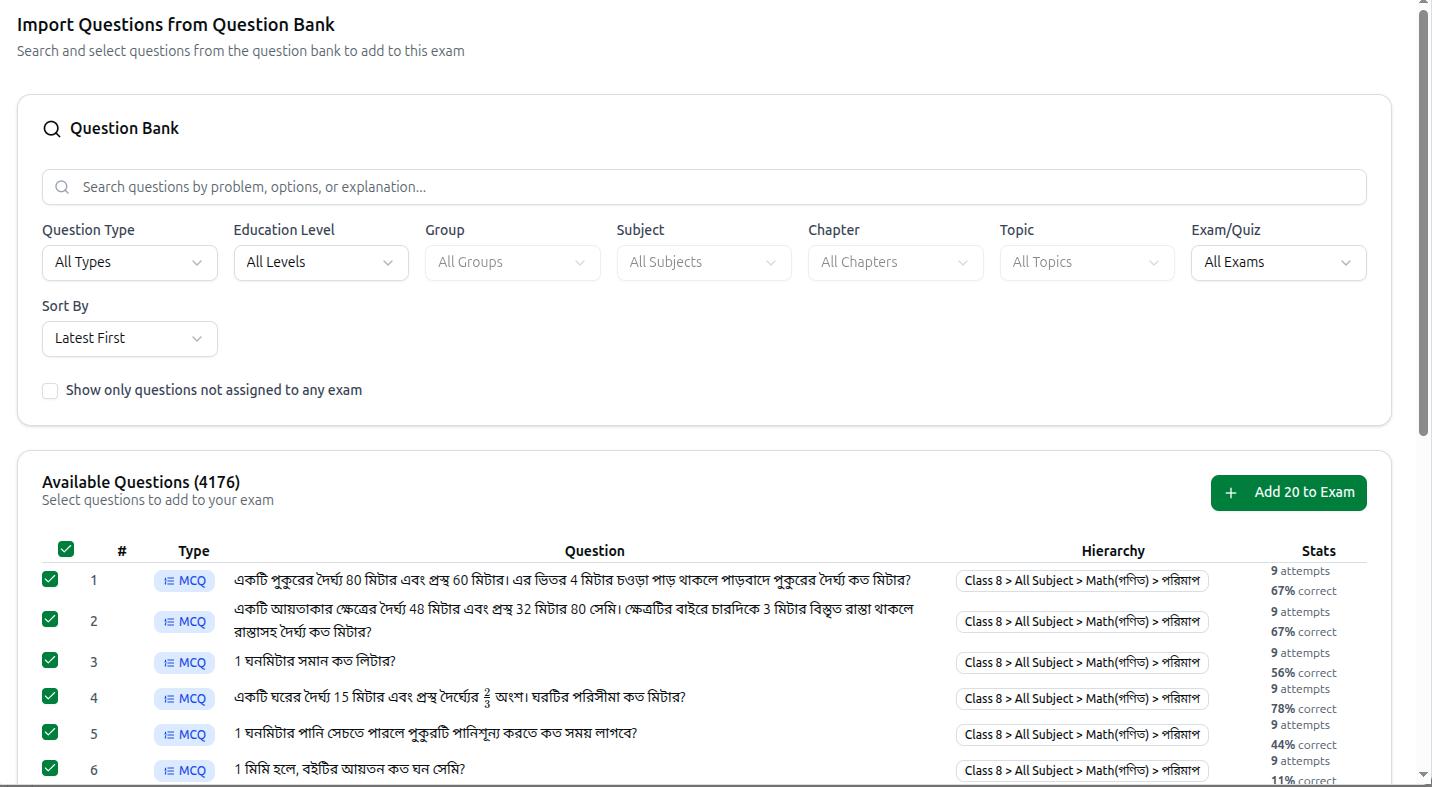
Click Import Question to open Import Questions from Question Bank — Search and select questions from the question bank to add to this exam.
Finding the Right Questions
The Question Bank panel gives you a search box — Search questions by problem, options, or explanation... — which looks inside the answer options and explanations too, not just the question text.
Then seven filters:
| Filter | Narrows by |
|---|---|
| Question Type | MCQ, SQ or CQ |
| Education Level | The top of your curriculum |
| Group | Stream within that level |
| Subject | Subject within the group |
| Chapter | Chapter within the subject |
| Topic | Topic within the chapter |
| Exam/Quiz | Questions used in a particular exam |
Group, Subject, Chapter and Topic stay greyed out until you pick the level above them — they are not broken, just waiting for a parent.
Sort By offers orders such as Latest First.
Show only questions not assigned to any exam is the checkbox to know about. Tick it and you see only unused questions — the fastest way to build a fresh paper without repeating questions students have already sat.
Selecting and Adding
The list is headed Available Questions (4176) — Select questions to add to your exam — and each row shows:
- Type badge such as MCQ
- The question text
- Hierarchy — the full curriculum path, Class 8 > All Subject > Math(গণিত) > পরিমাপ
- Stats — 9 attempts, 67% correct
Use the Stats column to build a balanced paper. A question at 90% correct is an easy opener; one at 30% correct is a discriminator. Picking twenty questions purely by chapter tends to produce a paper that is accidentally brutal or accidentally trivial.
Tick the questions you want — the header checkbox takes everything listed — then click the button, which counts your selection as Add 20 to Exam.
You will see N questions added to exam successfully.
Troubleshooting
| What you see | What it means |
|---|---|
| Please select questions to add | You clicked add without ticking any rows |
| The hierarchy filters are greyed out | Pick the level above first — each depends on its parent |
| A question you wrote is missing from the bank | It was probably saved without hierarchy tags. Search by its text, then edit and tag it |
| Bangla text appears garbled | Use U2A or A2U in the editor toolbar |
| Formulas render as plain text | Type them with the ƒ formula button rather than as text |
| The same questions keep reappearing | Tick Show only questions not assigned to any exam |
| An SQ or CQ paper will not auto-mark | Only MCQ marks itself; written types need manual grading |
Related: Question Bank · Bulk Import & AI Generation · Managing Exams, Questions and Results