
Written upload is an exam format for papers students still answer on paper — they write by hand, then photograph or scan their pages and upload them, instead of typing into the browser. You mark the digitized script on screen with a pen tool, optionally helped by AI, instead of the platform auto-marking it.
Turn it on from Answer Format in the Create or Update Exam dialog — it sits next to Exam Type.
Creating a Written-Upload Exam
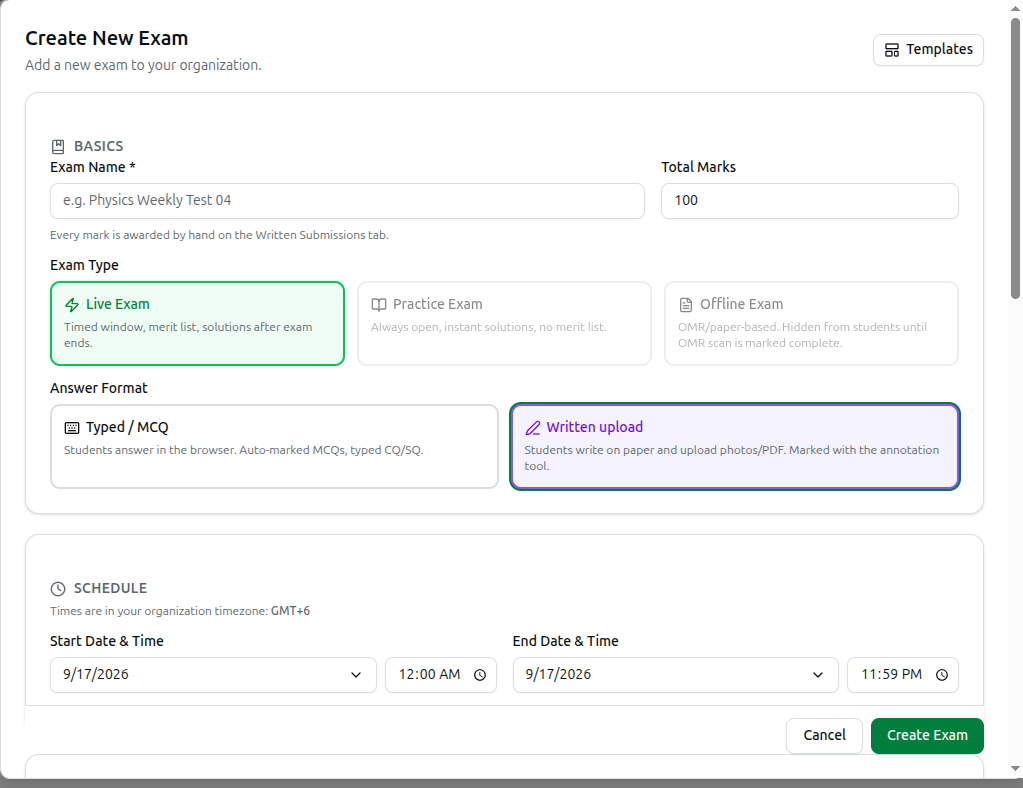
Answer Format offers two choices:
- Typed / MCQ — the existing behaviour. Students answer in the browser; MCQs are auto-marked, CQ/SQ typed in.
- Written upload — students write on paper and upload photos or a PDF; every mark is entered by hand on the Written Submissions tab.
Picking Written upload changes the rest of the form:
- Exam Type locks to Live Exam — a written-upload paper is always sat in a dated window, never Practice or Offline.
- Total Marks stays, but the note under it changes to "Every mark is awarded by hand on the Written Submissions tab" — there's no MCQ/Written/SQ split to configure.
- A new Question Paper card appears — attach the PDF(s) students will answer from. It stays hidden until the exam is running, and is released to a student only while their session is active.
- Total duration (minutes) becomes required — see below.
Duration & Proctoring
These settings apply to any exam format, but a written-upload paper depends on two of them:
- Total duration — for a written-upload exam this is required: how long each student gets once they personally start, not the length of the exam window. They can start any time inside that window. For a standard exam this field is optional and, left blank, falls back to time-per-question × question count.
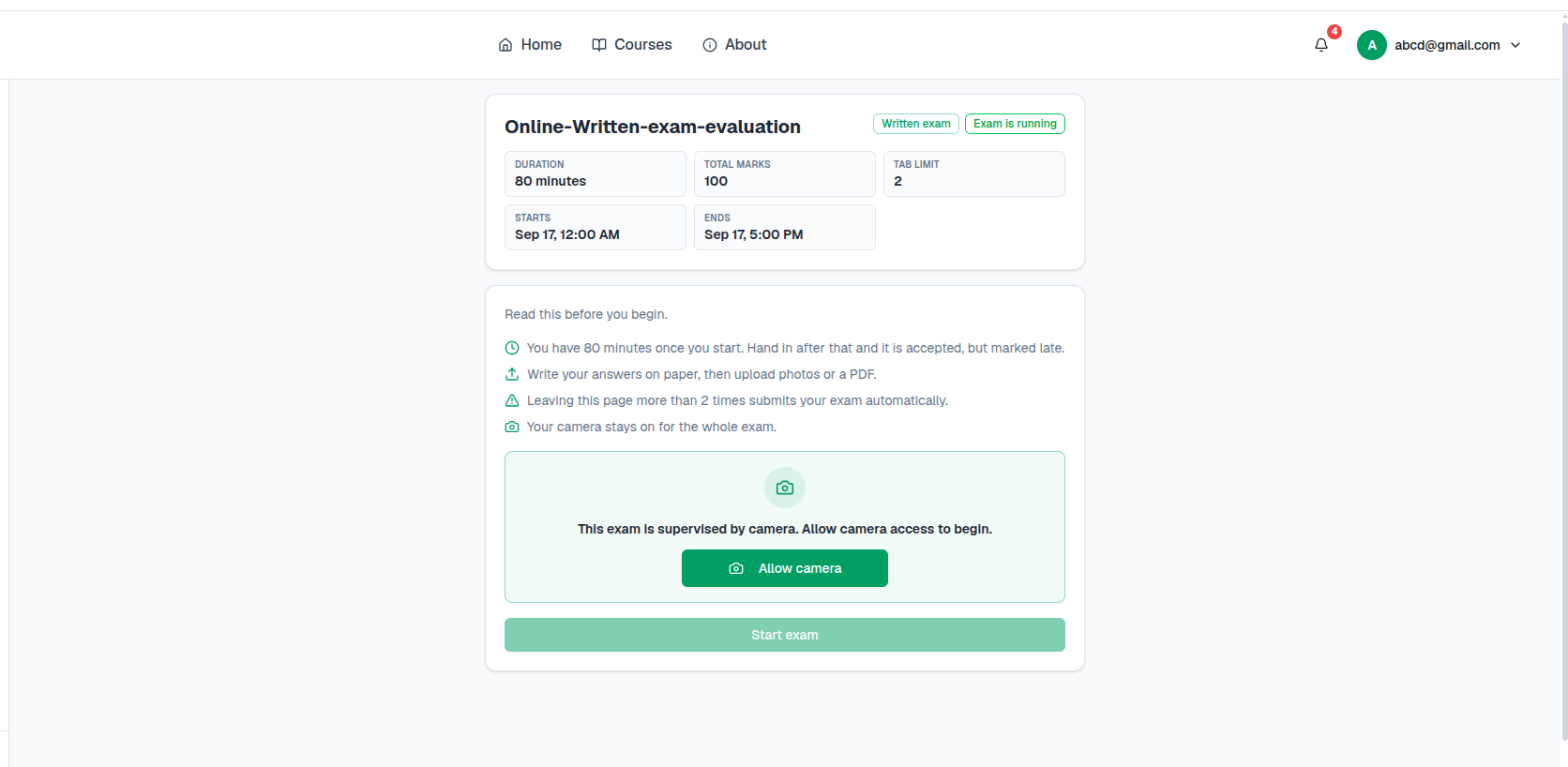
- Require camera (snapshot proctoring) — students must allow their front camera before they can start. Despite the exam page later showing a "Face recording on" badge, this is not continuous video: the system takes a few snapshots at random times, plus one every time the student switches away from the tab.
- Max tab switches — reaching this count auto-submits the exam. It's counted server-side, not in the student's browser, so it can't be bypassed client-side. Default is 2.
- Upload grace after time-up — written-upload only. Extra minutes, after the timer ends, in which the student can still photograph and upload their paper. The question paper itself is hidden during this grace period — it's upload-only time.
The Exam Detail Page
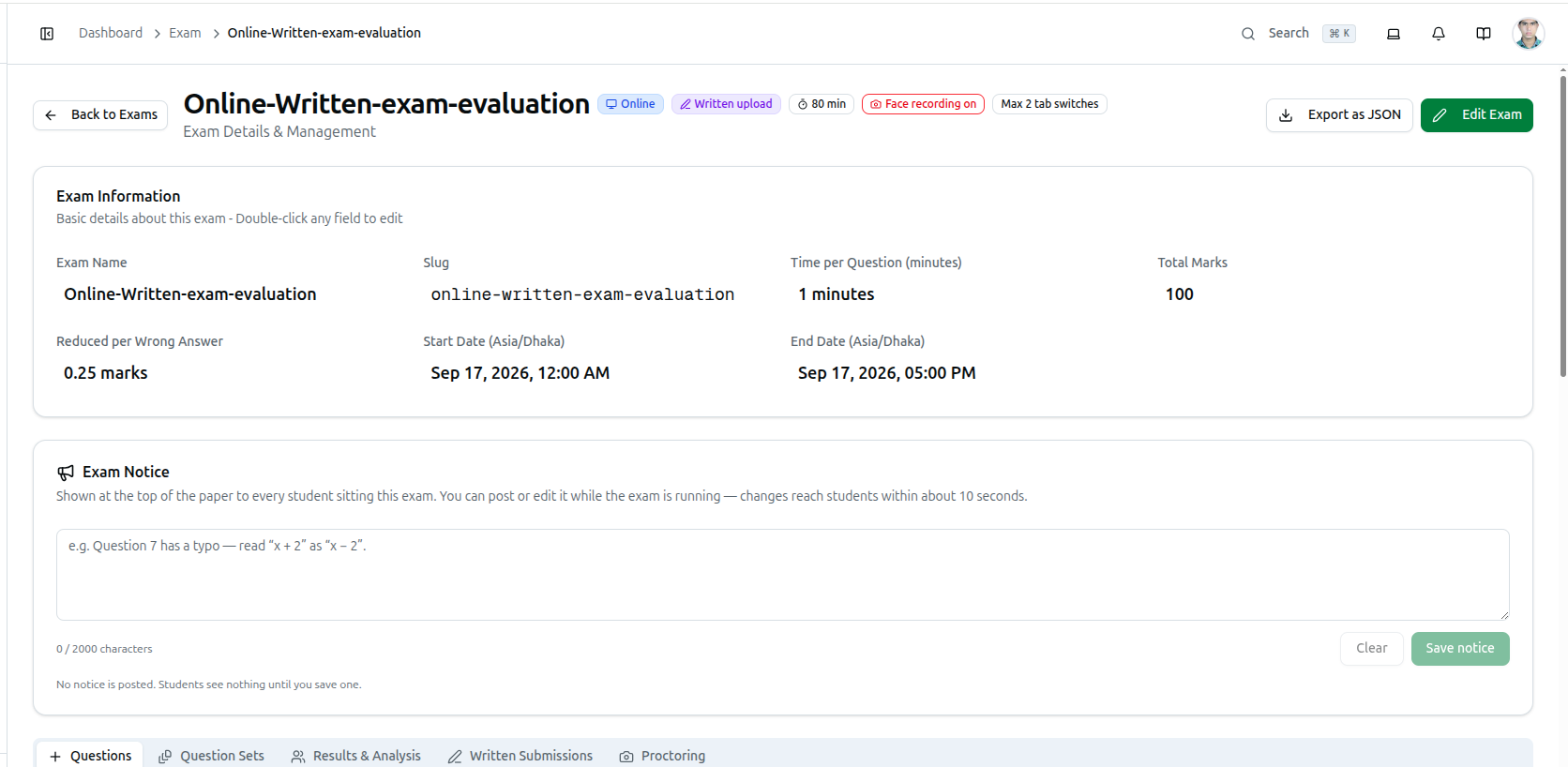
The header badges summarize the exam at a glance — its delivery, answer format, duration, whether camera proctoring is on, and the tab-switch limit.
Exam Notice is a small, general addition worth knowing about even outside written-upload exams: a message shown at the top of the paper to every student sitting it. You can post or edit it while the exam is running — an invigilator's way to correct a typo mid-paper — and changes reach students within about 10 seconds. It's capped at 2,000 characters.
Two tabs appear conditionally on this page:
- Written Submissions — only on written-upload exams.
- Proctoring — on any exam format, whenever Require camera is switched on.
What the Student Sees
Before starting — duration, total marks, tab limit and the exam window, a plain-language rules list, and, if camera proctoring is on, a hard gate: Allow camera must be granted before Start exam becomes usable.
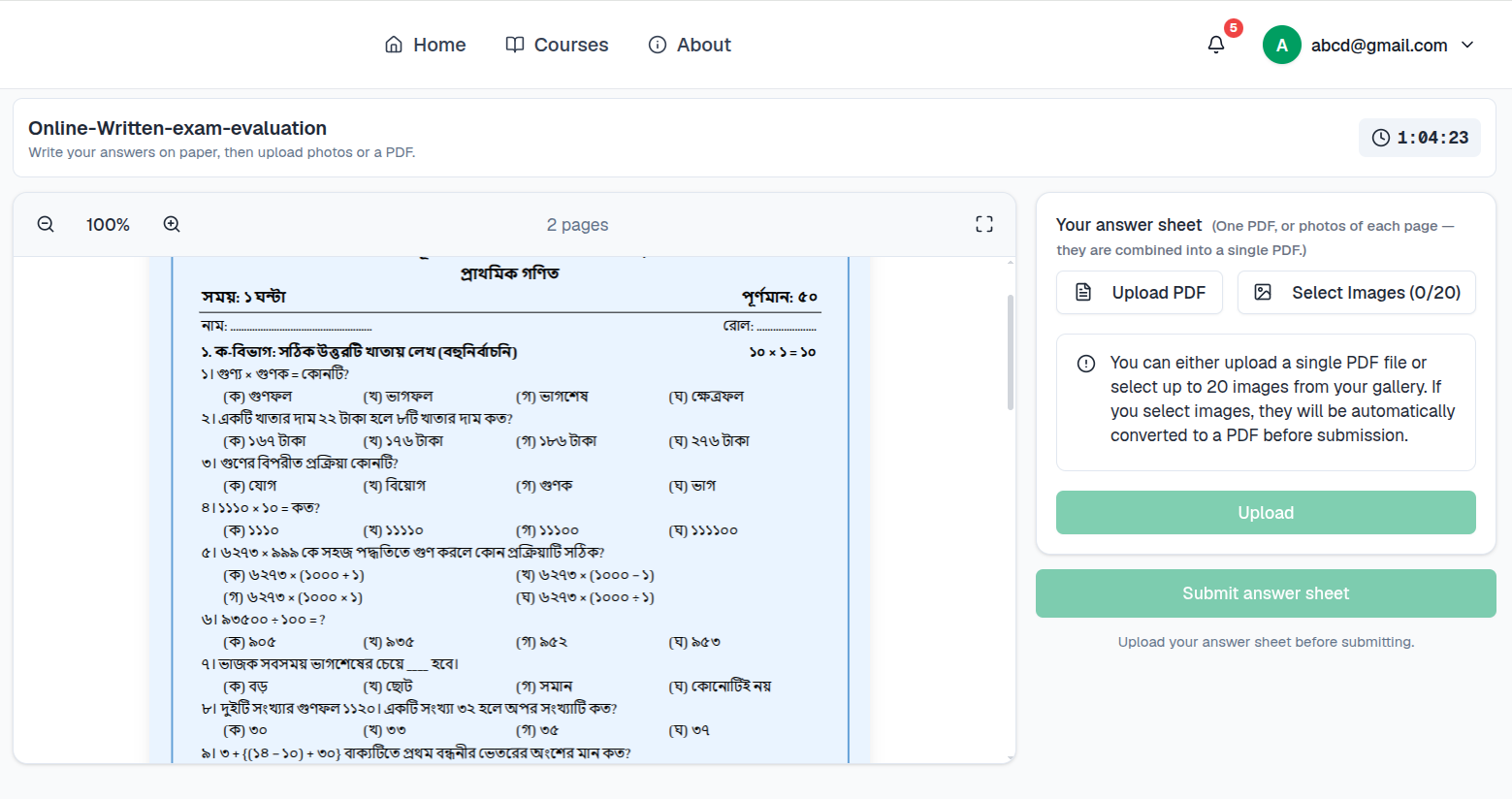
During the exam — the question paper on one side (zoomable, paginated) and an upload panel on the other. A student uploads one PDF, or up to 20 photos of their pages; photos are combined into a single PDF automatically when submitted.
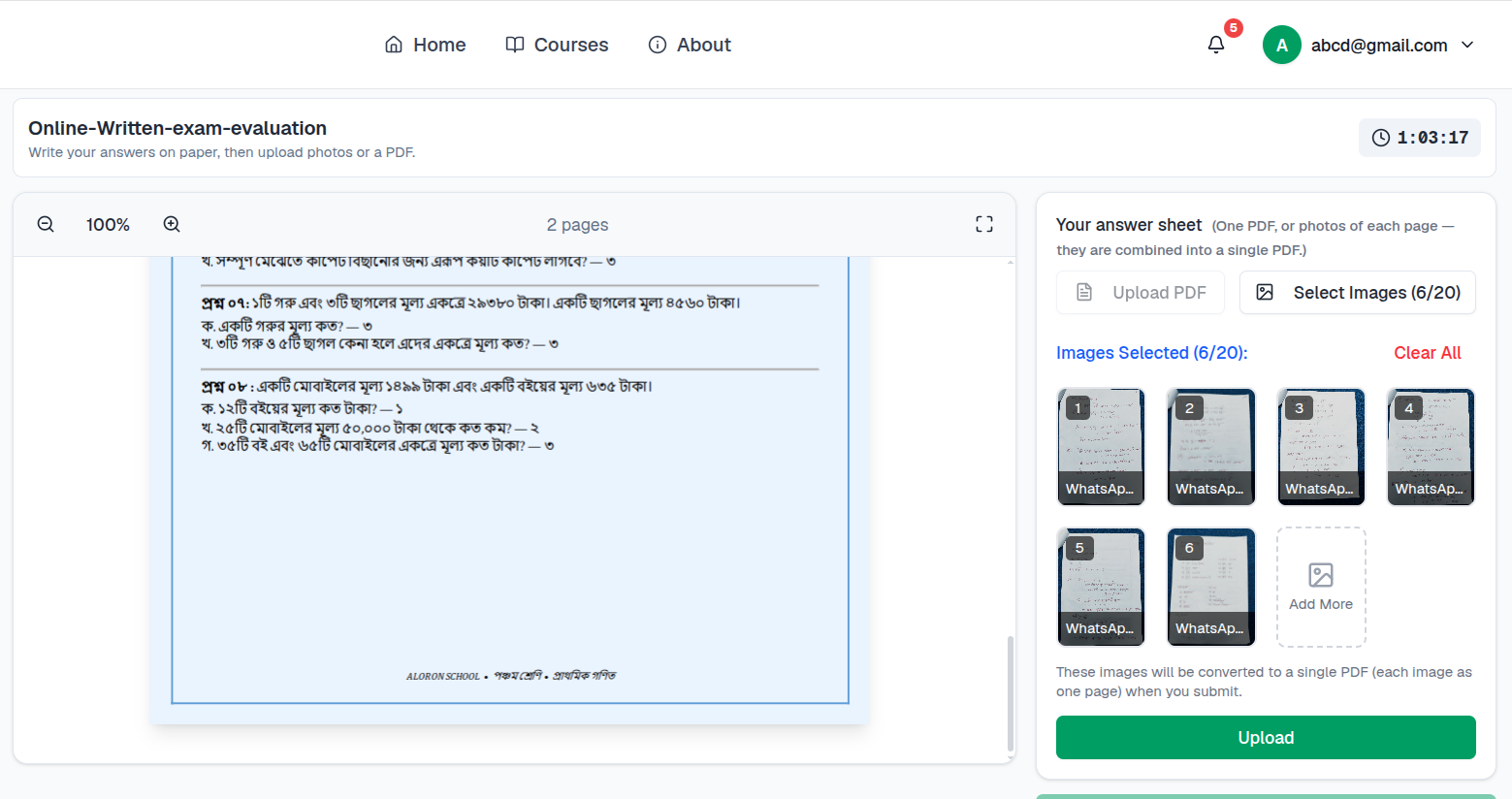
Reaching Max tab switches submits the exam immediately and automatically, with whatever was uploaded at that point. Running out of time starts the upload grace window instead of an instant cutoff, if one is configured.
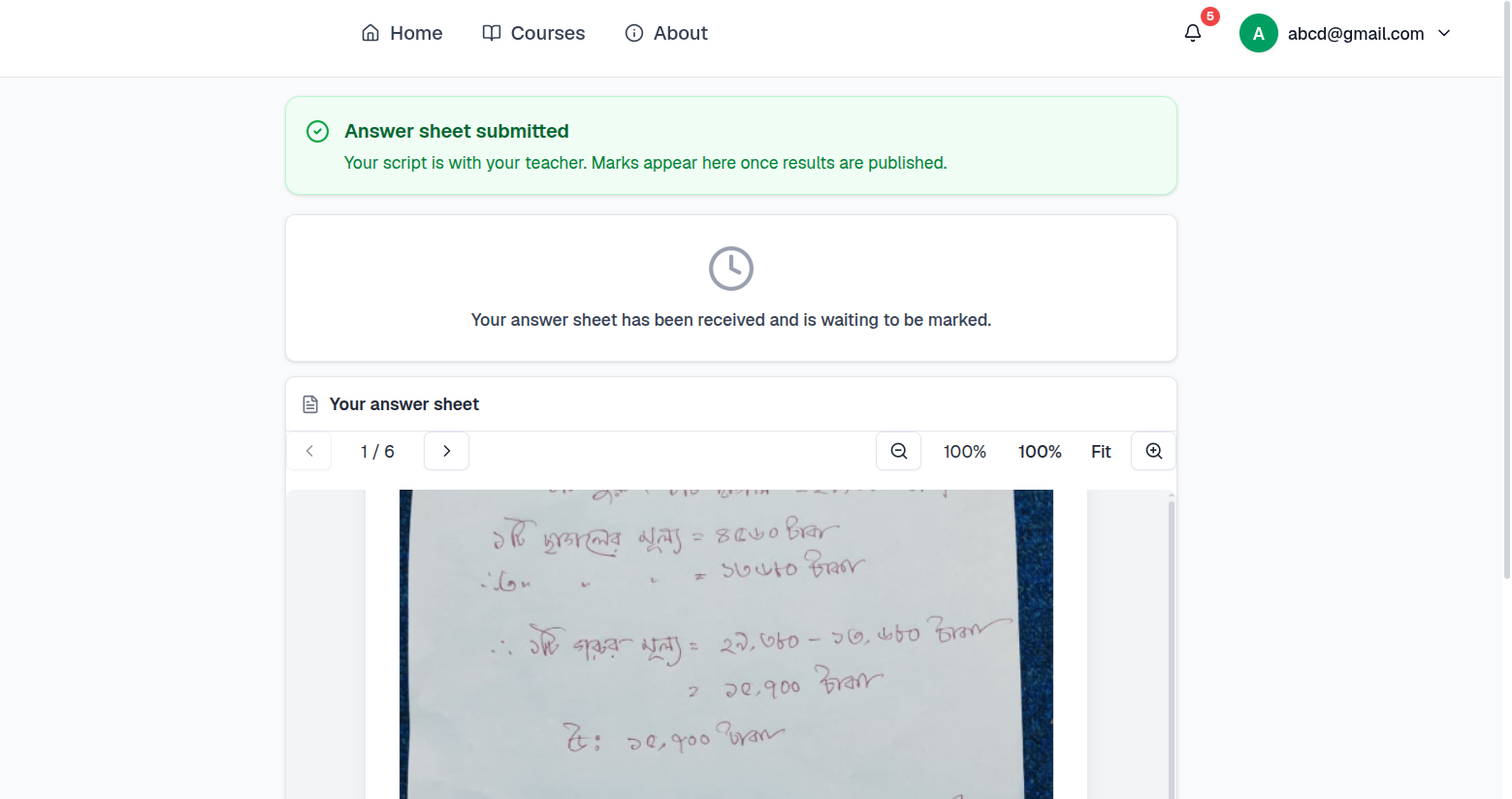
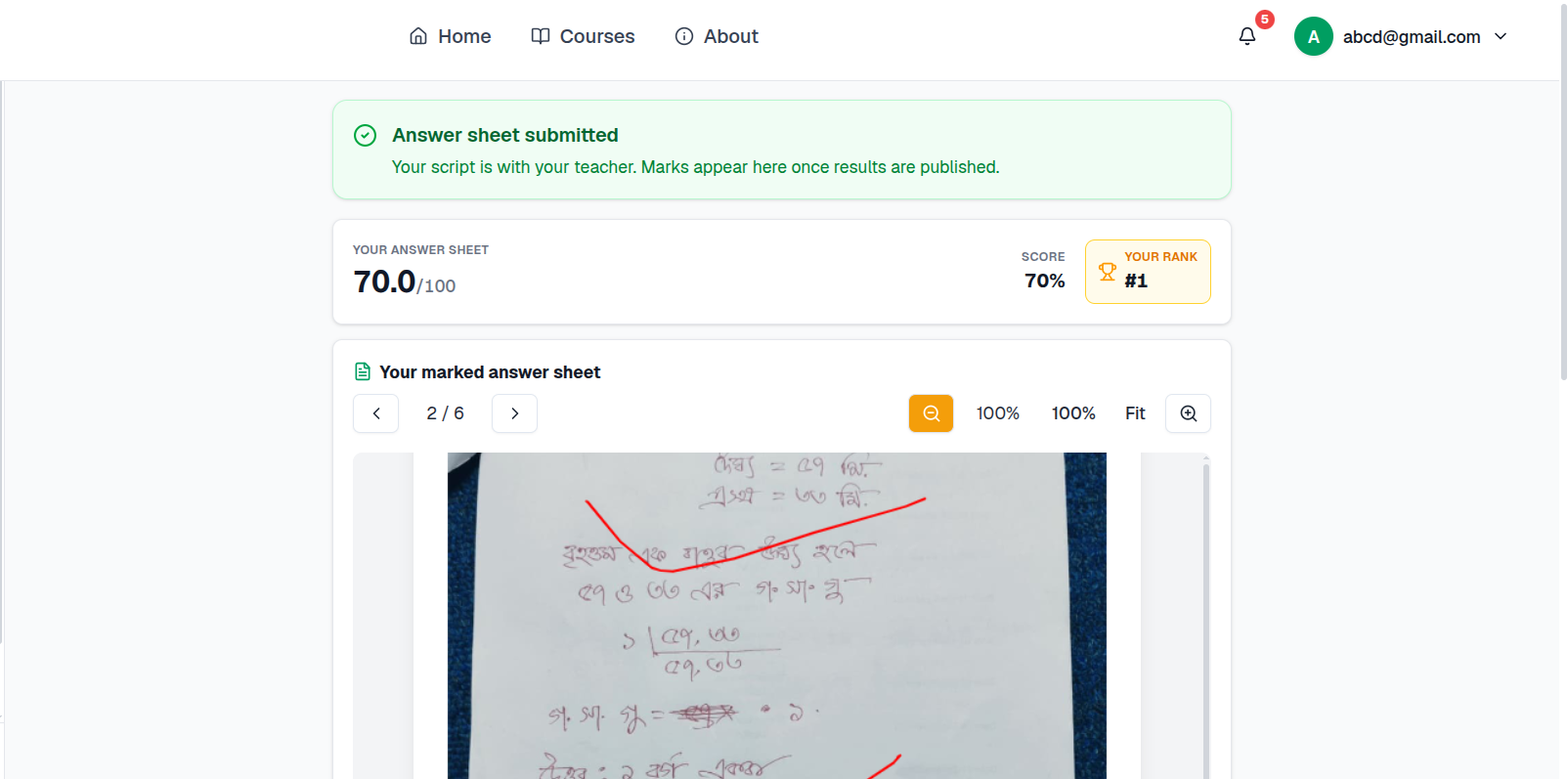
After submitting, the student sees a confirmation and a waiting state — their script has gone to the teacher, and marks appear only once you publish results (see below). They can still review the pages they uploaded.
Grading Submissions
Open the exam's Written Submissions tab. It behaves like the platform's other digital grading tools: stat cards up top (Enrolled, Submitted, Graded, Late, Missing), two sub-tabs — Submissions and Not Submitted — plus a search box and a status filter.
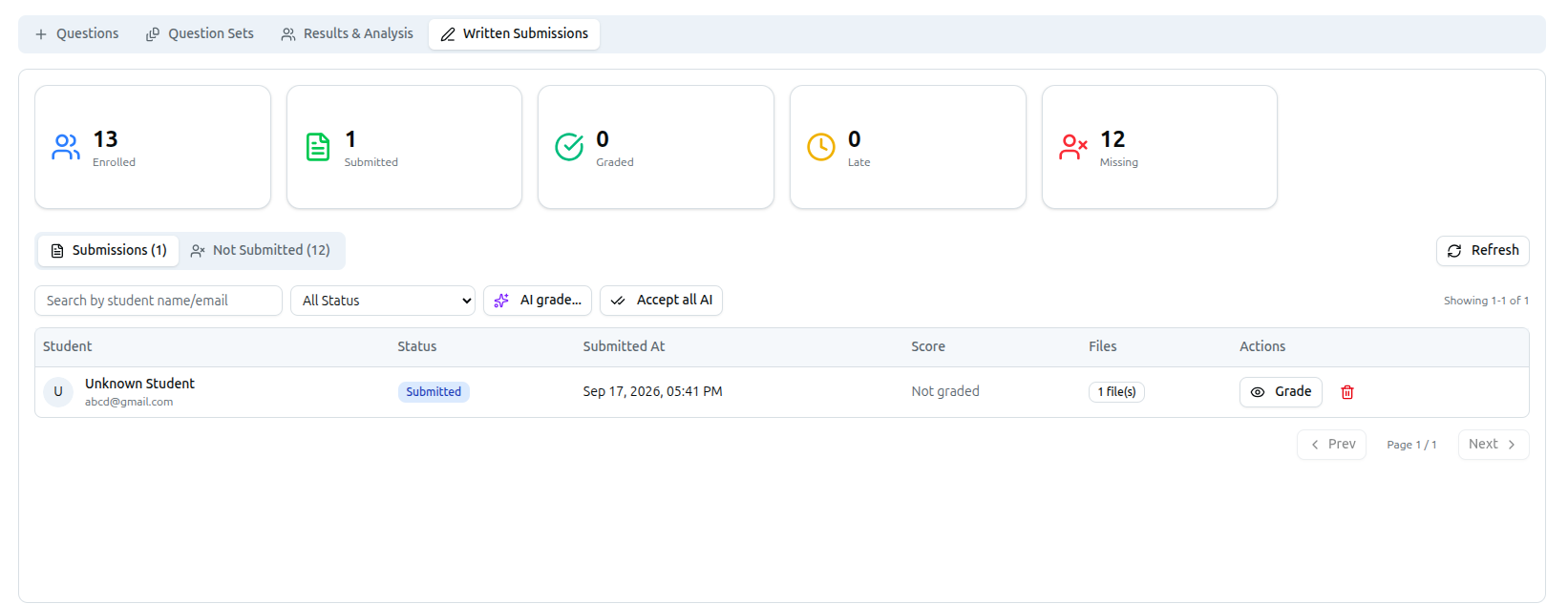
AI grade… sends a submission (or, with Accept all AI, every ungraded one) to an AI grader that has the question paper as context, producing a suggested score and feedback you can accept as-is or adjust before saving.
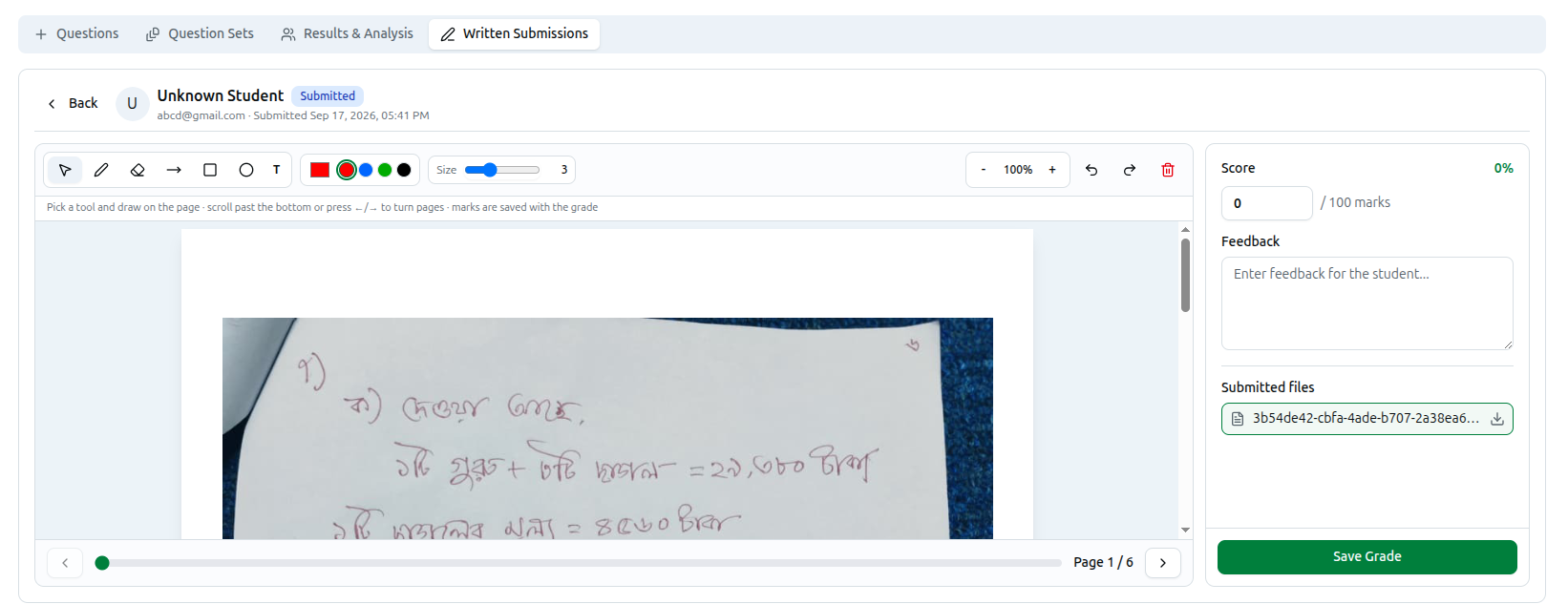
Grading by hand: click Grade on a row to open the annotation tool — pointer, pen, eraser, arrow, rectangle, circle and text tools, a colour and brush-size picker, undo/redo, zoom, and page navigation — drawn directly on the student's uploaded pages. Alongside it: a Score field (out of the exam's total marks), a Feedback textarea, the student's submitted files, and Save Grade.
Once graded, the row's status flips to Graded with its score, and the tab gains an Average stat card across everything graded so far.
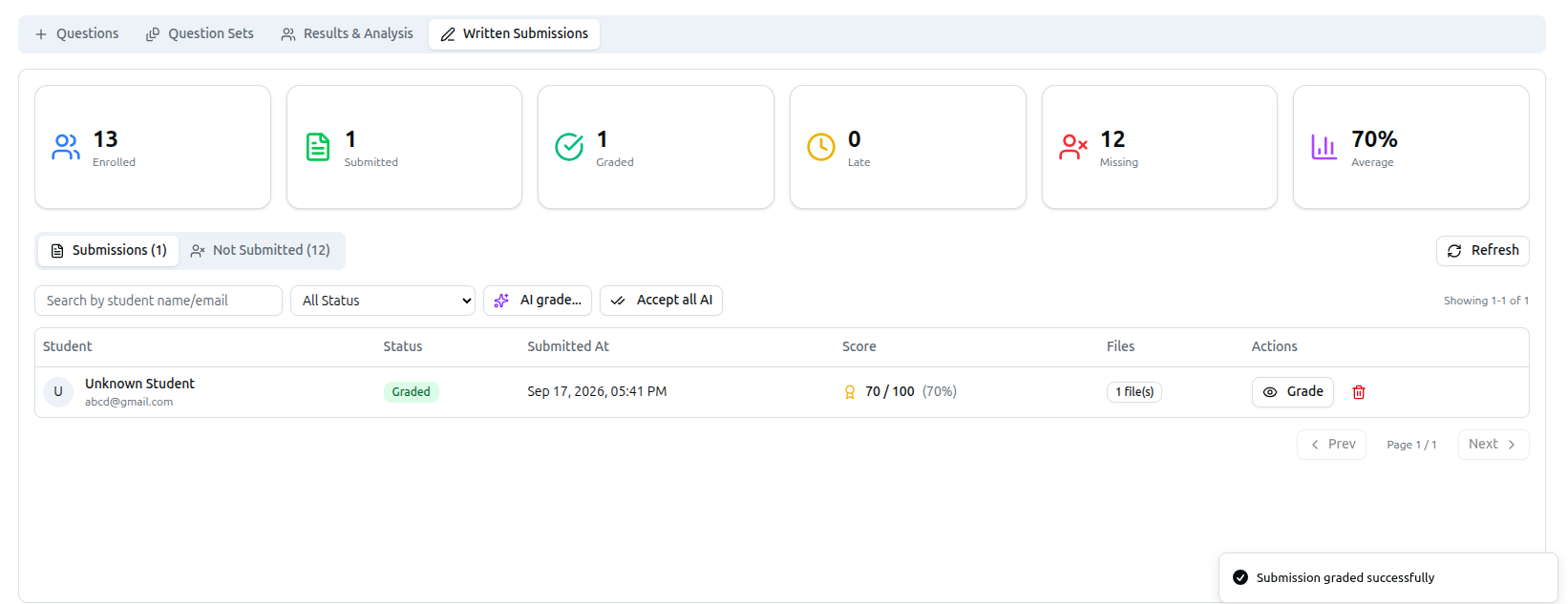
Deleting a submission is a full reset, not a correction. It permanently removes the uploaded answer sheet, the proctoring snapshots, the result, and the exam session — and lets the student sit the exam again from scratch. Use it to let someone retake the paper, not to fix a wrong grade.
Publishing Results
Grading a script does not by itself show the mark to the student. Freeze Position on the exam's Results & Analysis tab is the step that actually publishes marks and annotated scripts to students — grade everything first, then freeze position when you're ready for students to see their results.
Proctoring Tab
Available on any exam with camera proctoring on, not just written-upload ones. It lists every student who sat the exam with their captured snapshots, colour-coded by kind: plain border for a Scheduled snapshot, blue for one you Requested manually, red for a Violation (captured automatically around a tab switch).
Each snapshot also carries a face count, computed on the student's own device — treat it as a review aid, not proof; it's posted alongside the upload and could in principle be forged. "No face" flags the entry for you to check; "2+ faces" is shown but doesn't flag it on its own, since someone briefly walking past is common and not automatically suspicious.
An entry is flagged when the student switched tabs at all, the exam auto-submitted for them, a snapshot was a Violation, or a snapshot found no face. Toggle Flagged only to see just those, or click a student to request a fresh snapshot on demand while their session is still active.
What the Student Sees After Results
Once you freeze position, the student's page updates with their Score, their Rank, and their marked answer sheet — the same pages they uploaded, now showing your on-screen annotations, page by page.
Troubleshooting
| What you see | What it means |
|---|---|
| Exam Type won't switch to Practice or Offline | The exam's Answer Format is Written upload — that format is Live-only |
| Can't save without a duration | Written-upload exams require Total duration (minutes) — it isn't optional the way it is for a standard exam |
| Student says the exam submitted itself | They reached Max tab switches, or ran past the exam window plus any upload grace |
| A graded student still sees no marks | Grading alone doesn't publish — use Freeze Position on Results & Analysis |
| No Proctoring tab on an exam | It only appears when Require camera is switched on, and only after at least one session exists |
| A snapshot shows "No face" but the student was clearly there | The face count is client-computed and can be wrong — open the actual image before concluding anything |
| Need a student to retake the exam | Delete their submission on the Written Submissions tab — this resets their session so they can sit it again |
Related: How to Configure Exam Settings · How to Manage Exams, Questions and Results