
The website setup wizard is two steps — Details then Design — and both are shown at the top as a progress bar reading Step 1 of 2 or Step 2 of 2.
Step 1: Details
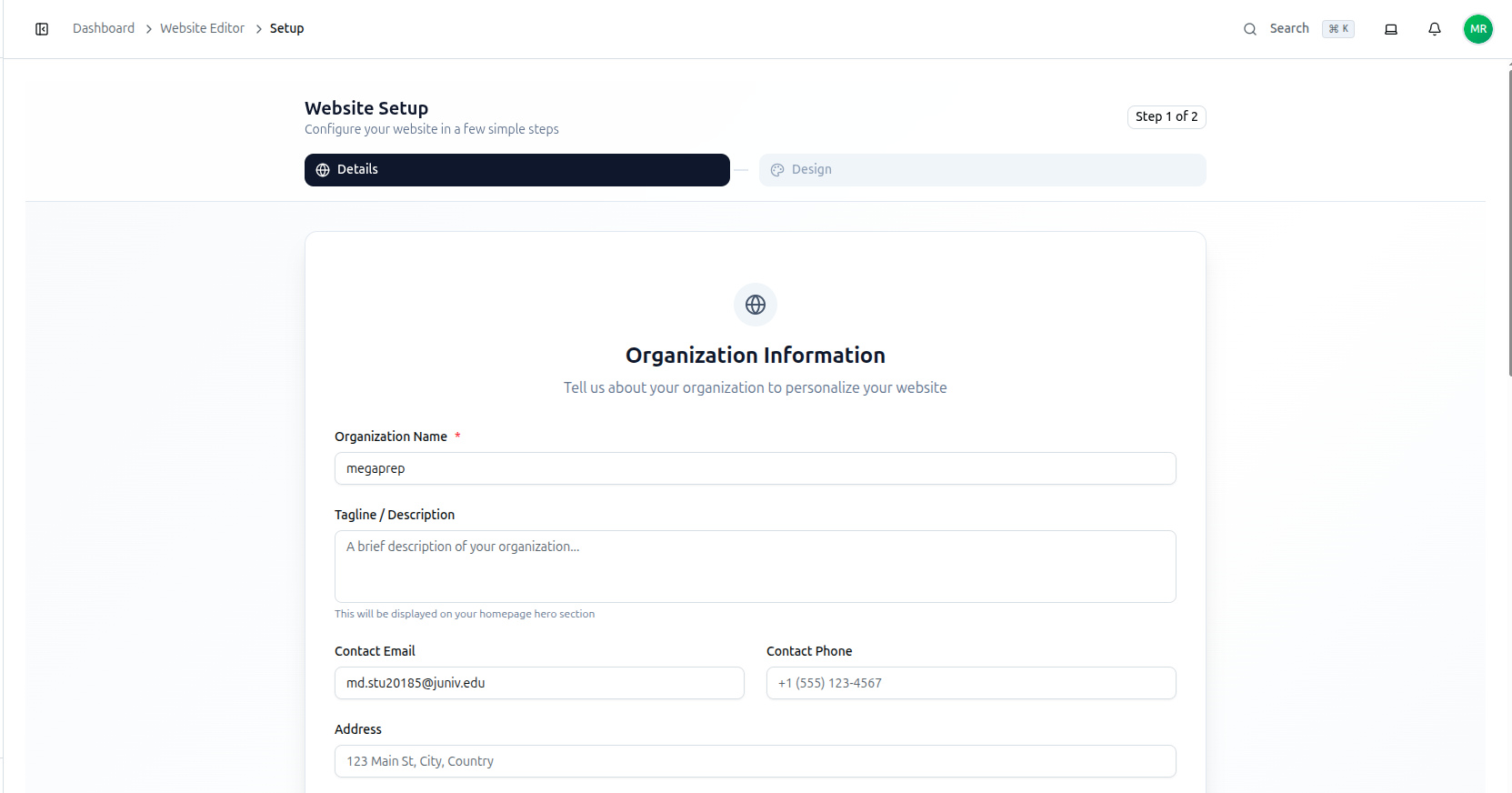
Headed Organization Information — Tell us about your organization to personalize your website. Every field lives on this single screen — nothing about your identity is deferred to a later step:
| Field | Notes |
|---|---|
| Organization Name (required) | Feeds your homepage headline automatically — Welcome to [Organization Name] |
| Tagline / Description | This will be displayed on your homepage hero section |
| Contact Email | |
| Contact Phone | |
| Address | |
| Logo | Uploaded here, not in a later branding step |
| Favicon | The browser-tab icon |
| Social Links | Facebook, Twitter/X, LinkedIn, Instagram, YouTube |
Course37 also generates a working meta title and meta description from your organization name and slogan automatically — you never have to fill those in by hand to have working SEO metadata from day one.
Step 2: Design
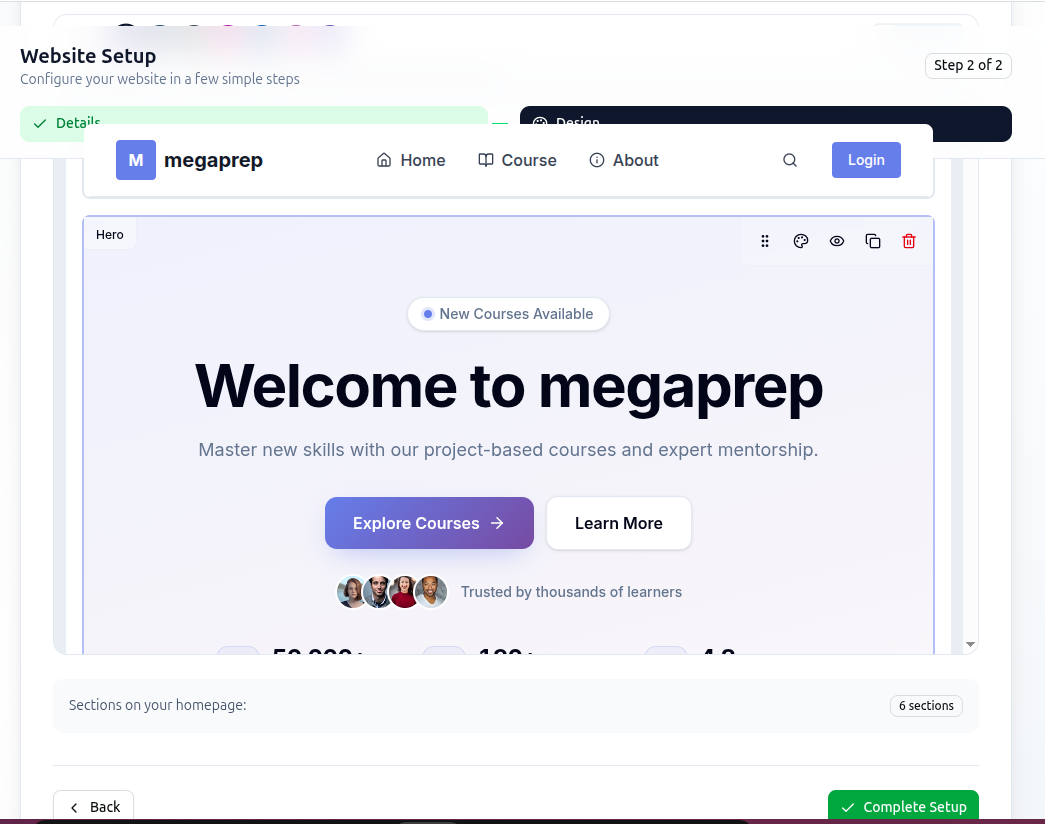
Headed Design Your Website — Pick a theme and arrange your homepage — live, exactly as visitors will see it.
This is not a form with a preview beside it. It is your homepage, rendered live with your real organization name — in the example above, Welcome to megaprep — and it responds to your choices as you make them.
Choosing a theme
Pick from Modern, Classic, Minimal, Vibrant, Professional, Creative, or Custom to set your own primary, secondary and accent colours by hand.
Working with sections directly on the canvas
Hover any section — the Hero block in the screenshot — and a small toolbar appears with a drag handle, a colour/style icon, an eye icon, a duplicate icon and a trash icon:
- Drag handle — reorders sections on your homepage.
- Eye icon — shows or hides that section without removing it.
- Trash icon — removes the section.
- Click the section itself — opens a properties dialog where you edit its actual content: headline text, subtitle, button labels, images.
The duplicate icon is there but does nothing during setup. It is the same shared control the full page editor uses later, where duplicating works — but inside this wizard step it is inert. If clicking it seems to do nothing, that is expected; duplicate a section for real once you are in the main Page Editor after setup finishes.
A running count at the bottom — Sections on your homepage: 6 sections in the example — tracks what your page currently holds as you add, hide or remove blocks.
Back returns you to Step 1 without losing what you entered. Complete Setup finishes the wizard and publishes your homepage with everything you configured across both steps.
Troubleshooting
| What you see | What it means |
|---|---|
| You expected more than two steps | There are exactly two — Details and Design. Nothing else follows |
| You can't find a separate SEO or branding step | Logo, favicon, social links and meta info are all handled in Step 1, not a later step |
| Clicking duplicate on a section does nothing | Expected during setup — duplicate is only functional in the full Page Editor afterward |
| The section count doesn't match what you see | It counts every section including hidden ones — a hidden section still counts, it just doesn't render on the live site |
| You want to change something after finishing | Everything from the wizard remains editable afterward in Manage & Create New Pages and the Page Editor |
Related: Enable & Set Up Your Website · Theme & Branding · Manage & Create New Pages