
Theme & Branding, opened from the toolbar inside the Page Editor, controls the colours, fonts and layout style your whole site uses. It carries its own tagline that says exactly how it behaves: Previews live · saves on Save.
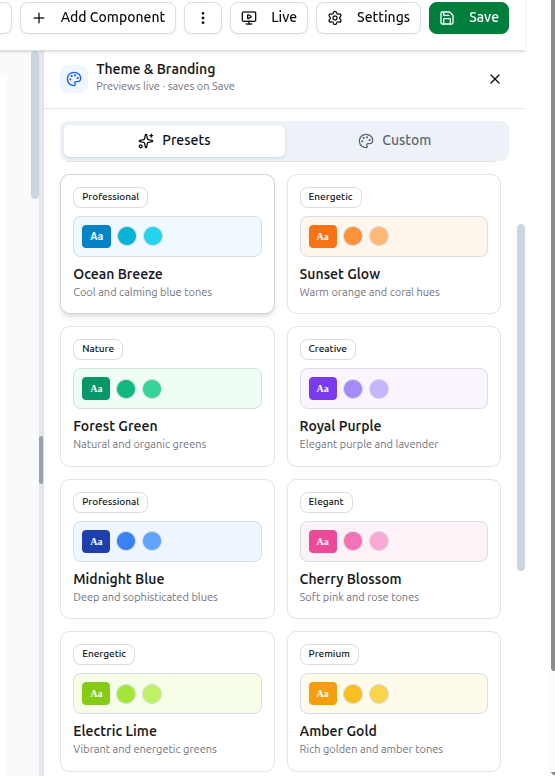
Every change you make repaints your site immediately, but nothing is permanent until you click Save. Try a preset, watch it apply live across the canvas, and if you don't like it, switch again or close the panel — nothing is written until Save.
Presets
Eight named palettes, each tagged with a style category:
| Preset | Category | Feel |
|---|---|---|
| Ocean Breeze | Professional | Cool and calming blue tones |
| Sunset Glow | Energetic | Warm orange and coral hues |
| Forest Green | Nature | Natural and organic greens |
| Royal Purple | Creative | Elegant purple and lavender |
| Midnight Blue | Professional | Deep and sophisticated blues |
| Cherry Blossom | Elegant | Soft pink and rose tones |
| Electric Lime | Energetic | Vibrant and energetic greens |
| Amber Gold | Premium | Rich golden and amber tones |
Click any card and it applies instantly.
This preset list is separate from the one in the setup wizard. If you ran the wizard, you chose from Modern, Classic, Minimal, Vibrant, Professional, Creative or Custom. This panel's eight named palettes are a different, more specific set — reachable any time afterward, not only during initial setup.
Custom
Switch to the Custom tab to set five colours by hand rather than picking a preset:
| Colour | Required? |
|---|---|
| Primary | Yes |
| Secondary | Yes |
| Accent | No |
| Background | No |
| Text | No |
Most guides mention only three of these. Primary, Secondary and Accent get the attention, but Background and Text are configurable too — leave them unset and sensible defaults apply, but they exist if your palette needs a specific page background or body text colour rather than the default white and near-black.
Typography & Layout
- Font Family — the typeface used across your site.
- Border Radius — how rounded buttons and cards are.
- Spacing — how much breathing room sits between elements.
- Theme Variant — Default, Modern, Minimal or Classic. A broader style shift than colour alone.
- Layout Style — Standard, Wide, Compact or Sidebar. Changes the overall page structure, not just its skin.
Default Language and Custom CSS
Default Language sets which language your site shows visitors by default, for organizations running a multi-language site.
Custom CSS is a real code editor for raw CSS overrides — for the rare case where the visual controls above don't reach something specific you need to change. Most organizations never need to open it.
Saving
Click Save in the top-right of the editor toolbar to write your changes. Until then, everything you see is a live preview only — reloading the page without saving discards it.
Troubleshooting
| What you see | What it means |
|---|---|
| You picked a colour and it looks live, then vanishes on reload | You navigated away without clicking Save |
| You can't find Background or Text colour options | They're under Custom, not the preset list — presets don't expose individual colours |
| The wizard's presets don't match this panel's presets | Correct — they are two different preset lists |
| A CSS change you made elsewhere got overridden | Check Custom CSS — it applies after everything else and can override other settings |
Related: Page Editor & Components · Website Setup Wizard · Manage & Create New Pages