
When you finish this guide you will have a Course37 account and your own organization workspace, live on its own web address and ready for courses. It takes about five minutes.
Signup and organization creation are one continuous flow. Course37 signs you in automatically once your account is verified and takes you straight to the organization setup page. There is no separate login step the first time, and you cannot reach the dashboard until your organization exists.
Before You Begin
You need only two things:
- An email address or a mobile number. If you sign up with an email, a verification code is sent to it, so use one you can open right now.
- A name for your organization. It does not have to be final — you can rename it later.
No credit card is required. Your 14-day free trial starts the moment your organization is created.
Step 1. Create Your Account
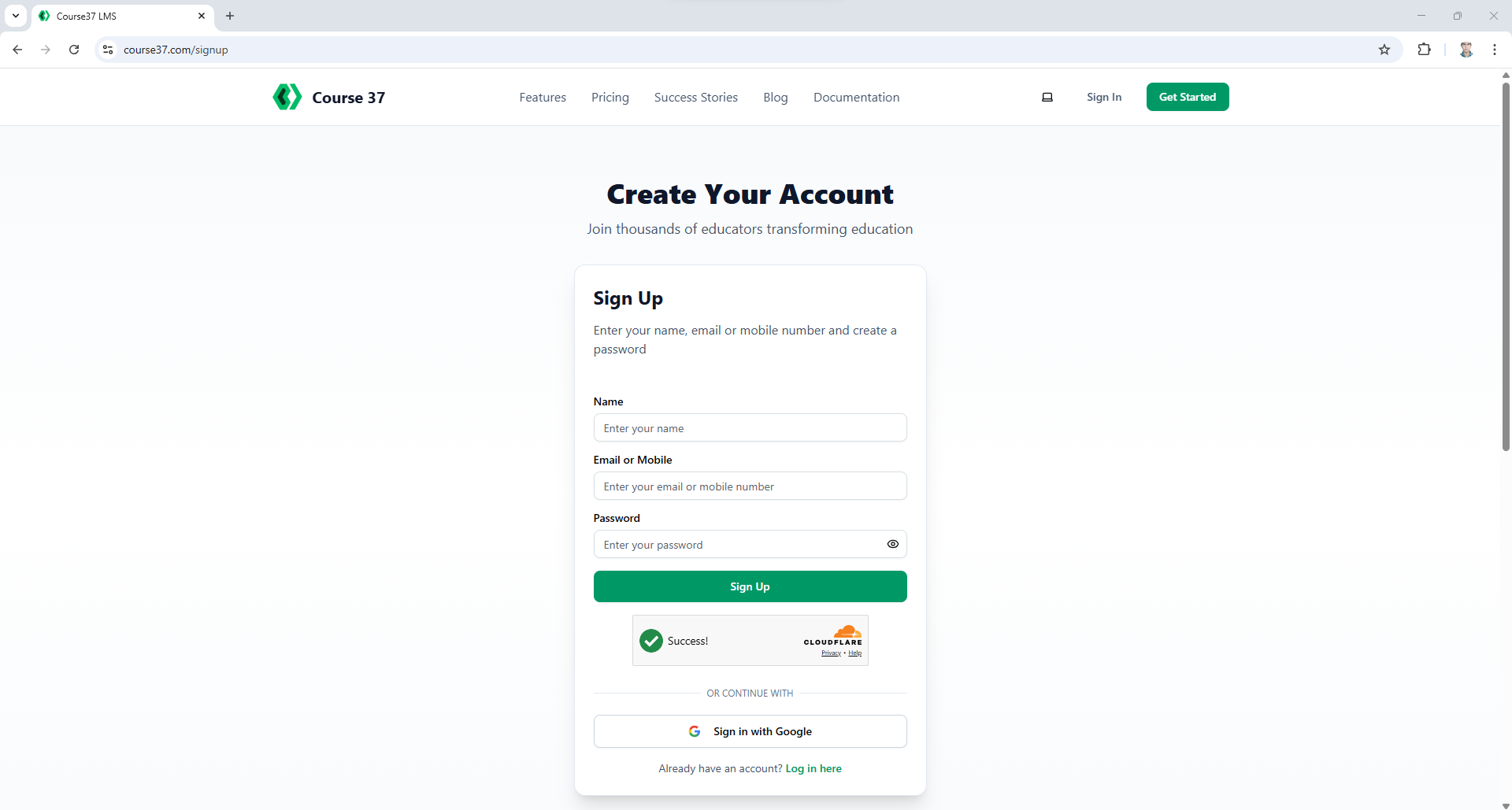
Go to course37.com/signup and choose one of three ways to register.
Option A — Email address
Fill in Name (up to 100 characters), your email, and Password with Confirm Password. The two passwords must match, or you will see Passwords do not match. Use the eye icon to reveal what you typed.
Complete the security check at the bottom of the form — it is usually automatic. If you see Please complete the security check, wait a second for it to finish before clicking Sign up.
Click Sign up. Continue to Step 2.
Option B — Mobile number
Fill in the same form but enter a mobile number instead of an email.
Mobile signups are not asked for a verification code — OTP verification is available only for email sign-up. You are signed in immediately and land on the organization setup page, so skip Step 2 and go to Step 3.
Option C — Google
Click Sign in With Google, pick your account, and allow the permissions. No password, no verification code. You go straight to organization setup — skip Step 2.
Step 2. Verify Your Email
Email signups only.
A 6-digit code is sent to your address and a code box appears on the same page — you are not sent anywhere else.
- Find the code in your inbox.
- Type it into the box marked Enter 6-digit code.
- Submit it.
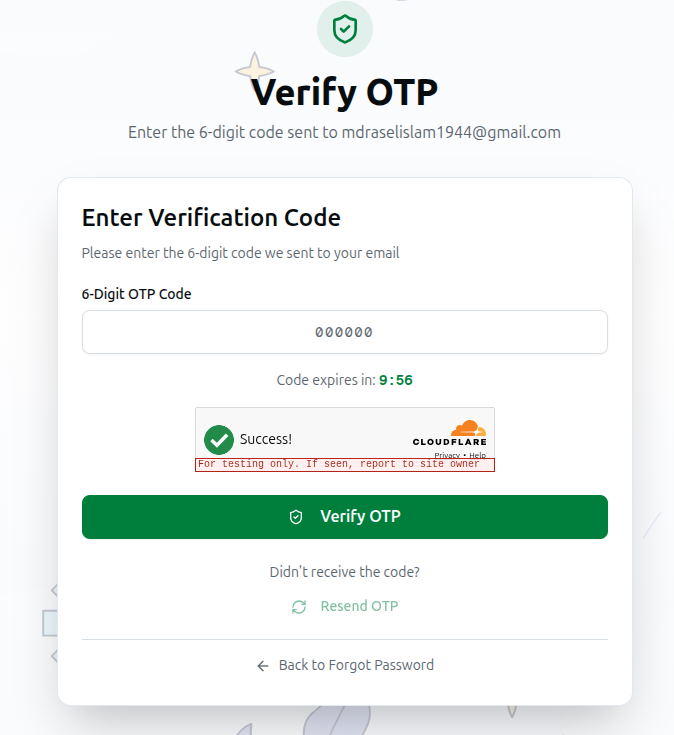
You will see Verification successful! Redirecting… and Course37 signs you in automatically.
The code expires after 5 minutes. If it runs out, request a fresh one — you can get up to 3 codes every 5 minutes. Requesting more does not make them arrive faster; the system will tell you how long to wait.
Step 3. Create Your Organization
You arrive at course37.com/setup already signed in. This step is mandatory. Until your organization exists, every page you try to open sends you back here.
Your organization is your workspace. Every course, student, payment and page you create later belongs to it, and no other organization on Course37 can see it.
Organization Name
Enter your institution's name — for example, Mpbian Academy. Course37 generates a web address from it as you type.
Your Website URL
This short identifier — the slug — becomes your free address: a slug of udvash gives you udvash.course37.com. You can add your own custom domain later; this address keeps working either way.
Availability is checked as you type: Checking availability..., then Available! in green or This slug is already taken in red. When one is taken, Course37 lists Available alternatives just below — your name with -edu, -academy or -institute appended — and you can click one to accept it.
Your slug must:
- be 2 to 50 characters
- use only lowercase letters, numbers and hyphens
- not start or end with a hyphen, and not contain two hyphens in a row
- not be a reserved word (www, api, admin, app, mail, ftp, blog, shop, store)
Organization Type
Pick the card matching how you operate. This changes which tools appear in your dashboard, so choose carefully:
| Type | Best for | What it unlocks |
|---|---|---|
| Coaching Center | Institutions running physical or hybrid batches | Batches, branches, attendance and OMR answer sheets |
| Individual Educator | A single teacher selling their own courses | Course selling with completion certificates |
| Online Academy | Delivering academic programs online, at scale | The full online course and exam toolkit |
Tick the box to accept the terms, then click Create Organization.
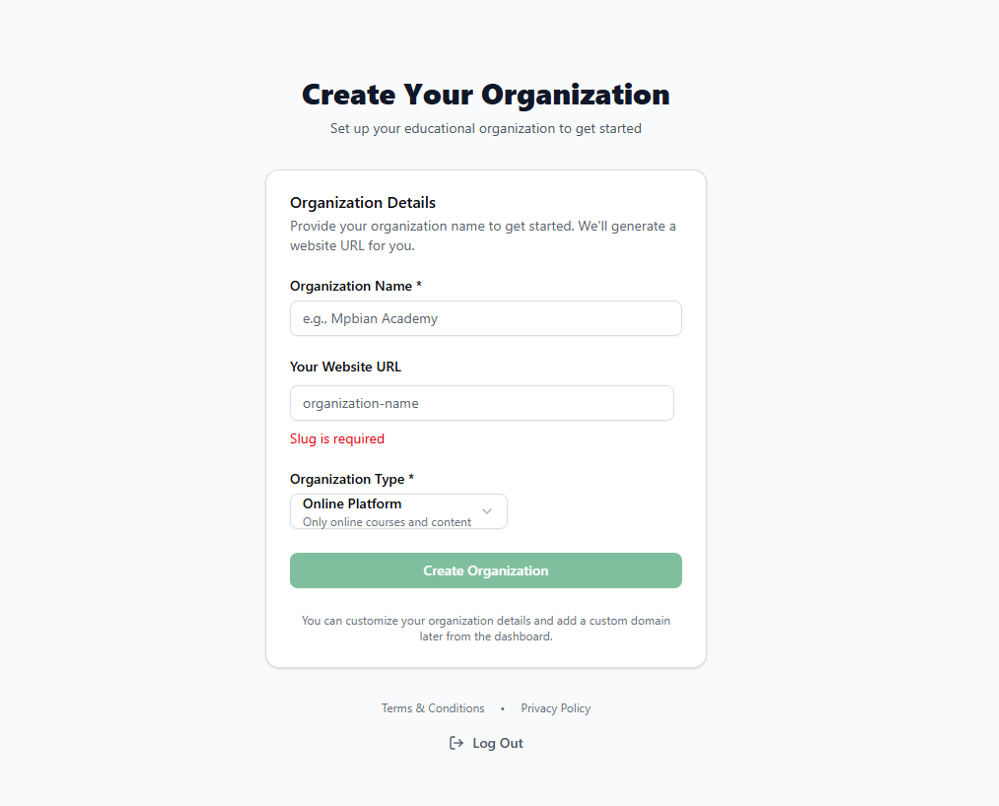
Create Organization stays disabled until your slug shows as available. If the button does nothing, check the slug field — a message will say what needs fixing.
You now land on your dashboard. Your organization exists, your trial has started, and your site is live.
Logging In Afterwards
Once set up, return at course37.com/login and sign in with whichever method you registered with.
Occasionally an email login asks for a one-time code before letting you in. This is a periodic security check — roughly once every 30 days — not something that happens every time. Mobile logins are never asked.
If you abandoned setup partway through, logging in takes you back to the setup page rather than the dashboard, because your organization was never created.
Troubleshooting
| What you see | What it means | What to do |
|---|---|---|
| Please complete the security check | The anti-bot check has not finished | Wait a moment for it to complete, then click Sign up again |
| The verification code never arrives | Delivery delay, or it went to spam | Check your spam folder, then request a fresh code |
| Invalid or expired verification code | Wrong digits, or more than 5 minutes passed | Request a new code and enter it promptly |
| Too many OTP requests. Please try again after N minutes | More than 3 codes in 5 minutes | Wait the stated number of minutes |
| OTP verification is available only for email sign-up | You expected a code on a mobile signup | None needed — mobile signups skip verification. Continue to organization setup |
| Too many signup attempts. Please try again later | 5 signups tried in one hour | Wait, or check whether you already have an account and simply need to log in |
| Too many login attempts. Please try again after 5 minutes | 15 failed logins in 5 minutes | Wait 5 minutes. If you forgot your password, use Forgot password rather than guessing |
| Passwords do not match | The two password fields differ | Retype both, using the eye icon to check |
| This slug is already taken | Another organization uses that address | Pick one of the suggested Available alternatives, or type your own |
| This slug is reserved and cannot be used | You entered a system-reserved word | Choose something else |
| Please choose an available organization slug | You submitted before the check passed | Wait for the green Available!, then click Create Organization |
| Every page keeps returning you to setup | Your organization was never created | Finish Step 3 — the dashboard is unreachable without an organization |
Field Reference
| Field | Rule |
|---|---|
| Name | Required, up to 100 characters |
| Email or Mobile | Required — becomes your login |
| Password | 4 to 40 characters. Longer is safer: mix uppercase, lowercase, numbers and symbols |
| Verification code | Email signups only. 6 digits, valid 5 minutes, 3 requests per 5 minutes |
| Organization Name | Required |
| Slug | 2–50 characters, lowercase letters, numbers and hyphens only |
| Organization Type | Required — determines which dashboard tools appear |
Next Steps
Your workspace is empty. This order works best:
- How to Use Course37: The Complete Guide — the full path from here to a live platform.
- Configure Basic Info — logo, contact details and branding.
- Build Your Curriculum — do this before creating courses; it powers your question bank and exams.
- Invite Your Team — add teachers and staff with the right permissions.
- Create Your First Course — start adding content.