
The Courses page is where every course in your organization lives. In the left sidebar, under Content, click Courses (/dashboard/courses).
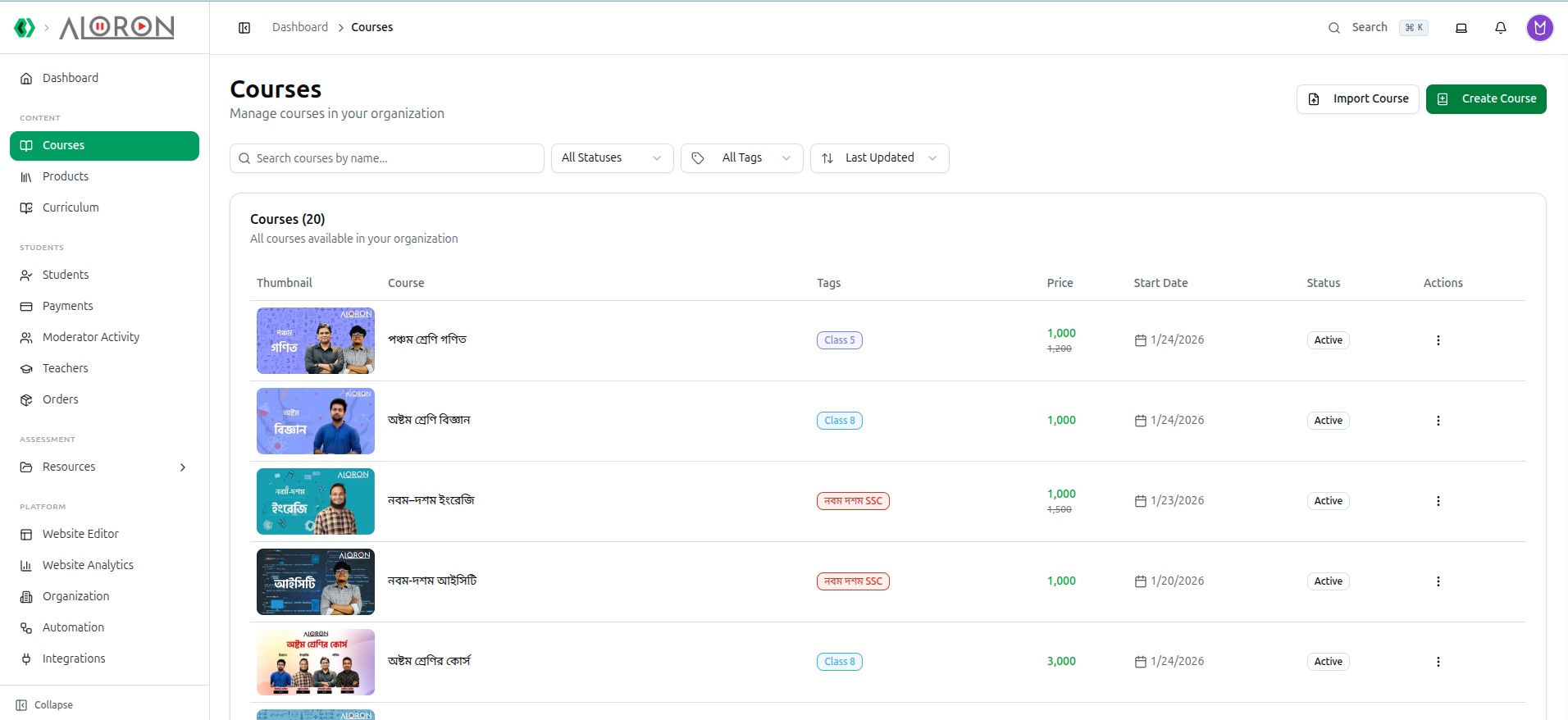
The header reads Courses — Manage courses in your organization — with Import Course and Create Course at the top right.
1. Finding a Course
Four controls sit above the list.
- Search courses by name... — free-text search on the course name.
- All Statuses — narrow by Active, Draft, Archived, Upcoming or Completed.
- All Tags — narrow to one tag, such as Class 8 or নবম দশম SSC.
- Sort — Last Updated (the default), Newest Created, Name (A–Z), Name (Z–A), Price (Low–High), Price (High–Low) or Start Date.
The list is headed Courses (20) — All courses available in your organization — and pages when there are more than fit on one screen.
2. Reading the List
| Column | What it shows |
|---|---|
| Thumbnail | The cover image. Courses without one show a placeholder |
| Course | The course name |
| Tags | Coloured tag badges, or No tags |
| Price | The current price, with the original struck through beneath when a discount is set |
| Start Date | When the course begins |
| Status | Active, Draft or Archived |
| Actions | The three-dot menu |
3. Row Actions
The three-dot menu on any row takes you straight to the part of the course you need:
- View Details — the course's own page.
- Manage Modules — jump directly to its modules and lessons.
- Manage Students — its enrolled students.
- Manage Teachers — the teachers assigned to it.
The same menu also holds a status selector, so you can switch a course between Active, Draft and Archived without opening it.
Draft hides a course from students while you build it. Archived retires one without deleting it or losing its student records. Move a course to Active only when you are ready to sell it.
4. Creating a Course
Click Create Course. The dialog has five tabs:
| Tab | What you set |
|---|---|
| Basics | Name, description, cover image and promotional video |
| Pricing | Price, original price for a struck-through discount, and installment options |
| Schedule | Start and end dates, and the weekly class timetable |
| Enrollment | What you collect from students at checkout |
| Highlights | The selling points shown on the course page |
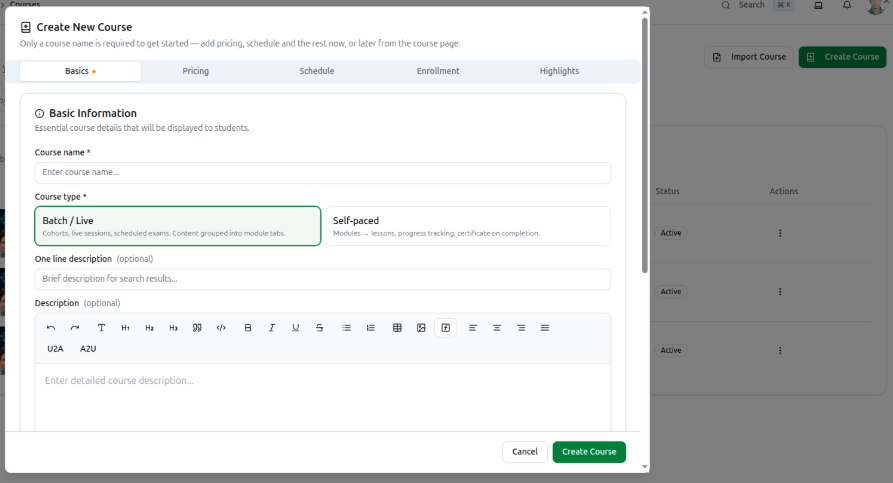
Only the course name is needed to save a draft — you can return and complete the rest later.
Once created, open the course and build its modules, then fill those with videos, PDFs, quizzes, assignments and live sessions.
Full guides: Managing Course Details · Build Course Modules · Add Content to Modules
5. Importing a Course
Import Course brings a course in as a JSON file — either one you exported earlier from another organization, or one an AI assistant writes for you. Either way, the course content is created fresh; only existing students and teachers get linked to it, not duplicated.
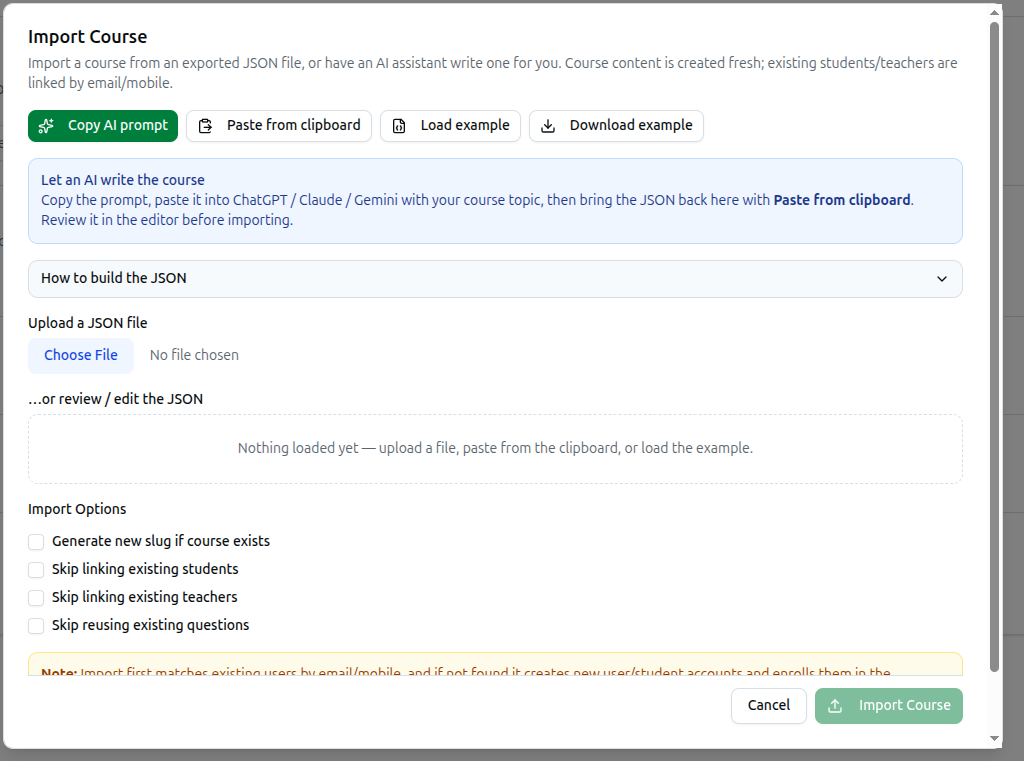
Two ways to get a JSON file into the box:
- Upload a JSON file you exported earlier, from this or another organization.
- Let an AI write it. Click Copy AI prompt, paste it into ChatGPT, Claude or Gemini along with your course topic, then bring the result back here with Paste from clipboard. Review it in the editor before importing — nothing is saved until you click Import Course.
Not sure what the JSON should look like? Load example drops in a working sample you can inspect or edit directly, and How to build the JSON expands inline guidance on the format.
Before importing, four checkboxes control how existing data is handled:
- Generate new slug if course exists
- Skip linking existing students
- Skip linking existing teachers
- Skip reusing existing questions
Import matches people by email or mobile number first. Anyone it cannot match gets a brand-new user/student account, enrolled straight into the imported course.
Troubleshooting
| What you see | What it means |
|---|---|
| A course is missing from the list | A filter is still applied. Reset All Statuses and All Tags, and clear the search |
| Students cannot see a course | Its status is Draft or Archived. Switch it to Active |
| The price shows two numbers | An original price is set, so the higher one is struck through as a discount |
| A row shows No tags | No tags assigned. Tags drive filtering here and on your public site — worth adding |
| Courses are in an unexpected order | The sort defaults to Last Updated, not alphabetical |