
Organization is where you control everything about your institution itself — its identity, its web address, its staff and its global settings — as opposed to your day-to-day content like courses and students.
Open it from the left sidebar under Platform. You will need the Organization access module; organization owners always have it.
After You Log In: Complete Your Setup
Logging in drops you on the Dashboard. Before the numbers on this screen mean anything, there is work to do — and Course37 lays it out for you in a card called Complete Your Setup, subtitled Get your academy up and running in a few simple steps.
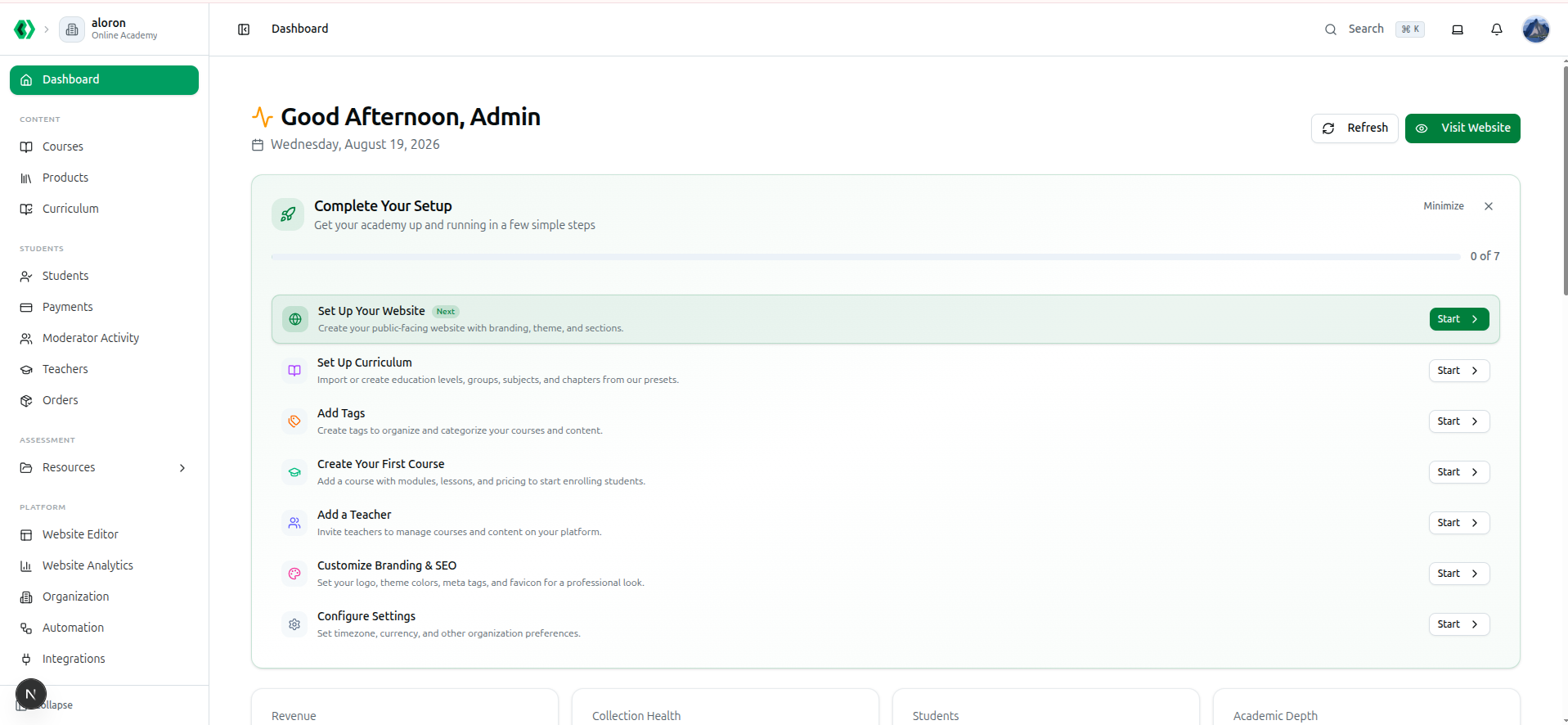
Work through this card first. It tracks Setup Progress: X/Y steps with a progress bar, marks the step you should do next with a blue Next badge, and gives every step a Start button that takes you to the right screen. Each step ticks itself off automatically once you have actually done the thing — you never mark them complete by hand.
The whole card disappears on its own once every step is finished. If it is gone, your setup is done.
The steps appear in this order.
1. Set Up Your Website
Create your public-facing website with branding, theme, and sections.
Start opens the website setup wizard, which builds your public site from ready-made sections — hero banner, course grid, testimonials, footer. This comes first because it is what your students actually see.
Completes once a home page exists.
Full guides: Website Setup Wizard · Enable & Customize Your Website
2. Set Up Curriculum
Import or create education levels, groups, subjects, and chapters from our presets.
Start opens Curriculum, where you build the Level → Group → Subject → Chapter → Topic structure. You can import a ready-made preset instead of typing it all out.
Do not skip this or leave it until later. Your question bank, exams, resource filters and course listings all hang off this structure, so adding it after you have built content means re-tagging everything.
Completes once at least one education level exists.
Full guides: Curriculum Hierarchy · Create Education Levels
3. Add Tags
Create tags to organize and categorize your courses and content.
Start opens the Tags tab inside Curriculum. Tags are the labels you filter courses and content by later — HSC 27, Medical, Free — and they drive what appears on your public course listings.
Completes once at least one tag exists.
4. Create Your First Course
Add a course with modules, lessons, and pricing to start enrolling students.
Start opens the course creation form. Give it a name, a price, dates and modules, then fill the modules with videos, PDFs, quizzes and live sessions.
Completes once at least one course exists.
Full guides: Course Management · Build Course Modules
5. Add a Teacher
Invite teachers to manage courses and content on your platform.
Start opens Teachers, where you invite the people who will run your courses.
This step does not appear for Individual Educator organizations — if you are teaching your own courses, you are already the teacher, so Course37 skips it and your checklist is one step shorter.
Completes once at least one teacher exists.
Full guides: Teacher Directory · Manage Teachers
6. Customize Branding & SEO
Set your logo, theme colors, meta tags, and favicon for a professional look.
Start opens Organization, where you upload your logo and set your theme colours, meta title and favicon.
This step needs both halves before it ticks off: a logo and either a theme or SEO details. If it stays incomplete after you set your colours, you have most likely not uploaded a logo yet.
Full guides: Configure Basic Info · Configure SEO · Theme & Branding
7. Configure Settings
Set timezone, currency, and other organization preferences.
Start opens the Settings tab. Set your Timezone before scheduling any class or exam — otherwise every time you enter is recorded against the wrong clock.
Completes once your settings have been saved once.
Full guide: Configure Settings
The Rest of the Dashboard
Below the checklist, the dashboard is your daily reporting screen. It is read-only — it reports, it never configures. Panels appear in this order:
| Panel | What it tells you |
|---|---|
| Four metric cards | Revenue, Collection Health, Students, Academic Depth. Click any card to open its detail page |
| Website Analytics | Live visitors and a 24-hour traffic chart — or a Connect Google Analytics button if it is not linked yet |
| Upcoming Live Classes | Your next sessions, each with Open Class. Online Academy and Individual Educator only |
| Platform Focus | The three things worth acting on now: pending payments, live class queue, collection health |
| Insights that matter now | Automatic warnings, plus Pending Collection, Exam Inventory and Discount Given |
| Quick Actions | One-click jumps to Courses, Students, Teachers and Products, each with its current count |
| Capacity Overview | Plan usage for students, courses, exams and storage |
Two things worth knowing:
- Warnings are automatic. Insights flag student capacity or storage above 80%, payments awaiting follow-up, and a collection rate below 70%. With nothing wrong it reads No urgent risk detected in current operations.
- Capacity can exceed 100%. The bar stops at full, but the badge keeps counting — 200% means you are at double your plan's limit and should upgrade. Badges turn amber past 75% and red past 90%.
Refresh re-pulls every figure. Visit Website opens your public site in a new tab.
Full guides: Dashboard Analytics Overview · Key Metric Cards · Operational Insights · Quick Actions · Capacity Overview
Opening Organization
In the left sidebar, under Platform, click Organization.
The Summary Bar
The top of the page shows your organization at a glance: name, slogan, URL, domain status, member count and branch count. Click Refresh at the top right to pull the latest figures.
Below it sits the management area, split into six tabs.
The Six Tabs
Each tab has its own full guide. Use this table to find the one you need.
| Tab | What it controls | Go here when you want to… |
|---|---|---|
| Basic Info | Name, type, logo, slogan, email, mobile, address | Change your institution's name or upload your logo |
| Settings | Notifications, security, timezone, date format, language, feature toggles | Set your timezone, tighten password rules, or turn features on and off |
| Domains | Your Course37 address and your own custom domain | Move your platform onto your own domain name |
| SEO | Meta title, description, keywords, social preview image, favicon | Improve how your site looks in Google and when shared on social media |
| Branches | Your physical locations | Record the campuses or centres you operate |
| Members | Staff accounts, roles and access modules | Add a teacher or admin, or change what someone can see |
Full guides: Basic Info · Settings · Domains · SEO · Branches · Members
Recommended Order for a New Organization
If you have just created your organization, work through the tabs in this order — each one builds on the last:
- Basic Info — your identity and logo. Everything public shows these, so do it first.
- Settings — set your Timezone before you schedule any class or exam, otherwise times will be recorded against the wrong clock.
- Branches — only if you run physical locations. Add them before creating batches or attendance sessions so sessions can be assigned to a branch.
- Members — invite your team once there is something for them to manage, granting each person only the access modules they need.
- SEO — worth doing before you publicise your site.
- Domains — last. It depends on DNS changes that can take time to take effect, and everything works on your free Course37 address in the meantime.
Editing is explicit on every tab. Nothing saves as you type — click Edit (or Edit Settings / Edit SEO Settings) to unlock the fields, then Save Changes to apply or Cancel to discard. If your changes seem to vanish, you most likely navigated away before saving.
Who Can Change What
- Organization owners have full access to all six tabs, and are the only people who can remove a member.
- Members with the Organization access module can view and edit the tabs, but cannot delete other members.
- Members without that module do not see Organization in the sidebar at all.
See Managing Member Roles & Permissions for how access modules work.