
How to Manage Storage
Use Storage Management to monitor file growth and clean up old files without guessing where space is being used.
Open Storage Management
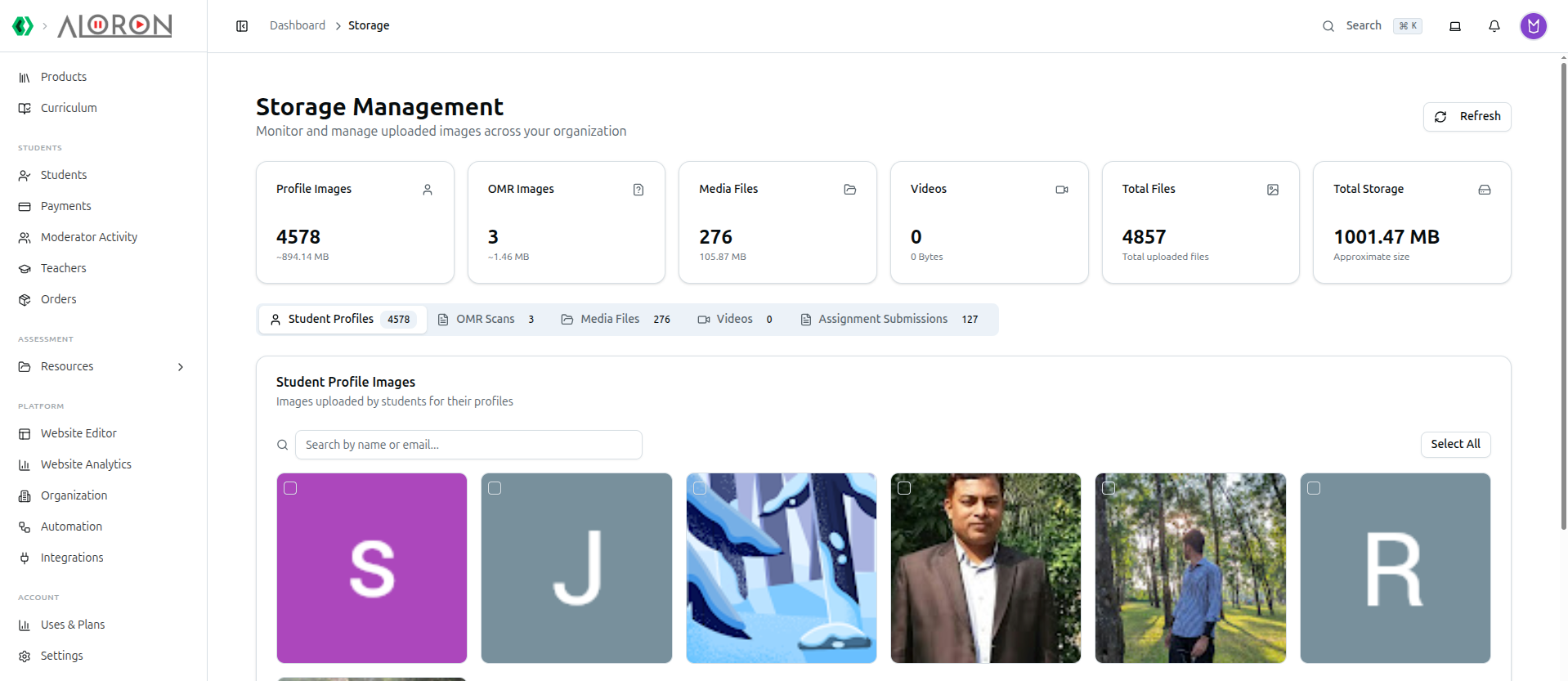
Go to the left sidebar under Platform, click Storage. The page opens on the Student Profiles tab.
The Six Stat Cards
- Profile Images — count and approximate size of student profile photos.
- OMR Images — count and approximate size of scanned OMR sheets.
- Media Files — count and size of course/question media uploads (images, PDFs, and other documents — see the note on Videos below).
- Videos — count and size of uploaded video files.
- Total Files — Profile Images + OMR Images + Media Files + Videos added together, captioned "Total uploaded files."
- Total Storage — the same four categories' sizes added together, captioned "Approximate size."
Assignment Submissions are not part of these totals. The stat cards and Total Files/Total Storage figures only cover Profile Images, OMR Images, Media Files, and Videos — assignment files have their own count on the tab badge but aren't rolled into the page-level totals.
Click Refresh in the top-right to reload the stats and every tab's data at once.
The Five Tabs
| Tab | What it shows | Can you delete from here? |
|---|---|---|
| Student Profiles | Every student's profile photo | Yes — single or bulk |
| OMR Scans | Scanned OMR answer sheets | Yes — single or bulk |
| Media Files | Course/question media: images, PDFs, and other documents | Yes — single or bulk |
| Videos | Uploaded video files | Yes — single or bulk |
| Assignment Submissions | Files students submitted for assignments | No — view only |
An earlier version of this guide didn't mention the Videos tab at all, and implied Assignment Submissions could be cleaned up like the others. Neither is right — Videos is a full fifth tab with its own stat card, and Assignment Submissions has no delete capability whatsoever, by design: these are official student work, not the kind of upload you'd want an admin casually clearing out.
Student Profiles
Search by name or email. Each photo shows a checkbox in the top-left corner; hovering reveals the student's name and email plus an eye icon (opens a preview modal) and a trash icon (deletes that one photo).
OMR Scans
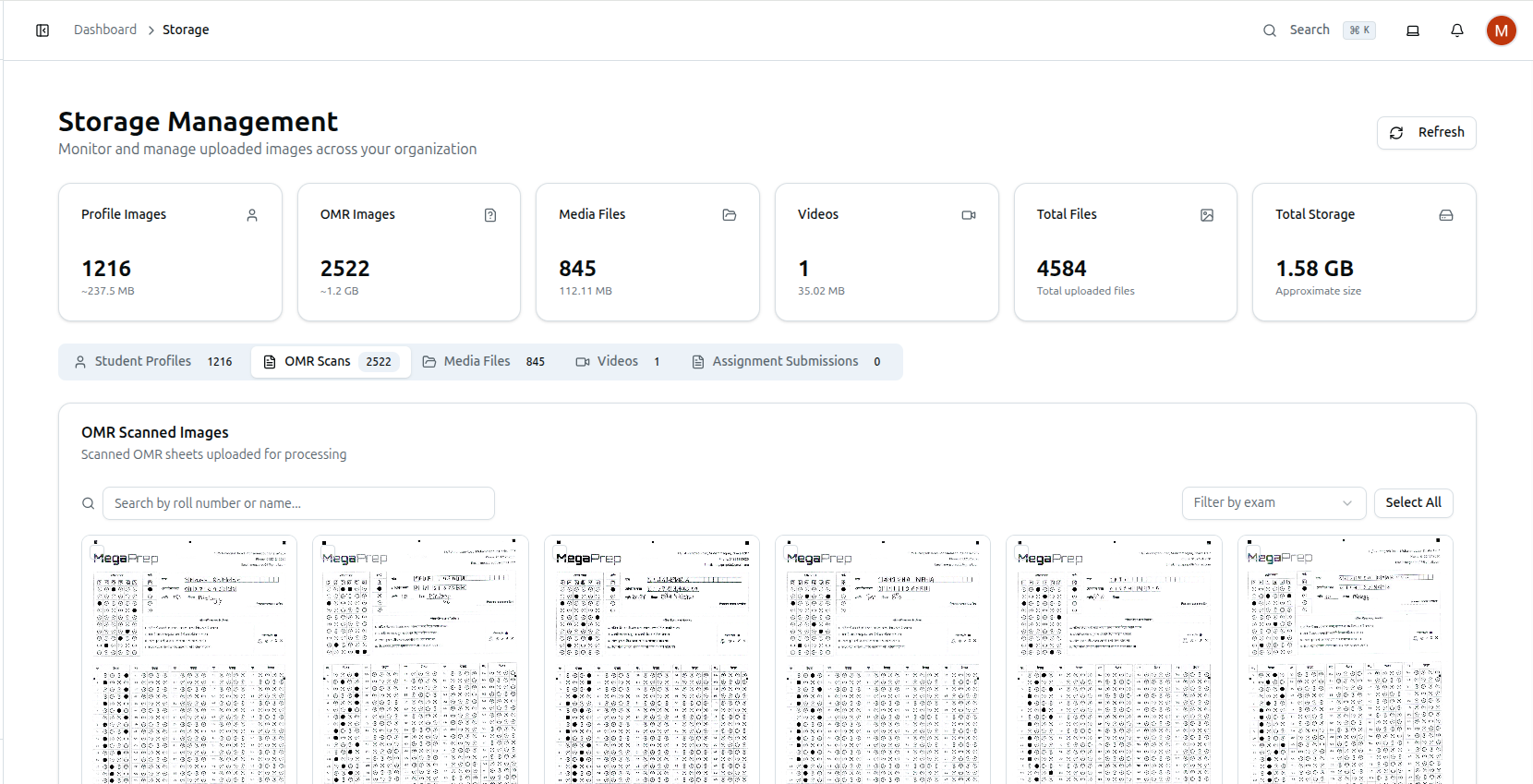
Search by roll number or name, and narrow the list with the Filter by exam dropdown — each exam option shows how many scanned images belong to it. Hovering a sheet shows the roll number and exam title, plus the same eye/trash icons.
Media Files
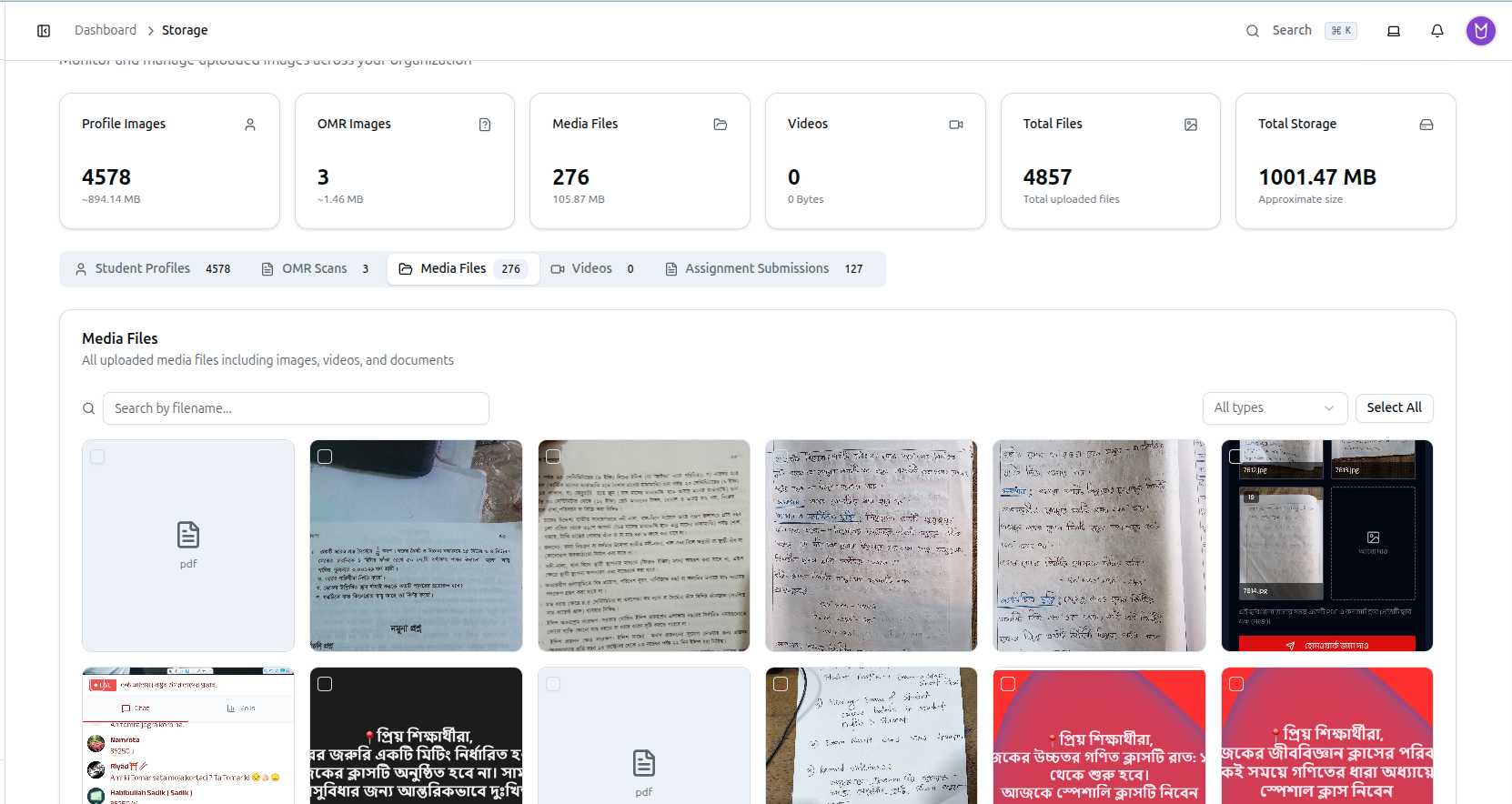
Search by filename, and narrow by an All types dropdown (All Types / Images / Videos / PDFs — note this is a MIME-type filter on the Media Files list itself, separate from the dedicated Videos tab). Non-image files like PDFs show a generic file icon instead of a thumbnail. Hovering shows the filename, file size, and the course it belongs to (when linked to one); the eye icon only appears for actual images.
Videos
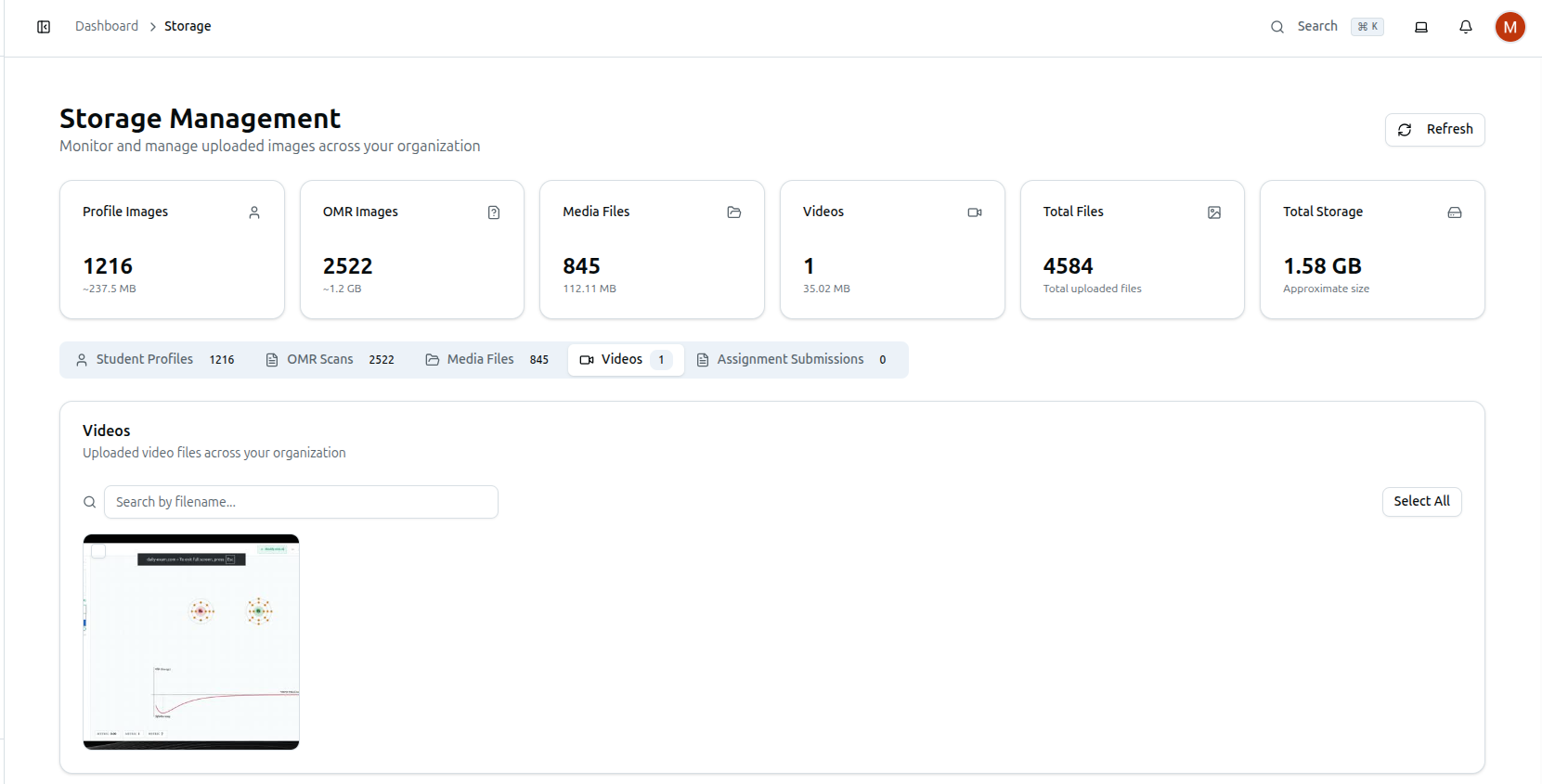
Search by filename. Each card shows a thumbnail if one has been generated, or a plain video icon if not. Hovering shows the filename and either "Processing…" (if the video hasn't finished transcoding yet) or its file size, plus the linked course title. There is no eye/preview icon on this tab — only the trash icon to delete.
Assignment Submissions
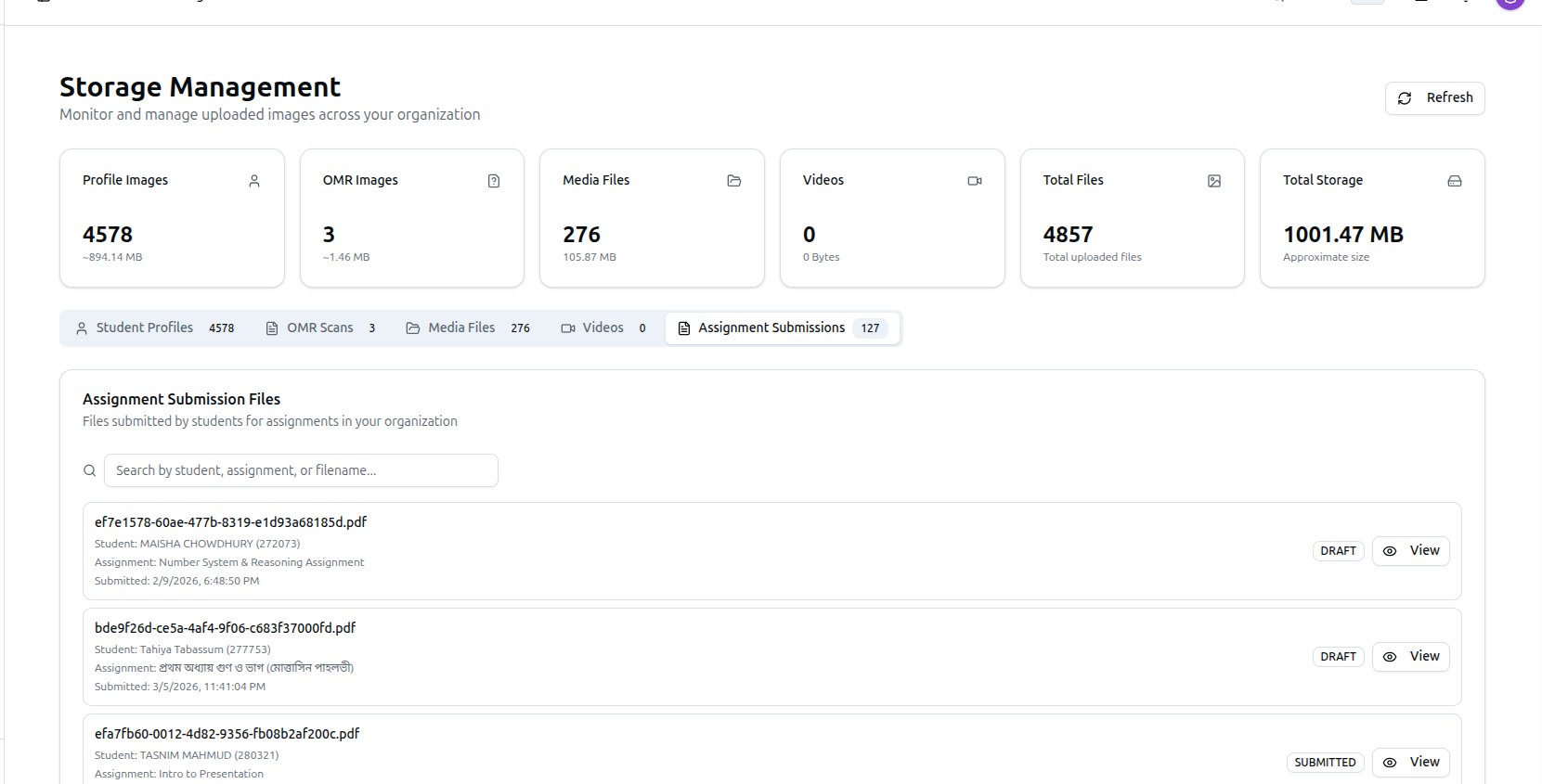
Search by student, assignment, or filename. This tab is a plain list, not a grid, and has no checkboxes anywhere — there's no Select All and no bulk-delete button. Each row shows the filename, the student's name and roll number, the assignment name, the submission date, a status badge (e.g. DRAFT, SUBMITTED), and a View button that opens the file directly in a new browser tab. That's the only action available here.
Selecting and Deleting
On the four deletable tabs (Profiles, OMR, Media, Videos):
- Click Select All to select every file currently loaded on that page (it toggles to Deselect All), or tick individual checkboxes.
- Once at least one file is selected, a red Delete Selected (N) button appears next to Select All.
- Click it (or the trash icon on a single file) to open the confirmation dialog: "Delete [Profile/OMR/Video/Media] Files?" — "This will permanently delete [N selected files / this file] from storage. This action cannot be undone."
- Click Delete to confirm. A toast reports how many were deleted, and how many failed if any were skipped.
Start with smaller batches so you can validate the result before large cleanups — deletion is immediate and cannot be undone.
Troubleshooting
| What you see | What it means |
|---|---|
| A video shows "Processing…" instead of a size | It hasn't finished transcoding yet — check back after it completes |
| No delete button anywhere on an assignment submission | Expected — this tab is view-only, by design |
| The Media Files "All types" filter doesn't find a video you're looking for | Media Files and Videos are separate categories with separate counts; a video-typed Media File and the dedicated Videos tab aren't necessarily the same list |
| You can't find an eye/preview icon on a video card | Videos don't get the preview modal — only images (Profiles, image-type Media Files) do |
| Total Files/Total Storage don't match what you expect | They exclude Assignment Submissions entirely — check that tab's own badge count separately |
Related Articles
- How to Manage OMR Results — Verify scanned exam outcomes before cleanup
- How to Add Videos — Media upload workflow
- How to Manage PDF Resources — File resource publishing