
Complete Guide to Managing Integrations
Your platform acts as a central hub, but to unlock its full potential, you need to connect it to external third-party services.
How to get here: Look at your left-hand sidebar menu, scroll down to the Platform section, and click on Integrations.
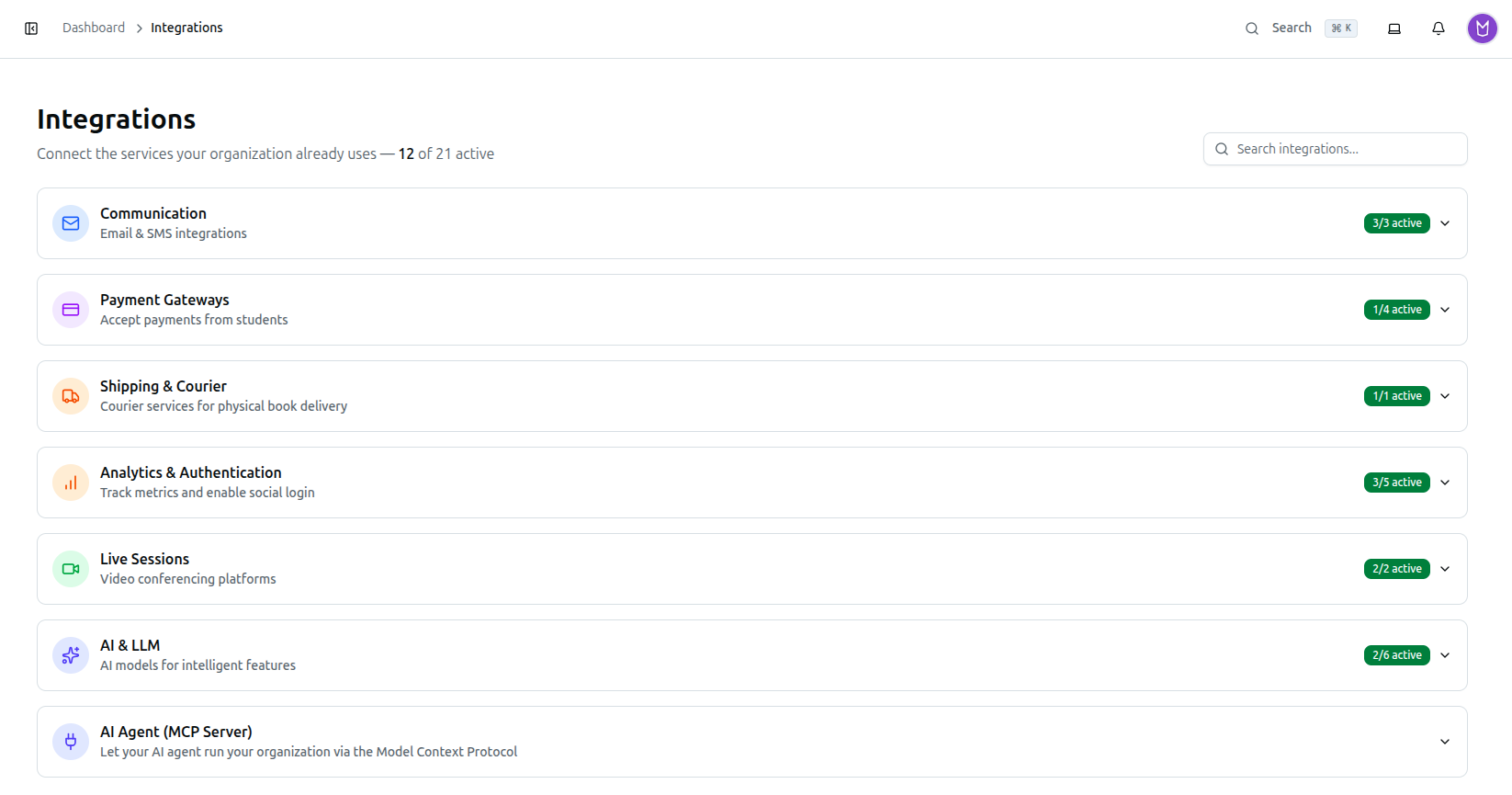
The page header shows a running count — "Connect the services your organization already uses — N of 21 active" — and a Search integrations... box that filters every category at once. Below it are 7 collapsible categories, in this order: Communication, Payment Gateways, Shipping & Courier, Analytics & Authentication, Live Sessions, AI & LLM, and AI Agent (MCP Server). Each category header carries its own X/Y active badge.
(Pro-Tip: Every integration card in the first six categories opens a dialog with two tabs: Configuration (where you paste your keys) and Setup Guide (official, step-by-step instructions for getting those keys from the provider).)
Here is the step-by-step breakdown for every category, in the order they actually appear on the page.
1. Communication (Email & SMS integrations)

A. Email (SMTP)
- Find the Email (SMTP) card and click Configure.
- Toggle Enable Email Integration to the 'on' position.
- Enter your SMTP Host (e.g., smtp.gmail.com) and SMTP Port (e.g., 587).
- Enter your SMTP Username and SMTP Password.
- Enter the From Email Address (e.g., noreply@yourdomain.com) and the From Name.
- Select your Encryption type (TLS or SSL) from the dropdown.
- Click Save Changes.
B. BulkSMS BD
- Find the BulkSMS BD card and click Configure.
- Critical step: read the yellow warning box. You must log into your BulkSMS BD portal, go to Settings → IP Whitelist, and add the server IP address shown in the warning box.
- Toggle Enable SMS Integration to the 'on' position.
- Enter your API Key.
- Enter your approved Sender ID.
- Click Save Changes.
C. Push Notifications
The card itself is titled Push Notifications, not "Firebase Cloud Messaging" — an earlier version of this guide used the wrong name. It's Firebase-powered under the hood, which is why the fields below are FCM credentials.
- Find the Push Notifications card and click Configure.
- Toggle Enable Push Notifications to the 'on' position.
- Enter your Firebase Project ID and Client Email.
- Paste your Private Key (from your Firebase service account JSON file).
- Enter your VAPID Public Key and VAPID Private Key.
- Click Save Changes.
2. Payment Gateways (Accept payments from students)
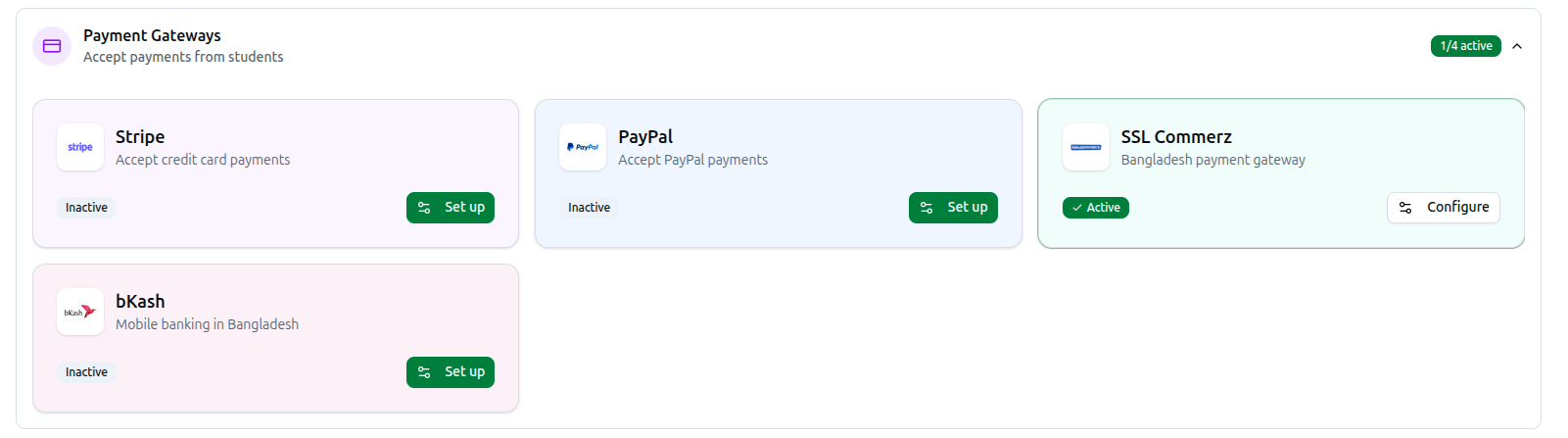
You can enable multiple gateways so students have choices.
A. Stripe
- Find the Stripe card and click Configure.
- Toggle Enable Stripe to the 'on' position.
- Enter a Name (e.g., "Credit Card") and Description (what students will see at checkout).
- Paste your Publishable Key, Secret Key, and Webhook Secret from your Stripe Dashboard.
- Click Save Changes.
B. PayPal
- Find the PayPal card and click Configure.
- Toggle Enable PayPal to the 'on' position.
- Enter a Name and Description.
- Paste your Client ID and Client Secret from PayPal Developer.
- Click Save Changes.
C. SSL Commerz
- Find the SSL Commerz card and click Configure.
- Toggle Enable SSL Commerz to the 'on' position.
- Enter a Name and Description.
- Enter your Store ID and Store Password.
- Click Save Changes.
D. bKash
- Find the bKash card and click Configure.
- Toggle Enable bKash to the 'on' position.
- Enter a Name and Description.
- Enter your bKash merchant Username, Password, App Key, and App Secret.
- Click Save Changes.
3. Shipping & Courier (For physical book delivery)

A. Steadfast Courier
- Find the Steadfast Courier card and click Configure.
- Toggle Enable Steadfast Courier to the 'on' position.
- Enter your API Key and Secret Key.
- Enter an optional Webhook Bearer Token for extra security.
- Copy the Webhook URL displayed at the bottom of the form. Go to your Steadfast merchant portal and paste it there to receive delivery status updates.
- Click Save Changes.
4. Analytics & Authentication
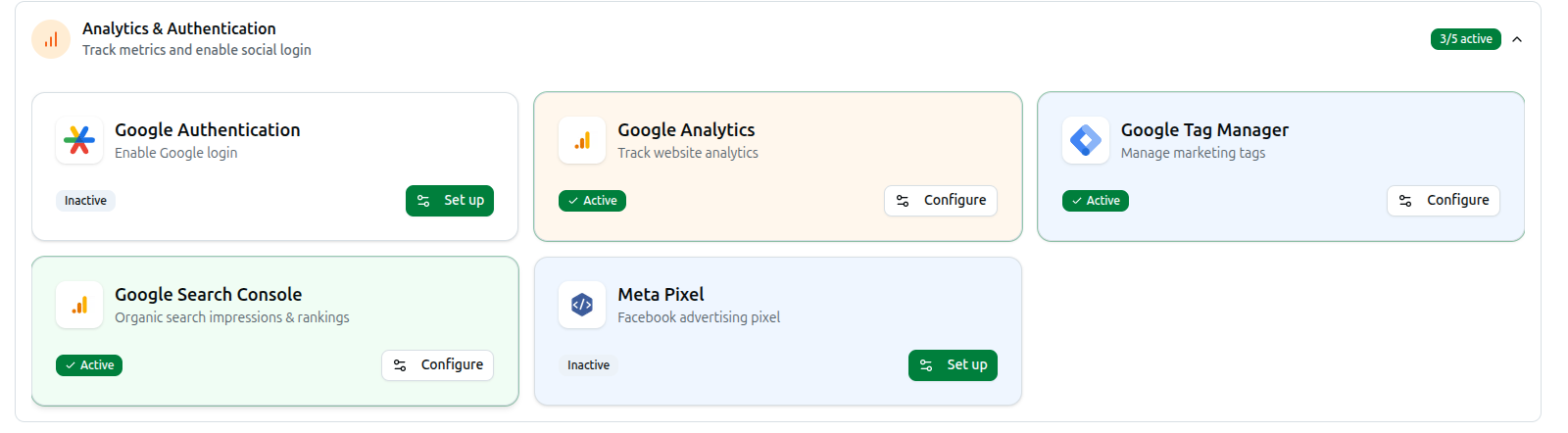
A. Google Authentication (Login)
- Find the Google Authentication card and click Configure.
- Copy the Google OAuth Callback URL shown in the blue box. Add this exact URL to your "Authorized redirect URIs" inside your Google Cloud Console.
- Toggle Enable Google Authentication to the 'on' position.
- Enter your Client ID and Client Secret.
- Click Save Changes.
B. Google Analytics
- Find the Google Analytics card and click Configure.
- Toggle Enable Google Analytics to the 'on' position.
- Enter your Google Tag ID (starts with G-).
- To show analytics inside your LMS dashboard, enter your GA4 Property ID. Then follow the instructions to grant 'Viewer' access to the specific service account email address shown on your screen.
- Click Save Changes.
C. Google Tag Manager
- Find the Google Tag Manager card and click Configure.
- Toggle Enable Google Tag Manager to the 'on' position.
- Enter your Container ID (starts with GTM-).
- Click Save Changes.
D. Google Search Console
- Find the Google Search Console card and click Configure.
- Toggle Enable Search Console Integration to the 'on' position.
- Enter your Site URL.
- Read the Setup Instructions box. You must copy the provided service account email and add it to your Google Search Console settings with "Full access".
- Click Save Changes.
E. Meta Pixel
- Find the Meta Pixel card and click Configure.
- Toggle Enable Meta Pixel to the 'on' position.
- Enter your Pixel ID.
- Click Save Changes.
5. Live Sessions (Video conferencing platforms)

A. Zoom Video Conferencing
- Find the Zoom card and click Configure.
- Toggle Enable Zoom to the 'on' position.
- Under the Server-to-Server OAuth section, enter your API Key (Client ID), API Secret (Client Secret), and Account ID. This allows the system to schedule meetings.
- Under the Meeting SDK section (optional, but recommended), enter your Meeting SDK Key and Meeting SDK Secret. This lets students join the video call directly on your website without opening the Zoom app.
- Click Save Changes.
B. Google Meet
- Find the Google Meet card and click Configure.
- Toggle Enable Google Meet to the 'on' position.
- Enter your Client ID, Client Secret, and Refresh Token.
- Click Save Changes.
6. AI & LLM (AI models for intelligent features)
Before you can use the AI Chat assistant, you must configure at least one AI provider.
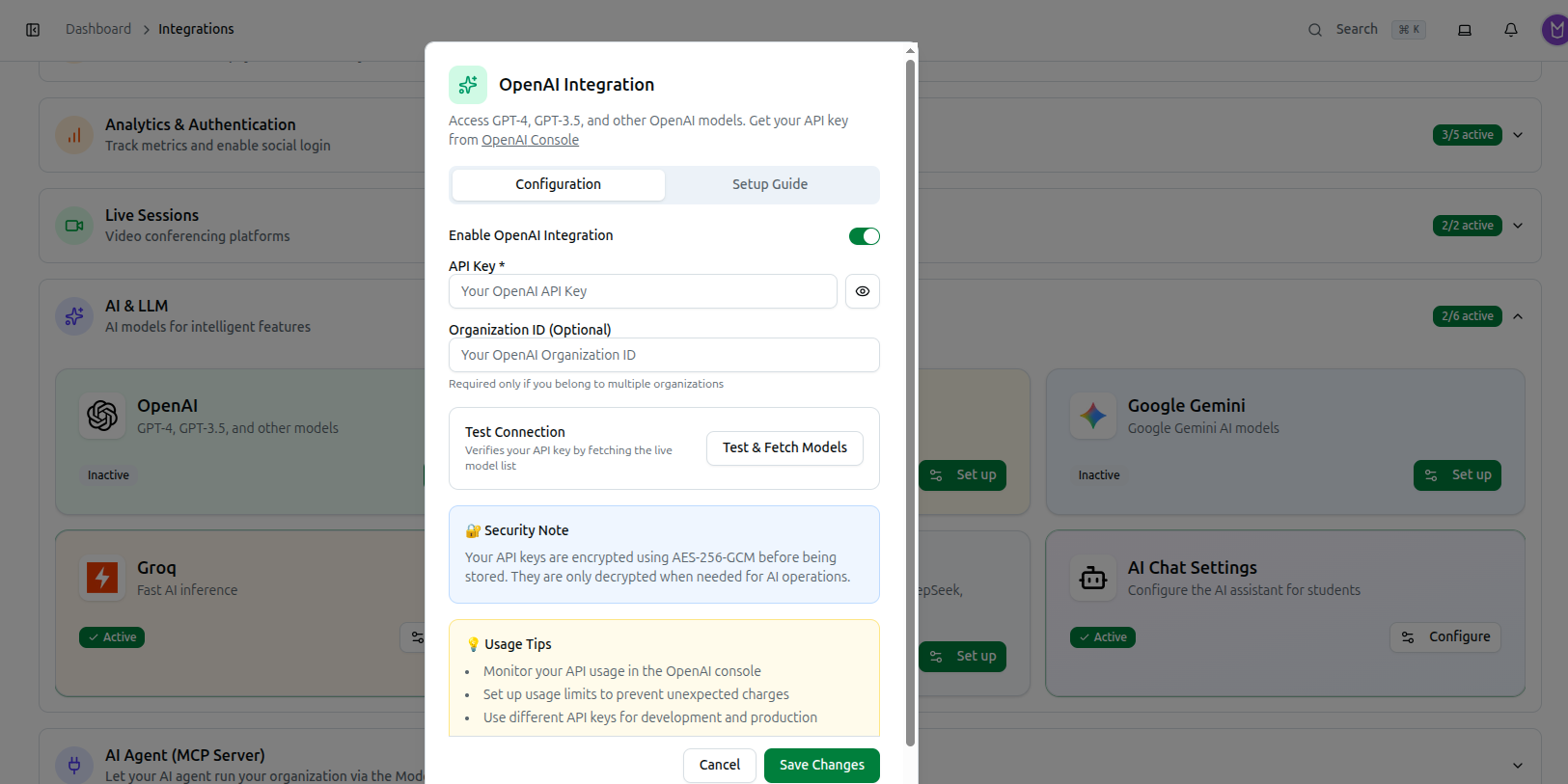
Every card in this category — OpenAI, Anthropic Claude, Google Gemini, Groq, and Custom Provider — opens the same dialog, just pre-filled for that provider:
- Click Configure (or Set up) on the card.
- Toggle Enable [Provider] Integration on.
- Enter your API Key — get it from the linked console (e.g. OpenAI Console). OpenAI also shows an optional Organization ID, needed only if you belong to multiple OpenAI organizations.
- Click Test & Fetch Models in the Test Connection box. It calls the provider's live model list and shows one of three results: a green box listing the models available (and a reminder to pick one in AI Chat Settings), an amber box if the key works but the provider doesn't publish a model list (you'll type the Model ID manually later), or a red box with the connection error.
- Read the 🔐 Security Note — API keys are encrypted with AES-256-GCM before storage — and the 💡 Usage Tips (monitor usage in the provider's console, set spending limits, use separate keys for dev/production).
- Click Save Changes.
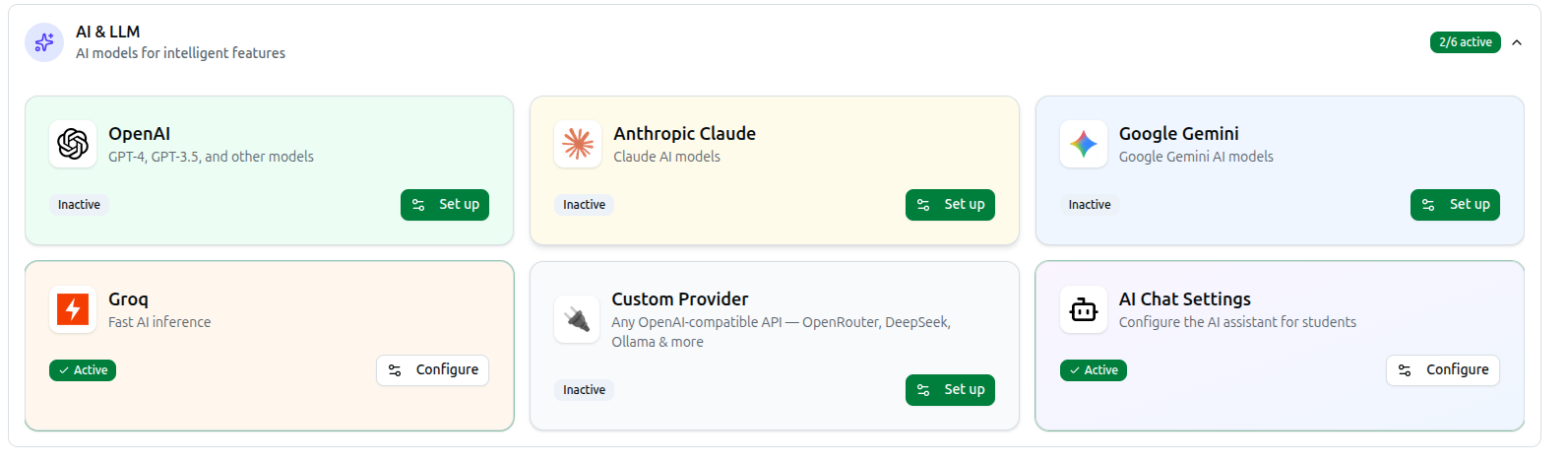
An earlier version of this guide listed a "Voyage AI" card that does not exist, and omitted the real fifth provider, Custom Provider. Custom Provider connects any OpenAI-compatible API — OpenRouter, DeepSeek, Together, Fireworks, Ollama, LM Studio, and more — and its dialog adds two extra fields before the API Key: a Provider Name (a friendly label, e.g. "OpenRouter") and a Base URL (the API endpoint, e.g.
https://openrouter.ai/api/v1orhttp://localhost:11434/v1for a local Ollama server).
F. AI Chat Settings (You must enable at least one provider above first — otherwise this dialog just shows "No AI Providers Configured".)
- Find the AI Chat Settings card and click Configure.
- The dialog has one tab, Student AI — configure whether students can chat with an AI assistant about their enrolled courses, payments, exam results, and assignments.
- Toggle Enable AI Chat for Students, pick an AI Provider from the ones you enabled, and choose a Model. The model list is fetched live from that provider; if none of the curated models match what came back, pick from the live list, or switch to manual entry to type an exact Model ID yourself.
- Click Save Changes.
There is no separate "Admin AI" tab. An earlier version of this guide described one — it doesn't exist in the interface. Only student-facing AI chat is configured here.
7. AI Agent (MCP Server)

This category is new territory for admins integrating their own AI tooling rather than a third-party service: it lets an external AI agent (Claude, a custom bot, anything that speaks MCP) securely act on your organization's data through the Model Context Protocol.
- Find the MCP Server card, showing Not set up until you create your first credential, and click Configure.
- The Connection panel shows your MCP endpoint and Token URL with copy buttons — authentication is OAuth2
client_credentials: an agent exchanges a credential's client ID and secret at the token URL for a bearer token, then calls the MCP endpoint with it. - Under Credentials, click New credential, give it a Name (e.g. "Operations agent"), and choose its permissions from Read access and Write access scope pickers — write scopes are flagged for caution. Click Create credential.
- The client secret is shown exactly once, right after creation (and again after a rotation) — copy it immediately, since it can't be viewed again afterward.
- Each existing credential shows an Active/Disabled badge, its Client ID (with a copy button), its granted scopes, and when it was last used. Use the switch to enable/disable it, the rotate icon to issue a new secret, or the trash icon to delete it entirely.
Troubleshooting
| What you see | What it means |
|---|---|
| The AI provider card shows "Connected, but no model list returned" | Normal for some providers — save your key, then type the exact Model ID by hand in AI Chat Settings |
| You can't find "Admin AI" anywhere | It doesn't exist — only Student AI is configurable in AI Chat Settings |
| A push-notification card is titled "Push Notifications" but you expected "Firebase Cloud Messaging" | That's the correct name — Firebase is just the technology behind it |
| You lost an MCP credential's secret | It's shown once, at creation or rotation, and never again — use Rotate secret to issue a new one |
| A category shows "0/N active" | None of its integrations are toggled on yet — click Set up on any card to configure the first one |
Related: Configure AI and LLM Integrations · Configure Communication Integrations · Configure Payment Gateway Integrations · Configure Live Session Integrations