
2. Payment Gateways (Accept payments from students)
You can enable multiple gateways so students have choices.
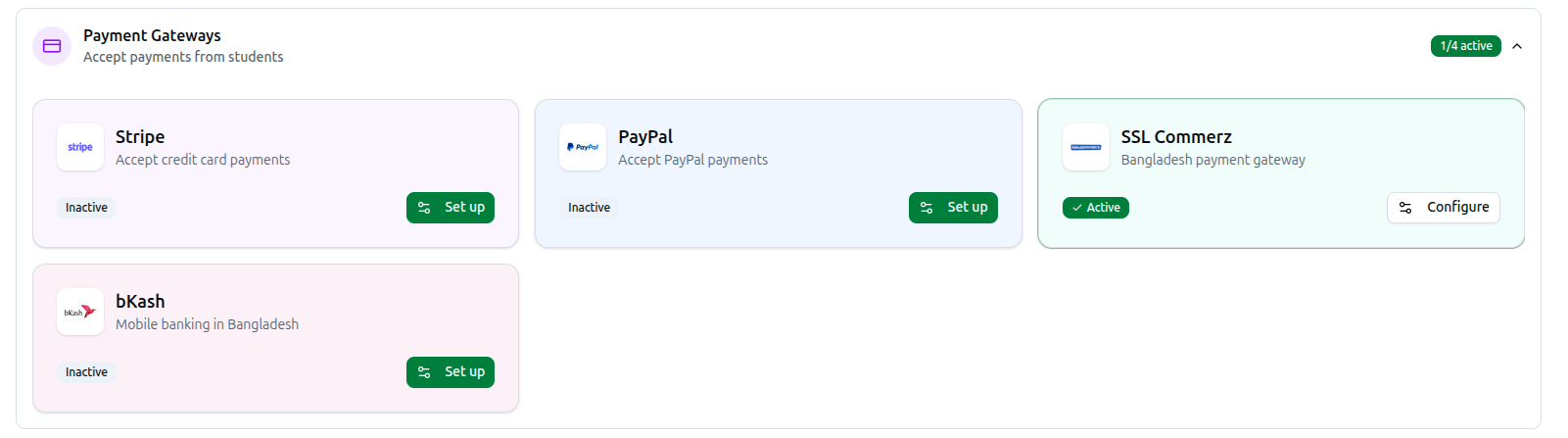
A. Stripe
- Find the Stripe card and click Configure.
- Toggle Enable Stripe to the 'on' position.
- Enter a Name (e.g., "Credit Card") and Description (what students will see at checkout).
- Paste your Publishable Key, Secret Key, and Webhook Secret from your Stripe Dashboard.
- Click Save Changes.
B. PayPal
- Find the PayPal card and click Configure.
- Toggle Enable PayPal to the 'on' position.
- Enter a Name and Description.
- Paste your Client ID and Client Secret from PayPal Developer.
- Click Save Changes.
C. SSL Commerz
- Find the SSL Commerz card and click Configure.
- Toggle Enable SSL Commerz to the 'on' position.
- Enter a Name and Description.
- Enter your Store ID and Store Password.
- Click Save Changes.
D. bKash
- Find the bKash card and click Configure.
- Toggle Enable bKash to the 'on' position.
- Enter a Name and Description.
- Enter your bKash merchant Username, Password, App Key, and App Secret.
- Click Save Changes.
Related: Managing Integrations