
Step 4: End a Session
Once class is over and attendance is taken, end the session to finalize its records.
- On an Active session's card, click End, or click End Session from inside the session page. This opens the End Attendance Session dialog.
- Tick any of three notification options for students still marked Pending: "Send SMS to guardians of absent students", "Send email to absent students", "Send app notification to absent students".
- Click End Session to confirm. An earlier version of this guide called this button "Complete Session" — the real label is "End Session."
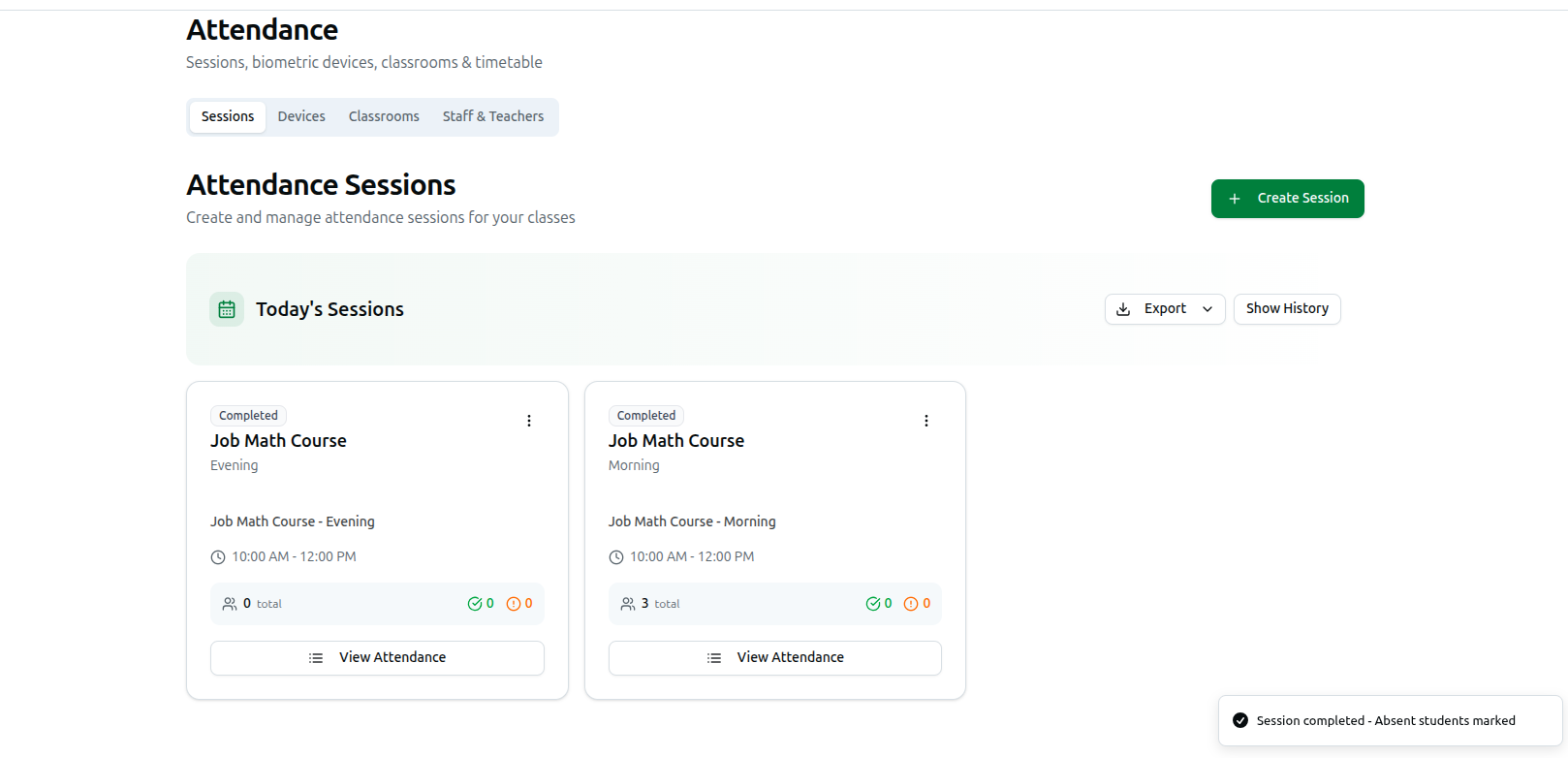
- Every student still Pending is locked in as Absent. The confirmation toast reads "Session completed - Absent students marked" if you sent no notifications, or "Session completed - Notifications sent to absent students" if you ticked at least one.
Related: Managing Attendance Sessions · Activate a Session