
Step 3: View Session History
- On the Sessions tab, click Show History (it toggles to Show Today once you're in history mode).
- Use the From and To date filters that appear to narrow the list; Clear resets them. History paginates 20 sessions at a time once you have more than that in range.
- Click View Attendance on a Completed session (or View on an Active one) to open its dedicated page.
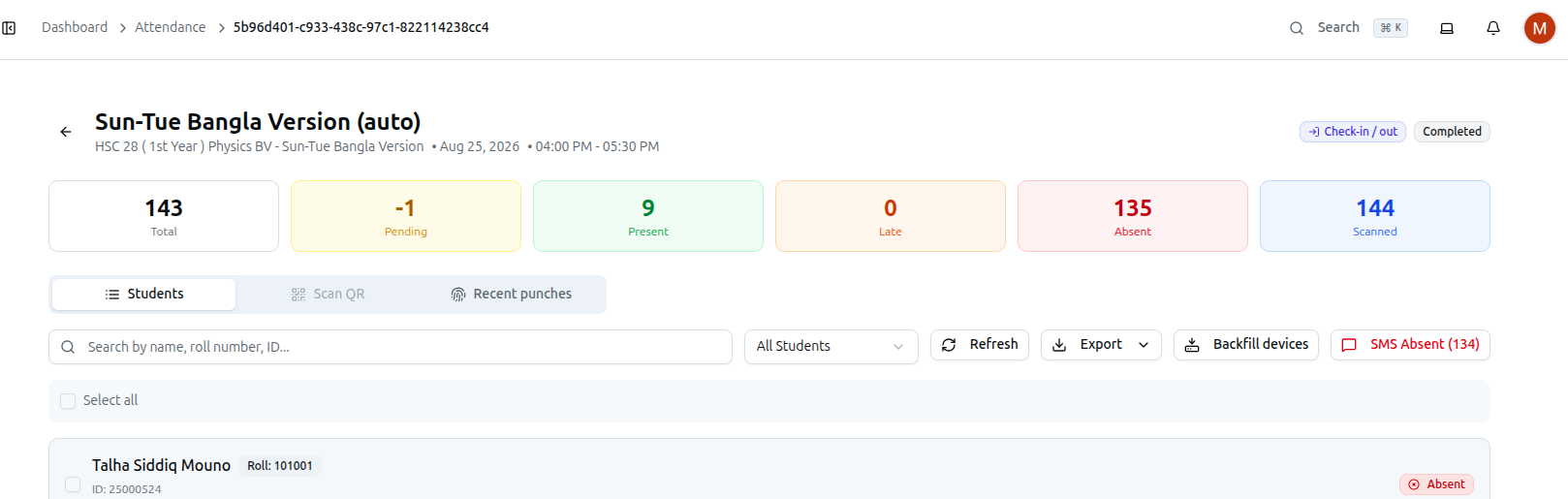
That page shows Total / Pending / Present / Late / Absent / Scanned counts, tabs for Students, Scan QR, and Recent punches, a search box, an All Students filter, Refresh, an Export dropdown, a Backfill devices button, and an SMS Absent button for messaging everyone still marked absent.
Exporting from the session list itself (not from inside a session) — the Export dropdown at the top of Sessions/History offers two downloads for whatever sessions are currently listed: "Session summary" (one row per session — date, course, batch, times, status, and the Present/Late/Absent/Not-Scanned/Attendance % breakdown) and "Absent students" (every absent student across those sessions, with contact and guardian details). An earlier version of this guide described a single "Export CSV" button reached from inside one session — the real controls are this two-option dropdown at the list level.
Related: Managing Attendance Sessions · Complete a Session