
A custom domain replaces your free yourslug.course37.com address with your own — learn.yourinstitute.com, for instance — for your entire site, including everything the Website Editor produces.
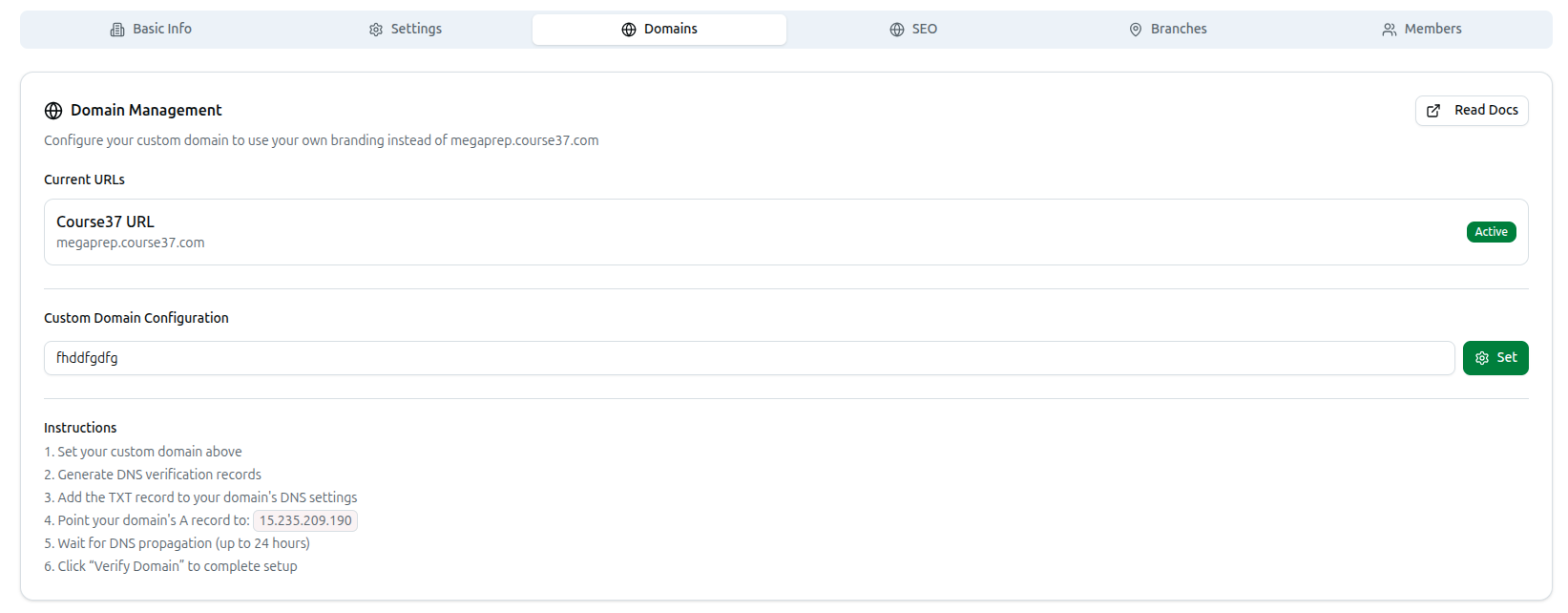
This is configured in one place — Organization → Domains — not inside the Website Editor itself, since a domain applies to your whole platform, not just the pages you build there.
Do this last, after your website is built. Your site works perfectly on the free Course37 address the entire time you're building it. Adding a custom domain depends on DNS changes elsewhere that can take up to 24 hours, so there's no benefit to doing it early — and every benefit to doing it once your pages are actually ready to show visitors.
Setting and Verifying
- Open Organization from the left sidebar, then the Domains tab.
- Type your domain into Custom Domain Configuration and click Set.
- Click Generate DNS Records, then add the TXT record and point the A record at the IP address shown on your own screen — copy it from there, since it can change.
- Wait for DNS propagation — up to 24 hours.
- Click Verify Domain.
The full walkthrough — including a worked example, the exact Name-field mistake that causes verification to silently fail, and the subdomain variant — is covered in depth on the canonical page:
Troubleshooting
| What you see | What it means |
|---|---|
| Verification never succeeds | Almost always the DNS Name field — most providers want only the part before your domain, not the full string Course37 displays. See the full guide |
| The domain verifies but the site doesn't load | The TXT record proves ownership; the A record is what actually routes traffic — confirm it's set |
| You want to revert to the free address | Remove the custom domain in Organization → Domains; yourslug.course37.com keeps working throughout |
Related: Configure Domains · Enable & Set Up Your Website