
A custom domain puts your platform on your own web address — learn.yourinstitute.com instead of yourslug.course37.com. Your free Course37 address keeps working either way, so nothing breaks while you set this up.
In plain terms: a domain name doesn't automatically know where to send visitors — you have to tell it. That instruction lives in a system called DNS, which works like the internet's phone book. Adding a DNS record means writing one new line in that phone book: "anyone who visits this domain, send them to Course37." You add that record at whichever company you bought the domain from — GoDaddy, Namecheap, Cloudflare, or similar — not inside Course37 itself.
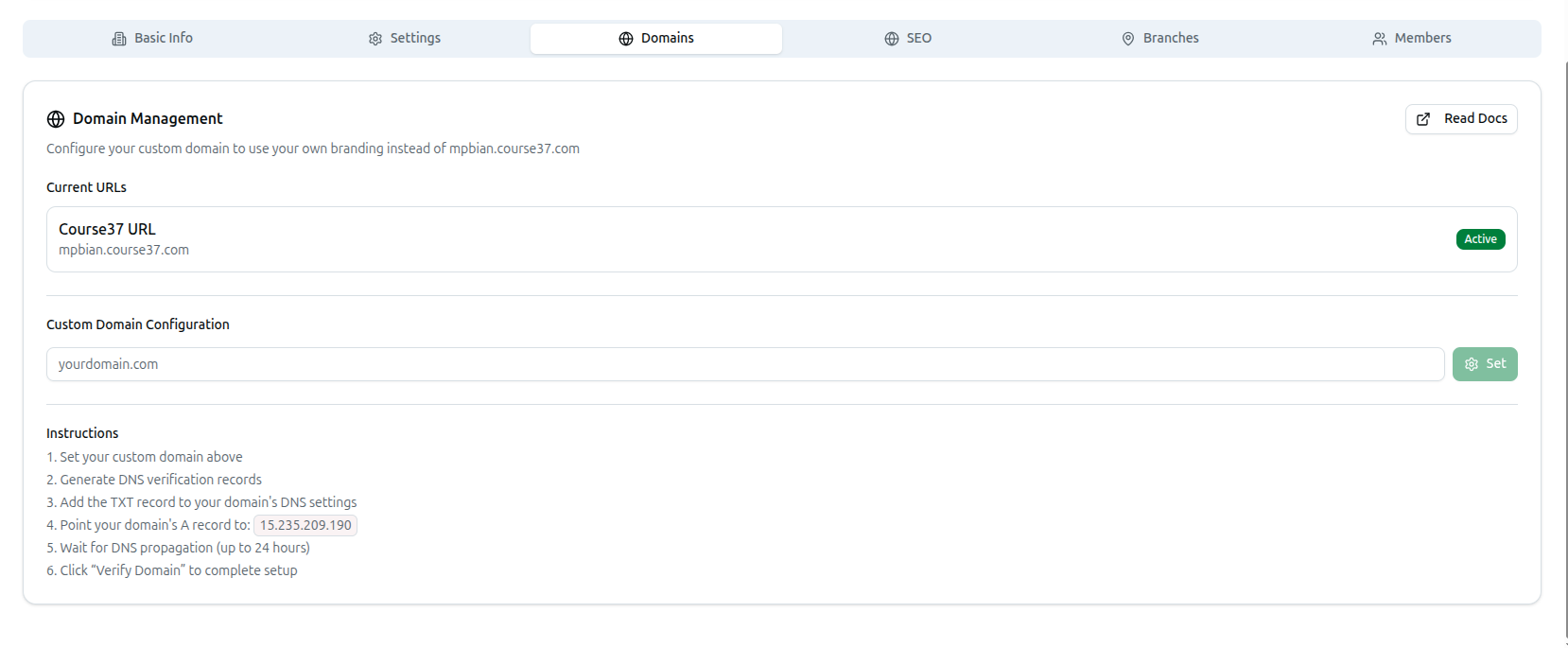
Open it from the left sidebar: Organization, then the Domains tab.
Do this last, after your courses, curriculum and content are already set up. It depends on a change outside Course37 that can take up to 24 hours to take effect, and your free address keeps working the whole time.
Before you start, you'll need:
- A domain name you've already bought (from GoDaddy, Namecheap, Cloudflare, or anywhere similar).
- The login for that domain provider's account — you'll add two records there.
- About 10 minutes of your own time, then up to 24 hours of waiting for the internet to catch up.
Walkthrough: putting mpbianacademy.com on Course37
The steps below follow one real example throughout — a made-up domain, mpbianacademy.com — so you can do the same thing with your own domain in its place.
Step 1 — Check what you have now
At the top of the Domains tab, Current URLs shows your addresses:
- Course37 URL — your free
yourslug.course37.comaddress, marked Active. This never stops working, even after you add a custom domain. - Custom Domain — empty for now. Once you add one, it shows Verified or Pending.
Step 2 — Tell Course37 your domain
Under Custom Domain Configuration, type the domain you own — for example mpbianacademy.com — and click Set. (If you're changing a domain you already saved, this button says Update instead.)
You'll see Custom domain updated successfully. Please generate new DNS records.
Two things can stop you here:
- Please enter a custom domain — the box was empty.
- Please enter a valid domain — type only the bare domain:
mpbianacademy.com, nothttps://mpbianacademy.comormpbianacademy.com/.
Step 3 — Generate your verification records
Click Generate DNS Records. Course37 now shows you two values under DNS Verification — a small copy button next to each one confirms Copied to clipboard when you click it:
TXT Record:  _course37-verify.mpbianacademy.com
Value:       course37-domain-verification=cm3x8k2p90001abcd1234efgh
(Your own Value will end in your organization's ID, so it won't match this one — that's expected.)
What these actually are: the TXT Record is proof of ownership — it tells your domain provider "the person setting this up really does control Course37 for this domain." The A Record, which you'll add next, is what actually routes visitors to your platform.
Step 4 — Add two records at your domain provider
This part happens outside Course37, on whichever site you bought the domain from. Open its DNS settings and add:
| Type | Name / Host | Value |
|---|---|---|
| TXT | _course37-verify |
course37-domain-verification=cm3x8k2p90001abcd1234efgh |
| A | @ |
15.235.209.190 |
The Name field is where almost everyone trips up. Course37 shows you the full record name —
_course37-verify.mpbianacademy.com— but nearly every DNS provider already assumes your domain and only wants the part in front of it. Type_course37-verify, not the whole thing. Paste the full version and your provider will silently create_course37-verify.mpbianacademy.com.mpbianacademy.cominstead — and verification will never succeed, with no clear error telling you why.
@means "the domain itself." If your provider doesn't accept@, leave that field blank instead.Always copy the IP address for the A record from the Instructions panel on your own screen rather than typing it from memory — it's the current, correct value.
Step 5 — Wait, then verify
DNS changes are usually visible within a few minutes, but can take up to 24 hours to reach every internet provider worldwide. Once you've saved both records, come back to the Domains tab and click Verify Domain.
- Success: Custom domain verified successfully! — the badge turns Verified, and
mpbianacademy.comnow serves your platform. - Not yet: Domain verification failed — this almost always just means DNS hasn't finished propagating. Wait a while and click Verify Domain again; you don't need to change anything.
Using a subdomain instead
Many institutions keep their main website exactly where it is, and put Course37 on a subdomain instead — something like learn.mpbianacademy.com. The process is identical; only the Name fields change:
| Type | Name / Host | Value |
|---|---|---|
| TXT | _course37-verify.learn |
course37-domain-verification=<your organization ID> |
| A | learn |
15.235.209.190 |
In Custom Domain Configuration, type the full subdomain — learn.mpbianacademy.com. Course37 builds the TXT record from whatever you type, so it already includes learn for you.
This is the safer choice if your main website is already live somewhere else: nothing about mpbianacademy.com itself changes.
Removing a domain
Remove Custom Domain deletes it and sends visitors back to your yourslug.course37.com address. You'll see Custom domain removed successfully.
Anyone visiting your old custom domain stops reaching your platform immediately — only do this if you're moving to a different address or reverting to your free one.
Troubleshooting
| What you see | What it means |
|---|---|
| Please enter a valid domain | Remove https://, any trailing slash, and any path — just yourdomain.com |
| No Generate DNS Records button | Your domain is already verified; there's nothing left to generate |
| Domain verification failed | DNS hasn't propagated yet. Wait — up to 24 hours — and click Verify Domain again |
| Badge stuck on Pending | The domain is saved but not yet serving visitors — verification isn't finished |
| Domain verifies but the site doesn't load | The TXT record only proves ownership; the A record is what routes traffic. Check it points to the IP shown in Instructions |
| You changed the domain after verifying | Generate fresh DNS records — the old ones no longer apply |