
2. Due Payments Tab: Tracking Installments
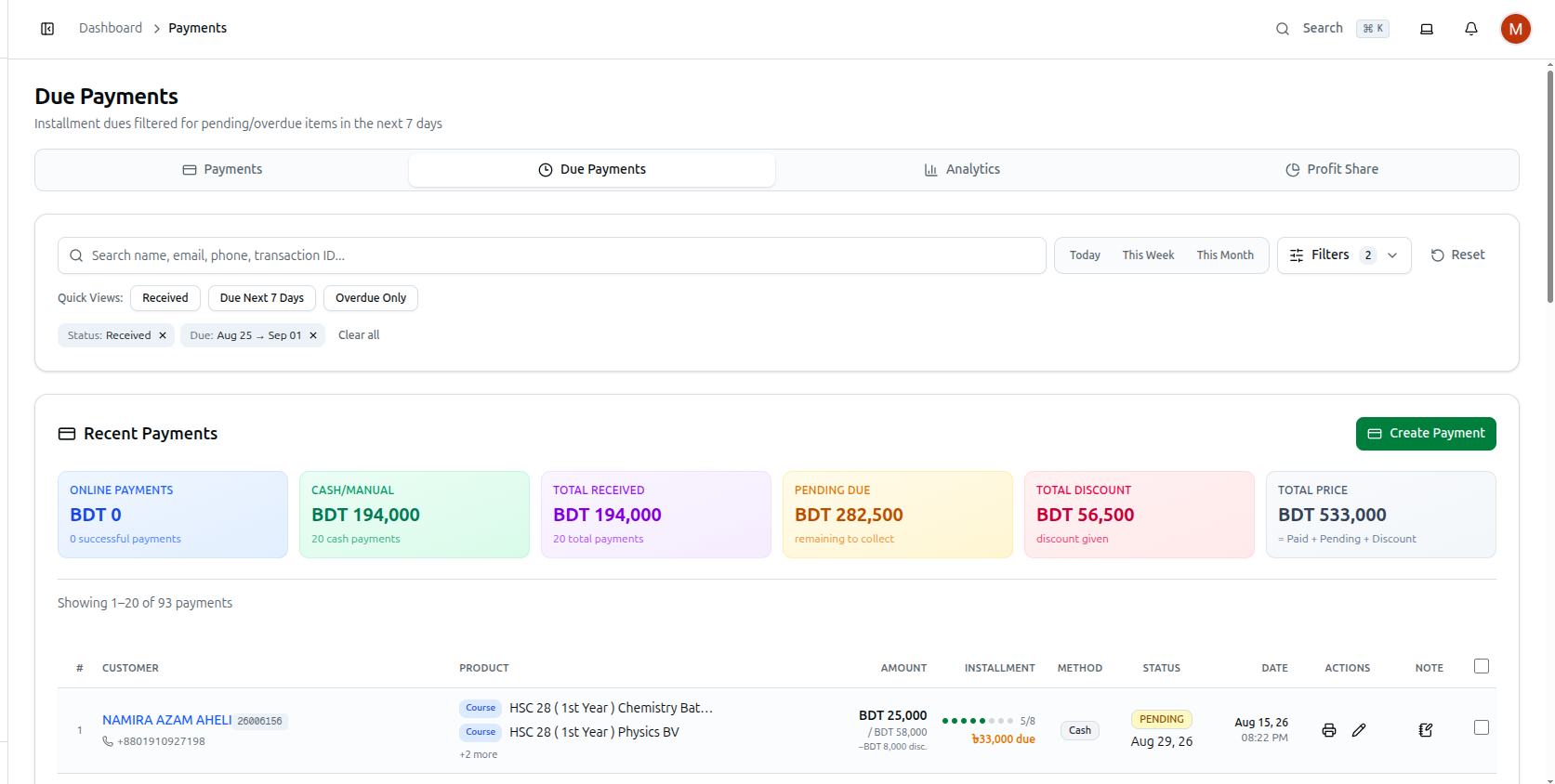
Due Payments isn't a separate page — it's the exact same Payments tab route with a different starting filter applied automatically: Status = Pending or Overdue, and a due-date range from today through the next 7 days.
Everything documented for the Payments tab works identically here — the same six summary cards, the same 15-field Filters panel, the same table columns, and the same row-click Payment Details dialog. Two things are different:
- You land here pre-filtered. Change or clear the Status and Date Ranges filters at any time to widen or narrow what "due" means for your search — the 7-day window is just the starting point, not a hard limit.
- The settlement summary card is hidden. The Payments tab's settlement-status card doesn't appear here, since it doesn't apply to installments that haven't been collected yet.
Troubleshooting
| What you see | What it means |
|---|---|
| A payment you expect to see is missing | Check that it's actually Pending or Overdue and due within your current date range — adjust Filters → Date Ranges to widen the window |
| You don't see the settlement card that appears on the Payments tab | That's expected — it's intentionally hidden here, not a bug |
| You need the full field-by-field reference for filters, columns, and the row dialog | See Payments Tab: Viewing and Filtering Transactions — everything there applies here too |
Related: Payments Tab: Viewing and Filtering Transactions · Payments Module Overview · Manage a Student Profile