
4. Profit Share Tab: Distributing Revenue to Teachers
Owner only, like Analytics. Profit Share calculates and distributes revenue among teachers based on percentages you configure, and it's split into four sub-tabs: Dashboard, Configure Shares, Expenses, and Withdrawals.
Dashboard
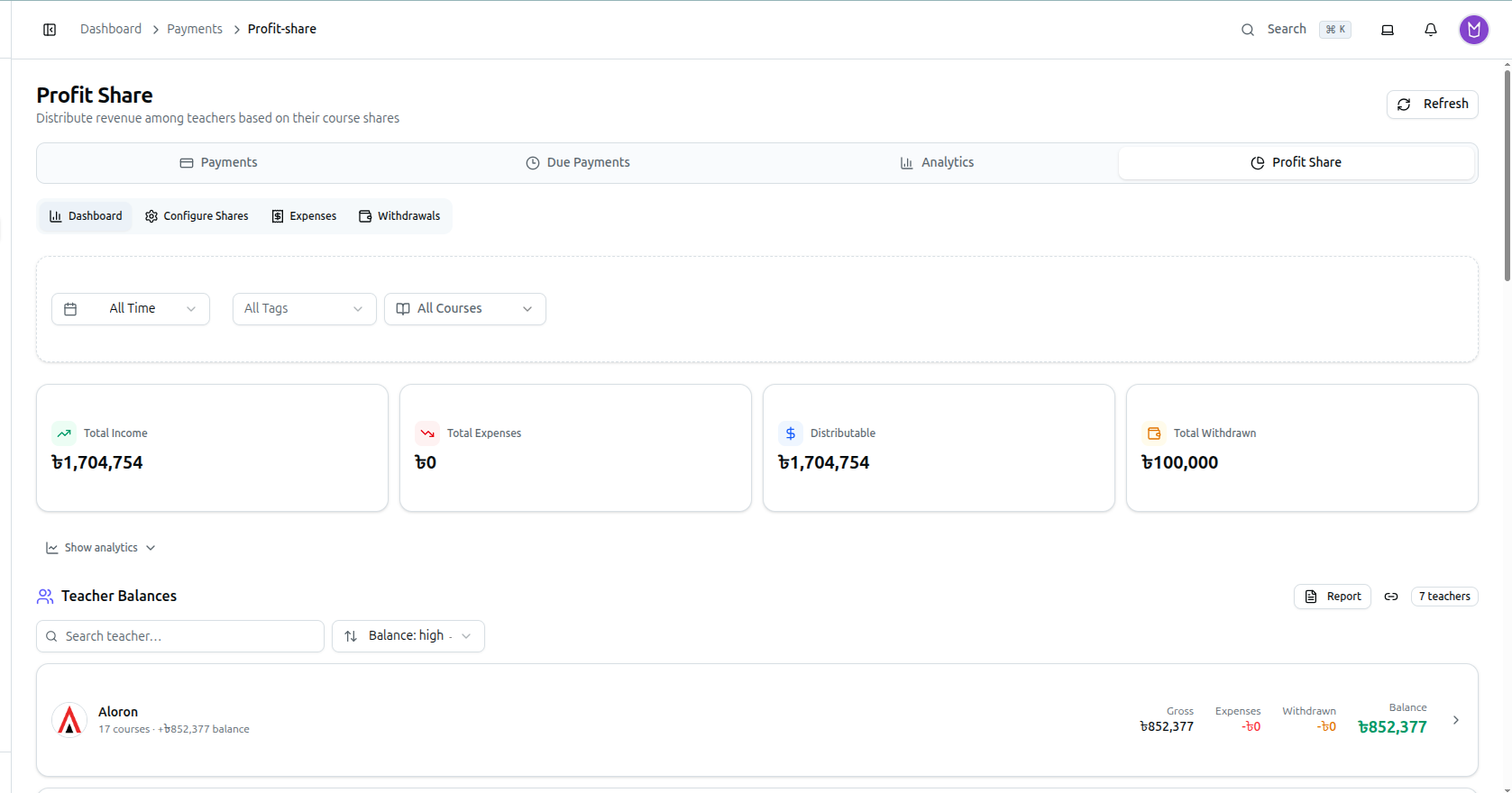
- Summary cards: Total Income, Total Expenses, Distributable (the net amount available to share), and Total Withdrawn.
- Filters above the cards: a date-range selector (including All Time), an All Tags dropdown (only shown if your organization has tags), and an All Courses multi-select headed "Courses with Share Config."
- Show analytics expands two charts: a Revenue Flow waterfall (Income → Expenses → Teacher Shares → Org Retained → Withdrawn) and a Teacher Share Distribution pie chart with a legend showing each teacher's percentage of the total.
- Teacher Balances lists every teacher with a configured share, each showing Gross / Expenses / Withdrawn / Balance. The header row has a Report button (a printable/PDF report), a copy-link icon ("Copy shareable link"), and an N teacher(s) badge — plus, once there's more than one teacher, a Search teacher… box and a Balance: high → low sort dropdown (also sortable by Name, Gross share, or Withdrawn).
- Empty states differ by cause: no shares configured at all shows "No profit share data — configure teacher shares for courses to see balance calculations" with a Configure Shares button; a search that matches nobody shows a separate "no teachers match" message instead.
Configure Shares
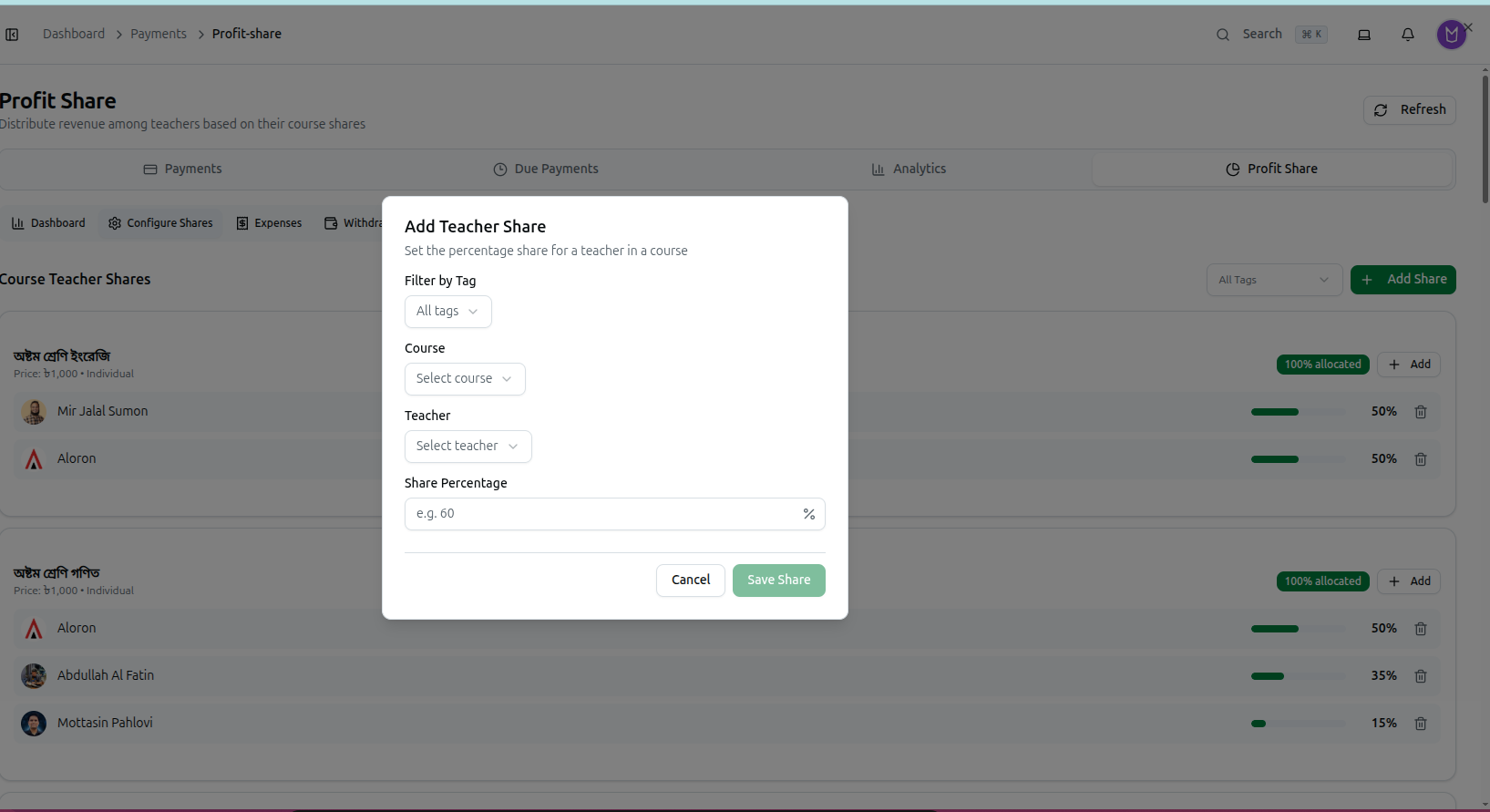
- Courses are listed as cards captioned "Price: {amount} • Individual" (or Package for a bundled product), each with its current allocation, e.g. "0% allocated" if nothing is set up yet.
- Click + Add on a course card (pre-fills that course), or + Add Share at the top right to start from scratch.
- The Add Teacher Share dialog — subtitled "Set the percentage share for a teacher in a course" — has: an optional Filter by Tag, Course, Teacher (grouped into "Teaches this course" and "Other teachers"), and Share Percentage (a numeric field with a
%icon). Click Save Share. - Each teacher already added to a course shows as a row with a percentage bar and a trash icon — click it to remove that teacher's share from the course.
From then on, that teacher's balance is calculated automatically from every future sale of that course.
Expenses
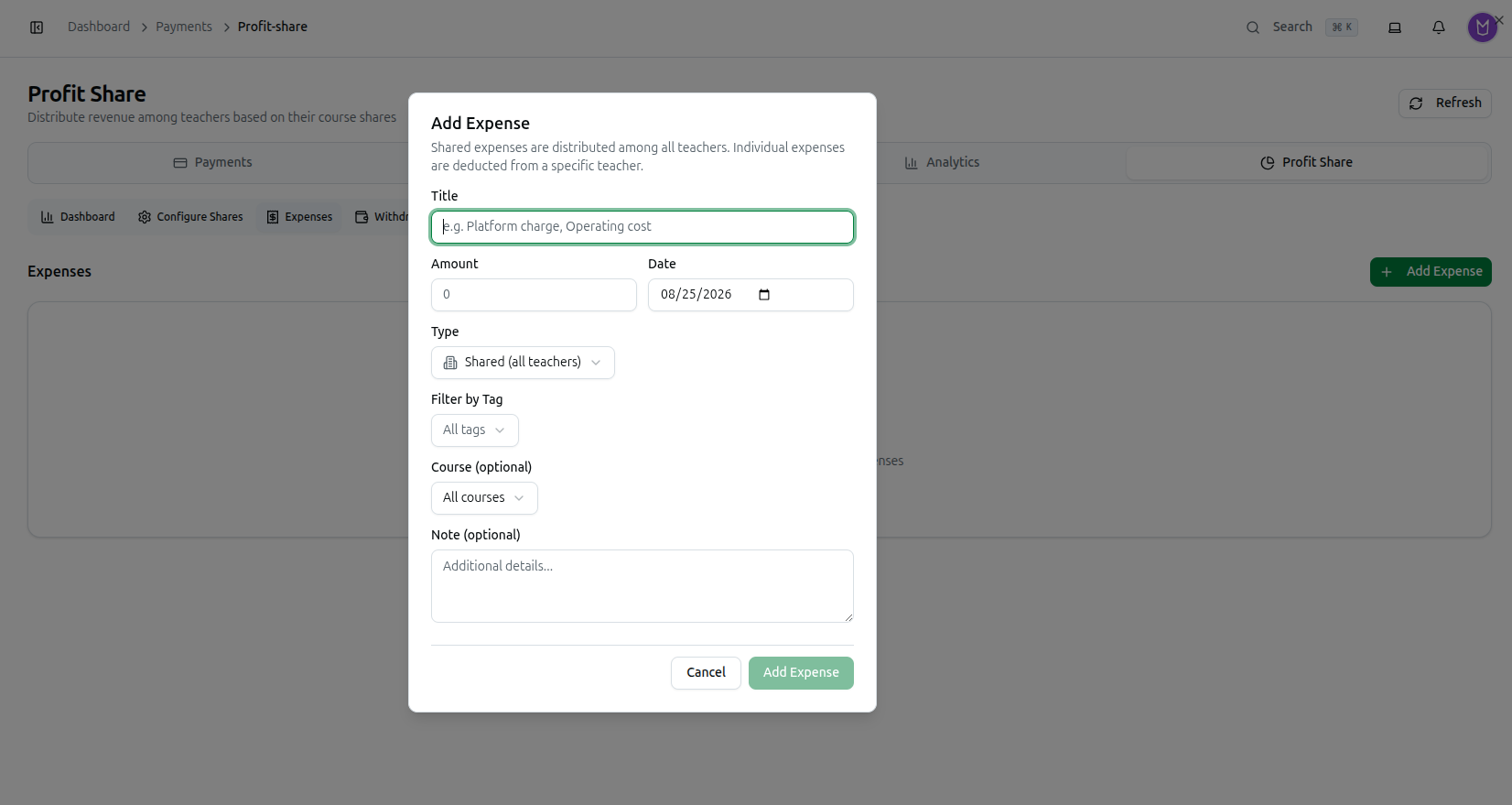
Add Expense opens a dialog subtitled "Shared expenses are distributed among all teachers. Individual expenses are deducted from a specific teacher." Fields: Title (e.g. "Platform charge, Operating cost"), Amount, Date, and a Type choice — Shared (all teachers) or Individual (charged to one teacher, which reveals a Teacher dropdown). An optional tag filter, an optional Course (defaults to "All courses"), and an optional Note round it out.
Logged expenses appear in a table below — Title, Type badge, Teacher, Course, Amount, Date — each editable (pencil, which requires you to enter a reason for the edit) or deletable (trash). An empty list shows "No expenses recorded."
This whole tab, including Configure Shares and Expenses, is restricted to the organization owner — even a teacher who can otherwise access Payments won't be able to add, edit, or delete an expense.
Withdrawals
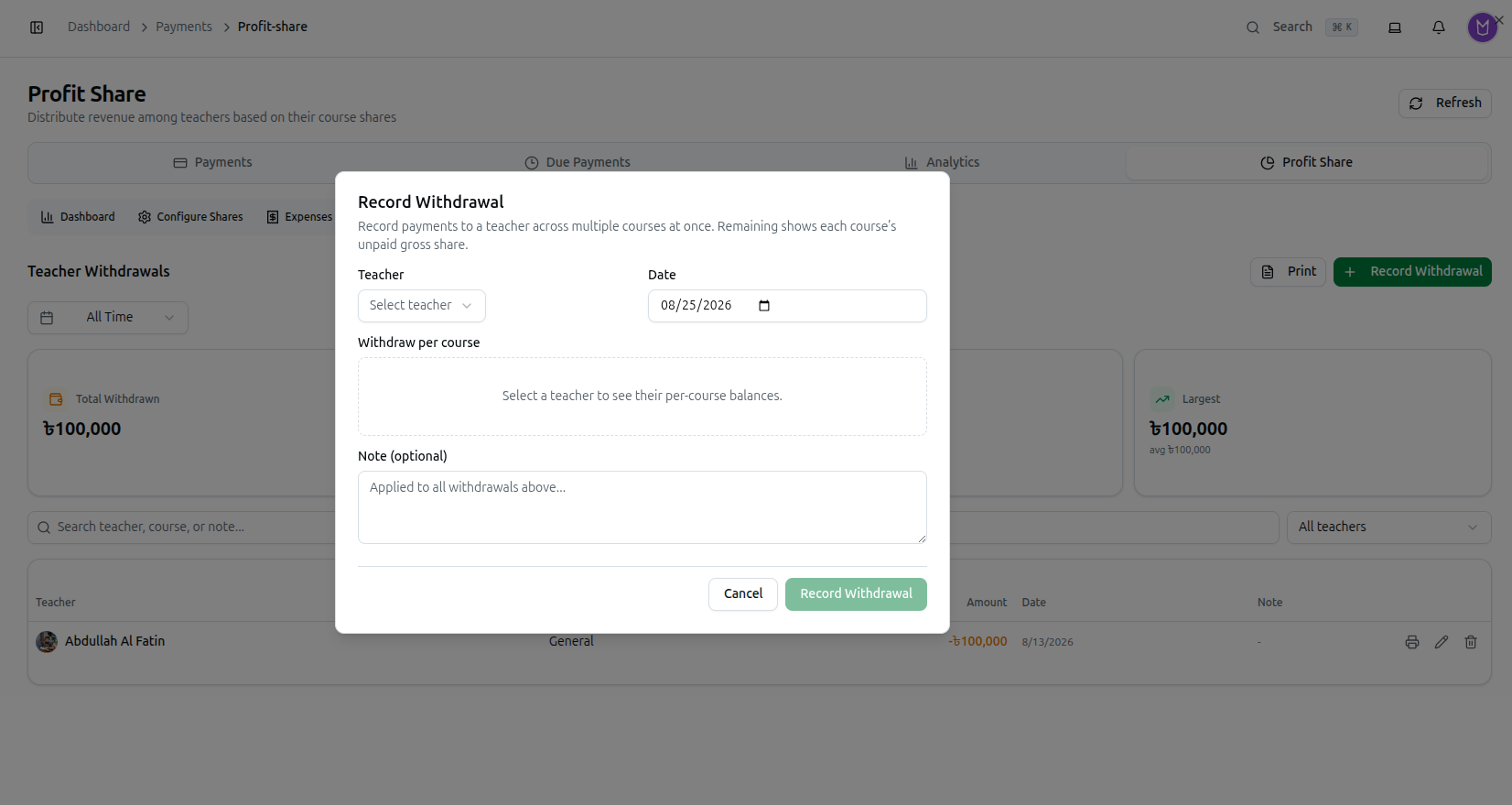
Record Withdrawal opens a bulk dialog subtitled "Record payments to a teacher across multiple courses at once. Remaining shows each course's unpaid gross share." Pick a Teacher and a Date — the Withdraw per course table only appears once a teacher is selected, showing their Gross / Withdrawn / Remaining balance for each course with a numeric Withdraw input per row plus Max and Fill all remaining shortcuts. A General (no course) row and a running Total footer are included, plus an optional Note applied to all withdrawals in the batch. Print on this dialog produces a printable payout report.
Below, the tab shows stat cards (Total Withdrawn, Entries, Teachers, Largest/average), a search box with an All teachers filter, and a withdrawals table (Teacher, Course, Amount, Date, Note) — each row has a print-receipt (voucher), an edit (also requiring a reason), and a delete action.
The Teacher Detail Page
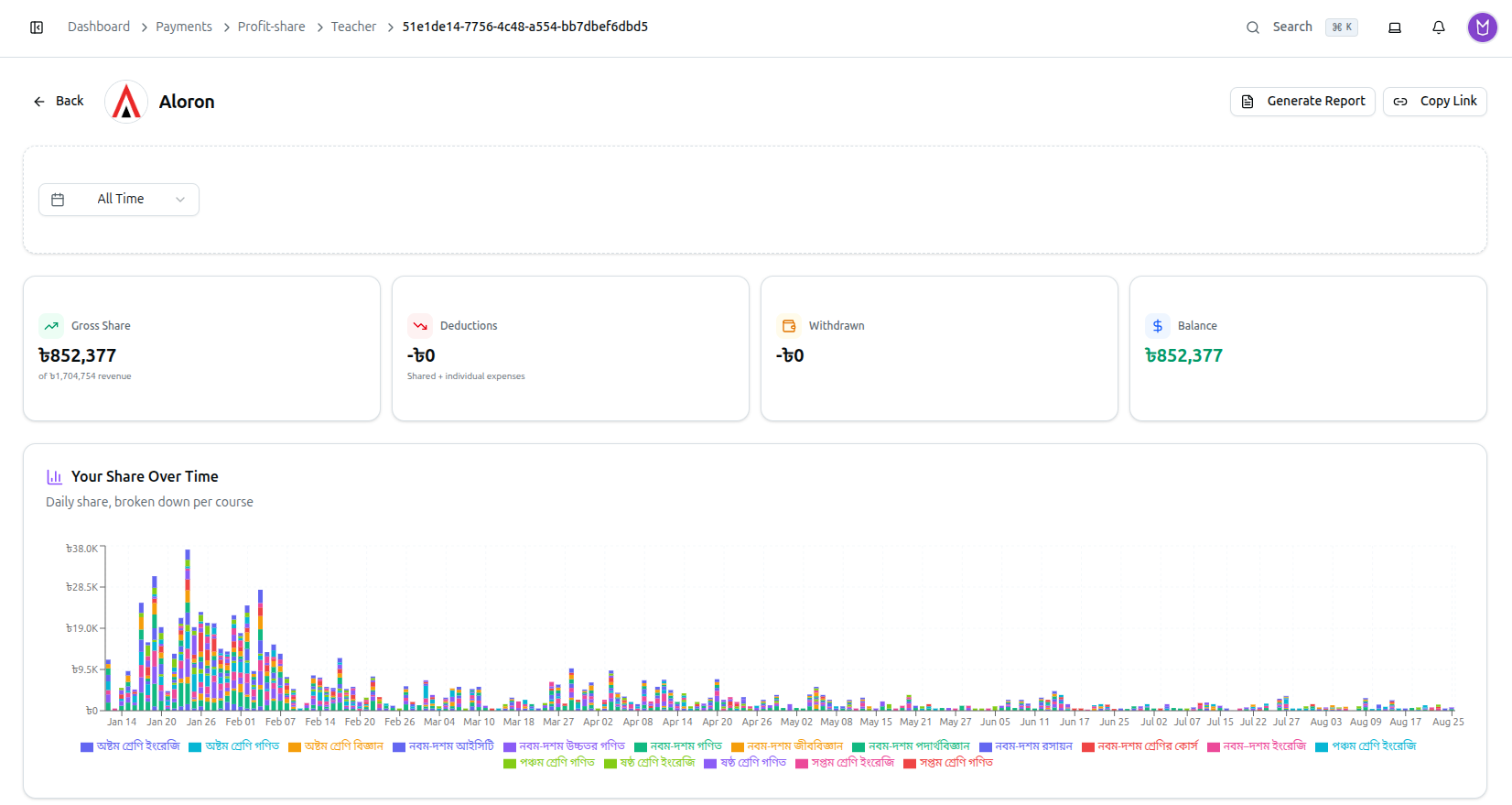
Clicking into an individual teacher (from Teacher Balances, or their own copyable link) opens a dedicated page: a header with their avatar, email, and phone plus Generate Report (PDF) and Copy Link buttons; its own date-range filter (defaulting to All Time); four stat cards — Gross Share (captioned "of {total revenue}"), Deductions (captioned "Shared + individual expenses"), Withdrawn, and Balance; a stacked "Your Share Over Time" bar chart, subtitled "Daily share, broken down per course"; a detailed Course Breakdown table (Expected / Discount / Sales / Collected / Due / Gross Share / Withdrawn / Remaining, with hide-zero toggles); and side-by-side, read-only Individual Expenses and Withdrawals tables — this page only shows the teacher their own numbers, it doesn't let them add or edit anything.
Troubleshooting
| What you see | What it means |
|---|---|
| Profit Share isn't in your sidebar at all | It's owner-only, same as Analytics |
| A teacher says they can't log their own expense or withdrawal | Correct — only the organization owner can add, edit, or delete on the Expenses and Withdrawals tabs |
| "Show analytics" doesn't seem to do anything | It's a toggle — click it again if the charts are already open and collapsed; it hides automatically while a single teacher's row is expanded |
| Editing an expense or withdrawal is blocked without an explanation | Both require you to type a reason for the edit first — that's mandatory, not optional |
| A course shows "0% allocated" and no one is getting paid from its sales | Go to Configure Shares and add at least one teacher share for that course |
Related: Payments Module Overview · Analytics Tab · Manage the Teacher Directory