
A branch is a physical location you operate — a campus, a centre, a study hall. Recording them lets you assign batches and attendance sessions to a specific place, so you can tell which centre a class or a student belongs to.
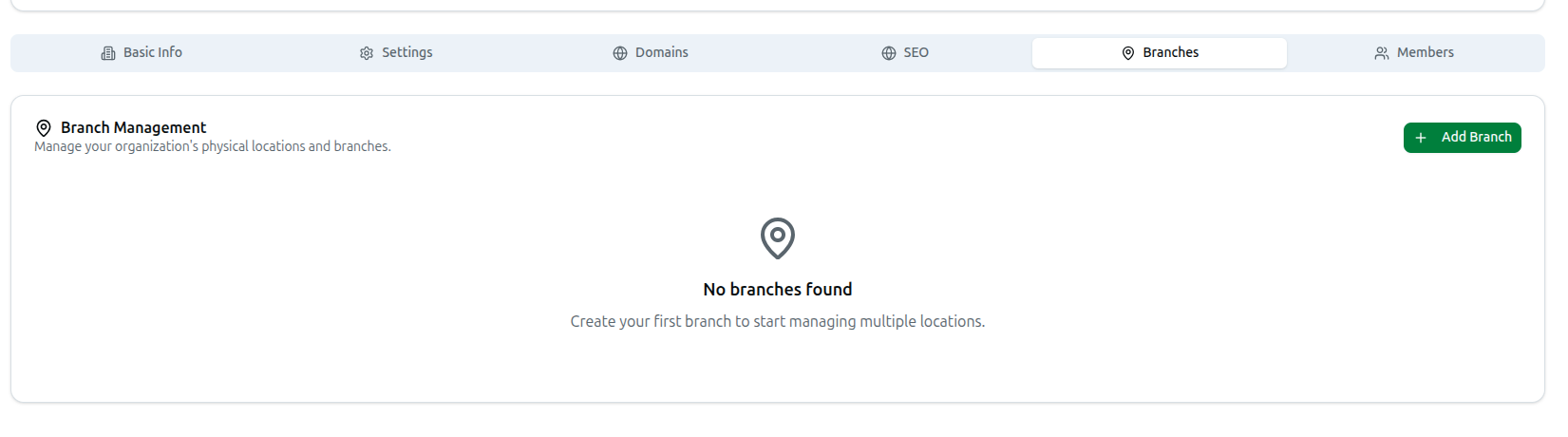
Open it from the left sidebar: Organization, then the Branches tab. The panel is headed Branch Management — Manage your organization's physical locations and branches.
Skip this if you teach entirely online. Branches only earn their keep when you run more than one physical location. Before you add any, the tab reads No branches found — Create your first branch to start managing multiple locations.
Adding a Branch
Click + Add Branch at the top right to open Create New Branch.
Required fields — all marked with an asterisk:
| Field | What to enter |
|---|---|
| Branch Name | How staff will recognise it — Main Campus, Downtown Branch, etc. |
| Address | Street address |
| City | City |
| State/Province | State or province |
| ZIP/Postal Code | Postal code |
| Country | Country |
Optional fields:
- Phone Number — a direct line for this location.
- Email — an address for this branch, such as
branch@example.com. - Description — a short note, useful when two branches have similar names.
Main Branch — tick this for your primary location. The branch list then shows a Main marker against it.
Click Create Branch. You will see Branch created successfully.
The Branch List
Once you have branches, the tab shows a table:
| Column | Contents |
|---|---|
| Branch Name | The name, with a Main marker on your primary location |
| Location | The address you entered |
| Contact | Phone and email, if provided |
| Status | Whether the branch is active |
| Created | When it was added |
| Actions | Edit and delete |
Editing and Deleting
Edit opens Edit Branch with the same fields pre-filled. Change what you need and click Update Branch — you will see Branch updated successfully.
Delete asks Are you sure you want to delete this branch? before removing it, then confirms Branch deleted successfully.
Add branches before creating batches and attendance sessions. Those are assigned to a branch when created, so a location that does not exist yet cannot be chosen — and existing sessions are not moved for you afterwards.
Troubleshooting
| What you see | What it means |
|---|---|
| No branches found | None created yet — this is the normal starting state |
| Create Branch does nothing | A required field is empty. Check Name, Address, City, State/Province, ZIP and Country |
| Failed to create branch | The save did not go through — check your entries and try again |
| Two branches both look primary | Main Branch was ticked on both. Edit one and untick it |
| A branch is missing from a batch or attendance form | It was created after that record. Branches only appear in forms filled in afterwards |