
Members are the people who work inside your dashboard — your admins, moderators and office staff. This is where you invite them and decide exactly what each one can see.
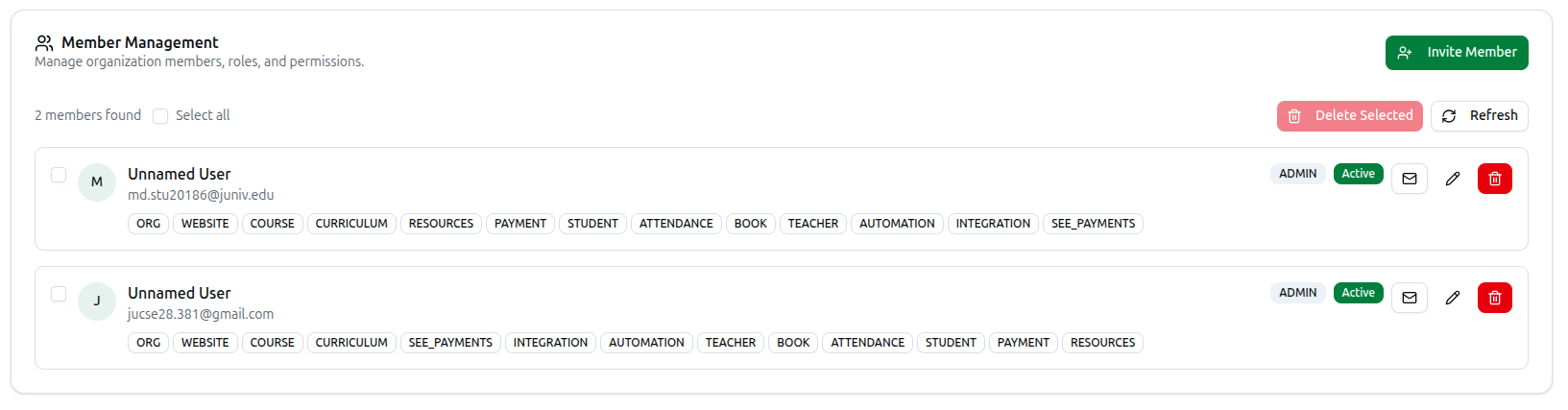
Open it from the left sidebar: Organization, then the Members tab. The panel is headed Member Management — Manage organization members, roles, and permissions.
Members are staff, not students and not teachers. Students arrive by enrolling; teachers are managed under Teachers. A member is someone who logs into the admin dashboard.
Reading the Member List
The header shows how many people you have — 2 members found — with Select all, Delete Selected and Refresh.
Each row shows:
- Avatar and name. People who have not completed their profile appear as Unnamed User with their email beneath. This is normal for someone who has not signed in yet.
- Access module badges — the grey tags such as ORG, COURSE, PAYMENT, STUDENT. These are the exact areas that person can open. Someone with none shows No access modules assigned.
- Role badge — ADMIN, MODERATOR or MEMBER.
- Status badge — Active, or inactive until they accept their invitation.
- Three action buttons — an envelope to resend the invitation, a pencil to edit access, and a red trash icon to remove them.
Inviting Someone
Click Invite Member to open Invite New Member.
- Full Name (required).
- Email Address (required) — the invitation goes here, and it becomes their login.
- Role — Member, Moderator or Admin.
- Access Modules — tick every area this person may use.
- Welcome Message (Optional) — a personal note included in the invitation email.
Click to send. You will see Member invitation sent successfully! and they appear in the list as inactive until they accept.
Leave every access module unticked and the person can log in but see almost nothing. Access modules, not the role, decide what appears in their sidebar — so always tick the areas they need.
What the Access Modules Mean
| Badge | Gives access to |
|---|---|
| ORG | Organization settings, profile and configuration |
| WEBSITE | Website content, pages and SEO |
| COURSE | Courses, lessons and course content |
| CURRICULUM | Education levels, subjects, chapters and topics |
| RESOURCES | Videos, live classes, assignments, PDFs, exams, questions and OMR |
| EXAM | Exams and results |
| QUESTION | The question bank and question sets |
| PAYMENT | Payment history and transactions |
| SEE_PAYMENTS | Viewing all payment records across the organization |
| STUDENT | Student enrolments and progress |
| TEACHER | Teacher profiles and assignments |
| ATTENDANCE | Attendance sessions and records |
| BOOK | Books and reading materials |
| AUTOMATION | Workflow automations and schedulers |
| INTEGRATION | Third-party integrations and API settings |
PAYMENT and SEE_PAYMENTS are deliberately separate. A moderator collecting fees needs PAYMENT to record what they take, but SEE_PAYMENTS lets them view everybody's transactions — grant that only to people who should see the whole organization's money.
Changing Someone's Access
Click the pencil on their row to open Edit Member Access. Adjust their Role and Access Modules, then save. You will see Member updated successfully!
Changes apply the next time they load the dashboard.
Resending an Invitation
Click the envelope on their row. You will be asked to confirm, then the invitation email is sent again. Useful when someone never received the first one or let it sit too long.
Removing Someone
Click the red trash icon. You will be asked to confirm — Are you sure you want to remove [name] from the organization? This action cannot be undone.
To remove several at once, tick their checkboxes (or Select all) and click Delete Selected.
Removal is restricted to organization owners. If you do not see the delete controls, your account is not the owner — ask them to do it.
Troubleshooting
| What you see | What it means |
|---|---|
| Please fill in all required fields | Full Name or Email Address is empty |
| A member shows as Unnamed User | They have not completed their profile yet. Harmless |
| No access modules assigned | They can log in but see almost nothing — edit them and tick the areas they need |
| They accepted but the sidebar looks empty | Same cause. The role alone grants nothing; access modules do |
| The invitation never arrived | Check spam, then use the envelope icon to resend |
| No delete buttons | Only the organization owner can remove members |
| Someone still sees an old area | Access changes apply on their next dashboard load — ask them to refresh |