
SEO settings control how your platform looks outside Course37 — in Google results, and in the preview card that appears when someone shares your link on Facebook, WhatsApp or LinkedIn.
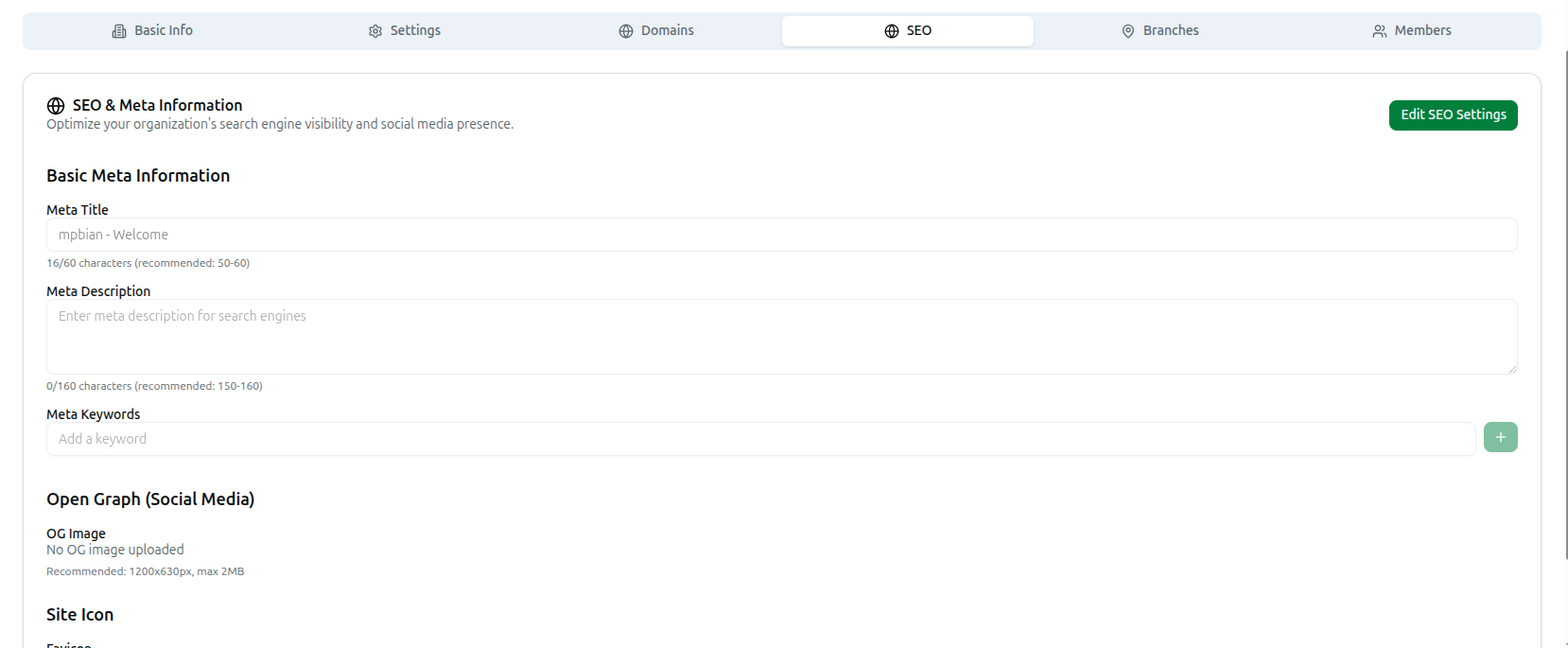
Open it from the left sidebar: Organization, then the SEO tab.
None of this changes your website's content. It only changes how your site is described elsewhere.
1. Unlock the Form
Click Edit SEO Settings at the top right. The fields stay read-only until you do.
When finished, click Save — you will see SEO settings updated successfully — or Cancel to discard.
2. Basic Meta Information
Meta Title — the blue clickable headline in a Google result, and the text in your browser tab.
A live counter shows X/60 characters (recommended: 50-60) and the field stops you at 60 — Google itself cuts off longer titles, which is why the limit exists. Put your institution's name in it, along with what you teach.
Meta Description — the grey summary paragraph beneath the title in search results.
The counter shows X/160 characters (recommended: 150-160), capped at 160. Think of it as your advert: say who you teach and what they get. It does not affect your ranking, but it decides whether anyone clicks.
Here is what those two fields actually produce, in a real Google result:
Mpbian Academy — HSC & Admission Coaching in Dhaka mpbianacademy.com Live and recorded HSC courses, chapter-wise question banks and weekly exams. Join 5,000+ students preparing with Mpbian Academy.
Meta Keywords — type a keyword and press Enter, or click the + button. Each becomes a removable tag; click the × on any tag to delete it.
Keywords carry little weight with modern search engines. A few accurate ones are fine — but your Meta Title and Meta Description are what actually matter, since they are what a human reads before deciding to click.
3. Open Graph (Social Media)
OG Image is the picture shown when your link is shared. Get this wrong and your link appears as a bare grey box with no picture; get it right and it becomes a banner people actually notice.
Here is the same example as it would appear as a shared link preview:
──────────────────────────────────────────────────────
               [ your OG Image banner ]
──────────────────────────────────────────────────────
Mpbian Academy — HSC & Admission Coaching in Dhaka
mpbianacademy.com
──────────────────────────────────────────────────────
- Recommended: 1200x630px, max 2MB
- Add it with Upload Image, Library or URL
- Until you add one, the panel reads No OG image uploaded — and shared links show no picture at all, just plain text
Design it to be readable as a small thumbnail: your logo, your institution's name, and a short line — nothing in small type, since most people will see this shrunk down on a phone screen.
4. Site Icon
Favicon is the small icon shown in the browser tab and in bookmarks.
- Recommended: 32x32px or 16x16px ICO/PNG, max 1MB
- Same three sources: Upload Image, Library or URL
- Until you add one, the panel reads No favicon uploaded
Use a simplified mark rather than your full logo — at 32 pixels, wordmarks turn to mush and become unreadable.
5. Save
Click Save. The metadata applies to your public site immediately.
Search engines take longer. Google re-crawls on its own schedule, so a changed title can take days to appear in results. Social previews usually update faster, though platforms cache aggressively — see below.
Troubleshooting
| What you see | What it means |
|---|---|
| Fields are greyed out | Click Edit SEO Settings first |
| Failed to update SEO settings | The save did not go through — try again |
| The title stops accepting characters | You reached the 60-character cap, which is deliberate |
| Google still shows the old title | Google has not re-crawled yet. This can take several days |
| A shared link shows no image | Either no OG Image is set, or the platform cached the old preview. Facebook and LinkedIn both offer a debugger tool that forces a refresh |
| The tab icon has not changed | Favicons are cached hard by browsers. Try a hard refresh, or open the site in a private window |