
1. Finding the Orders Page
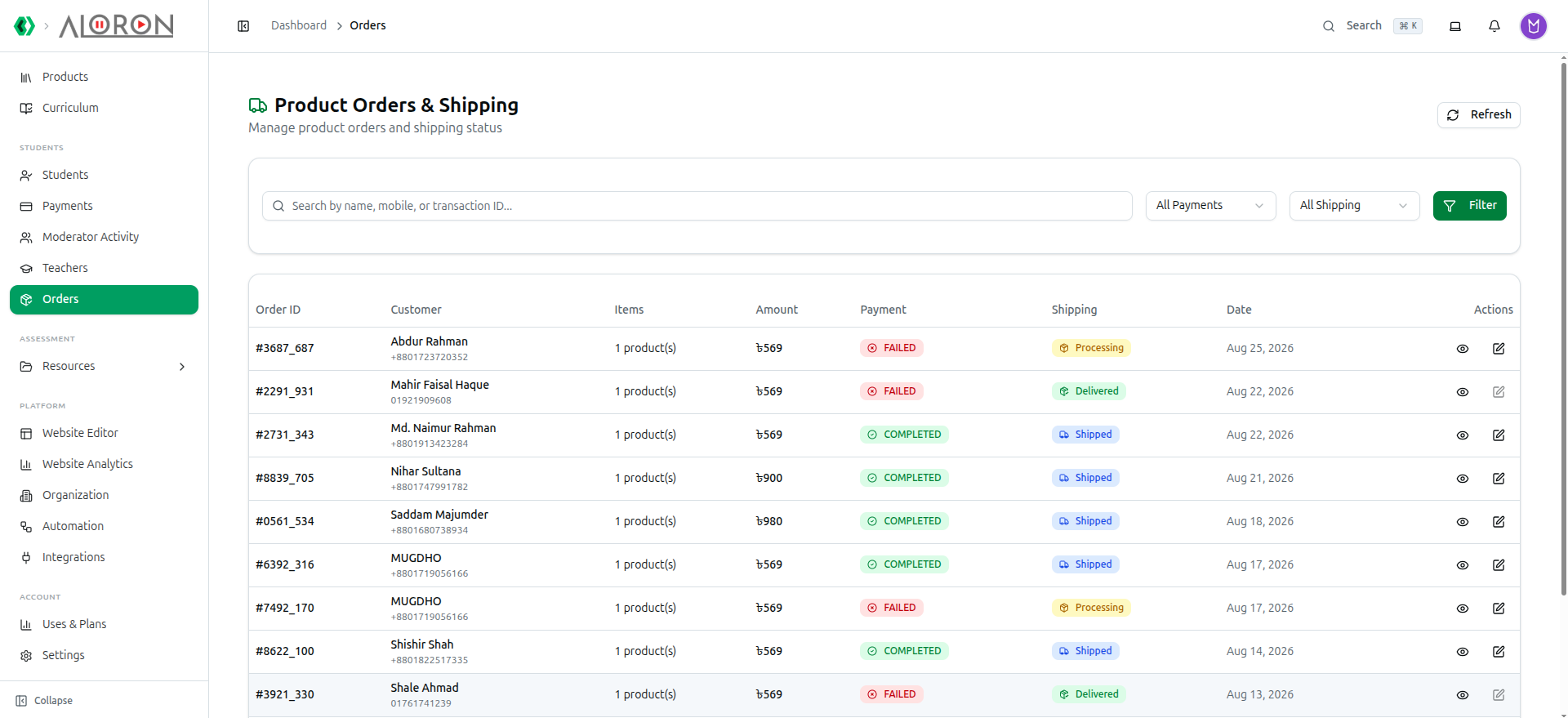
In the left sidebar under Students, click Orders. The page opens with the heading Product Orders & Shipping.
Only purchases that carry a delivery address appear in this list, so it is effectively your physical book queue (PDF-only purchases are not shown here). Click Refresh at the top right whenever you want to reload the list with the newest statuses.
2. Reading the Order List
Orders are listed newest first, 10 per page, in a table with these columns:
- Order ID: A short reference for the order (the last 8 characters of the transaction, shown as #A1B2C3D4).
- Customer: The buyer's name, with the delivery mobile number underneath.
- Items: How many book products are in the order (e.g. 2 product(s)).
- Amount: The total order value in taka.
- Payment: Whether the money has been received.
- Shipping: Where the parcel is in the delivery cycle.
- Date: The day the order was placed.
- Actions: The eye icon opens the full order, the pencil icon opens the shipping update form.
If there is more than one page of results, use the Previous and Next buttons at the bottom; the counter between them reads Page 1 of 3. When nothing matches your filters, the page shows No Orders Found.
3. Searching and Filtering
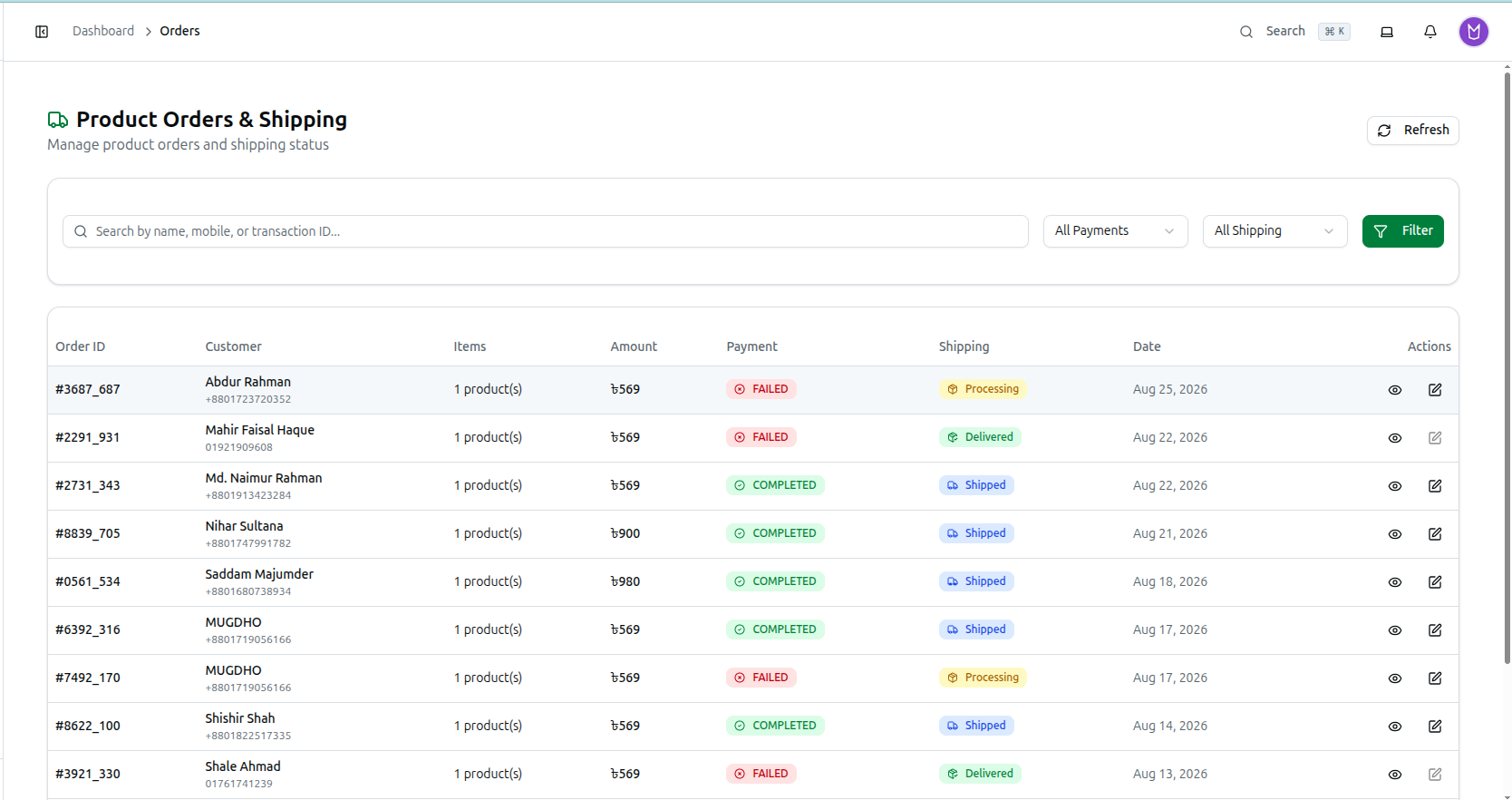
The filter bar sits directly above the table.
- Search box: Search by name, mobile, or transaction ID... It matches the customer's name, the customer's mobile number, the mobile number saved on the delivery address, and the transaction ID.
- Payment Status: Choose All Payments, Pending, Completed or Failed.
- Shipping Status: Choose All Shipping, Processing, Shipped, Delivered, Returned or Cancelled.
- Filter: Click this button to re-run your search and filters starting from the first page.
Combining the two dropdowns is the fastest way to build a working list. Payment Completed together with Shipping Processing gives you exactly the parcels that are paid for and still waiting to be packed.
There is no date range picker on this page. The Date column is for reading only, and the list is always sorted with the most recent order at the top.

4. The Two Statuses on Every Order
Each order carries two separate statuses, and it is important not to confuse them.
Payment status (the Payment column)
- COMPLETED: The money has been received. Inside the order window this badge reads Paid.
- PENDING: Payment has not been received yet.
- ONLINE_PENDING: The student started an online payment that the gateway has not confirmed. Inside the order window this badge reads Processing.
- FAILED: The payment attempt did not go through.
Payment status comes from the payment record itself and cannot be changed from the Orders page, so treat the Payment column as your read-only proof of payment and confirm it says COMPLETED before you send anything out.
Shipping status (the Shipping column) — this is the part you control:
- Processing: A new order that has not been dispatched yet. Every order starts here.
- Shipped: Handed over to the courier and on its way.
- Delivered: Received by the customer. This is a final status.
- Returned: The parcel came back undelivered.
- Cancelled: The order was stopped. This is a final status.
5. Opening an Order
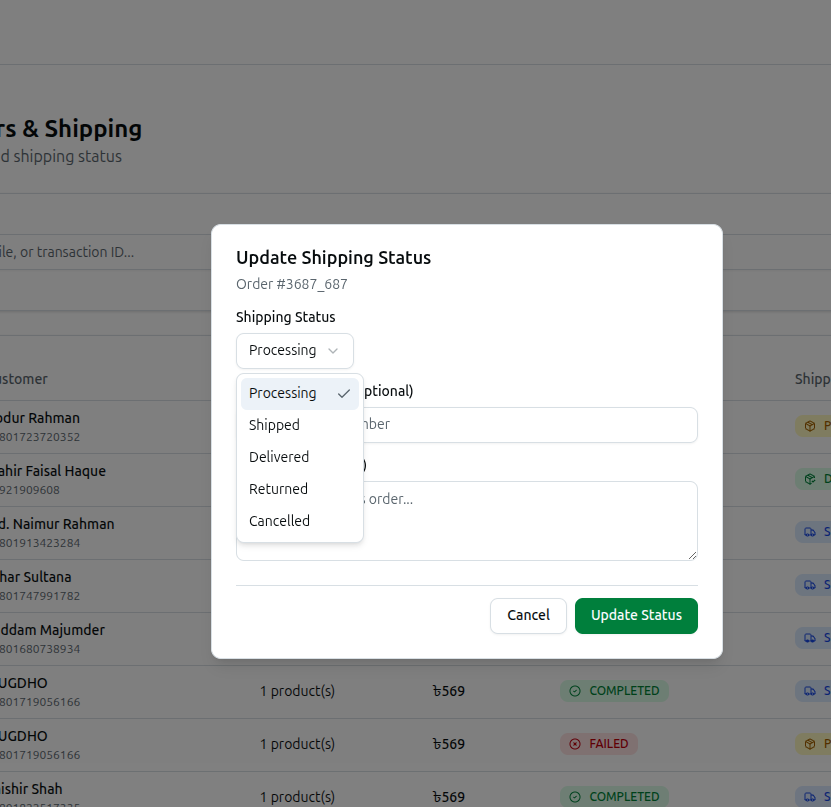
Click the eye icon in the Actions column. A window titled Order #A1B2C3D4 opens, with the full order date and time underneath, showing:
- Two badges at the top: the payment status and the shipping status.
- Customer Information: Name, Mobile and Email.
- Shipping Address: The street address, city, state, Postal Code and the contact phone number for the delivery.
- Tracking Number: Shown in a highlighted strip if you have entered one.
- Courier Information: Appears only after the order has been sent to the courier.
- Note: The comment you saved on the order, shown in a yellow strip.
- Order Items: The heading counts the items, and each line shows the book cover, book name, author and price.
- Total Amount: The full order value, at the bottom.
This window is read-only. Close it with the X and use the pencil icon when you need to change something.
6. Moving an Order Through Its Lifecycle
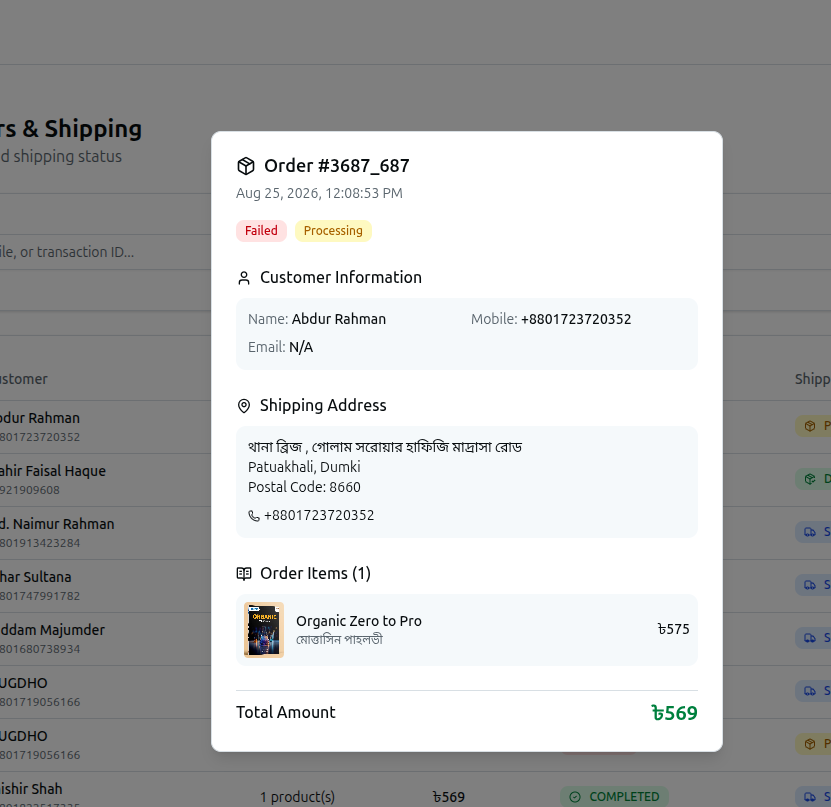
- Click the pencil icon on the order row. The Update Shipping Status window opens with the order number underneath the title.
- Shipping Status: Pick the new stage — Processing, Shipped, Delivered, Returned or Cancelled. The dropdown opens on the order's current status.
- Tracking Number (Optional): Type the courier's tracking number if you booked the delivery yourself.
- Comment (Optional): Add a short internal note (for example, "Customer asked for Friday delivery"). It shows up as the Note in the order window.
- Click Update Status to save, or Cancel to close without changing anything. A confirmation message reads Shipping status updated successfully.
The normal path is Processing when the order arrives, Shipped when you hand it to the courier, and Delivered when the customer receives it. Use Returned for parcels that come back to you.
Delivered and Cancelled are final. Once an order reaches either of them, the pencil icon on that row fades out and can no longer be clicked. Set those two statuses only when you are certain.
7. Sending an Order to Steadfast Courier
Course37 can hand the parcel straight to Steadfast, so you do not have to re-type the address into the courier portal.
Before you can use it, the integration has to be switched on once: in the left sidebar go to Integrations, find the Steadfast Courier card and click Configure, turn on Enable Steadfast Courier, and enter your API Key and Secret Key from the Steadfast merchant portal. On the same screen you can add a Webhook Bearer Token and copy the Webhook URL into your Steadfast portal so delivery updates come back automatically. Click Save Changes to finish.
To send an order:
- Make sure the Payment column shows COMPLETED — the courier option is hidden for unpaid orders.
- Click the pencil icon to open Update Shipping Status.
- Tick the Submit to Steadfast Courier checkbox (described on screen as "Automatically send this order to Steadfast for delivery").
- Set the Shipping Status to Shipped and click Update Status.
Course37 books the consignment using the customer's name, the delivery address and mobile from the order, and a note listing the book titles. Because the student has already paid online, the parcel is sent with a cash-on-delivery amount of zero — the courier collects nothing at the door. When it works, the confirmation message reads Status updated and order submitted to courier.
Reopen the order with the eye icon and a Courier Information (STEADFAST) block now appears with:
- Consignment ID: The courier's reference for the parcel.
- Tracking Code: A clickable link that opens the Steadfast tracking page for this parcel.
- Courier Status: The courier's own wording for where the parcel is (for example pending, hold or delivered).
- Submitted: When the consignment was created.
- Delivered: When Steadfast confirmed delivery.
Two things to keep in mind:
- The delivery mobile must be a usable Bangladeshi mobile number. The common ways of writing it are all fine — 01712345678, 1712345678 or the +880 version — because the number is tidied up before it is sent. If it cannot be read as a Bangladeshi mobile number, the courier submission is rejected and the message names the bad number, and you will need a corrected one from the customer before trying again.
- An order can only be sent once. After a successful submission the checkbox disappears and the update window instead shows a green line reading Already submitted to courier, with a Track: link to follow the parcel.
8. Automatic Delivery Updates
If you configured the Webhook URL in your Steadfast portal, the courier reports back on its own and the order updates itself: Shipping moves to Shipped while the parcel is in transit or on hold, to Delivered when it is handed over (the delivery time is stamped on the order), and to Cancelled if the courier cancels it. Orders still under review at the courier stay at Processing.
This means an order can reach Delivered without you touching it — which also locks it, so check the order before assuming a status was set by mistake.
9. Cancelling an Order, Refunds and Invoices
To cancel an order, click the pencil icon, set Shipping Status to Cancelled, write the reason in Comment (Optional) so your team can see why, and click Update Status. The order is locked immediately and cannot be reopened or edited afterwards, so cancel only when the delivery is definitely not happening.
- Refunds: The Orders page has no refund button. Cancelling an order stops the delivery only — money that has already been collected must be returned to the student through the same channel they paid with.
- Invoices: There is no print or download invoice button on this page either. The order window holds the complete record — customer details, delivery address, items and total amount — for you to copy into your own paperwork or delivery slip.
- Already with the courier? Cancel the consignment in your Steadfast portal as well, otherwise the courier will still attempt the delivery.