
Products & Digital Goods Management
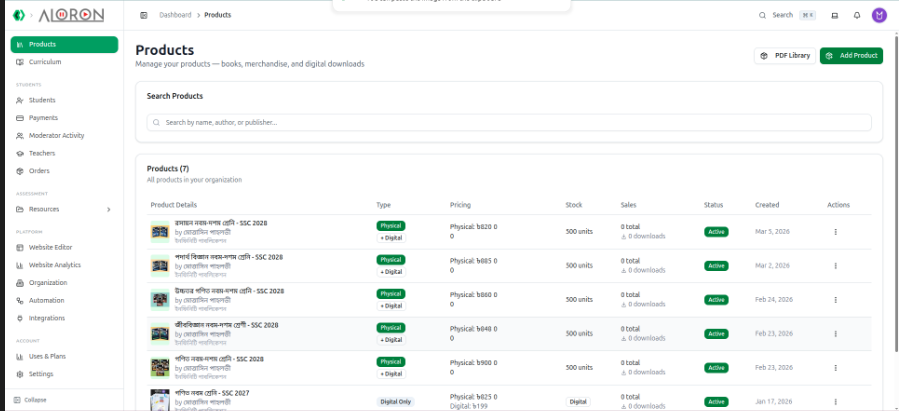
Every sellable item in your organization — books, merchandise, or a digital download — lives on the Products page. Click Products in the left dashboard sidebar to manage your complete book and product inventory.
1. Main Dashboard Overview
The page opens on a Search Products card followed by a table titled Products (N). Type into the search box — Search by name, author, or publisher... — and the list narrows immediately.
- Product table: Shows the cover thumbnail with the product name, author and publisher; its type (Physical, Digital Only, or Physical + Digital); Pricing (physical/digital prices and any discount); current Stock (or a Digital badge when there's nothing to count); total Sales with a downloads count; Status (Active, Draft, Archived); and the date created. Clicking anywhere on a row opens that product's detail page.
- Row actions: Click the three dots (
...) in the Actions column to reach View Details, Edit Product, Manage Stock, Download Reports (listed in the menu, but not wired up yet), Delete Product, and a status dropdown (Archived / Draft / Active) that updates the product immediately, without opening the edit form. - Global actions: PDF Library opens the organization-wide PDF list under Resources; Add Product opens the creation form for a new title.
2. Creating or Editing a Product
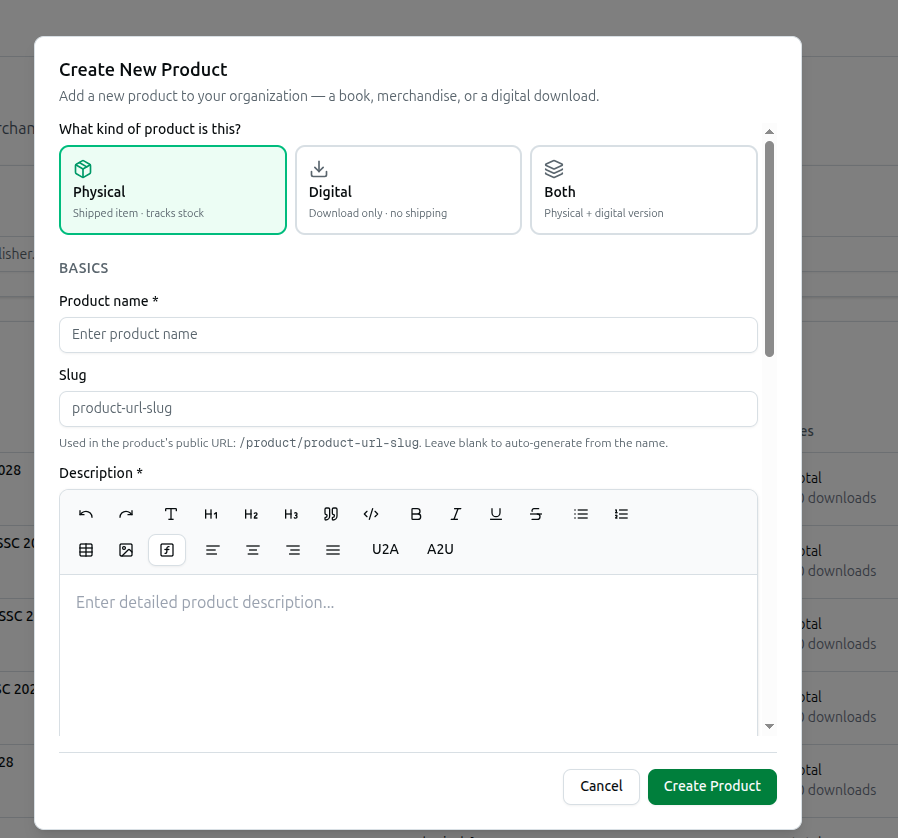
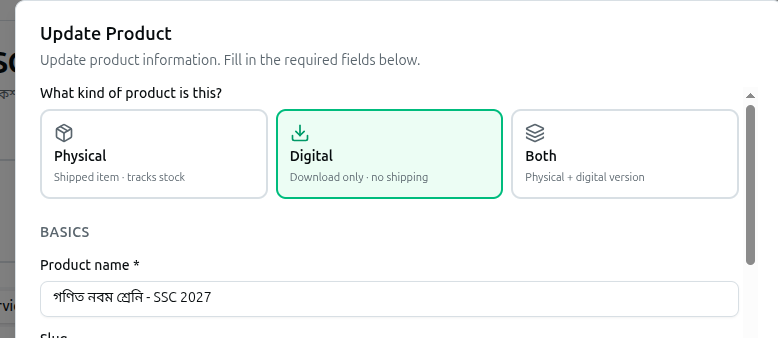
Click Add Product to open the Create New Product dialog. Editing a product reopens the same form as Update Product, pre-filled with its current data.
What kind of product is this? Choose Physical (shipped item · tracks stock), Digital (download only · no shipping), or Both (physical + digital version). Switching this choice clears whichever fields no longer apply, so a Physical product never silently keeps a digital price.
Basics
- Product name: Required — the title customers see.
- Slug: The address used in the product's public URL. It fills in automatically from the name until you edit it yourself.
- Description: Required — filled in with a rich-text editor.
Pricing & stock
- A Physical price (৳) and/or Digital price (৳), plus a Discount (%) applied to both. Leave a price at 0 to make the item free — free products are auto-included when attached to a course.
- Stock: The quantity on hand (Physical and Both only).
Book details (optional, collapsed by default) — expand it to add Author, Publisher and Pages; leave it closed for merchandise.
Media — a Sample / Preview PDF (Digital/Both, max 15MB), a Main Image (3:4 ratio, auto-compressed), and Gallery Images.
Digital files (Digital/Both) — the files a buyer of the digital version downloads after purchase, uploaded one at a time, max 30MB each.
Tags — tick any tags that apply so the product is easier to find later.
Click Create Product to save. New products are saved as Active.
3. Inside Product Details
Click View Details, or any row, to open a product's dedicated workspace — the back arrow returns you to the list. Four summary cards run across the top: Price, Stock (a Digital files count instead, for a digital-only product), Got it, and Yet to get — the last two jump straight to the Recipients tab when clicked.
The workspace splits into tabs: Overview, PDFs (only for products with a digital side), and Recipients.
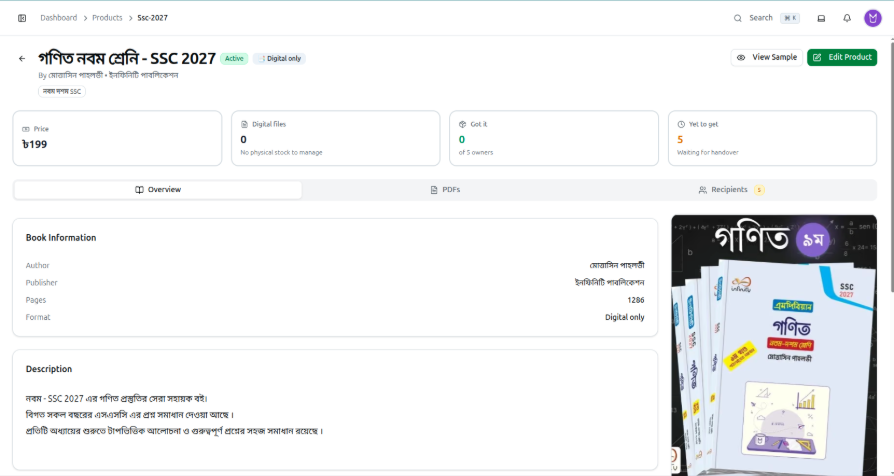
A. Overview Tab A full breakdown of the Book Information (Author, Publisher, Pages, Format), the Description, any Digital Files, a Sample Preview panel (View/Download), and Details — created/updated timestamps plus a copyable Product ID and Slug.
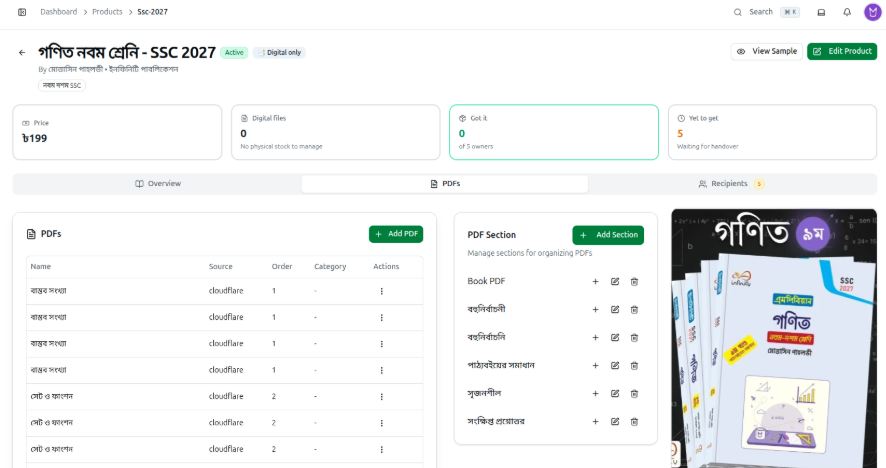
B. PDFs Tab Organize the product's digital content into shared categories.
- Add a Section: In the PDF Section panel, click + Add Section to create a category with a name and display order.
- Add a PDF: Click + Add PDF to open Upload New PDF — upload a file directly (max 30MB) or provide a Hard Copy URL to an externally hosted document, assign it to a Section, and optionally map it to your Education Hierarchy for detailed resource analytics.
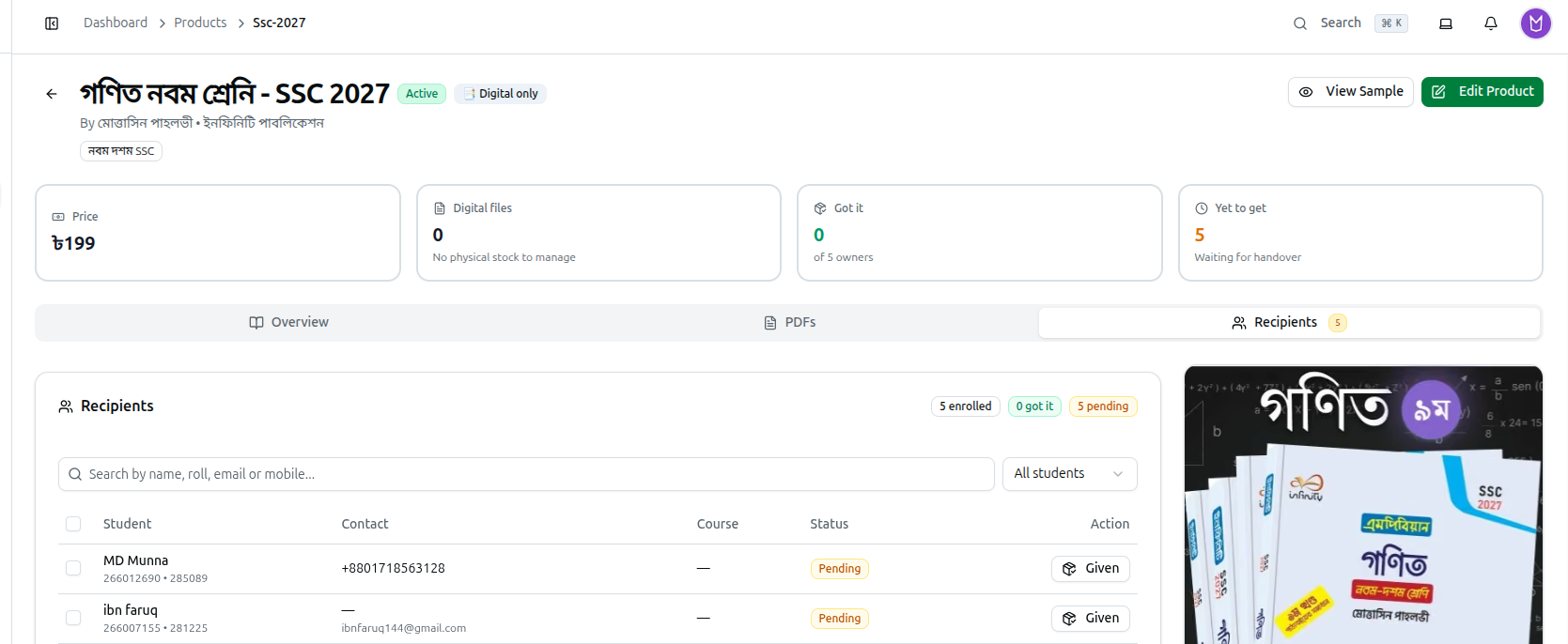
C. Recipients Tab Everyone entitled to this product — students who bought it, plus students enrolled in a course it's attached to — with enrolled / got it / pending counts at the top. Search or filter by status and course, then use Given / Undo per student, or select several and Mark as Given in bulk.
This page covers the essentials. For the complete field-by-field walkthrough of every dialog and tab, see How to Manage the Product Catalog. To track physical orders and shipping once a book has been bought, see How to Manage Book Orders and Shipping.