
1. Opening the Page (Owner Only)
Moderator Activity is the audit trail for cash your staff collect on your behalf. It is restricted to the organization owner — nobody else in your team can open it.
- In the left sidebar under Students, click Moderator Activity.
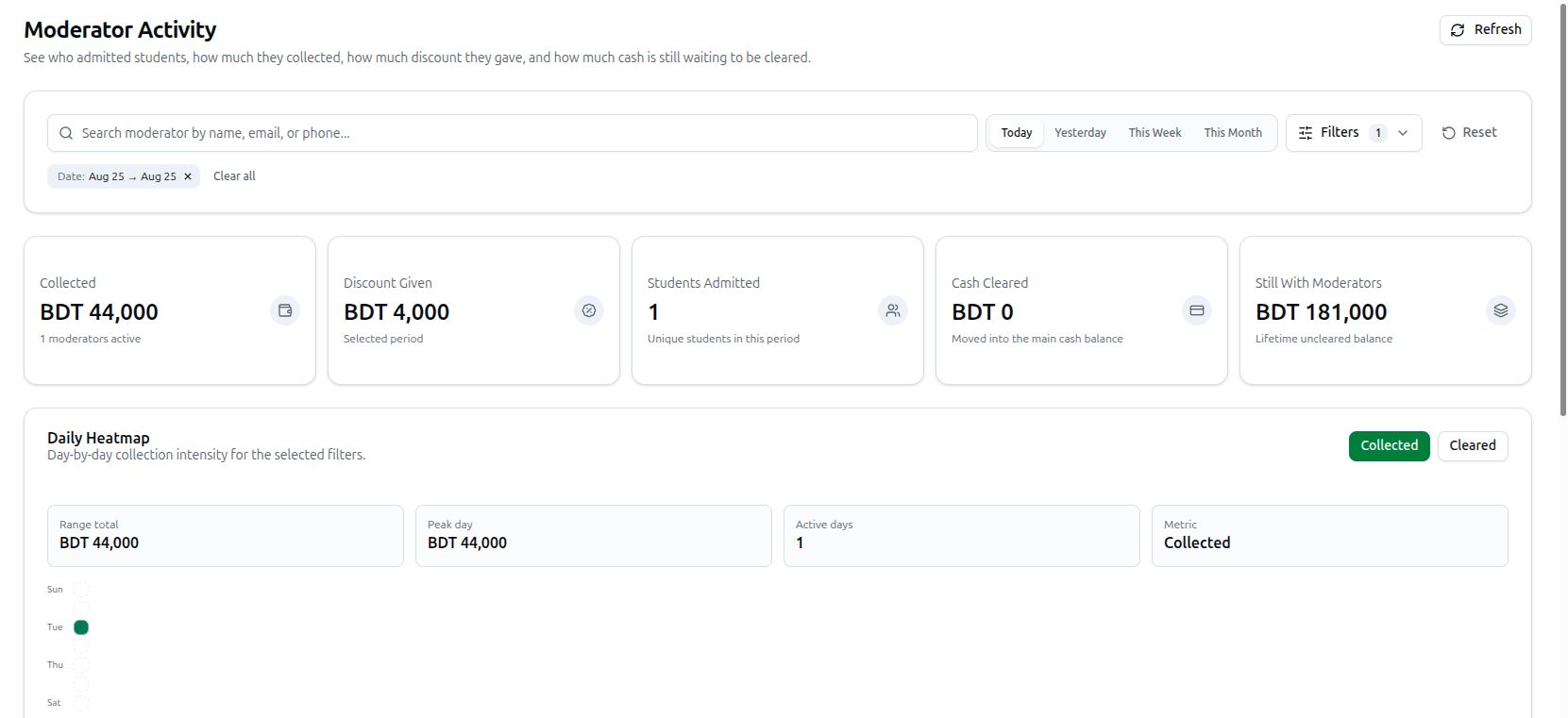
- The page opens on Today by default. Under the Moderator Activity title sits the line "See who admitted students, how much they collected, how much discount they gave, and how much cash is still waiting to be cleared."
- Use the Refresh button in the top-right corner to pull the newest figures at any time.
A few things worth knowing before you start:
- If a member who is not the owner opens the link, they are shown the message "Only organization owners can access Moderator Activity" and sent straight back to the dashboard.
- Your staff see their own numbers under My Collection in the same sidebar group. That page shows only their own collection — never anyone else's.
- Your filter choices are kept in the page address, so you can copy the link and land back on exactly the same view later.
2. The Summary Cards
Five cards sit under the filter row, above the heatmap and the tables. The first three describe the period you filtered; the last two describe cash custody.
- Collected: All money taken in by staff inside the selected period — direct payments plus paid installments added together. The small line underneath tells you how many moderators were active (for example, "4 moderators active").
- Discount Given: Total discount handed out on those same payments and installments during the period.
- Students Admitted: The count of unique students enrolled by your staff in the period. A student counts here as soon as they are admitted, even if their payment is still pending.
- Cash Cleared: Money that moderators physically handed over to the office inside the selected period, "Moved into the main cash balance".
- Still With Moderators: Cash your staff have collected but not yet handed over, labelled "Lifetime uncleared balance". The amount itself is all-time rather than limited to the dates you picked, because unhanded cash does not stop being owed when a month ends.
Note on amounts: if you have set a Decrease Percentage (%) under Organization > Settings, the amounts shown on the main page are displayed reduced by that percentage. The moderator detail dialog, the Collect Cash dialog and the CSV export always show the true, unreduced amounts — that is the money you actually take from the moderator.
3. Filtering the Report
Search and quick periods (always visible)
- Use the search box — "Search moderator by name, email, or phone..." — to narrow the report to one person. Bangla numerals are accepted when you type a phone number.
- Use the period buttons to the right of the search box: Today, Yesterday, This Week, This Month. The active one is highlighted.
The expanded filter panel
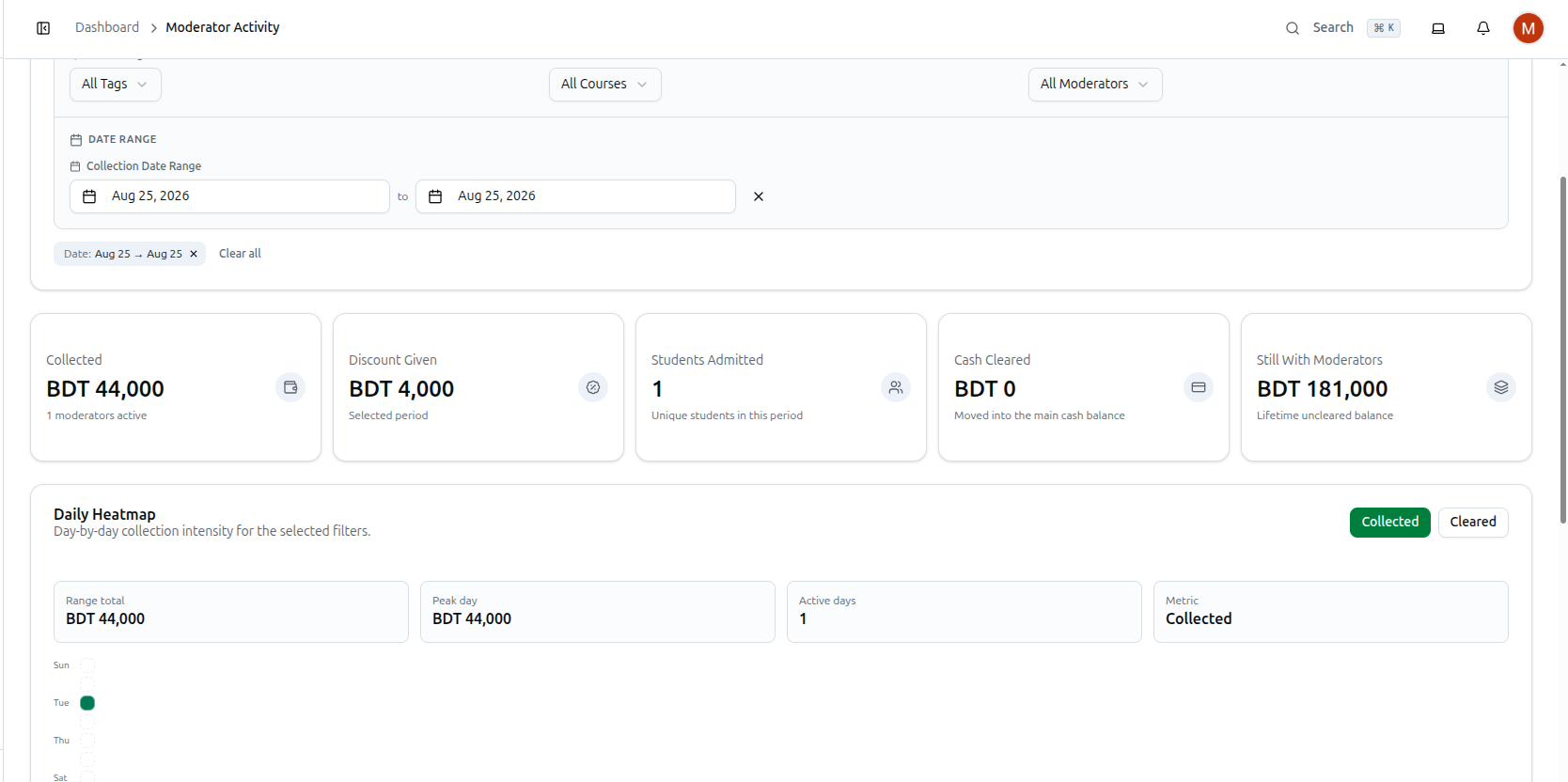
Click the Filters button to open the panel. A small number badge on the button tells you how many filters are currently active.
- Course Tags: Defaults to All Tags. Choosing a tag also shortens the Course list to courses carrying that tag. If the course you had selected does not carry the new tag, it is removed from the filter automatically.
- Course: Defaults to All Courses. Restricts the whole report to one course. Where a single payment covers several courses, the amount is split between them by course price.
- Moderator: Defaults to All Moderators. Each entry shows the person's name followed by their role (for example, "Rahim Uddin (MODERATOR)").
- Collection Date Range: A Start date and an End date picker for any custom period. Picking your own dates removes the highlight from the quick period buttons.
Clearing filters
Every active filter appears as a removable chip under the search row — Date, Tag, Course and Moderator — each with a small x. Use Clear all on the chip row, or the Reset button beside the Filters button, to return to the default Today view.
4. The Daily Heatmap
The Daily Heatmap card draws one small square per day for the selected range, so a quiet week or an unusually large day is obvious at a glance.
- Switch between the two buttons at the top-right of the card: Collected (money taken in, shown in green) and Cleared (money handed over to the office, shown in blue).
- Four boxes summarise the range: Range total, Peak day, Active days and Metric.
- Hover any square to see that date with both its Collected and Cleared figures. Squares that fall outside your selected range are drawn with a dashed outline and read "Outside selected range".
- The Less → More legend at the bottom shows how the shading scales, and the dates of the range are printed on the left.
If you have filtered to one moderator, their name appears in the card description so you know whose activity you are looking at.
5. The Moderator Leaderboard
This is the per-moderator table, sorted by Collected with the biggest collector at rank 1.
- Rank: Positions 1 to 3 are shown in a highlighted badge.
- Moderator: Name with the person's email or phone beneath it.
- Collected: Their total for the selected period.
- Discount: Discount they gave in the period.
- Students: Unique students they admitted in the period.
- Cleared: Cash they handed over during the period, with their all-time figure on the second line as Lifetime.
- Remaining: Cash still sitting with them. Shown in amber normally, and in red when the figure is negative — see section 8.
- Last Activity: The date and time of their most recent payment or installment.
Each row ends with three buttons:
- Details — opens the full drill-down for that person (section 6).
- Payments — jumps to the Payments page already filtered to that moderator, showing completed and pending payments, and carrying over your current date range and course filter.
- Collect Cash — opens the cash handover dialog (section 7).
A row named "Online Admissions" collects everything no staff member processed — typically students who enrolled and paid online themselves. Because there is no person behind it, its three buttons are disabled.
If nothing matches, the table shows "No moderator activity found" with a suggestion to widen the date range or remove the course filter.
6. Drilling Into One Moderator
Click Details on any row. The dialog opens with the moderator's name and contact, and contains five sections.
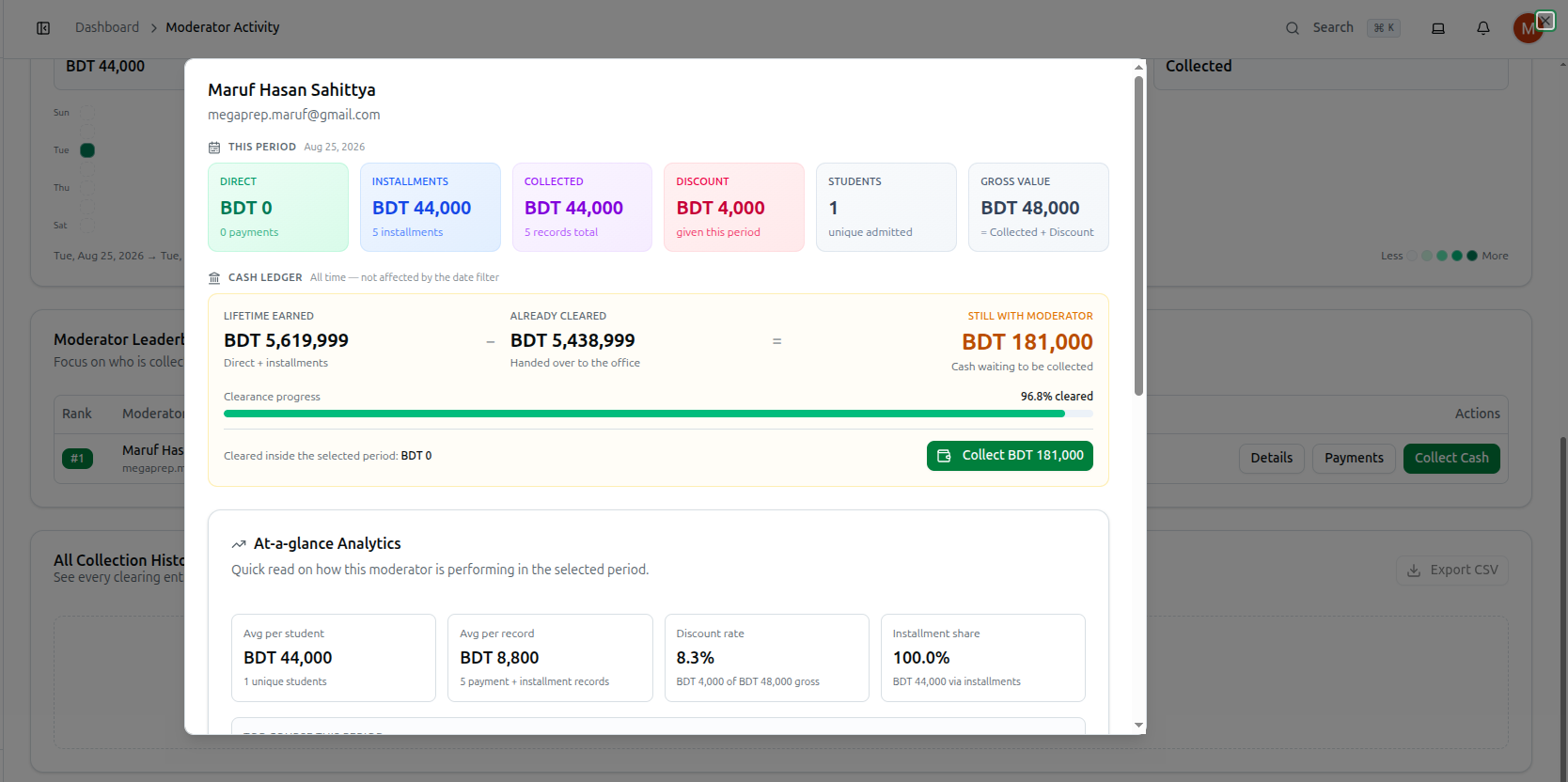
This period
Six tiles, labelled with the date range you filtered (or "All time" if you cleared it):
- Direct: Amount from one-off payments, with the number of payments beneath.
- Installments: Amount from paid installments, with the number of installments beneath.
- Collected: Direct plus installments, with the total record count.
- Discount: Discount given in this period.
- Students: Unique students admitted.
- Gross value: Collected plus discount — what the admissions would have been worth at full price.
Cash ledger
Labelled "All time — not affected by the date filter", this is the section you act on. It reads as a simple sum:
Lifetime earned − Already cleared = Still with moderator
- Lifetime earned: Everything this person has ever collected, direct plus installments.
- Already cleared: Everything they have ever handed over to the office.
- Still with moderator: The difference — cash waiting to be collected. The label changes to Fully settled ("Nothing left to collect") when it is zero, and to Over-cleared when it is negative.
Below the sum, a Clearance progress bar shows what share of their lifetime earnings has already been handed over, and a line reads "Cleared inside the selected period" so you can separate this month's handovers from the all-time total. A Collect button showing the outstanding amount sits on the right — it reads Settle instead when the balance is negative, and disappears once the balance is zero.
At-a-glance Analytics
- Avg per student: Period collection divided by unique students.
- Avg per record: Period collection divided by the number of payment and installment records.
- Discount rate: Discount as a percentage of gross value.
- Installment share: How much of their collection came through installments rather than one-off payments.
- Top course this period: The single course that brought in the most money for this moderator, with its share of their period collection.
Course Breakdown
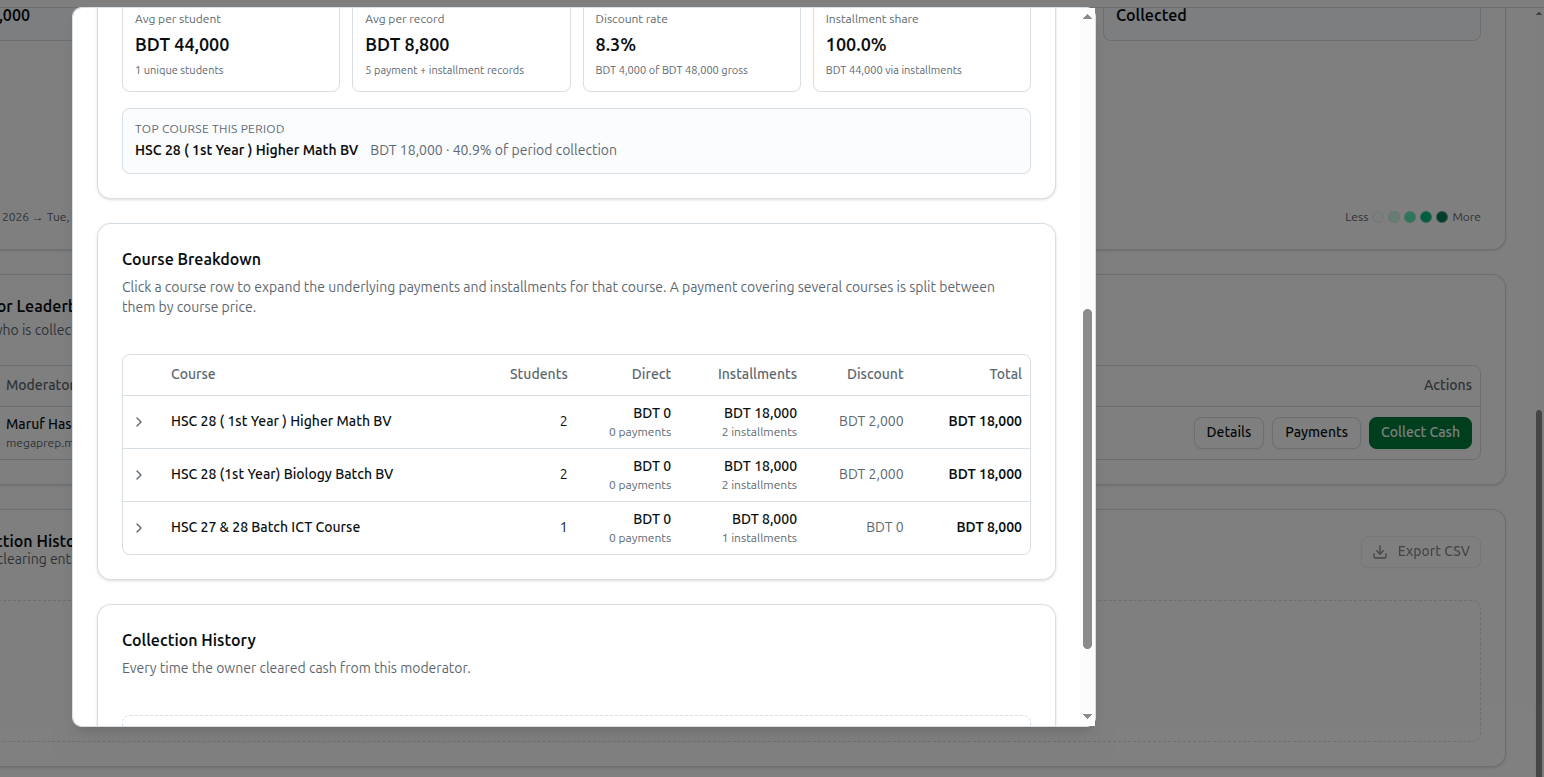
The per-course table for this moderator, with columns Course, Students, Direct, Installments, Discount and Total. Click any course row to expand it and reveal the individual records behind the number, split into Direct payments and Installments. Each record shows the student's name, their contact, the date, the amount and any discount. Installment records also show the installment number.
Collection History
Every time you cleared cash from this person, with Date, Amount, Collected By and Note.
7. Collecting Cash From a Moderator
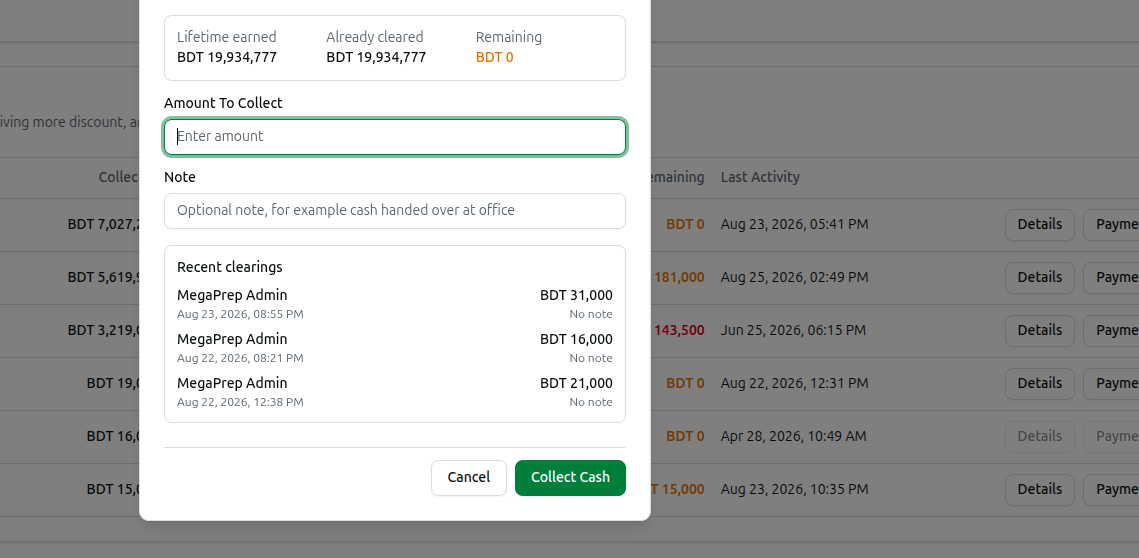
- Click Collect Cash on the leaderboard row, or the Collect button inside the details dialog.
- The dialog confirms the moderator's name and shows three figures: Lifetime earned, Already cleared and Remaining.
- The amount box is pre-filled with the full remaining balance. Use the Quick Amount buttons to drop in a quarter, a half or the whole outstanding balance instead, or type your own figure in Amount To Collect.
- Add an optional Note — for example, "cash handed over at office". The note is limited to 120 characters and appears in every history table afterwards.
- Check the Recent clearings list at the bottom, which shows the last three handovers so you do not record the same cash twice.
- Click Collect Cash to save, or Cancel to close without recording anything.
You cannot record more than the moderator actually owes — an amount above the remaining balance is rejected with a message telling you the maximum. On success the tables refresh, that moderator's Cleared rises and their Remaining falls.
8. What a Discrepancy Looks Like
The Remaining column is your discrepancy check: it is the cash that should physically be in that person's hands right now. Count the cash, compare it to the amber figure, and investigate anything that does not match using the Payments button and the expandable Course Breakdown.
There are three states to recognise:
- Amber Remaining: Normal. Real, uncollected cash. Use Collect Cash when they hand it over.
- Fully settled: Remaining is exactly zero and the detail dialog reads "Nothing left to collect". Nothing to do.
- Red Remaining (a negative number): The ledger records more cash handed over than this person ever collected. The detail dialog labels it Over-cleared with the note "More cleared than collected — settle to reset".
Fixing an over-cleared moderator
While the balance is negative no further cash can be recorded against that person, so the Collect Cash dialog hides the amount box entirely and shows a red panel instead:
- The panel is headed Over-cleared by followed by the amount, and explains that no new cash can be collected until the balance is corrected.
- Add an optional Note explaining the correction.
- Click Clear Balance To Zero. One adjustment entry is written that brings the balance to exactly zero; the existing collection history is left untouched, so nothing is deleted or rewritten.
- You will see "Balance settled — this moderator now starts from zero", and normal collection works again from that point.
This settle action is deliberately available only for a negative balance. A positive balance is real money owed to you, so it must go through Collect Cash — that keeps every collection entry meaning "cash actually handed over".
9. All Collection History and Exporting the Report
The All Collection History card at the bottom lists every clearing entry across all your moderators, with Date, Moderator, Collected By, Amount and Note. The card heading shows a running count of entries and their total.
This table responds to your date range, your Moderator filter and the search box. It is not narrowed by the course or tag filters, because a cash handover is not tied to any one course.
To export:
- Set the date range and, if you want, the moderator you are auditing.
- Click Export CSV in the top-right of the All Collection History card.
- A file named moderator-collections- followed by today's date downloads to your computer, containing the columns Date, Moderator, Collected By, Amount and Note at their true, unreduced values.
The Export CSV button stays disabled while the list is still loading or when there is nothing to export. If the table shows "No collection history found", widen the date range or clear the moderator filter and try again.