
How to Update Account Security
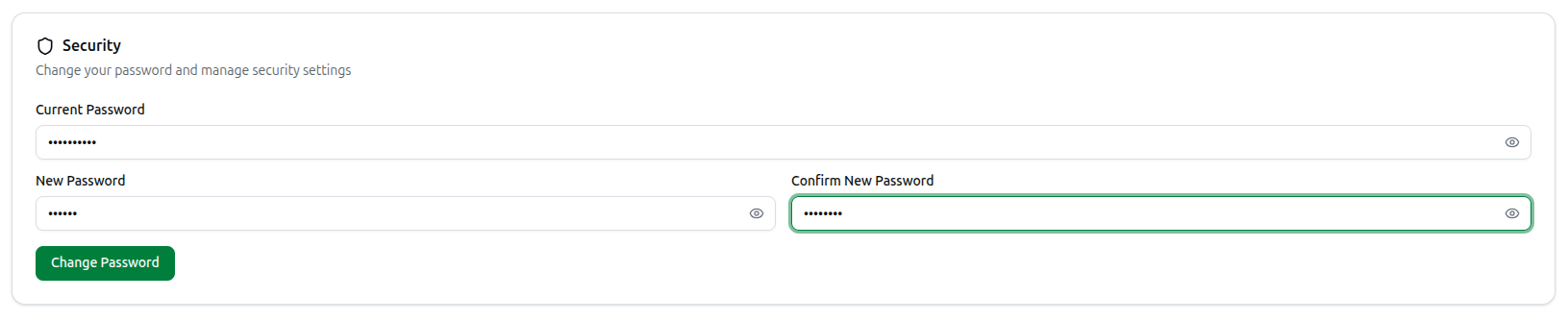
Password changes live under Organization → Settings, not the personal Account Settings page — look for the Security card there.
- Go to Organization in the sidebar, then open the Settings tab
- In the Security card:
- If your account already has a password, enter your Current Password first
- Enter your New Password, and repeat it in Confirm New Password
- Click the eye icon on any field to reveal or hide what you typed
- Click Change Password to save it
- If you originally signed up with Google and have no password yet, the Current Password field is hidden and the card instead reads "You signed up with Google. Set a password to also sign in with your email." — enter a new password and click Set Password to add email/password sign-in to your account
Related: Managing Usage, Plans & Settings — Personal profile, devices, and account settings