
Sending Email Campaigns
Email delivery on this platform is powered entirely by your own SMTP credentials. You must first connect an SMTP provider from the Integrations page, then build your email delivery logic using the Automation workflow system.
Step 1: Open the Integrations Page
- Navigate to Dashboard > Integrations.
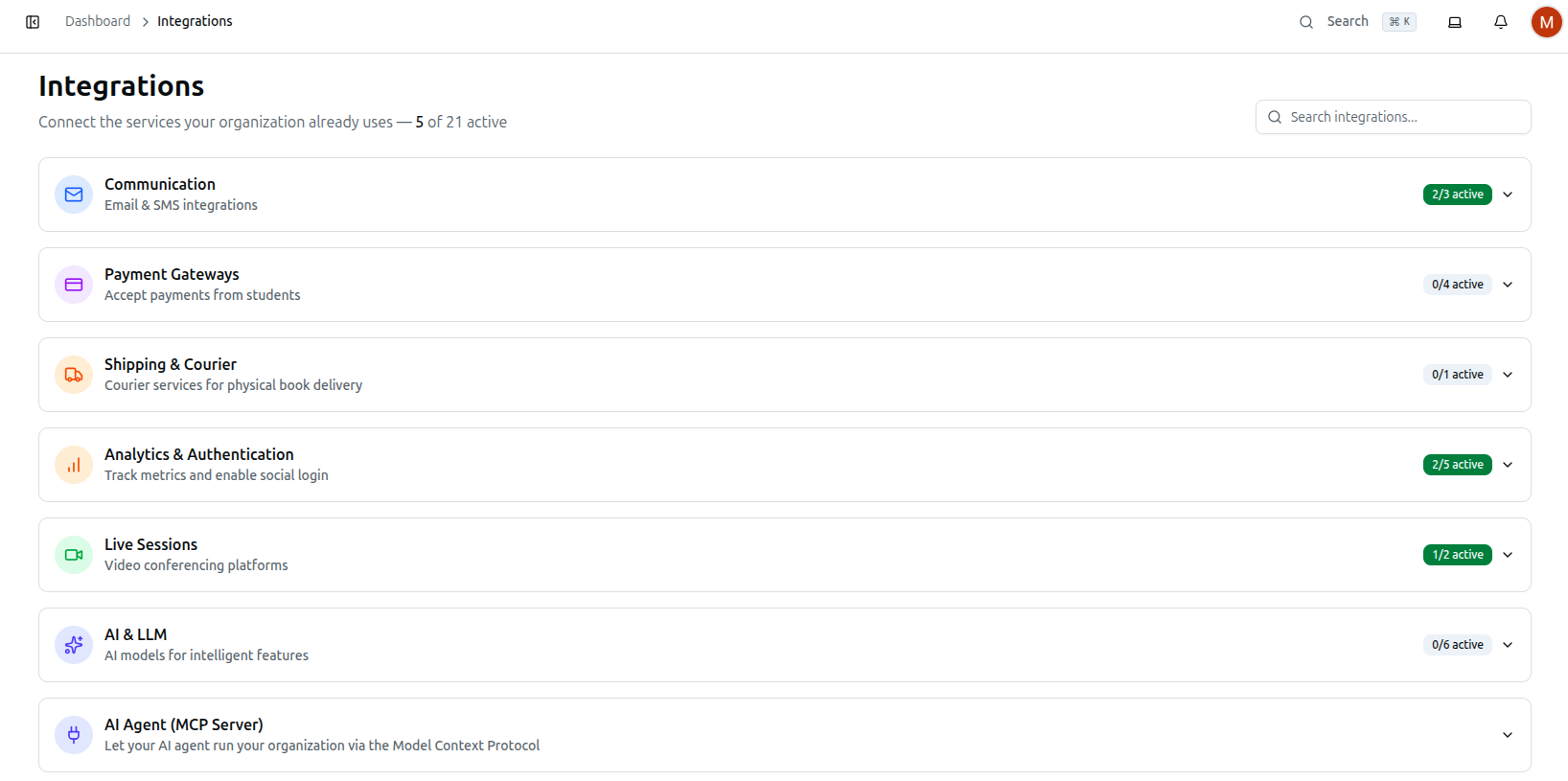
- Integrations are grouped into collapsible categories, not a flat grid: Communication, Payment Gateways, Shipping & Courier, Analytics & Authentication, Live Sessions, AI & LLM, and AI Agent (MCP Server). Each category header shows an N of M active badge and expands to reveal its individual integration cards.
- The page header reads Connect the services your organization already uses — N of 21 active, and a Search integrations... box at the top right filters cards by name or category.
Step 2: Configure Your SMTP Credentials
- Click the Communication category to expand it. It contains three cards: Email (SMTP), BulkSMS BD, and Push Notifications.
- On the Email (SMTP) card, click Set up (this button reads Configure once the integration is already active).

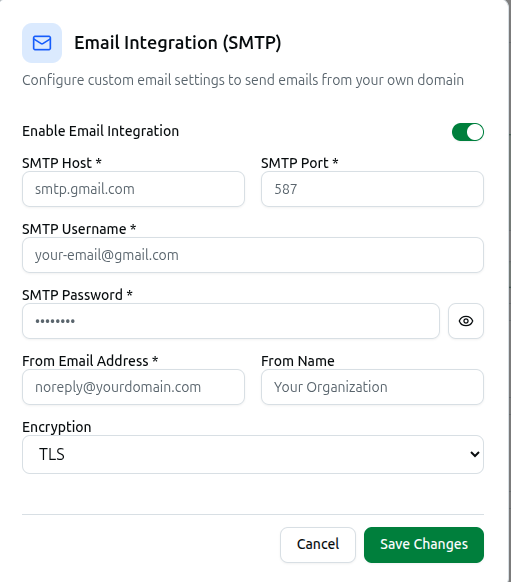
- The Email Integration (SMTP) dialog opens. Turn on Enable Email Integration — the rest of the fields only appear once it's on.
- Fill in the required fields:
- SMTP Host * — the outgoing mail server address provided by your email service (e.g. smtp.gmail.com)
- SMTP Port * — typically 465 (SSL) or 587 (TLS)
- SMTP Username * — your SMTP account username or email address
- SMTP Password * — your SMTP account password or app-specific password (click the eye icon to reveal it)
- From Email Address * — the sender address recipients will see
- From Name — the display name shown alongside it
- Encryption — TLS or SSL
- Click Save Changes. The platform now routes all email sends through your SMTP credentials.
Step 3: Navigate to the Automation Section
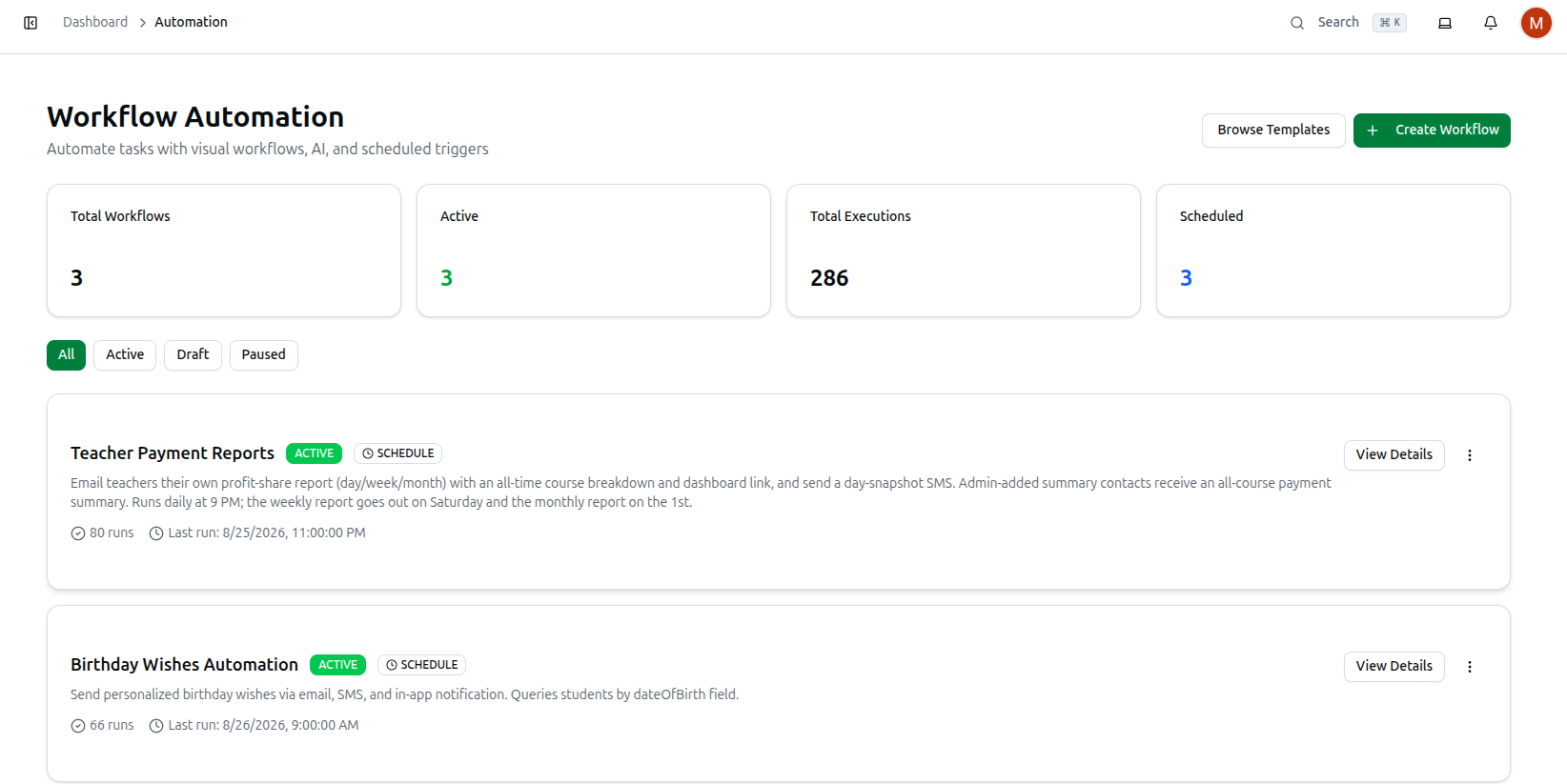
- Navigate to Dashboard > Automation. The page header reads Workflow Automation — Automate tasks with visual workflows, AI, and scheduled triggers.
- Four summary cards run across the top: Total Workflows, Active (green), Total Executions, and Scheduled (blue).
- Below them sit filter buttons — All, Active, Draft, Paused — and two buttons in the top-right corner: Browse Templates and Create Workflow.
Step 4: Create a New Workflow
- Click Create Workflow in the top-right corner.
- On the Create New Workflow page, enter a Workflow Name * (e.g. "Payment Reminder") and an optional Description.
- Under Trigger Configuration, choose a Trigger Type *:
- Manual (Run on demand) — only runs when you press Run Now
- Schedule (Cron-based) — runs automatically on a cron expression you provide, with a timezone field
- Event (System trigger) — fires on a system event such as Student Enrolled in Course or Payment Completed
- Date Condition (X days before/after) — runs a set number of days before or after a date field such as a payment due date
- Webhook (External trigger) — fires when an external service calls a URL generated after the workflow is created
- Fill in the extra fields that appear beneath the dropdown for your chosen trigger type, then click Create Workflow.
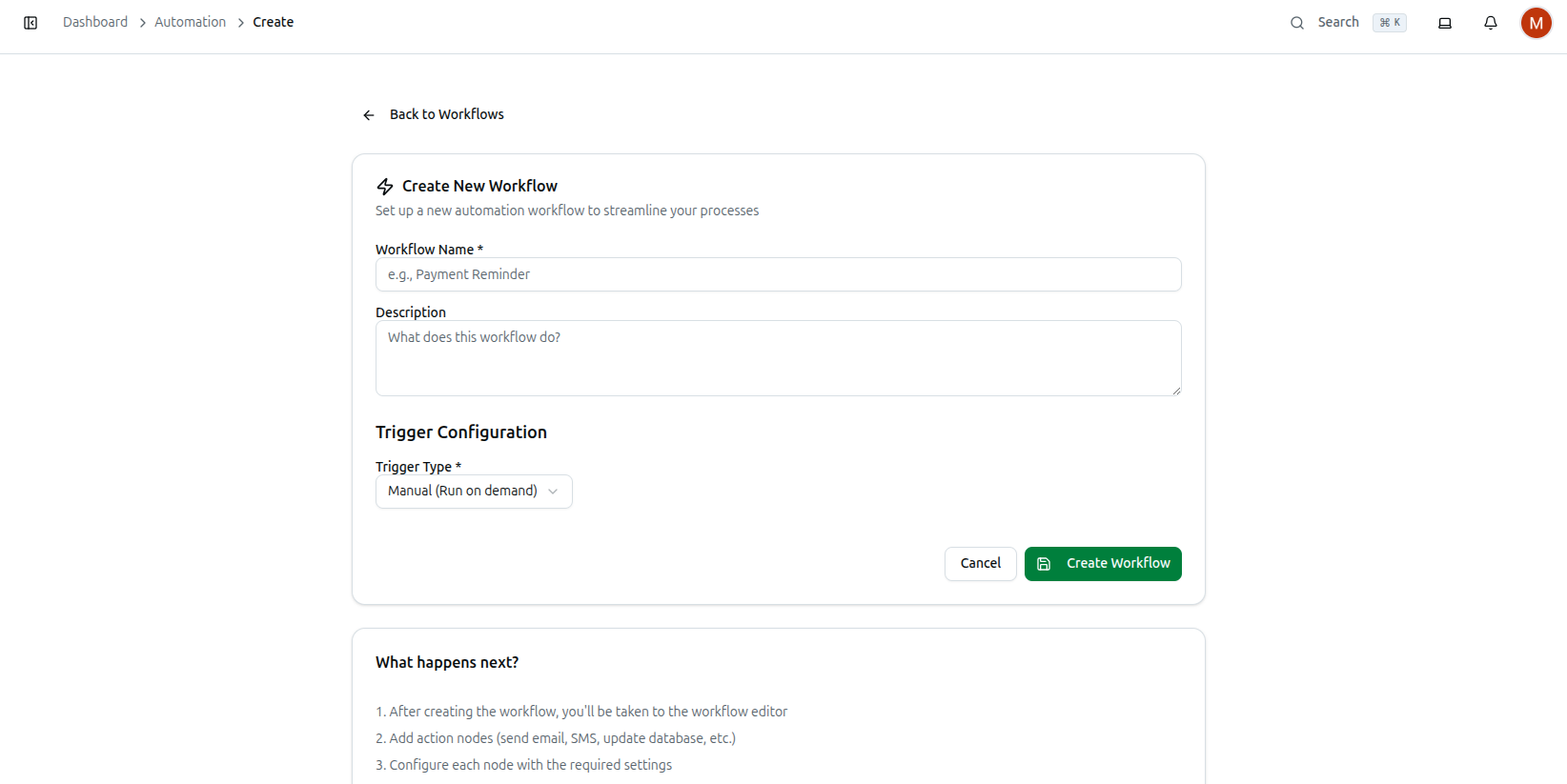
The What happens next? card underneath spells out the rest of the process: you land in the workflow editor, add action nodes, configure each one, test with a manual trigger, then activate the workflow.
Step 5: Build Your Workflow and Add an Email Action
- Creating the workflow opens its detail page, with Overview and Execution History tabs and an Activate / Run Now / Delete button row at the top.
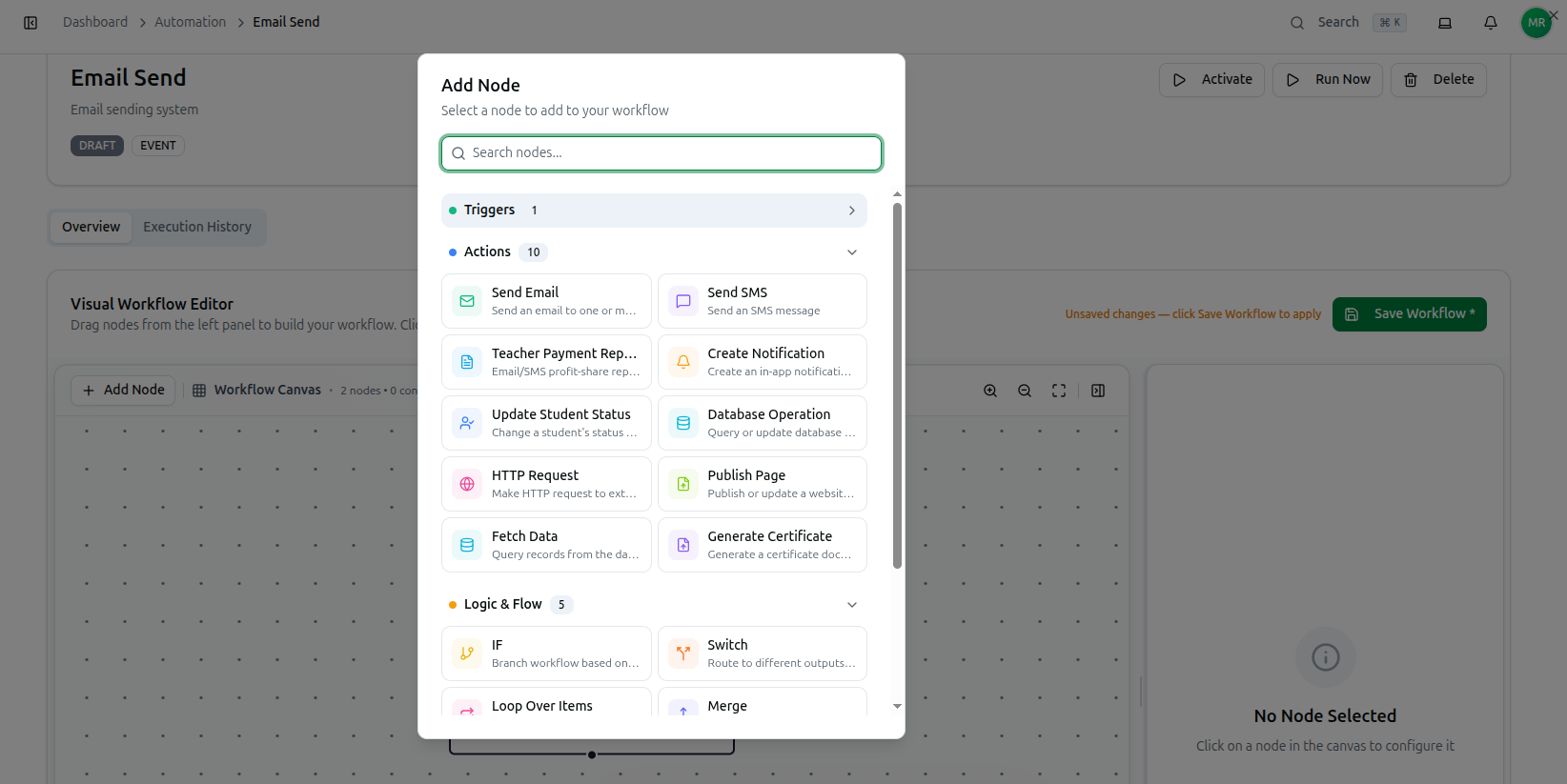
- On the Overview tab, the Visual Workflow Editor shows your workflow canvas. Click + Add Node to open the node picker.
- The Add Node dialog has a Search nodes... box and three groups — Triggers, Actions, and Logic & Flow. Under Actions, click Send Email.
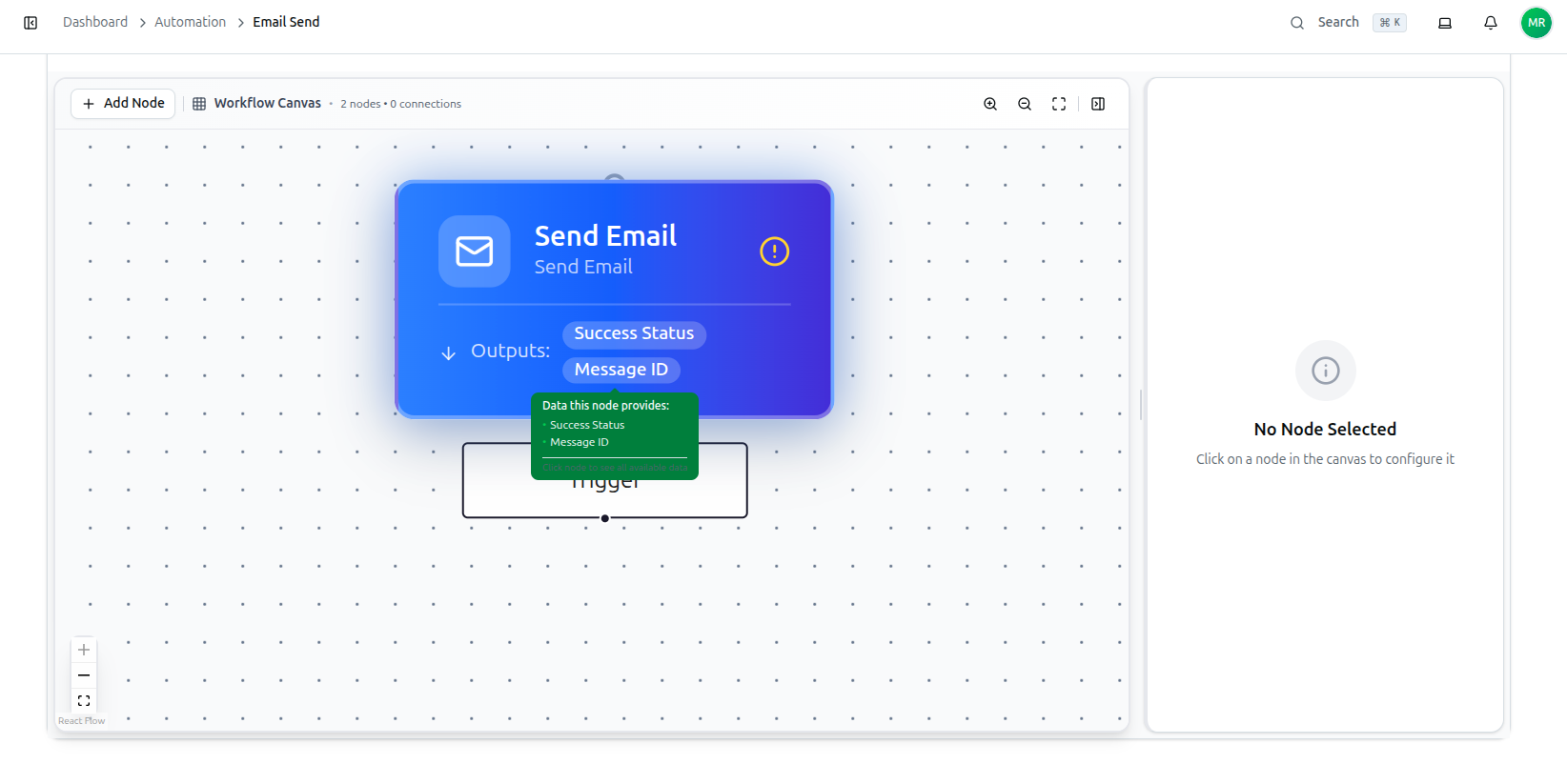
- The Send Email node appears on the canvas, connected below your trigger. Click it to open its settings in the right-hand panel and fill in To, Subject, Email Body, and optionally Content Type (Plain Text/HTML), CC, BCC, and Reply To.
- Once your nodes are connected and configured, click Save Workflow — a banner reading Unsaved changes — click Save Workflow to apply appears whenever there's something to save.
- Click Activate at the top of the page to switch the workflow from DRAFT to live. Emails now go out automatically whenever the trigger fires.