
Managing Member Roles & Permissions
Every person working inside your organization dashboard is assigned one of three roles: MEMBER, MODERATOR, or ADMIN. You control all of this from the Members tab inside the Organization page, which also shows each member's active access modules, their status, and their invitation state.
Step 1: Navigate to the Organization Members Tab
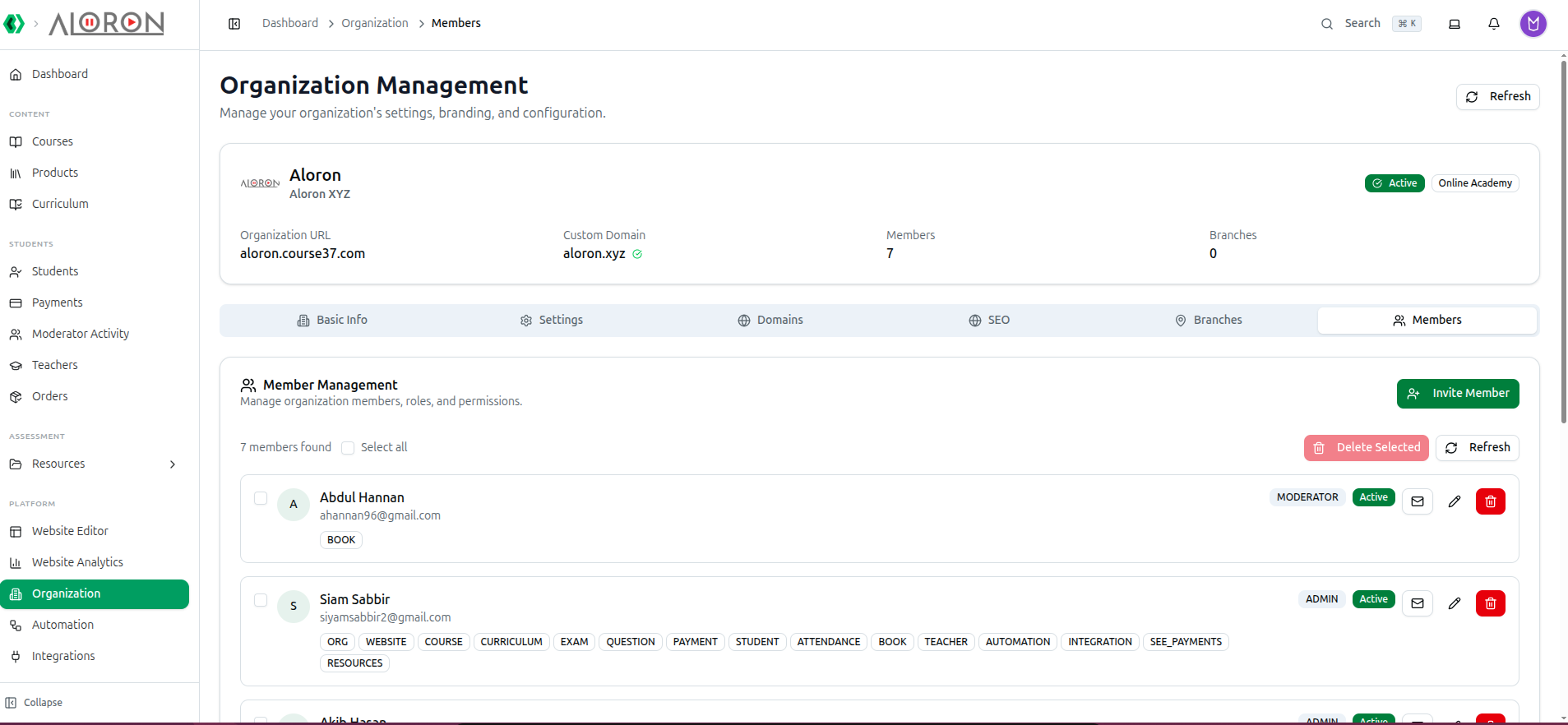
- Navigate to Dashboard > Organization.
- The Organization Management page displays six tabs in a horizontal tab bar: Basic Info, Settings, Domains, SEO, Branches, and Members.
- Click the Members tab (rightmost, with a Users icon).
- The Members section header shows a count of total members found (for example, "3 members found") and a Refresh button.
Step 2: View the Existing Member List
- Each member is displayed as a card row in the list. Each row shows:
- An avatar circle with the member's first initial
- The member's full name and email address
- A row of Access Module badges in capitals (for example: ORG, WEBSITE, COURSE, PAYMENT, STUDENT) — or "No access modules assigned" if none are set
- A role badge: MEMBER, MODERATOR, or ADMIN
- An active/inactive status badge: Active or Inactive
- An envelope icon button to resend the invitation email
- An Edit button (pencil icon) to open the Edit Member Access dialog
- A red Trash icon button to remove the member (visible only to organization owners)
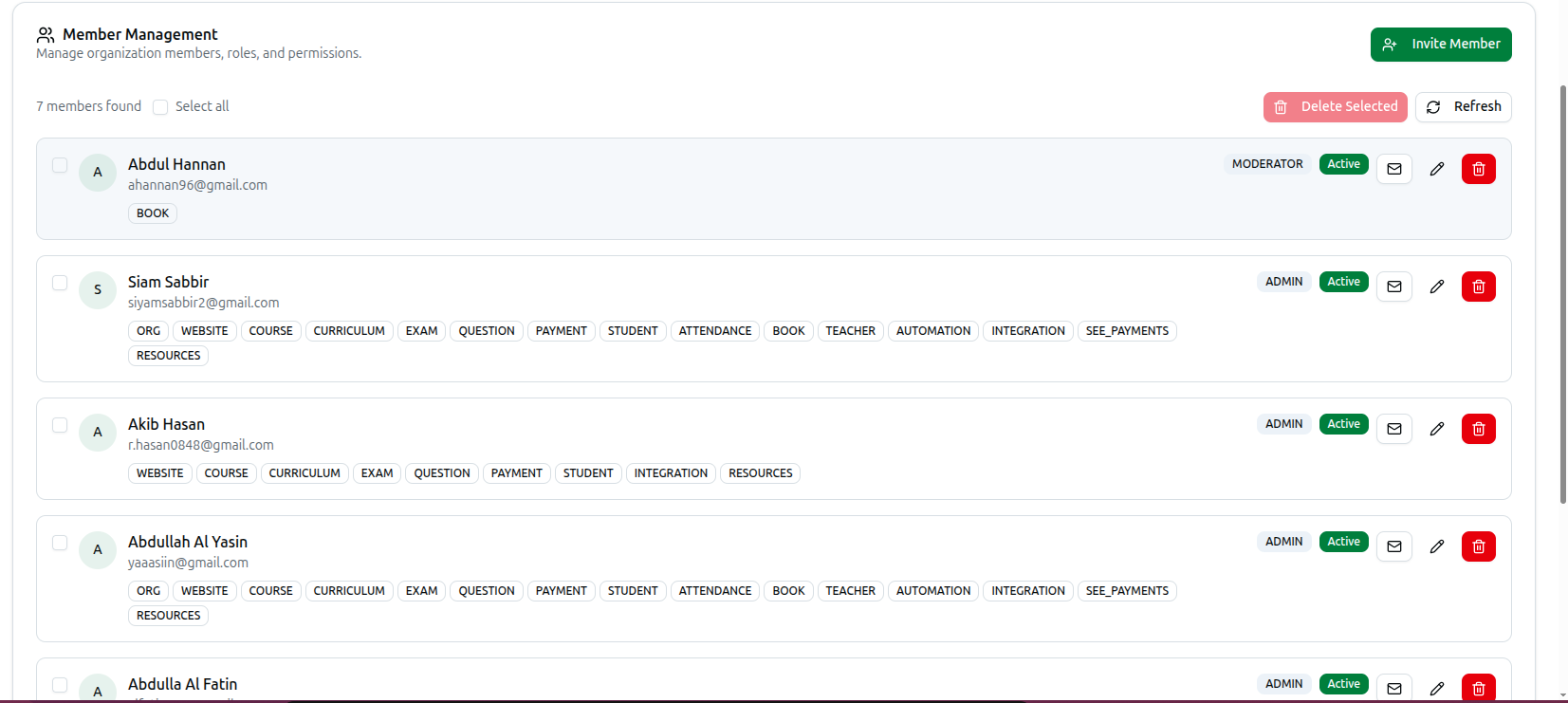
- To remove several members at once, tick their checkboxes — or tick Select all in the header to select every member on the page — then click the red Delete Selected button that appears. See Removing several members at once under Step 6.
Step 3: Invite a New Member
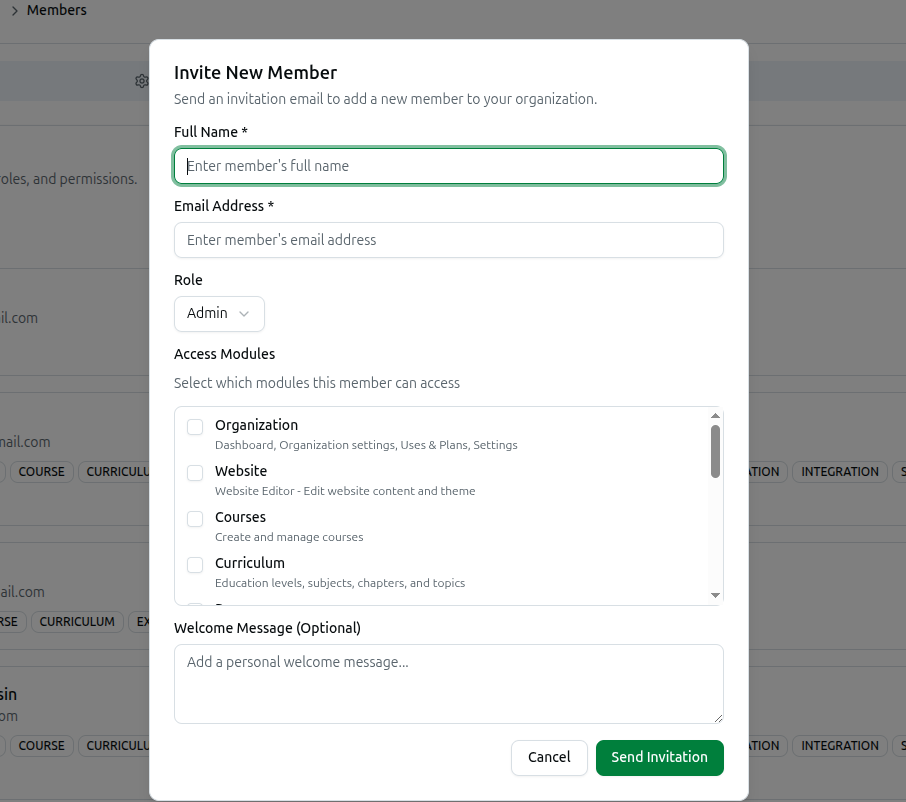
- Click the Invite Member button in the top-right corner of the Members card header.
- The Invite New Member dialog opens.
- Enter the invitee's Full Name * and Email Address * — both are required.
- Select their Role: Member, Moderator, or Admin.
- Under Access Modules, tick which modules the member should have access to. Each one is a checkbox with its own one-line description — for example Payments — View and manage payments or Students — Manage student accounts and enrollments.
- Optionally write a Welcome Message — it's included in the invitation email.
- Click Send Invitation. The invitee receives an email with a link to accept and join the organization, and a Member invitation sent successfully toast confirms it.
- The member list automatically refreshes and the new member appears with an Inactive status badge until they accept the invitation.
Step 4: Edit a Member's Role or Access Modules
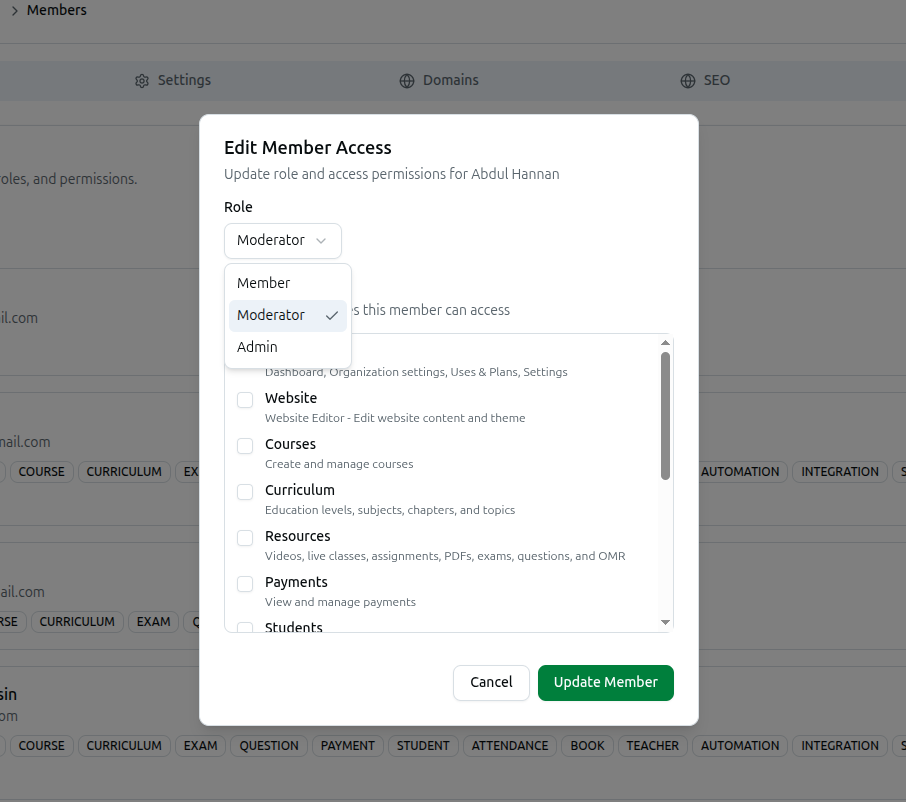
- Click the Edit (pencil) button on any member's row.
- The Edit Member Access dialog opens, titled Update role and access permissions for [Name], with that member's current role and access modules pre-filled.
- Change the Role dropdown selection: Member, Moderator, or Admin.
- Tick or untick modules in the Access Modules list to add or remove specific access.
- Click Update Member. A Member updated successfully! toast confirms it and the list refreshes immediately.
Step 5: Resend an Invitation
- Click the envelope icon on any member's row — hover it and it labels itself Resend Invitation. It's most useful while a member's status still shows Inactive (meaning they haven't accepted yet), but it isn't restricted to that state.
- A confirmation prompt appears: "Are you sure you want to resend the invitation to [Name]?"
- Click OK to confirm. The invitation email is resent immediately and an Invitation resent successfully toast appears.

Step 6: Remove a Member
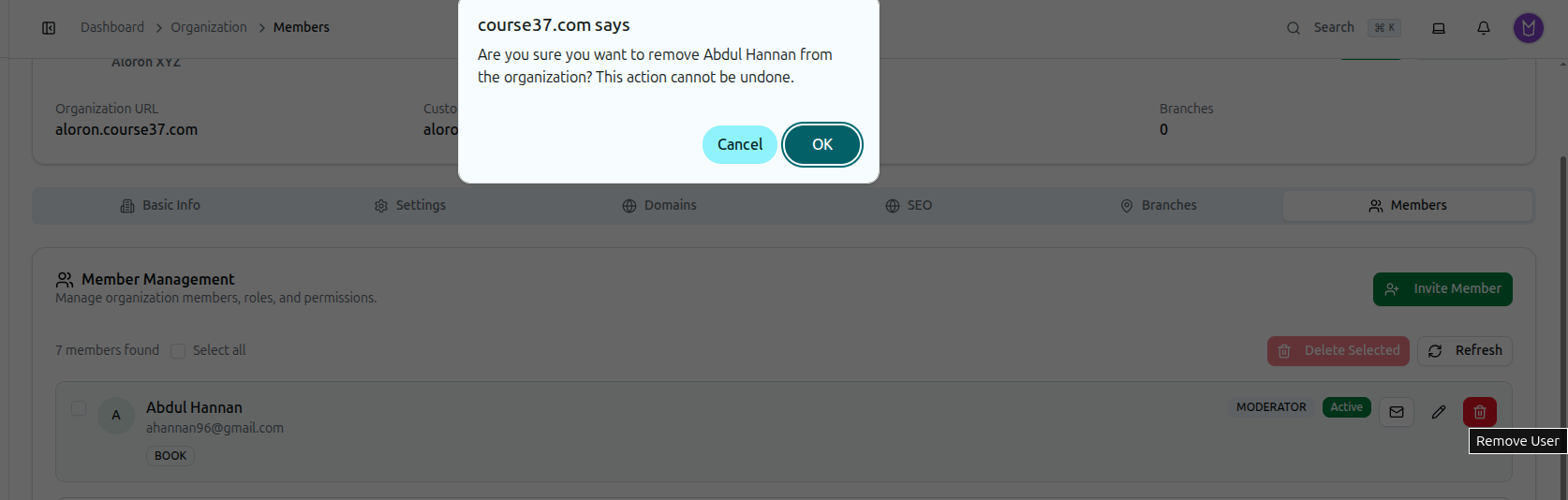
- Click the red Trash icon button on a member's row — hover it and it labels itself Remove User. It's only visible to organization owners.
- A confirmation prompt appears: "Are you sure you want to remove [Name] from the organization? This action cannot be undone."
- Click OK to confirm. The member's access is revoked immediately, their row disappears from the list, and a Member removed successfully toast appears.
Removing several members at once
Tick the checkbox on each member you want to remove, or tick Select all in the header to select everyone on the page, then click the red Delete Selected button that appears next to it. Confirm the prompt — "Are you sure you want to remove N members? This action cannot be undone." — and they're removed together. If the organization owner was among those ticked, they're skipped automatically and the success toast says so: Removed N members. Organization owner was skipped.